Prerequisites
Before you start, confirm that:- You are configuring Claude (Anthropic). This setup is only for the Unblocked connector in Claude.
- Your organization uses Okta as its SSO provider for both Claude and Unblocked. Other identity providers are not supported for this setup.
- Okta SSO for Unblocked is configured.
- User and group provisioning (SCIM) is enabled, and the members who need access are provisioned in Unblocked.
- You have organization-admin access in Claude and the Super Admin role in Okta.

Configure managed authorization
1
Open your organization settings in Claude
Sign in to your organization’s Claude account through Okta SSO. Open your account menu and select Organization settings.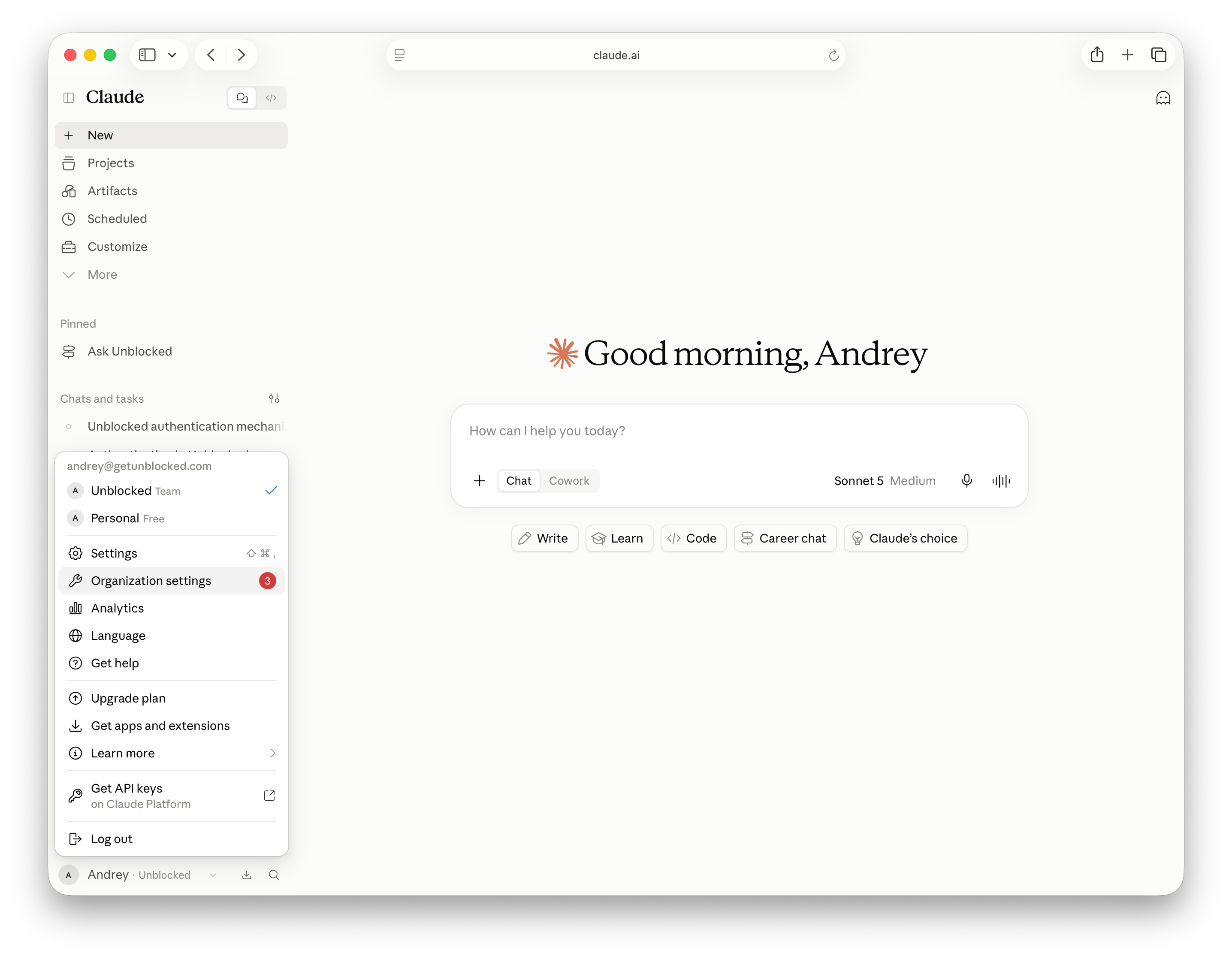
2
Find the Unblocked connector
Select Connectors under Libraries & Access. If Unblocked is already listed, open it. Otherwise, select Add, then All available to open the connector directory.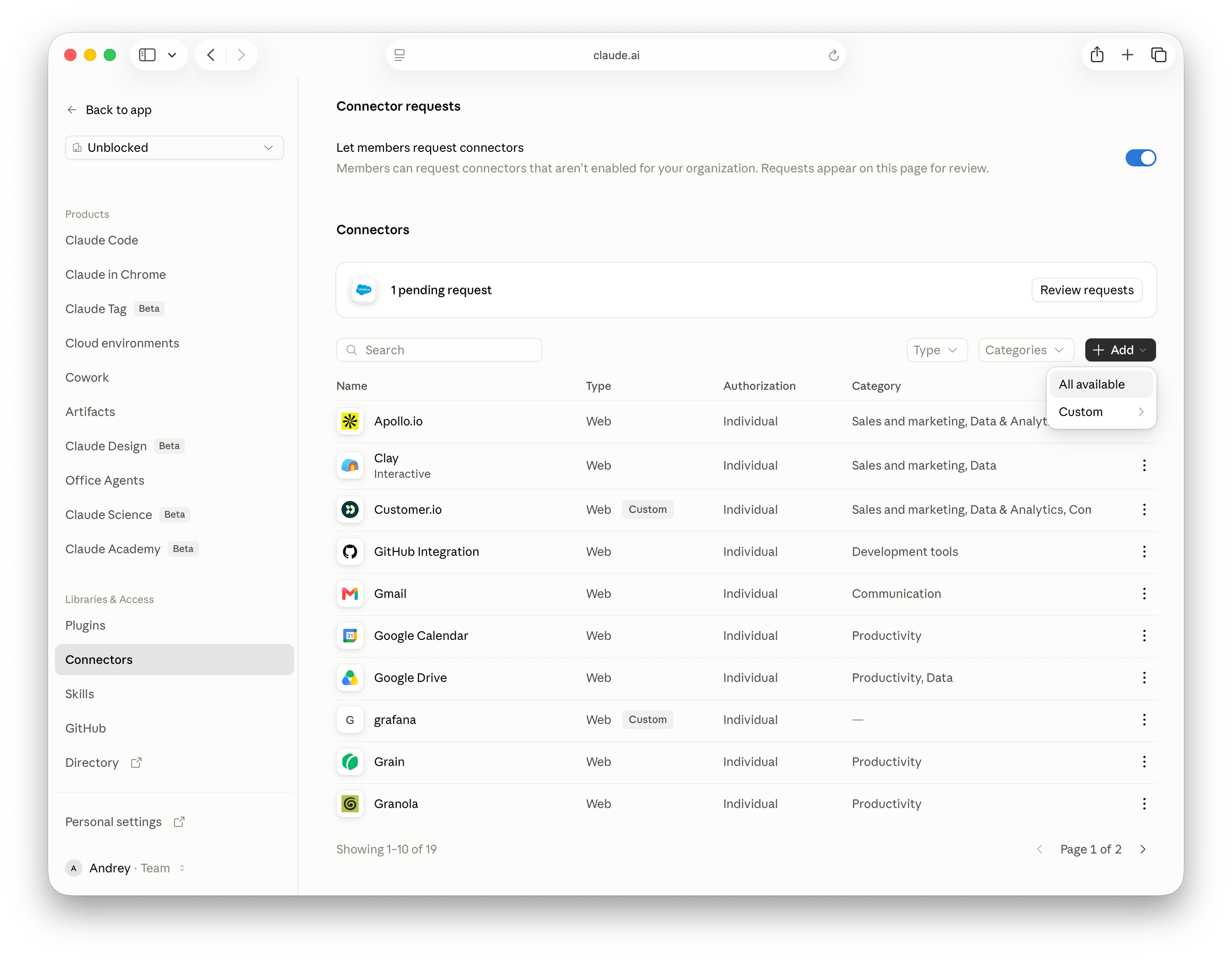
3
Start managed authorization setup
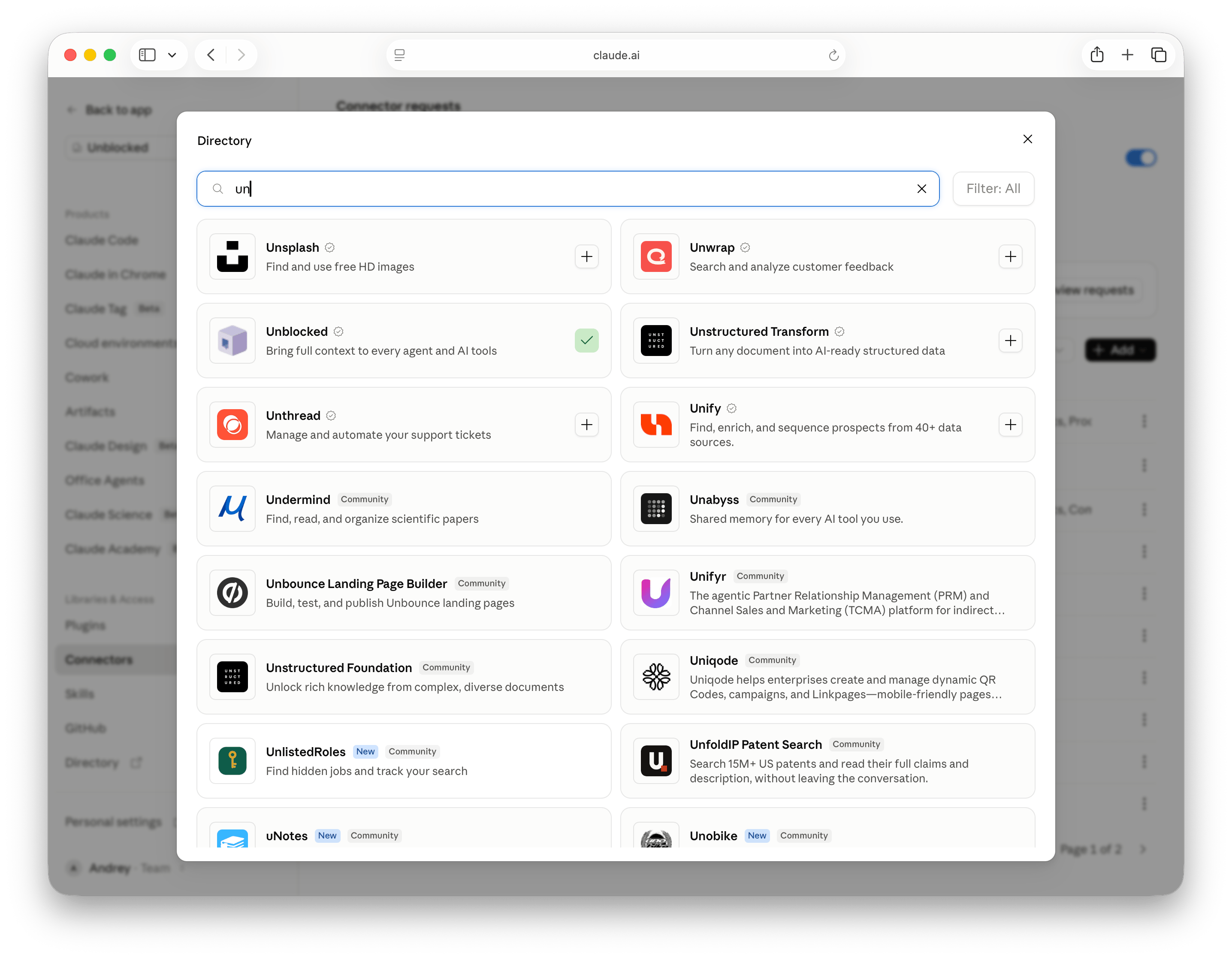
Open the Configuration tab. Under Managed authorization, select Set up.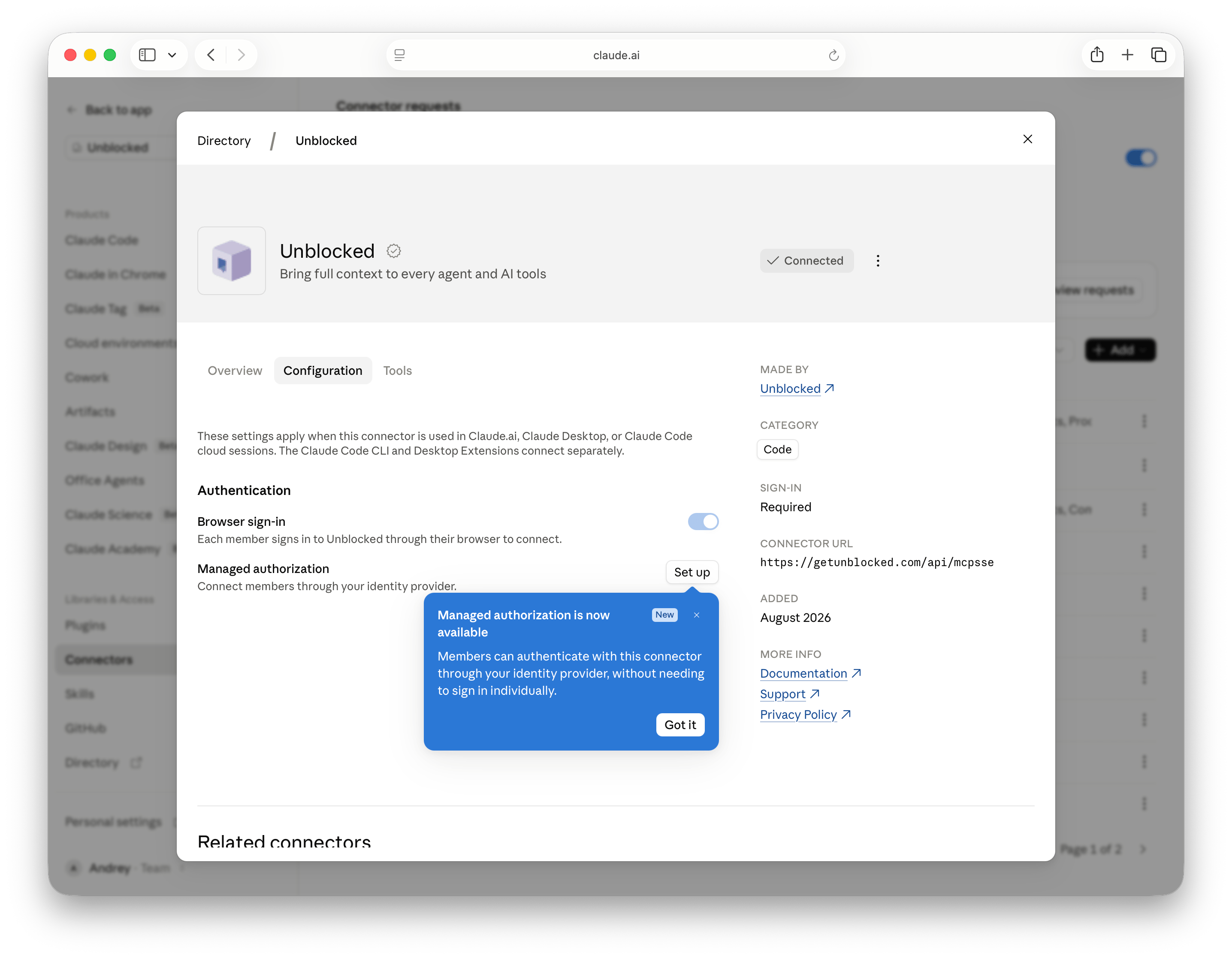
4
Follow Anthropic's Okta setup guide
In the Connect step, confirm that Okta is the connected identity provider, then select Open WorkOS setup.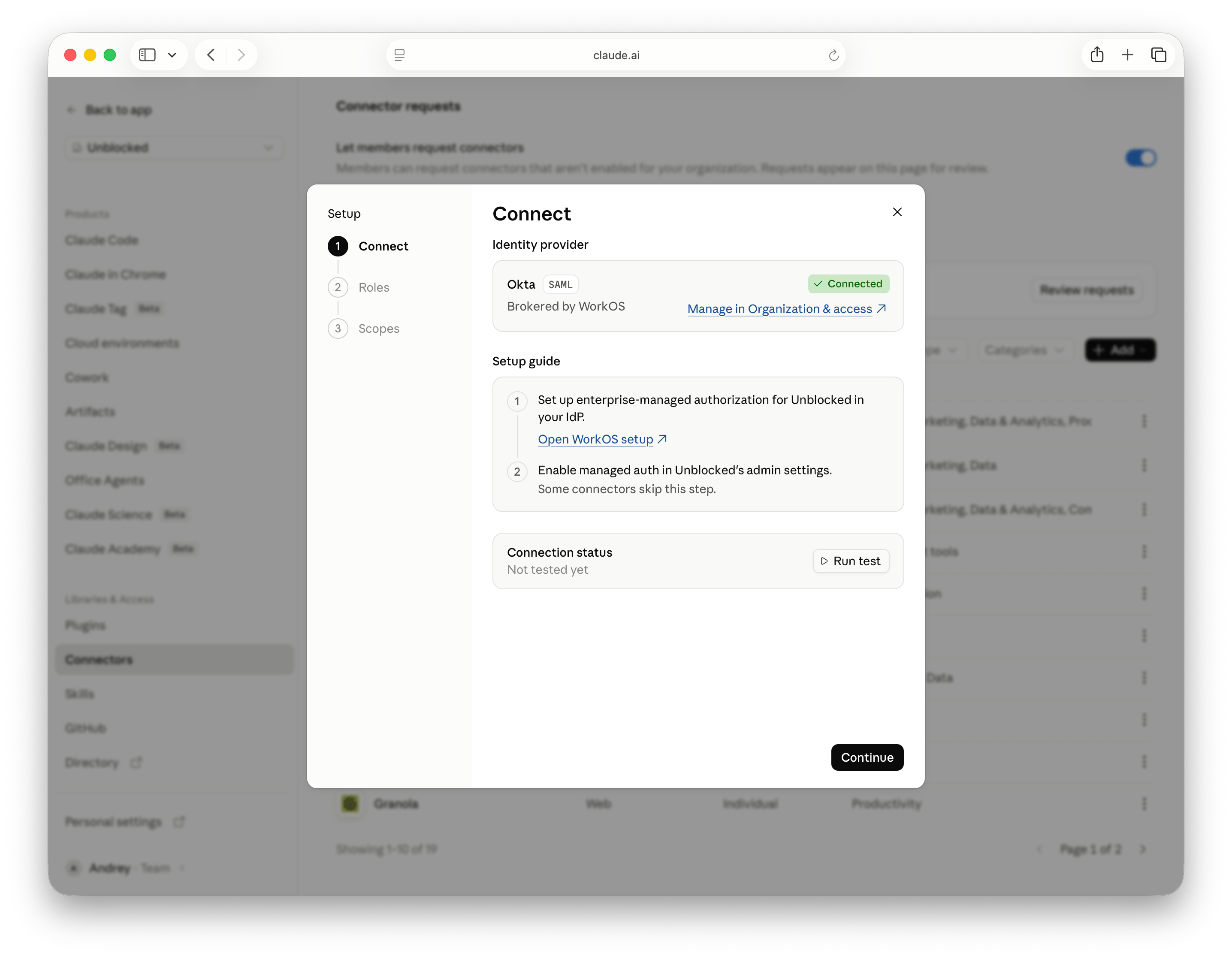
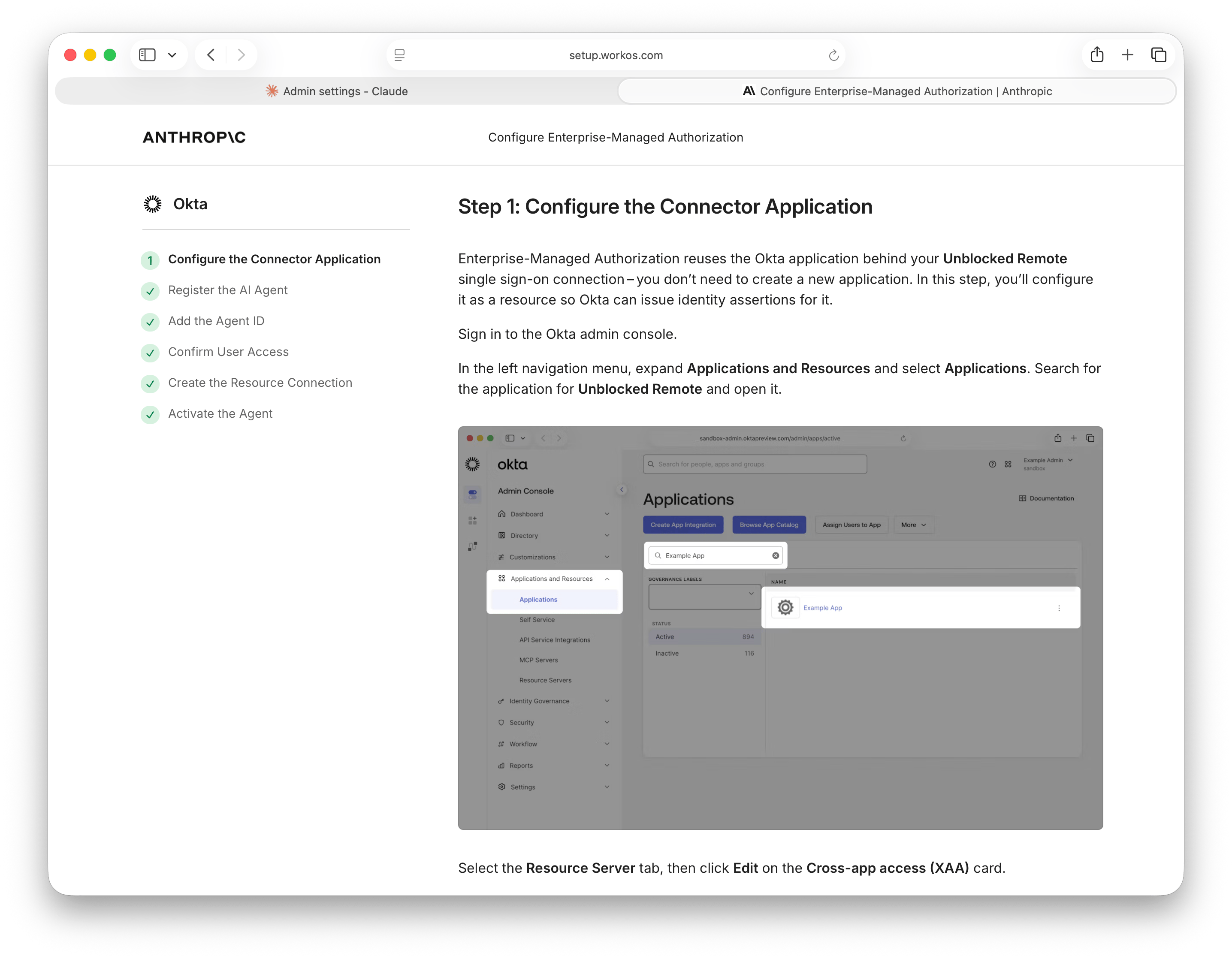
Claude may also display a step to enable managed authorization in Unblocked’s admin settings. No separate Unblocked managed authorization toggle is required. Complete the SSO and provisioning prerequisites above, then continue with the setup guide.
5
Test the connection
After completing the Anthropic guide, return to Claude and select Run test. Confirm that all checks pass, then select Continue.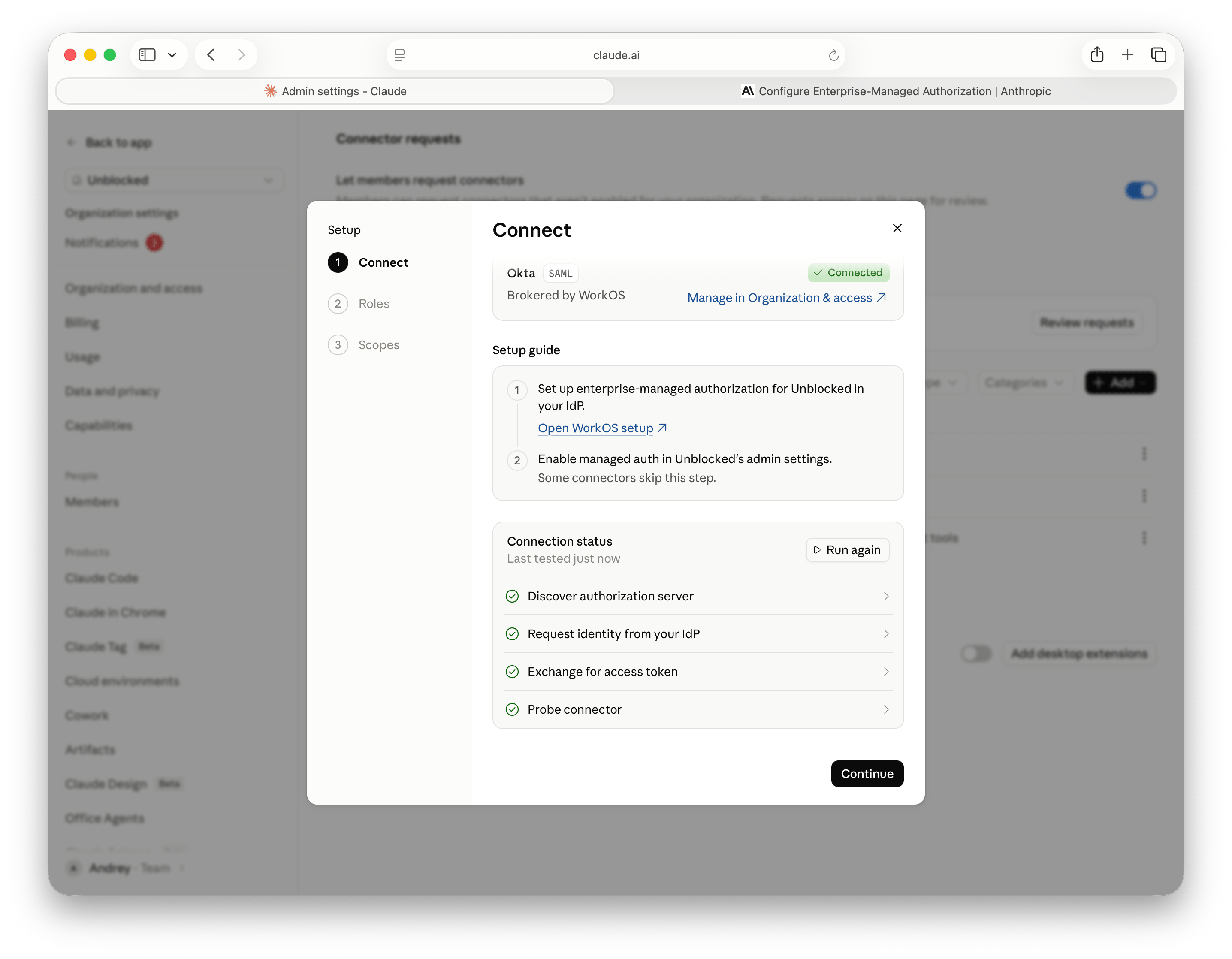
6
Choose who gets managed authorization
Select the Claude roles whose members should connect through Okta automatically. Members outside the selected roles keep browser sign-in. Select Continue.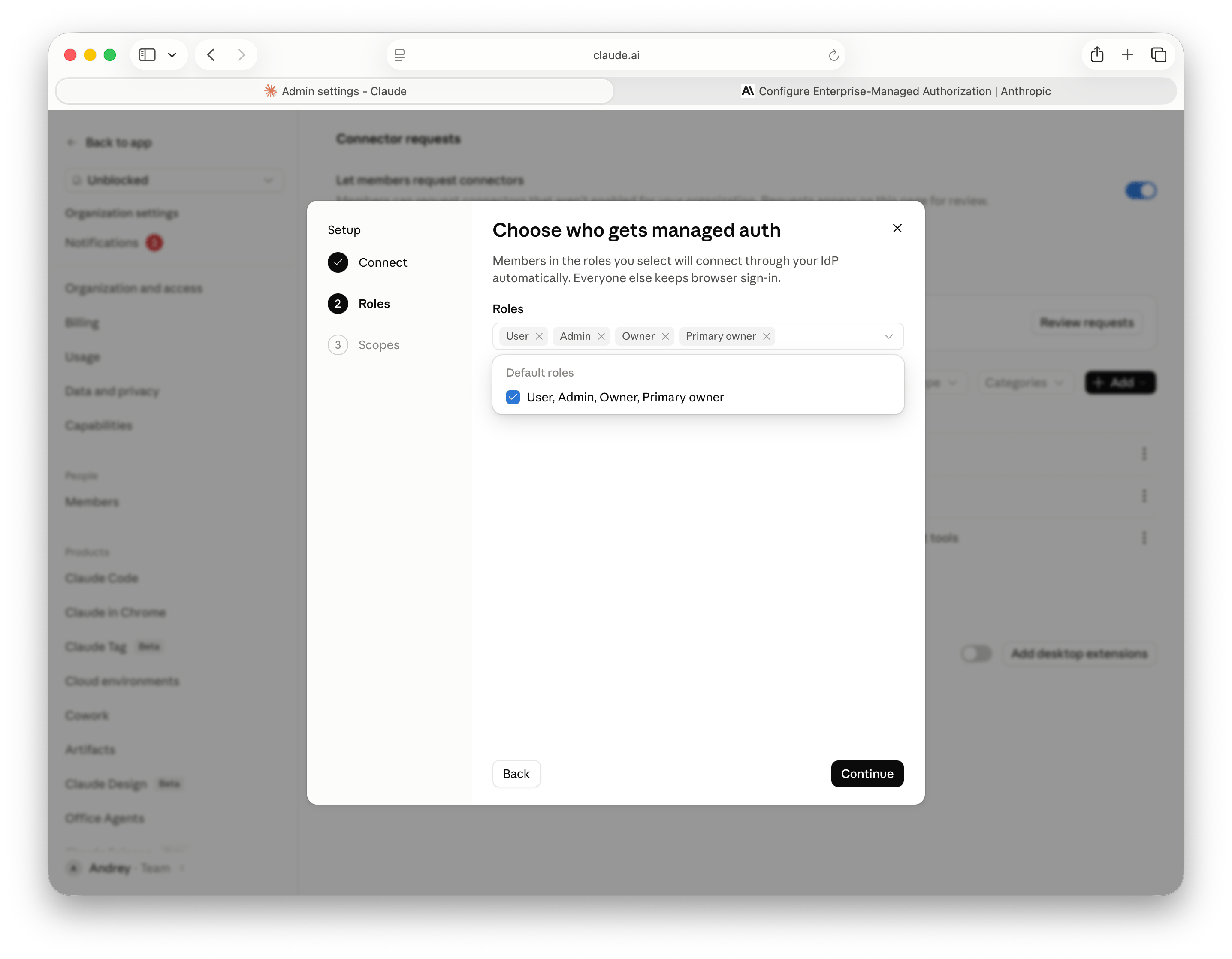
7
Choose the MCP scope
Keep the mcp scope selected, then select Save & turn on.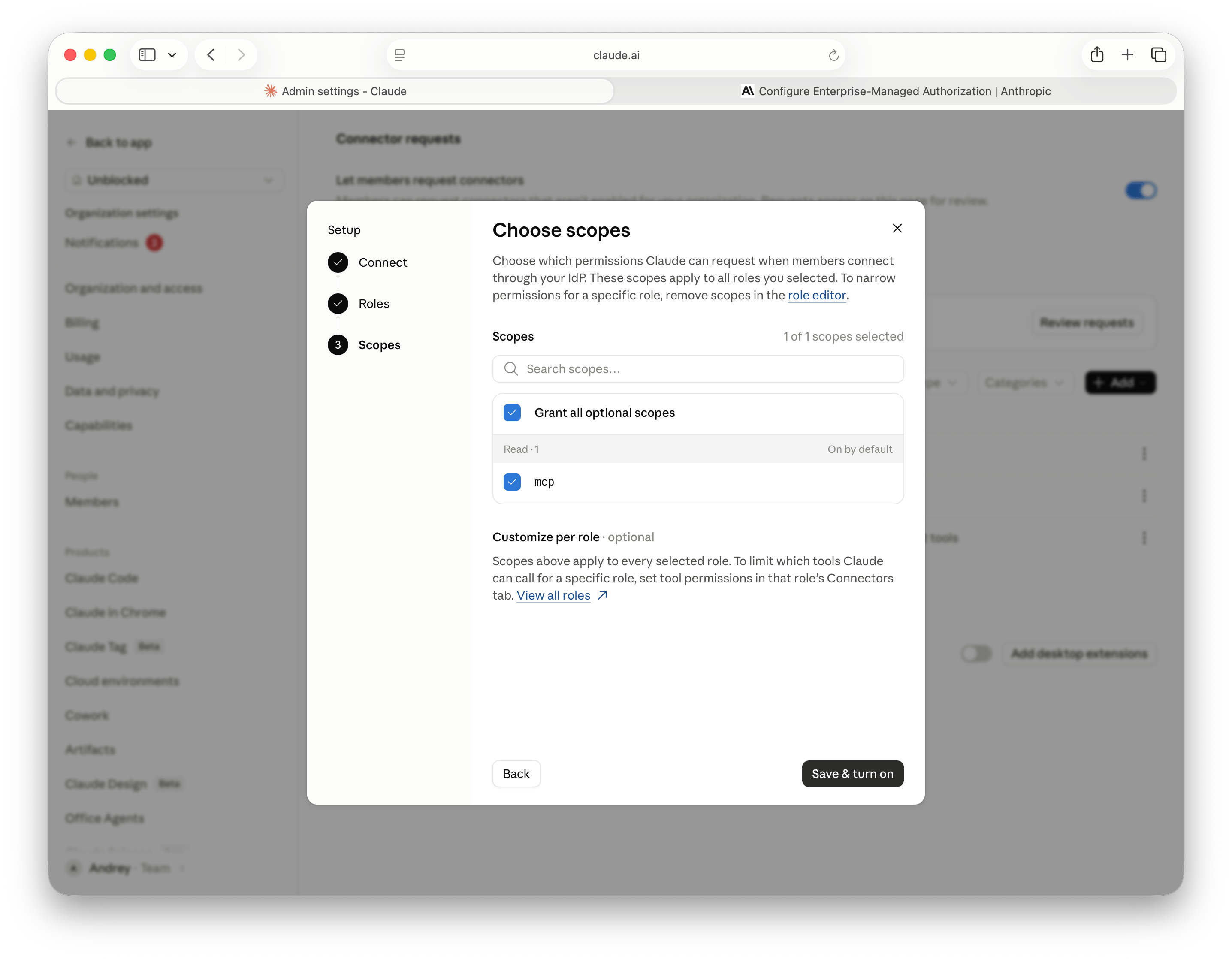
8
Confirm managed authorization is enabled
On the connector’s Configuration tab, confirm that Managed authorization is on and that Applied roles and Scopes match your selections.