Unblocked doesn’t currently reference Datadog traces or spans.
Data sync
Unblocked syncs incidents from Datadog every 15 minutes, and an initial sync starts as soon as you connect. Logs, metrics, monitors, and events are queried directly from Datadog at the time you ask a question, so those answers always reflect live data.Connect Datadog
1
Connect Datadog
In the Unblocked sidebar, click Settings, then Data Sources, then Connect another data source. Scroll to the Incident Management section and select Datadog.
2
Create an API Key
In Datadog, go to Organization Settings › API Keys and create a new API key.
3
Create an Application Key
In Datadog, go to Organization Settings › Application Keys and create a new application key with the following scopes:
events_readincident_readlogs_read_datatimeseries_querymonitors_readhosts_readapm_service_catalog_readorservice_catalog_readuser_access_read
4
Enter your keys and region
Paste the API key and application key into Unblocked, then select your Datadog region. If you’re not sure which region to choose, US1 is the default.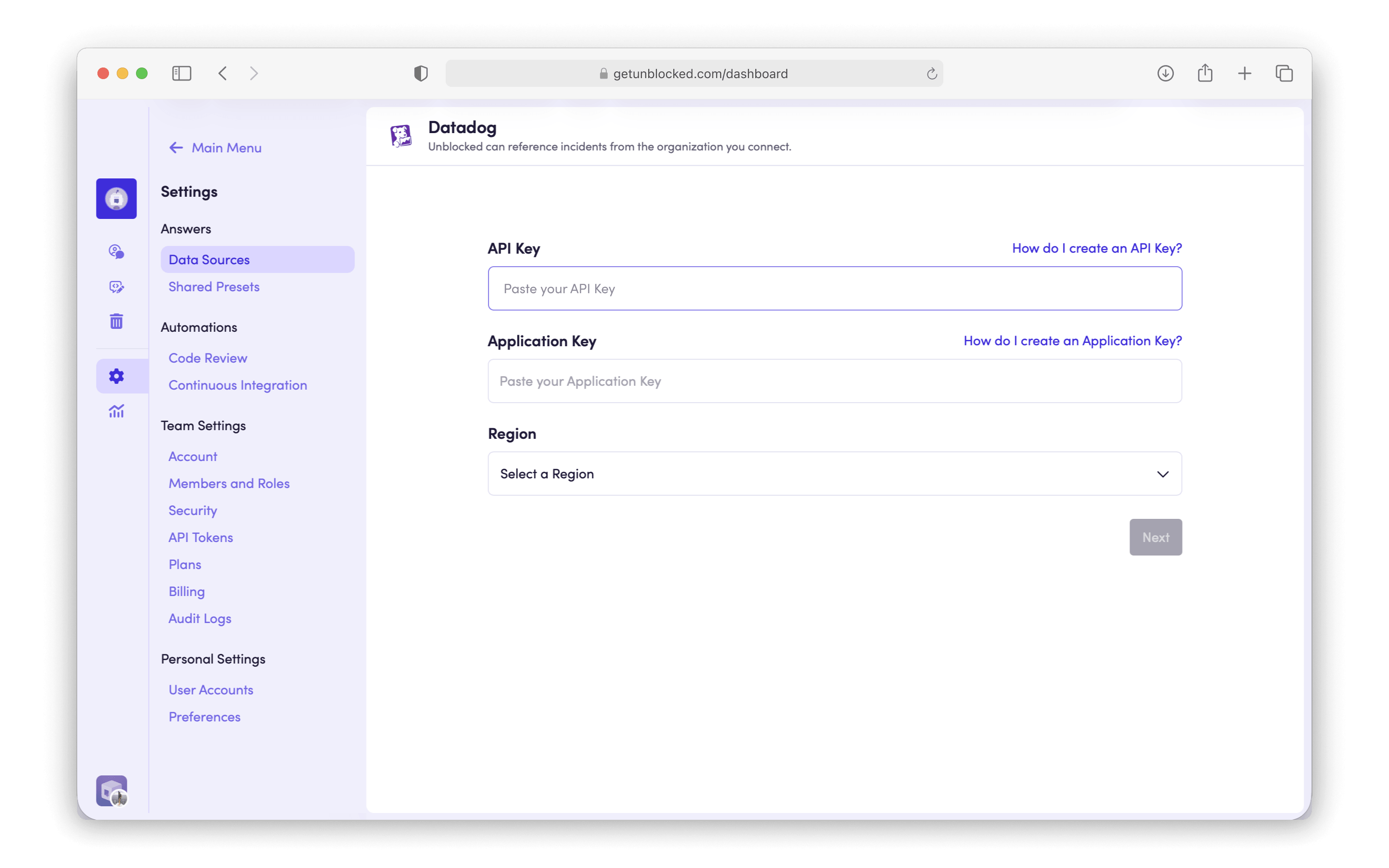
Click Next.
5
Done
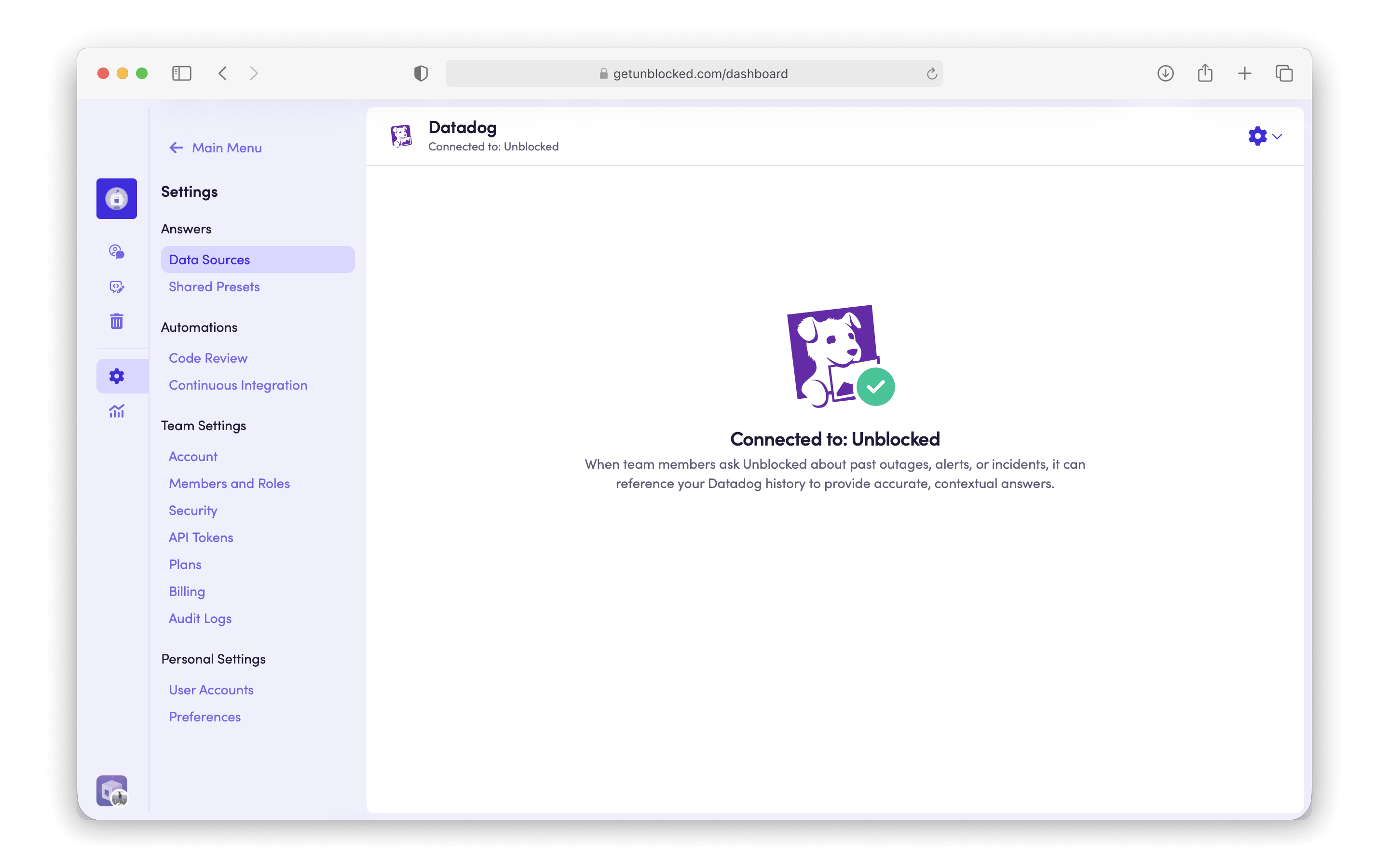
Unblocked will begin referencing your Datadog incidents, logs, metrics, and monitors in its answers.