

Data sync
Unblocked checks Zendesk for new and updated tickets about every 15 minutes using Zendesk’s incremental export API. The first sync ingests your full ticket history.Connect Zendesk
1
Connect Zendesk
In the Unblocked sidebar, click Settings, then Data Sources, then Connect another data source. Scroll to the Project Management section and select Zendesk.
2
Enter your Zendesk URL
You’ll be asked to enter your Zendesk URL. Enter the full URL, including 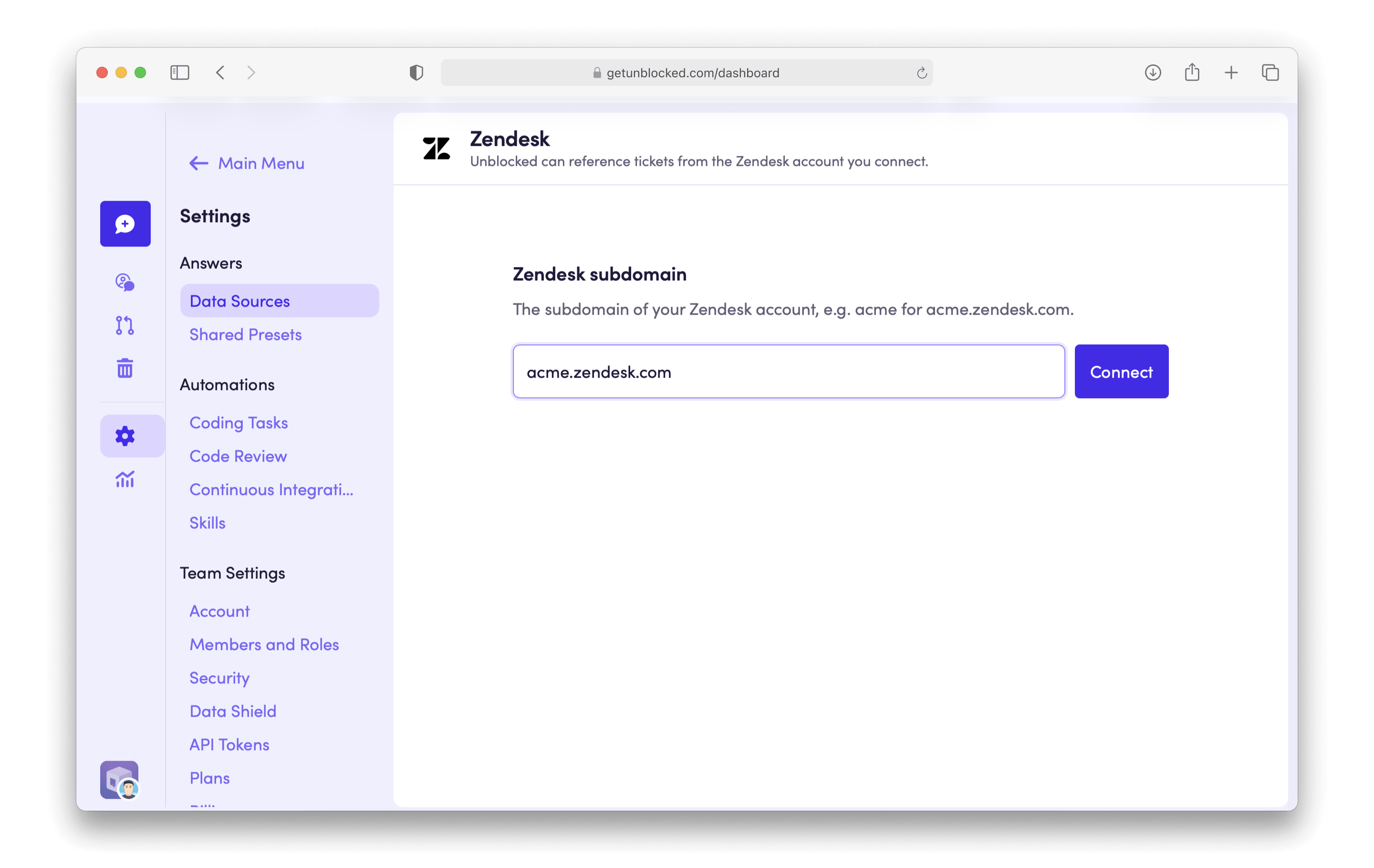
.zendesk.com — for example, acme.zendesk.com. Click Connect.3
Authorize Unblocked in Zendesk
You’ll be redirected to Zendesk to sign in and authorize Unblocked to access your account. Click Allow or Authorize to grant Unblocked access.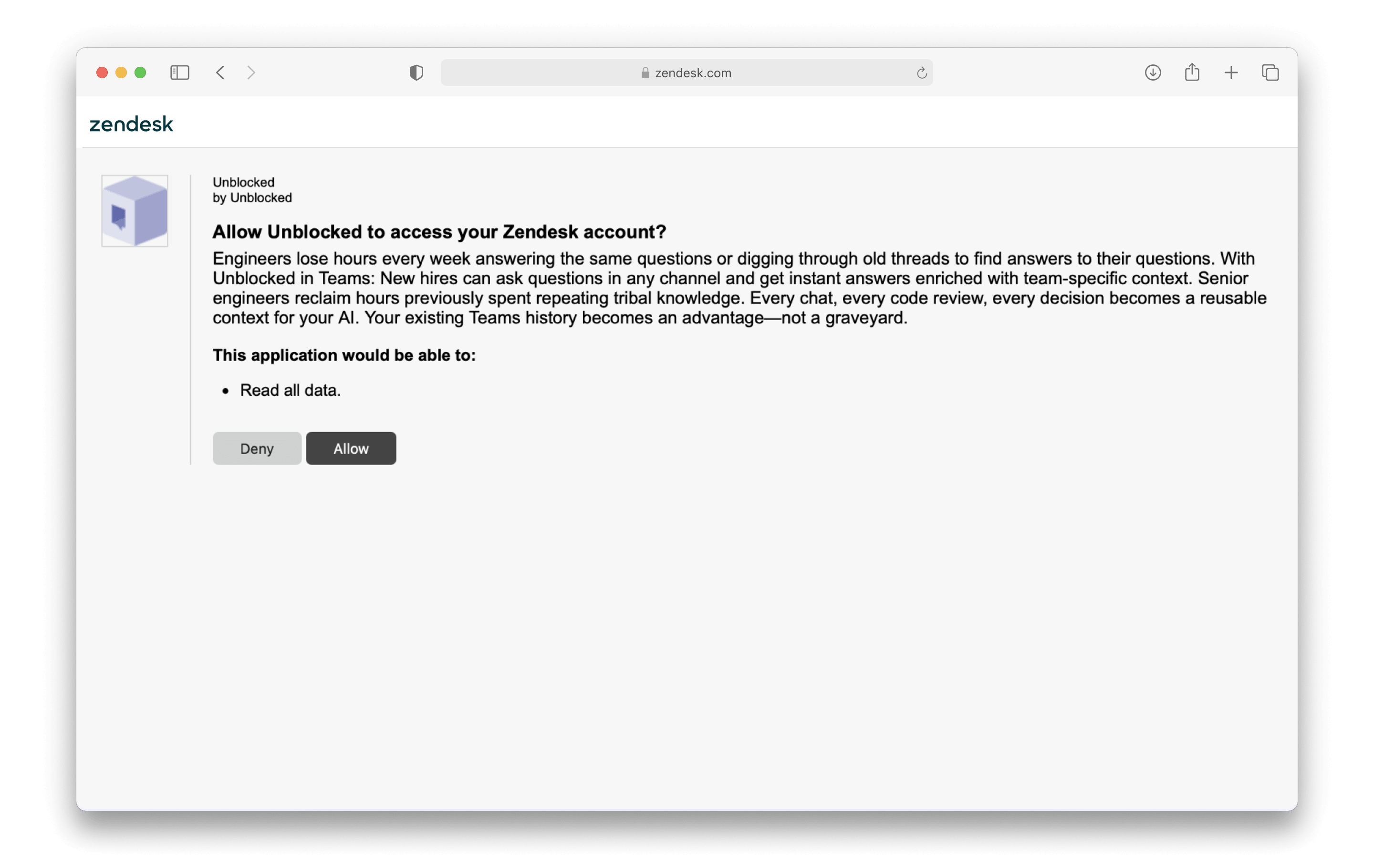
4
Select your Zendesk brands
After authorizing, you’ll be redirected back to Unblocked where you can select which Zendesk brands Unblocked should index. Listed are the Zendesk brands Unblocked has access to, and Unblocked will use the selected brands to answer questions. You can search for brands using the search box. Select the brands you want Unblocked to access.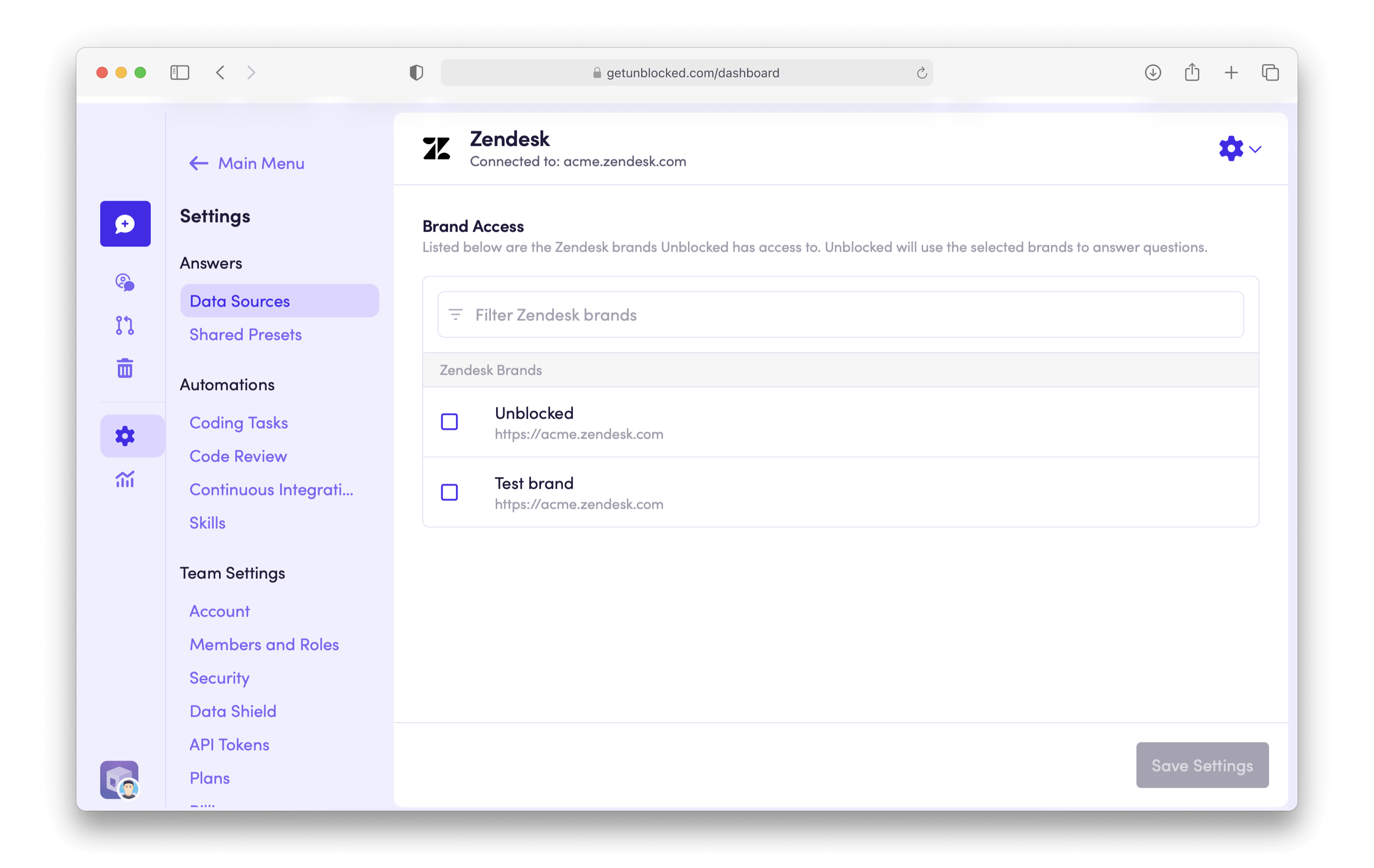
5
Save
Click Save Settings. Unblocked will begin referencing tickets from your selected Zendesk brands in its answers.