

Setting up Unblocked
You need to be a Workspace Admin to connect Unblocked to your team’s messaging platform.
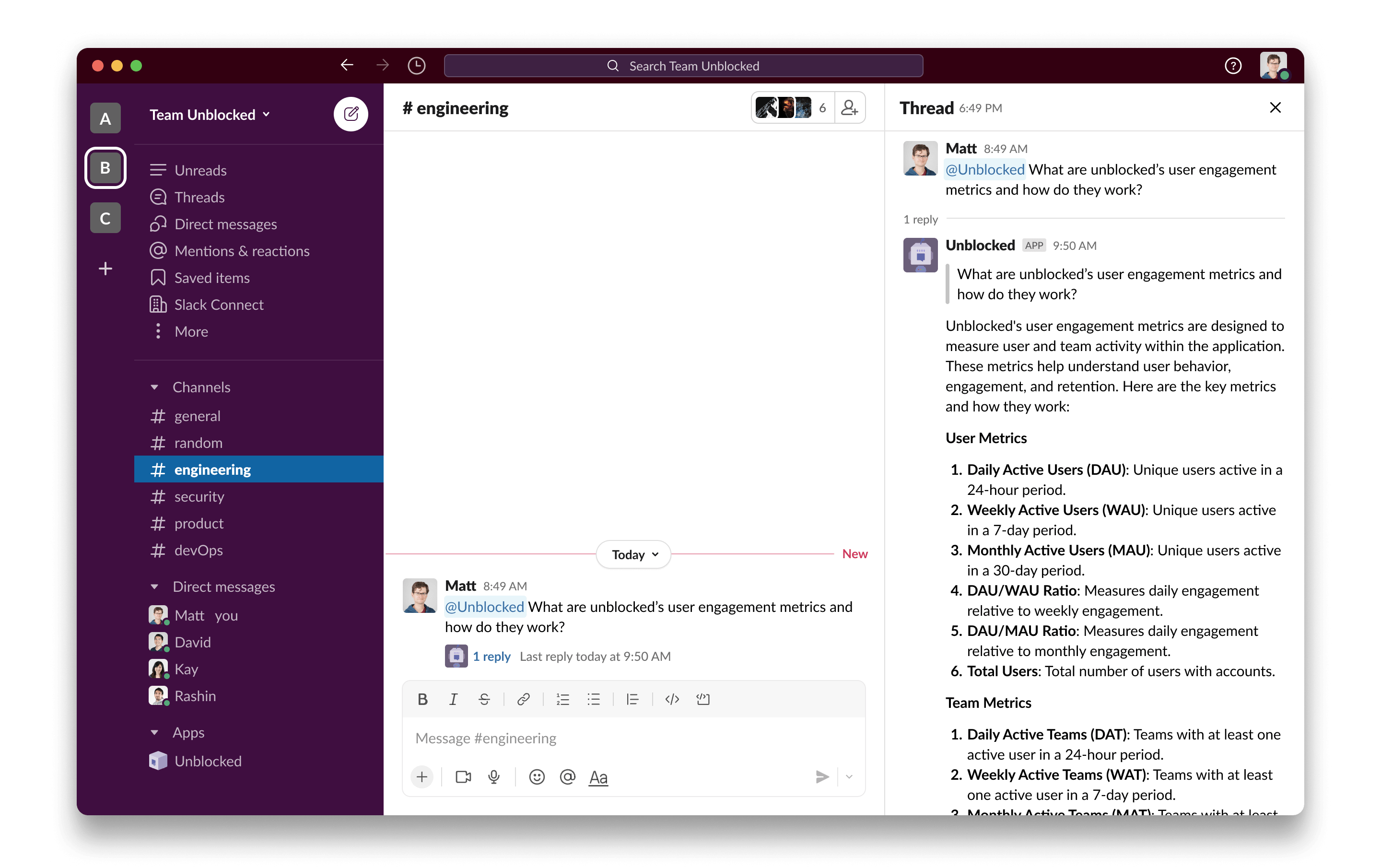
@Unblocked) whenever you need to ask a question about your code.
You can update channel settings, such as adding or removing channels, at any point. First, navigate to the Data Sources page on the Unblocked web dashboard. Find the tile for the connected messaging platform, and click to view and change the configured channels and preferences.
You can add Unblocked to both public and private channels. When a
question is asked, Unblocked will respect the access permissions for private
channels, and not include that context in answers provided outside the private
channel.
Connecting user accounts
After Unblocked has been connected to your messaging platform workspace, each team member will also need to associate their individual user account with their Unblocked account. Unblocked personalizes answers based on identity, so connecting your user account will improve the quality of answers you receive from Unblocked. It will also enable the discussions you have with Unblocked to appear under My Questions. To connect your user account, click on Settings in the sidebar of the Unblocked web app. Under Personal Settings, click on User Accounts. In the Unlinked Accounts section, find the row for the connected messaging platform, and click Link my account. You will be redirected to the external platform site to connect your account. Click Allow to grant Unblocked the necessary permissions to associate and connect your identity. After redirecting back to the User Accounts page, you should now see your connected platform account under the Linked Accounts section.When you view discussions with Unblocked on the web dashboard, your GitHub
username will be displayed instead of the display name on your platform (e.g. Slack username).