

Data sync
Unblocked receives change notifications from Microsoft as documents and pages change, and runs an incremental sync periodically to catch anything missed. Updates typically appear in answers within minutes.Connect your Microsoft SharePoint site
A Microsoft SharePoint admin is required to connect your site to Unblocked.
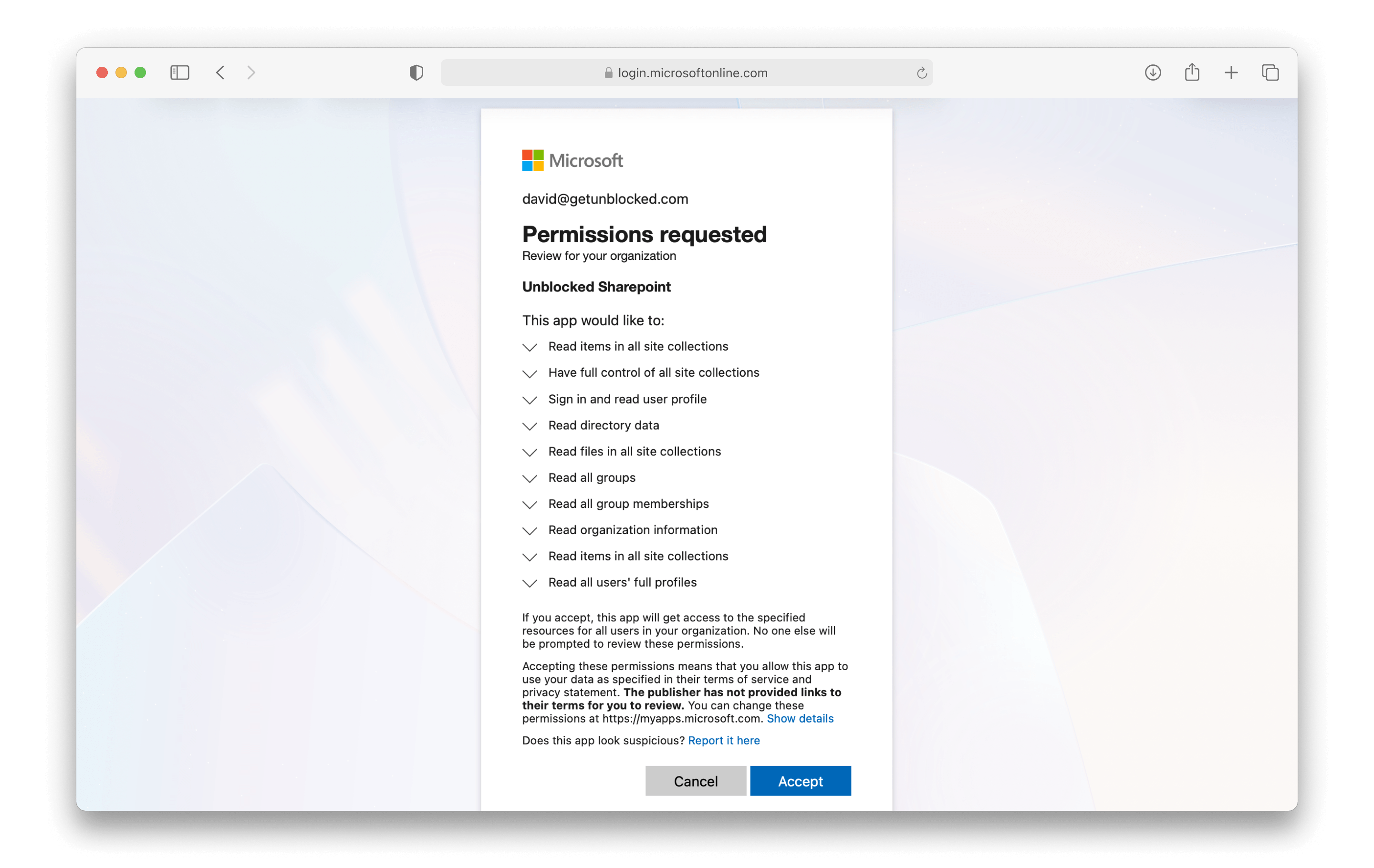
Selecting your sites
You have the option to grant access to specific sites for Unblocked to index and search. You will be best served by adding all sites, but you can restrict the scope depending on your team’s needs. Using Data Shield, you can also set access permissions that determine which content in your SharePoint sites will be used in Unblocked’s answers.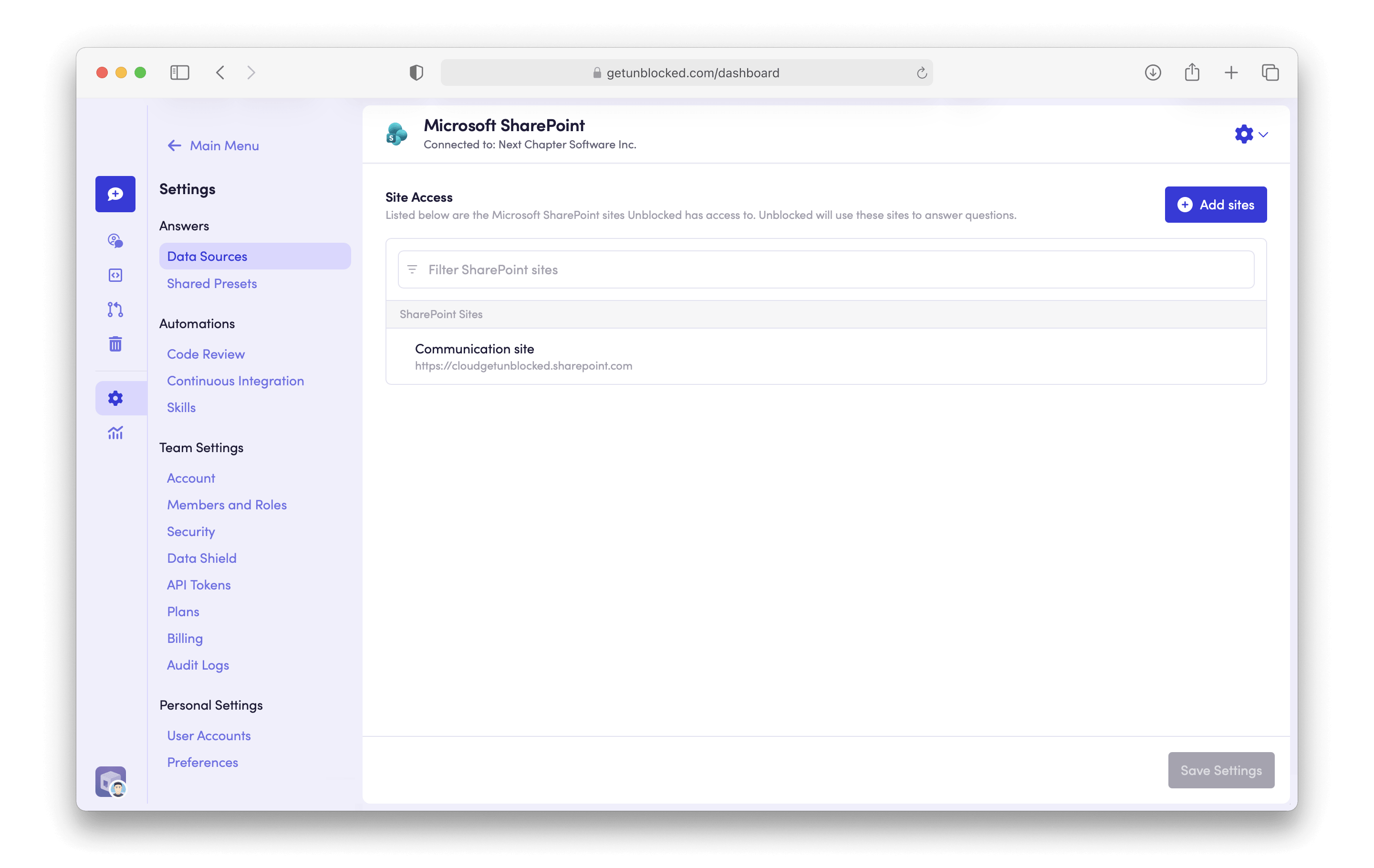
What gets indexed
By default, Unblocked only indexes documents that were created or modified within the last five years. Contact us if you want a narrower window, down to one year.
- PDF (
.pdf) - Word (
.docx) - PowerPoint (
.pptx) - Excel (
.xlsx) - Plain text (
.txt) - Markdown (
.md) - CSV (
.csv) - Log files (
.log) - HTML (
.htm,.html) - Images (
.png,.jpg,.jpeg)
.doc, .ppt, .xls) and other formats are not supported.
Troubleshooting
Non-admin users cannot connect SharePoint
If you’re not a Microsoft SharePoint admin, you’ll see an error screen when trying to connect your SharePoint site to Unblocked.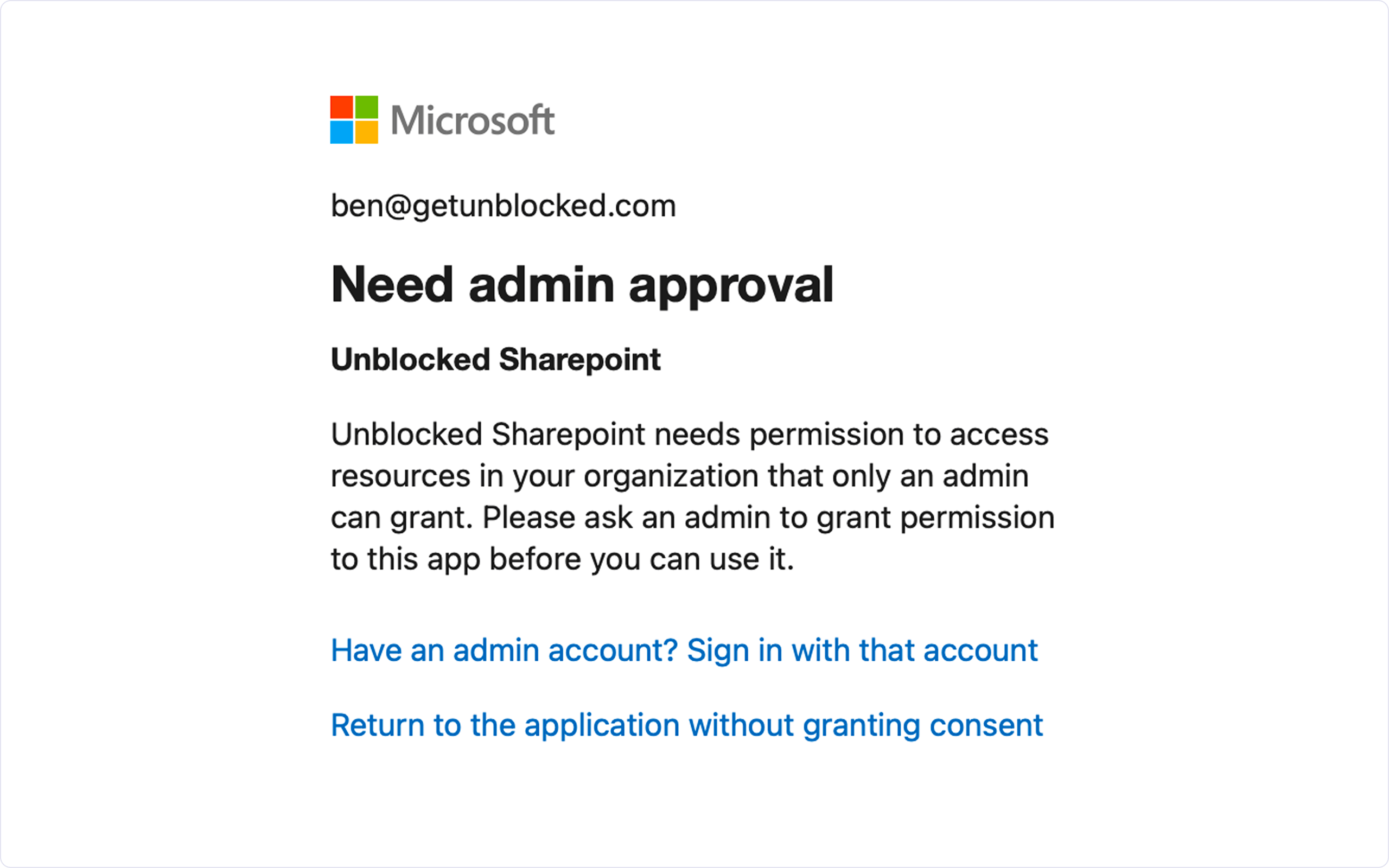
- Connect the SharePoint site to Unblocked themselves, or
- Grant you admin permissions so you can complete the connection