

Prerequisites
- A Databricks workspace administrator who can create a service principal and generate an OAuth secret.
- Permission to manage the SQL warehouse and grant privileges on the catalogs and schemas you want Unblocked to access.
- A SQL warehouse in the workspace you want to connect.
unblocked; use your own workspace, catalog, and schema names.
Set up OAuth in Databricks
Before connecting in Unblocked, create a dedicated service principal, grant it access to a SQL warehouse and read access to the data you want indexed, and generate an OAuth secret restricted to SQL. This gives you the Client ID and OAuth secret that Unblocked needs.1
Open service principal settings
In your Databricks workspace, click your profile icon and select Settings.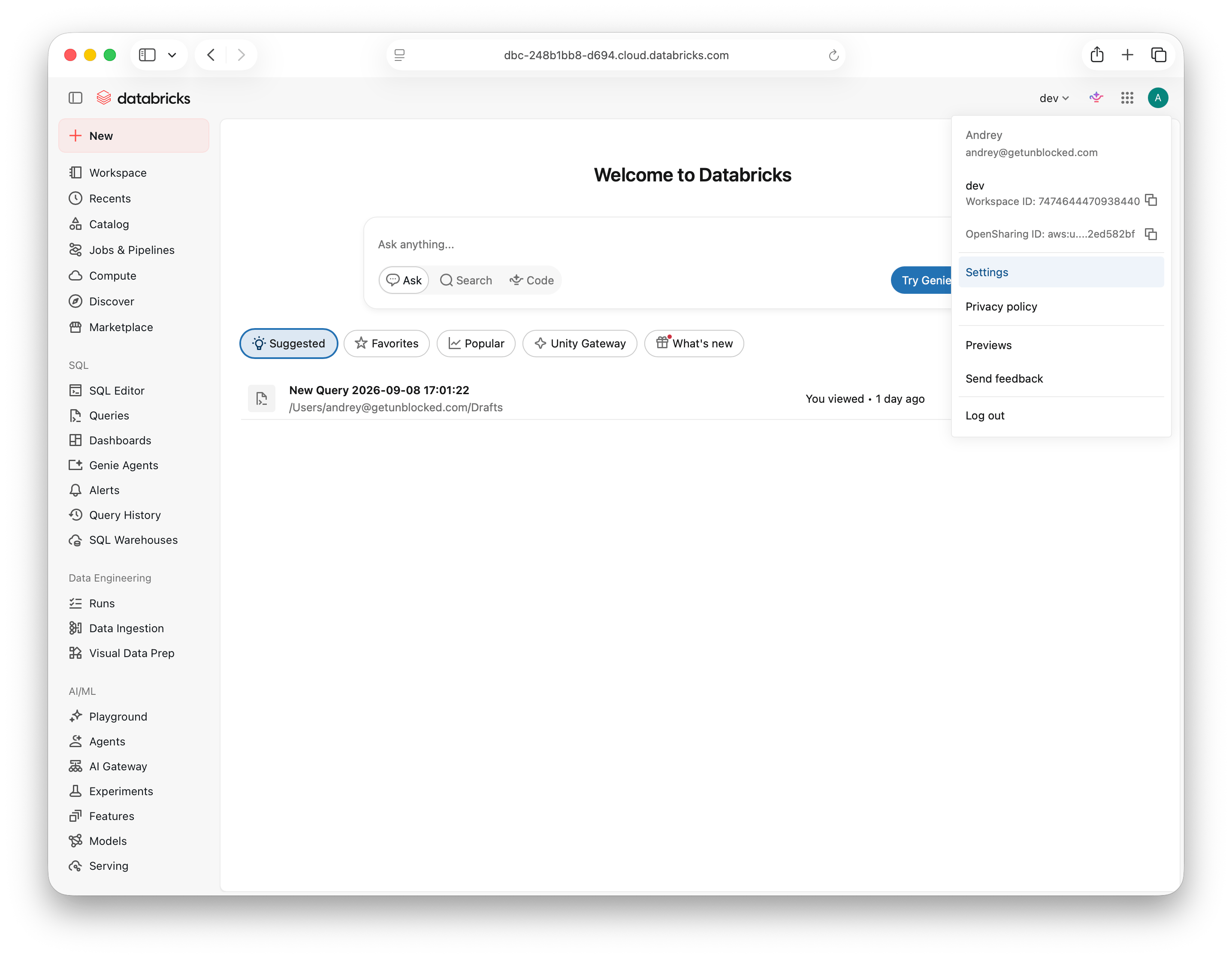
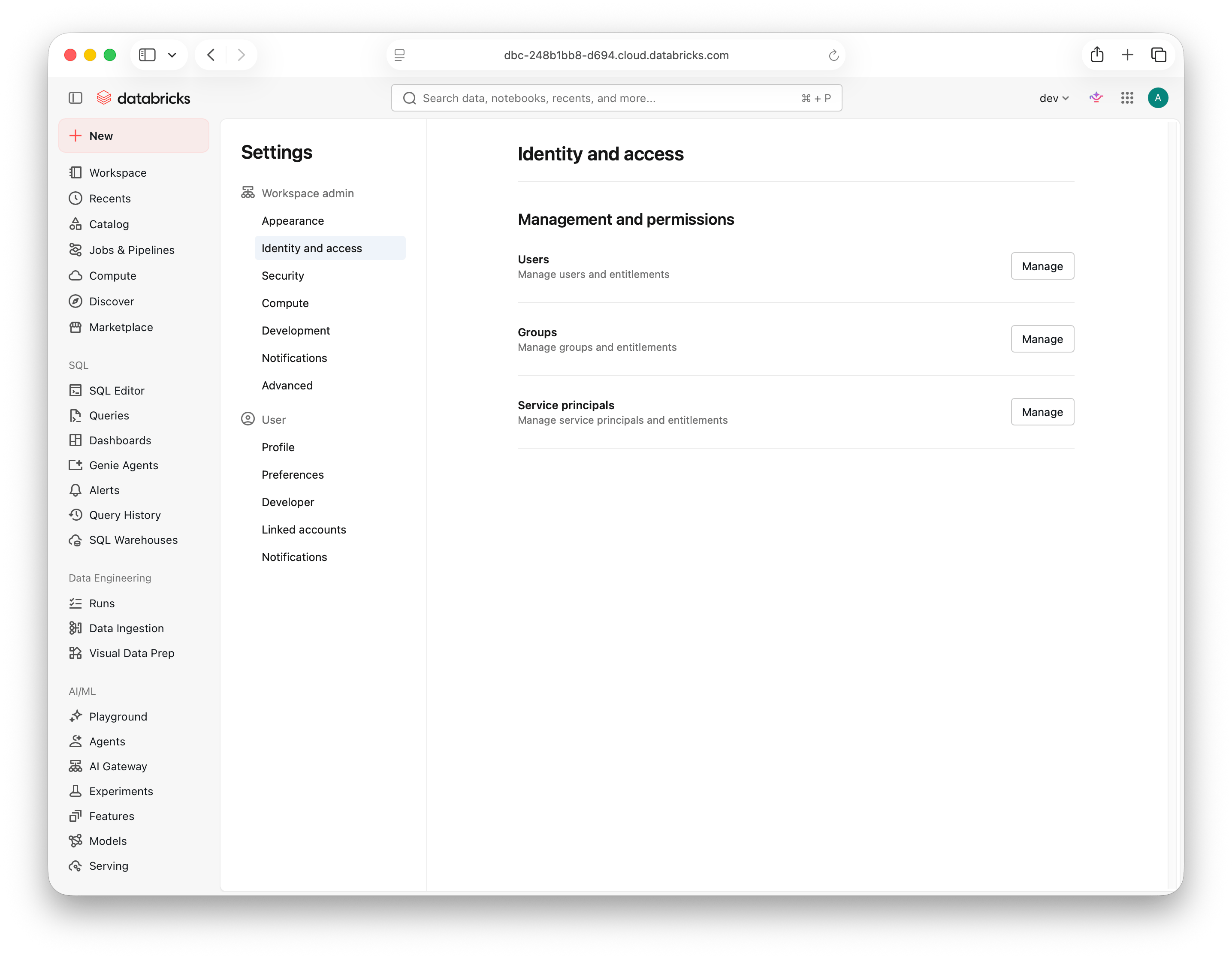
2
Create a service principal with SQL access
Click Add service principal. Open the Service principal dropdown and select Add new service principal to account and workspace.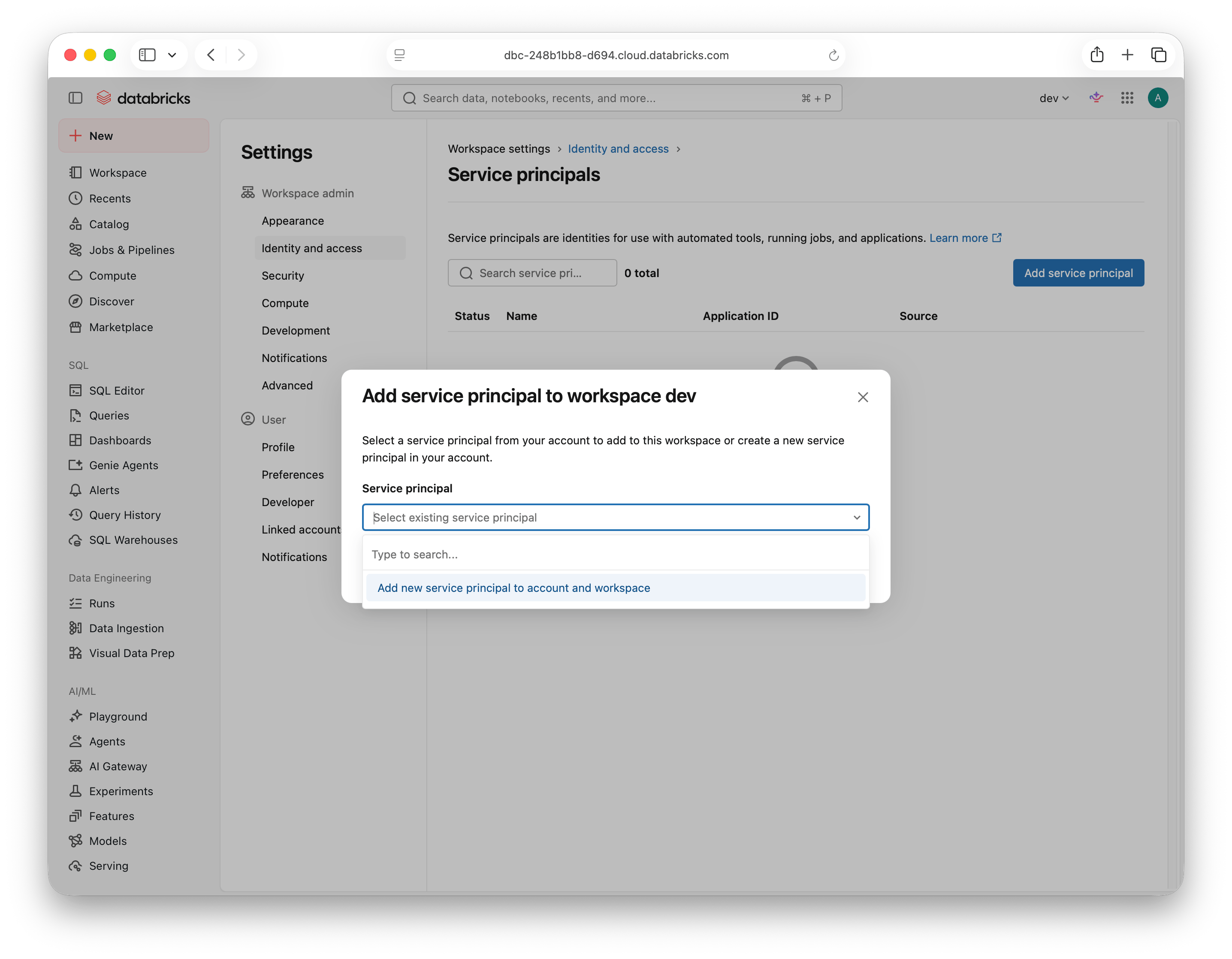
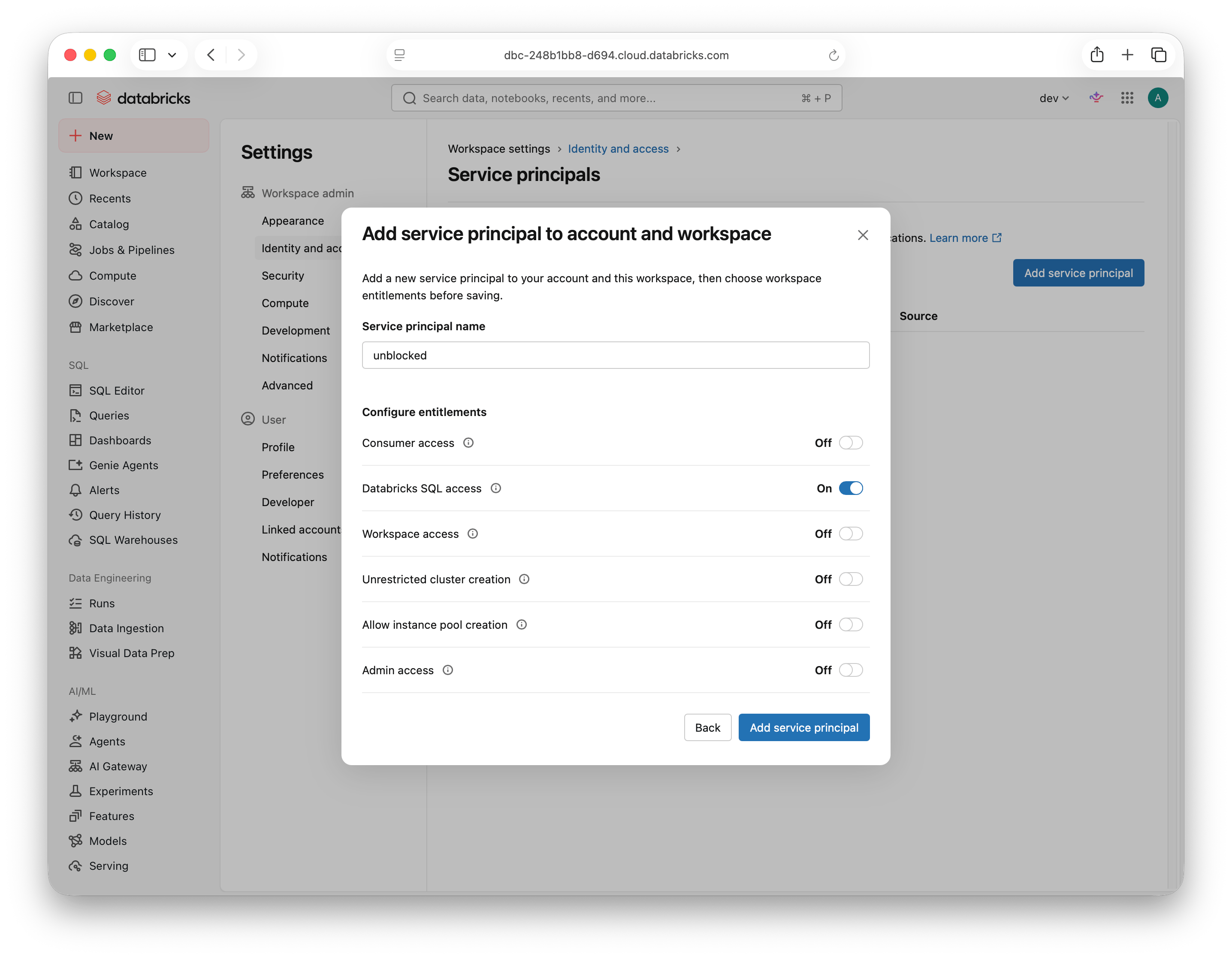
unblocked. Enable Databricks SQL access and leave the other entitlements off, including Admin access, Unrestricted cluster creation, and Allow instance pool creation. Click Add service principal.If you already have a dedicated service principal, select it from the dropdown instead. Ensure it is assigned to this workspace and has the Databricks SQL access entitlement.
3
Generate an OAuth secret
Open the service principal, select Secrets, and click Generate secret.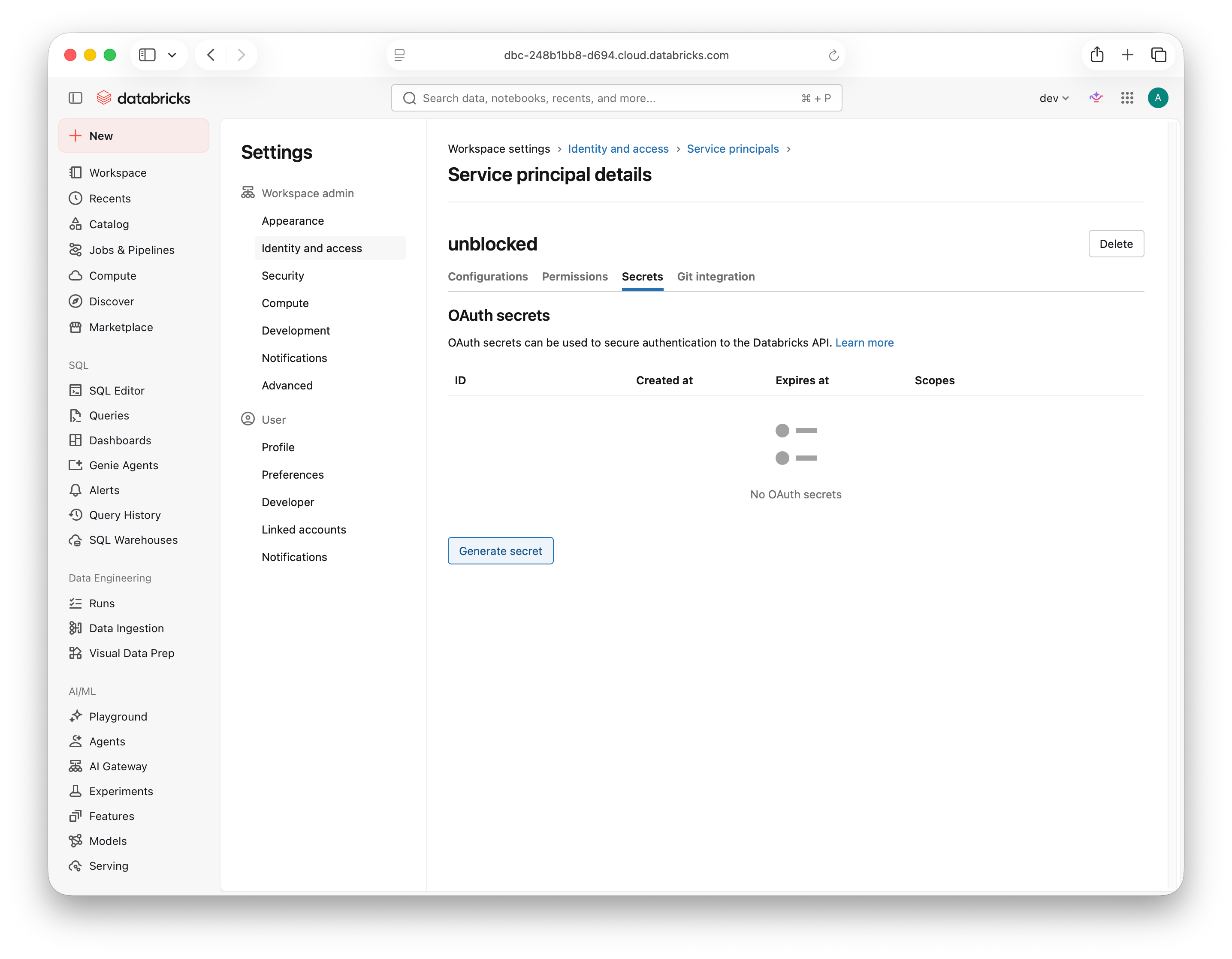
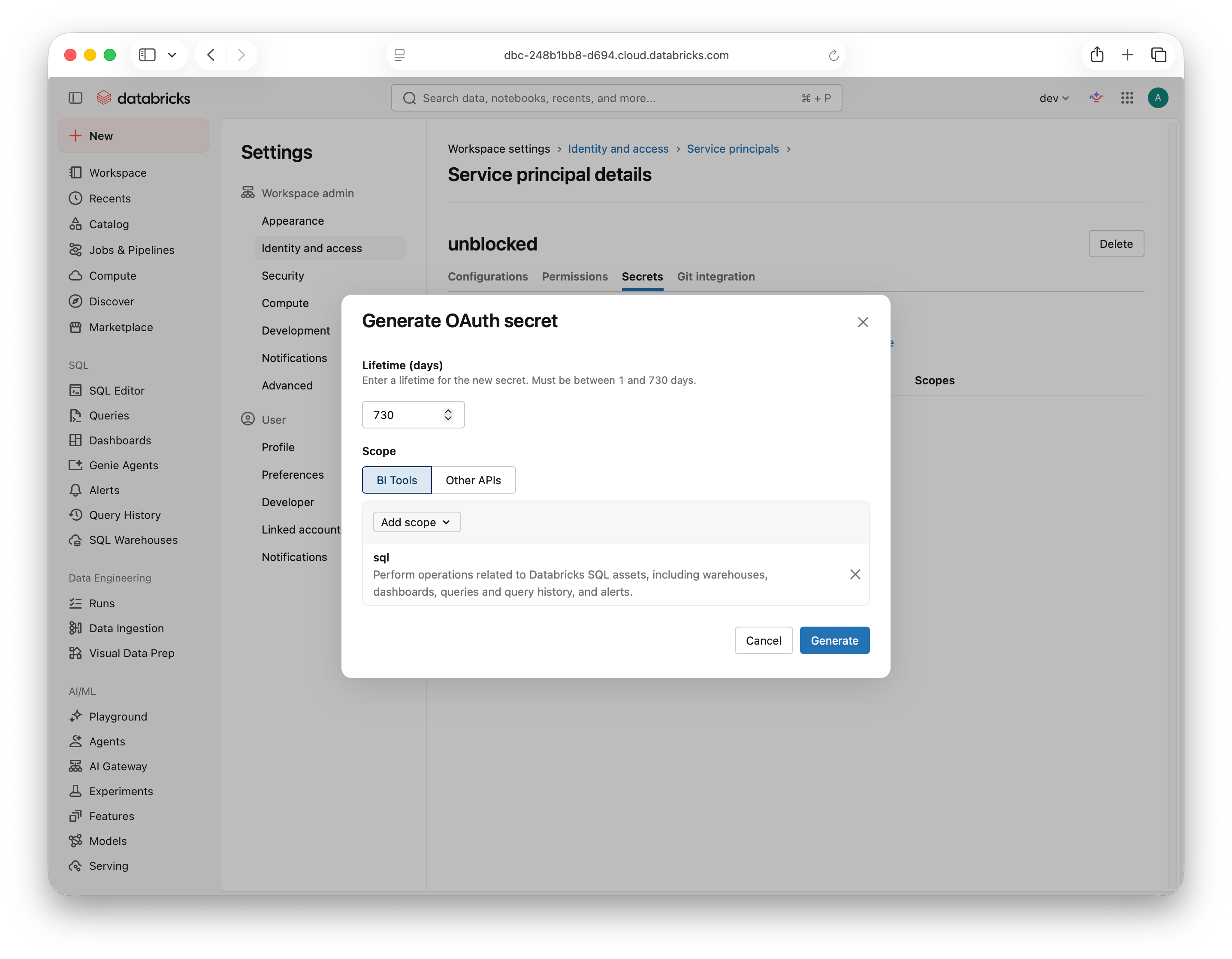
sql, and select sql. Close the dropdown and click Generate.sql scope limits API access. You must also grant warehouse and data permissions in the following steps. See Databricks OAuth setup for details.4
Grant access to a SQL warehouse
Select SQL Warehouses in the sidebar and open the warehouse Unblocked should use.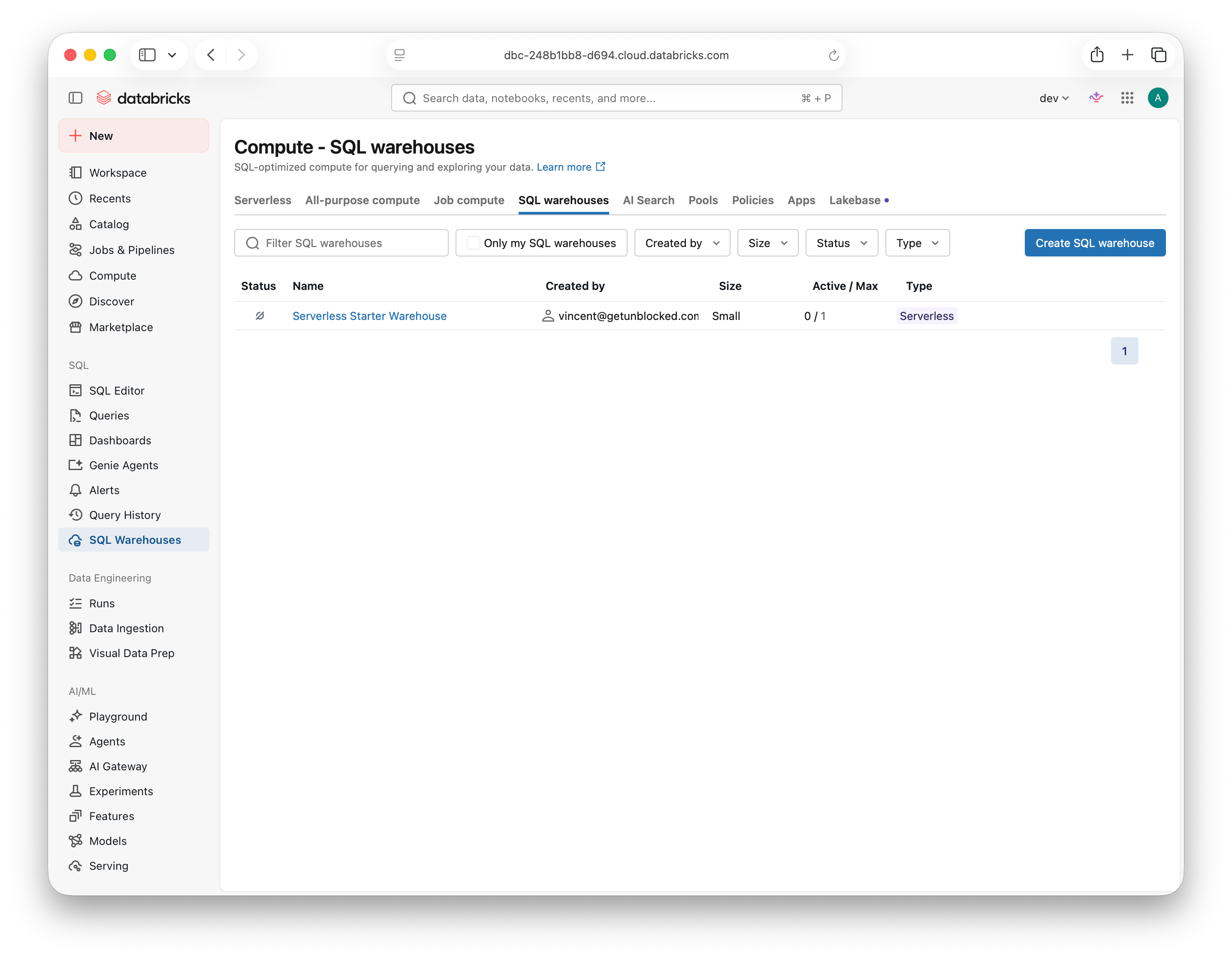
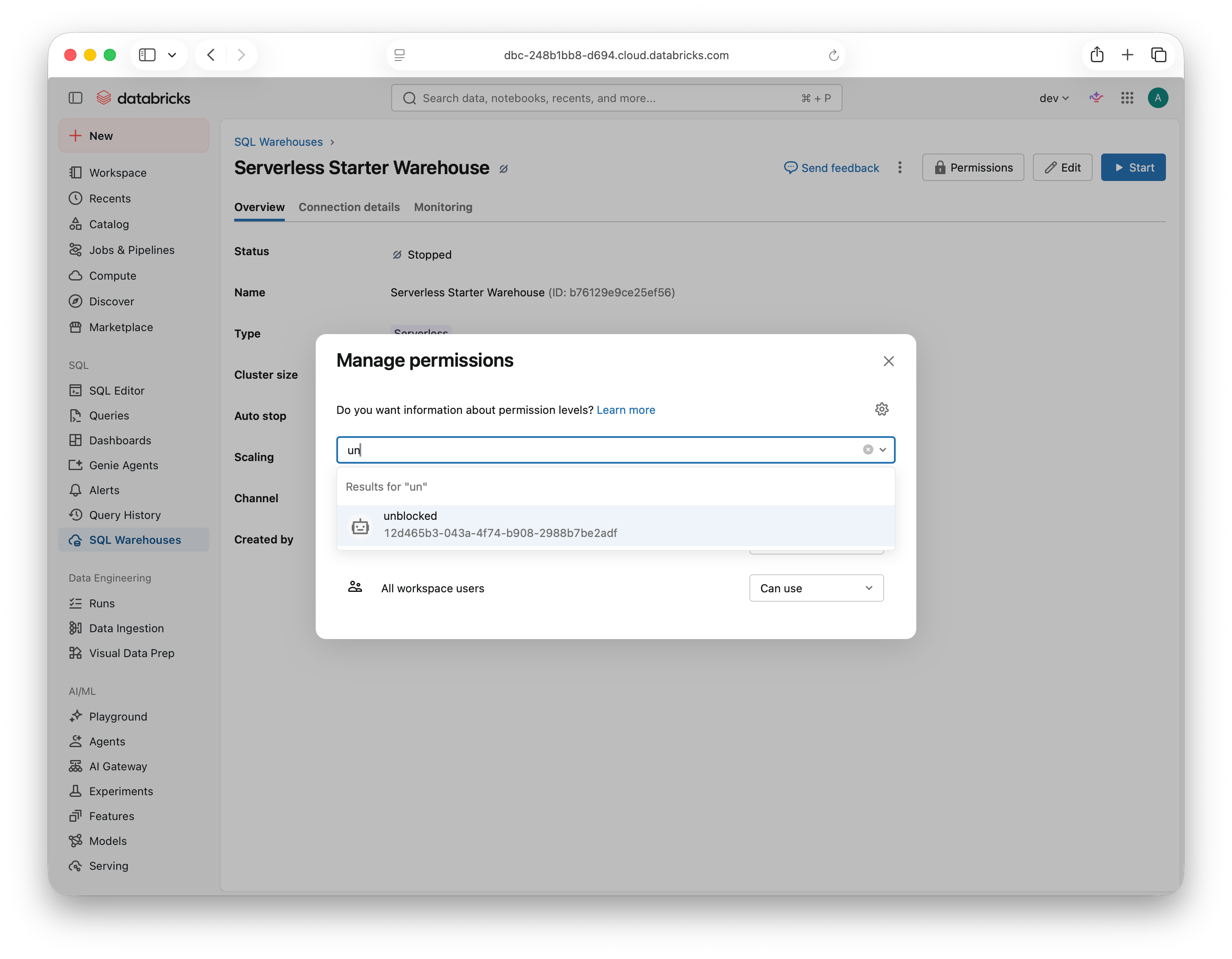
5
Grant read access to your data
Choose either the Catalog UI or a SQL script to grant the same read access.
Repeat for each schema you want Unblocked to access. Granting
Use the Catalog UI
Use the Catalog UI
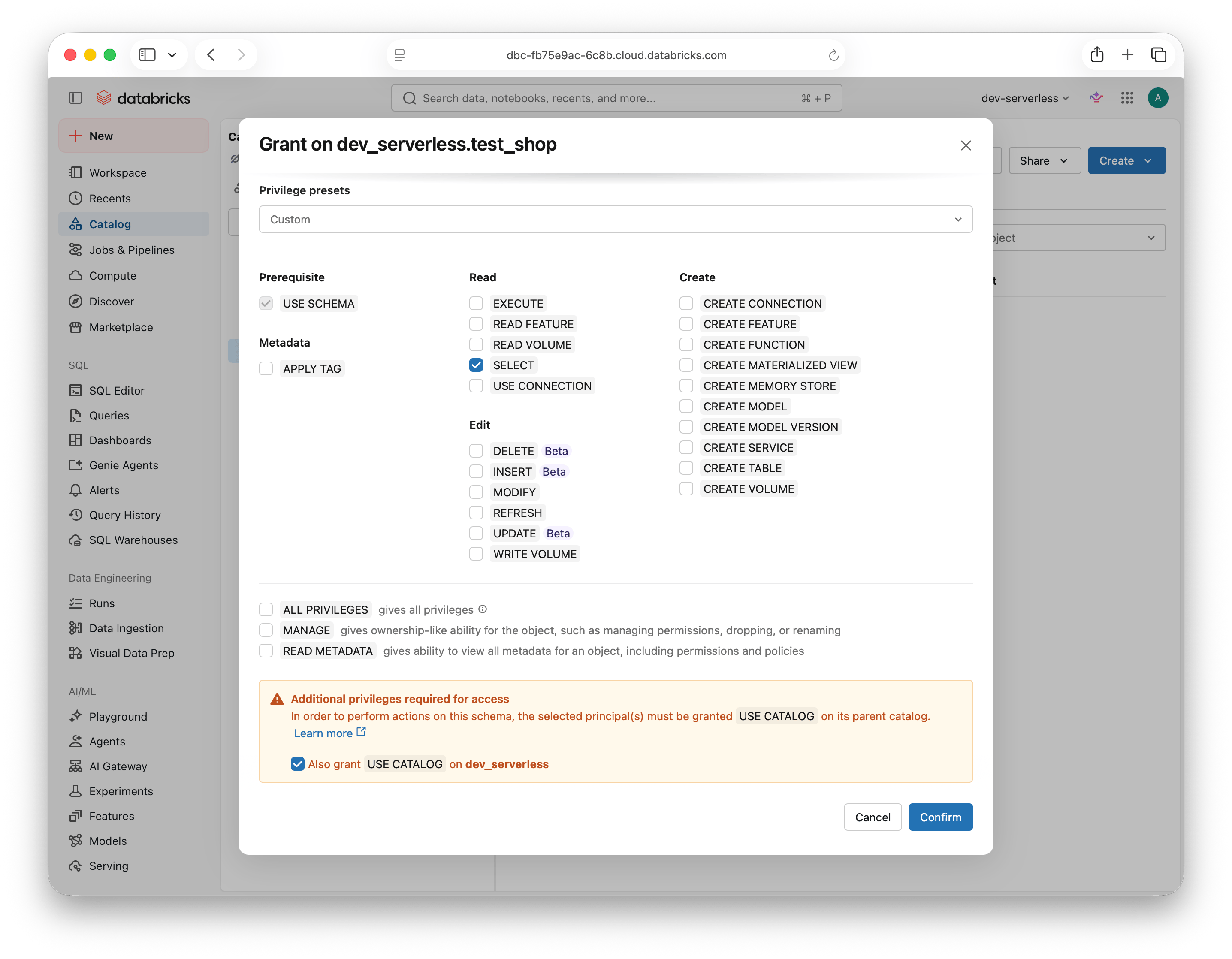
Open Catalog in the sidebar, expand your catalog, and select the schema you want Unblocked to access. Open Permissions and click Grant.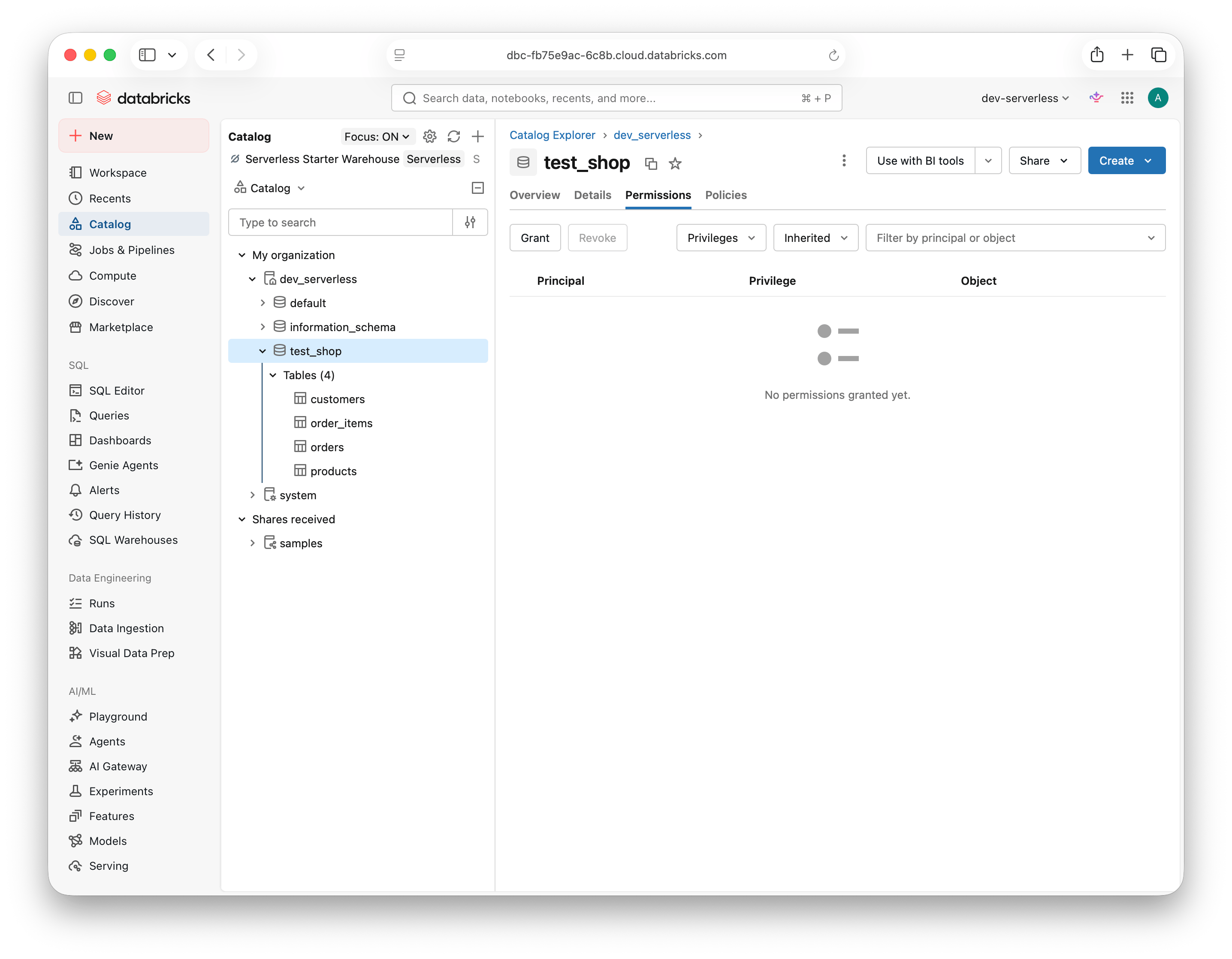
Use a SQL script
Use a SQL script
Open SQL Editor in your Databricks workspace and select a SQL warehouse. Run the following as a metastore admin, object owner, or user with permission to grant privileges on the catalog and schema.Replace These statements grant data access only. Complete the SQL warehouse Can use permission step above as well. See Manage privileges in Unity Catalog for SQL grant requirements.
<catalog>, <schema>, and <service-principal-client-id> with your values. Use the service principal’s Client ID (application ID), not its display name, and keep the backticks around each identifier.SELECT on a schema covers its current and future tables and views. The principal needs USE CATALOG on each parent catalog and USE SCHEMA on each schema. See the Unity Catalog privileges reference.For narrower access to a single table or view, or broader access to an entire catalog, see the optional grant variations below.
Grant access to a single table or view (optional)
Grant access to a single table or view (optional)
For narrower access, grant USE CATALOG on the parent catalog and USE SCHEMA on the parent schema. Then open each allowed table or view in Catalog, select Permissions, and grant SELECT to your service principal.Alternatively, run the following in SQL Editor with permission to grant privileges on these objects. Replace the placeholders with your catalog, schema, table or view, and service principal’s Client ID. For a view, replace Use these grants instead of schema-wide SELECT. Schema-wide grants also apply to objects created later.
ON TABLE with ON VIEW and use its name in <table-or-view>.Grant access to an entire catalog (optional)
Grant access to an entire catalog (optional)
To let Unblocked read every schema, table, and view in a catalog, open the catalog in Catalog, select Permissions, and click Grant. Select your service principal and grant USE CATALOG, USE SCHEMA, and SELECT.Alternatively, run the following in SQL Editor with permission to grant privileges on the catalog. Replace Catalog-level
<catalog> and <service-principal-client-id> with your catalog name and the service principal’s Client ID.USE SCHEMA and SELECT apply to current and future schemas and their tables and views. Use these grants instead of schema-wide grants only when you want all of that data accessible to Unblocked.Revoke Unblocked's access (optional)
Revoke Unblocked's access (optional)
To stop the dedicated service principal from accessing this workspace, open Settings › Identity and access › Service principals › Manage. Select the principal and, under Status, uncheck Active.Deactivation prevents authentication and API access in this workspace while preserving the principal’s permissions. Reactivating it restores access with those permissions. See Deactivate a service principal.
Connect in Unblocked
With your workspace URL, OAuth secret, and Client ID ready, connect Databricks in Unblocked.1
Connect Databricks
In the Unblocked sidebar, click Settings, then Data Sources, then Connect another data source, and select Databricks.
2
Enter your workspace and OAuth credentials
Enter the following values: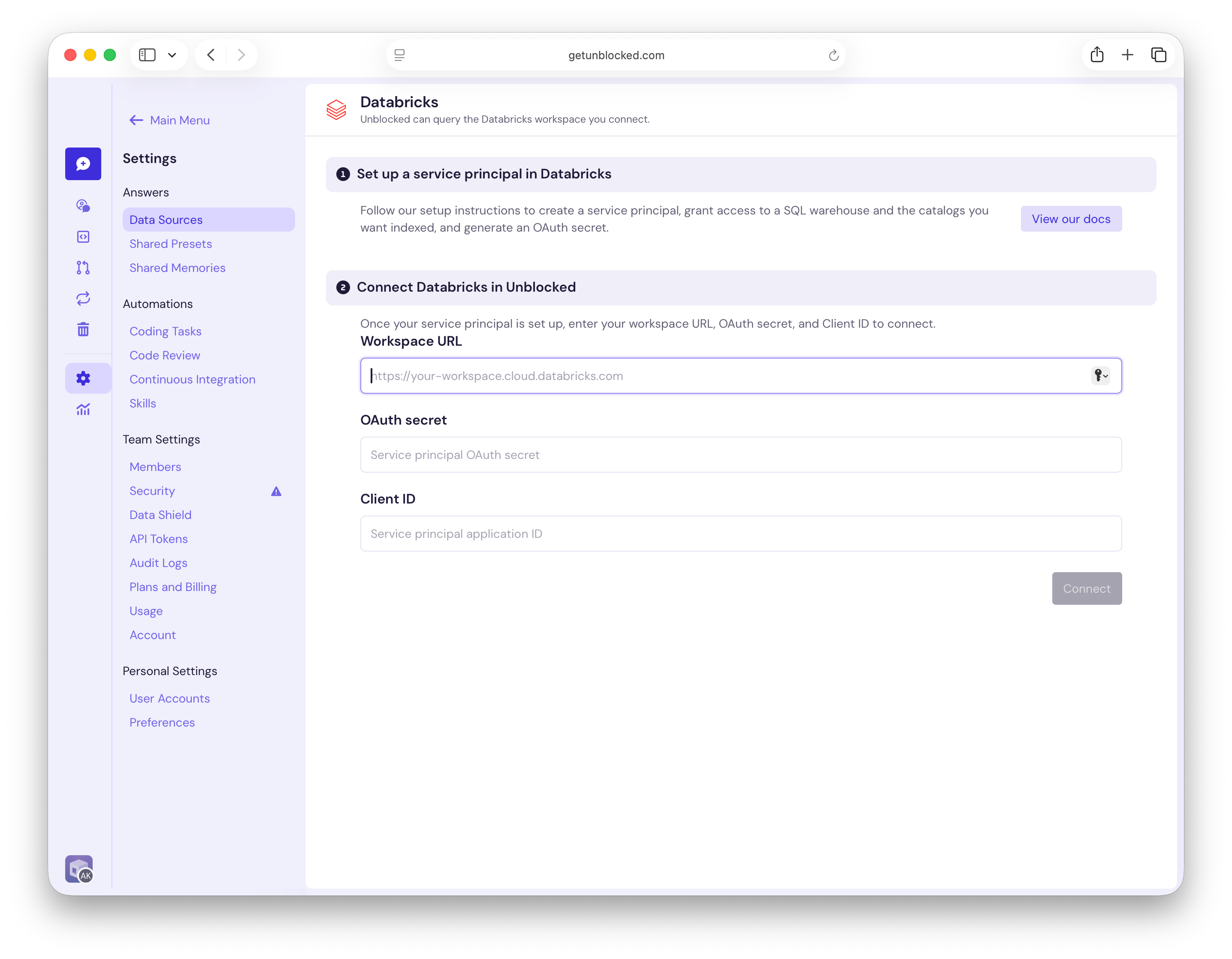
- Workspace URL: The URL of the Databricks workspace where you assigned the service principal and granted warehouse access.
- OAuth secret: The secret you generated for the service principal.
- Client ID: The service principal’s application ID, shown when you generated the secret.
3
Select your SQL warehouse
Under SQL Warehouse, choose the warehouse you granted the service principal permission to use. Unblocked uses it to query Databricks.
4
Select your catalogs
Under Catalog Access, use Find catalogs to filter the list. Select the catalogs you want Unblocked to index, then click Save Settings. Unblocked starts indexing your selected catalogs.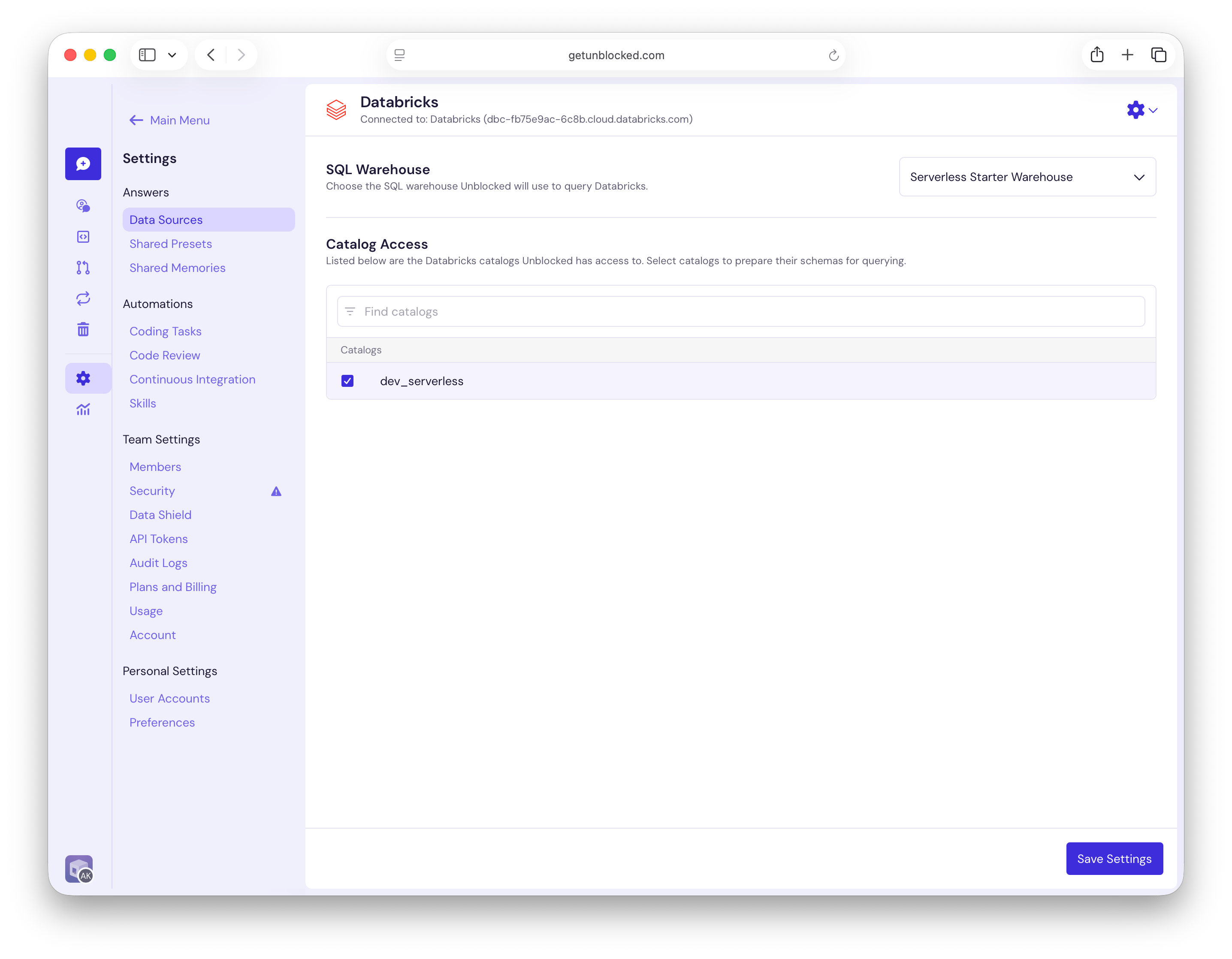
5
Wait for indexing to complete
Unblocked shows Processing for Databricks on the Data Sources page while indexing is in progress. Unblocked will not use Databricks to answer questions until indexing completes.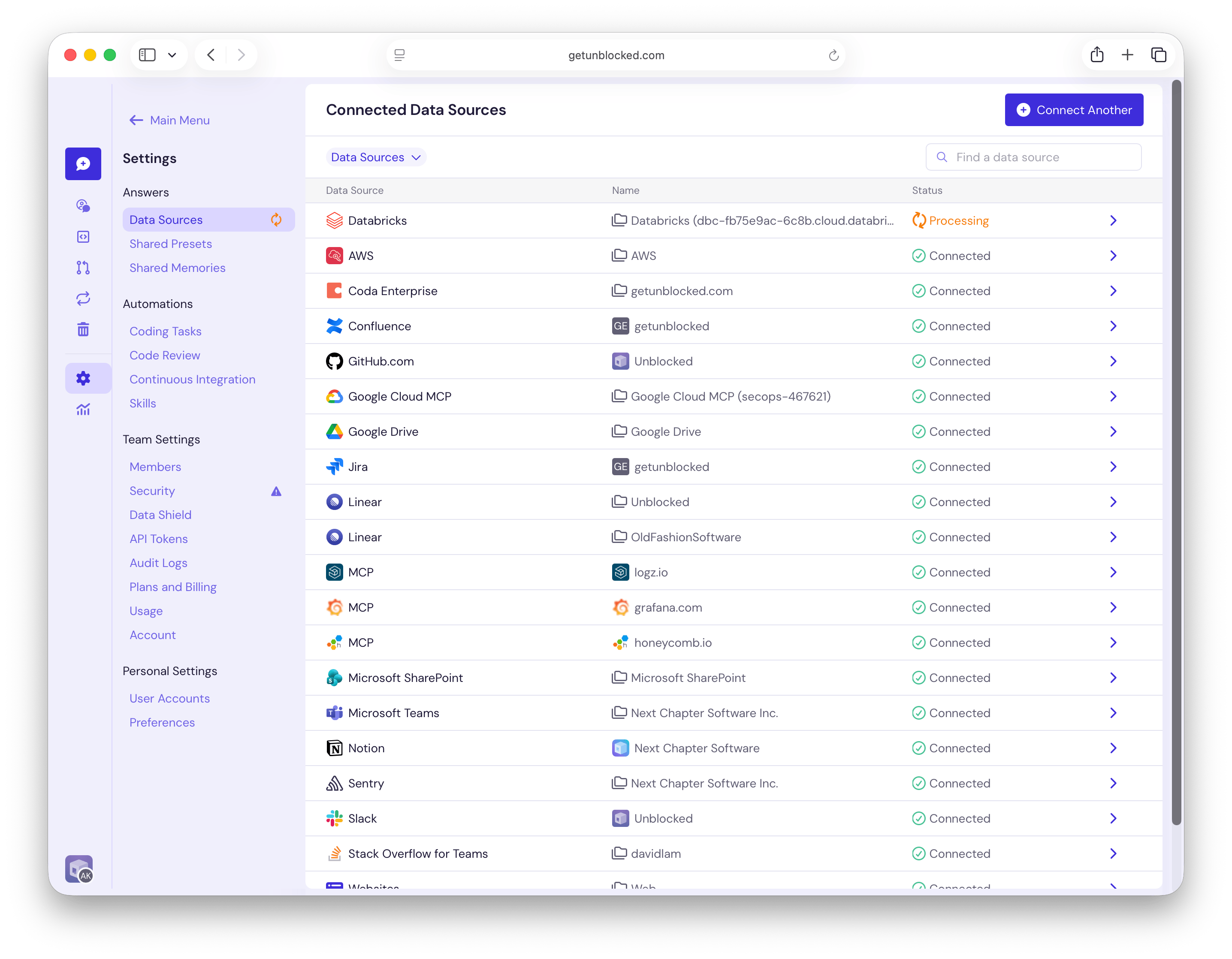
Troubleshooting
- Connection fails: Check the workspace URL, Client ID, and OAuth secret. Confirm that the secret has not expired and includes the
sqlscope. - No SQL warehouses found: Confirm that the principal is assigned to the connected workspace, has Databricks SQL access, and has Can use permission on a warehouse. Reload the page after updating permissions.
- No catalogs found or queries fail with a permission error: Confirm
USE CATALOG,USE SCHEMA, andSELECTon the data you want Unblocked to access.