

Set a default limit
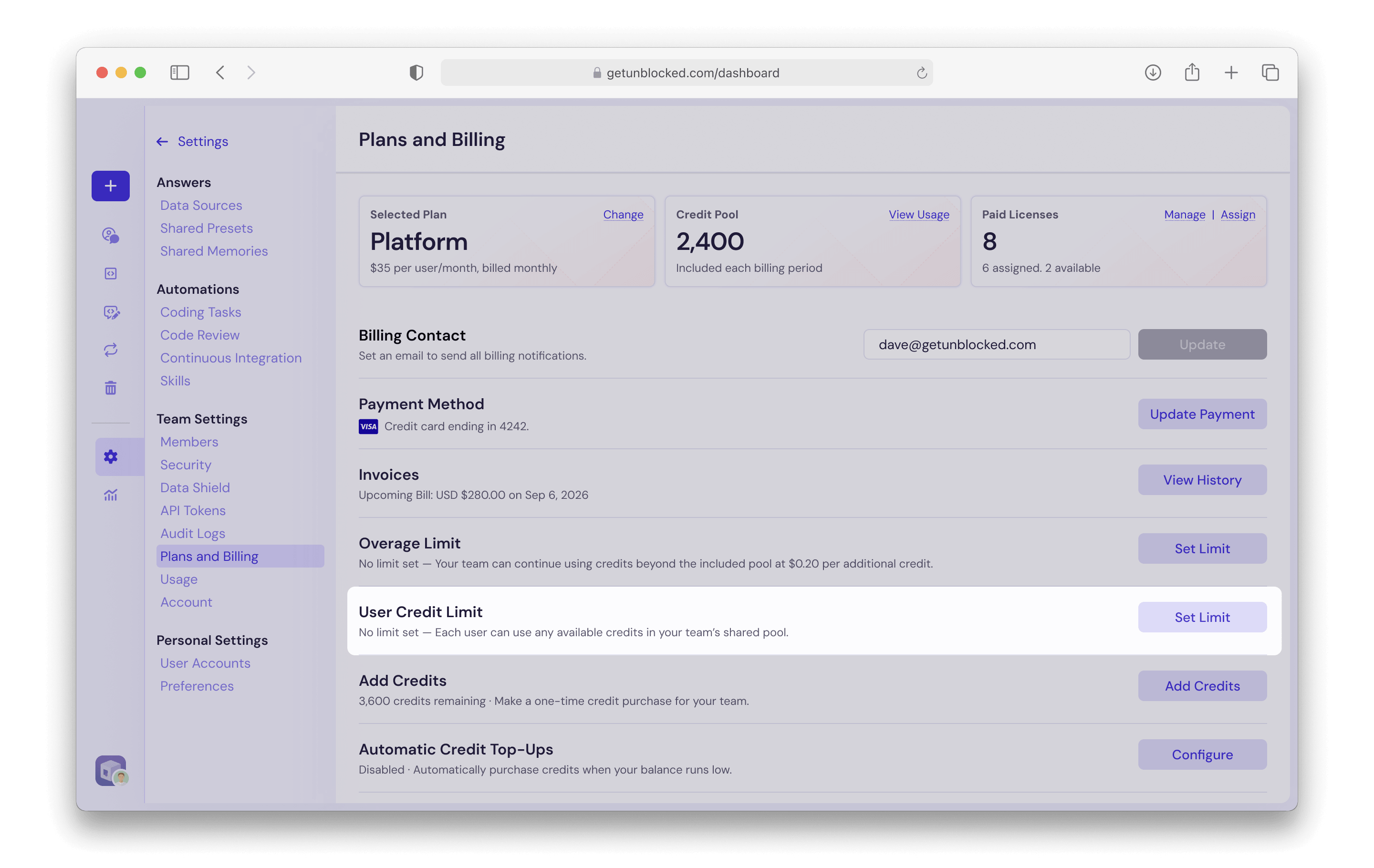
The default limit applies to every team member and team API key that doesn’t have an individual limit.- In the Unblocked web app, click Settings, and then select Plans and Billing under Team Settings.
- Next to User Credit Limit, click Set Limit.
- In the Default User Credit Limit dialog, select Set a limit and enter the number of credits each user can use per month, and click Save.
Set a limit for a team member or team API key
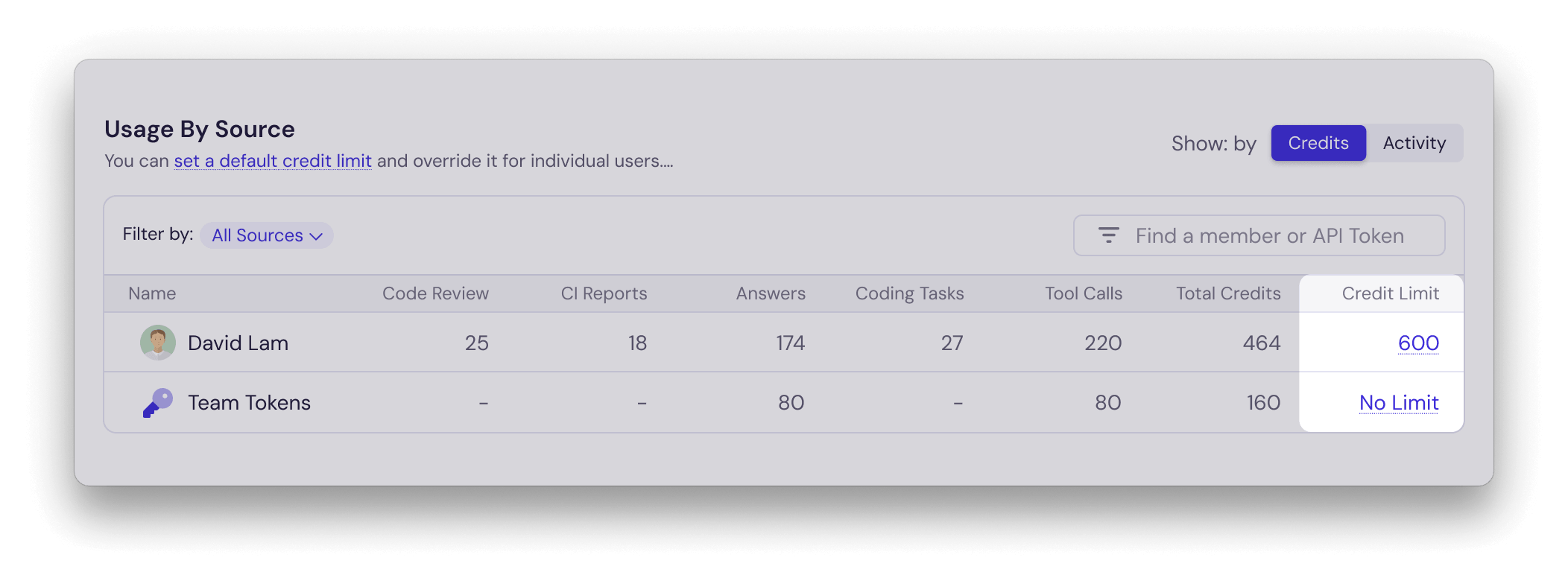
Individual limits are set from the Usage page.- In the Unblocked web app, open the Usage page.
- In the Usage by Source table, find the team member or team API key. The Credit Limit column shows their current limit.
- Click the value in the Credit Limit column, choose an option, and click Save.
What happens at the limit
Credits count toward the limit of the team member or team API key that uses them. Code Reviews and CI reports count toward the limit of the pull request author. When a team member or team API key reaches their limit, Unblocked stops doing new work for them until the limit resets or an admin raises it. The rest of your team keeps using the shared pool as usual. Requests already in progress when the limit is reached can still finish. When Unblocked can’t respond, it tells the person that they’ve reached their credit limit and when the limit resets. To let someone continue before the reset, raise their limit or set it to No Limit.When limits reset
Each person’s usage resets every month on your billing date.User credit limits and the overage limit
User credit limits and the Overage Limit on the Plans and Billing page control different things:
To learn how the pool, credit packs, and overages work, see Managing your plan.