> ## Documentation Index
> Fetch the complete documentation index at: https://docs.getunblocked.com/llms.txt
> Use this file to discover all available pages before exploring further.
# In Messaging Platforms
> How to set up the Unblocked app for your messaging platform
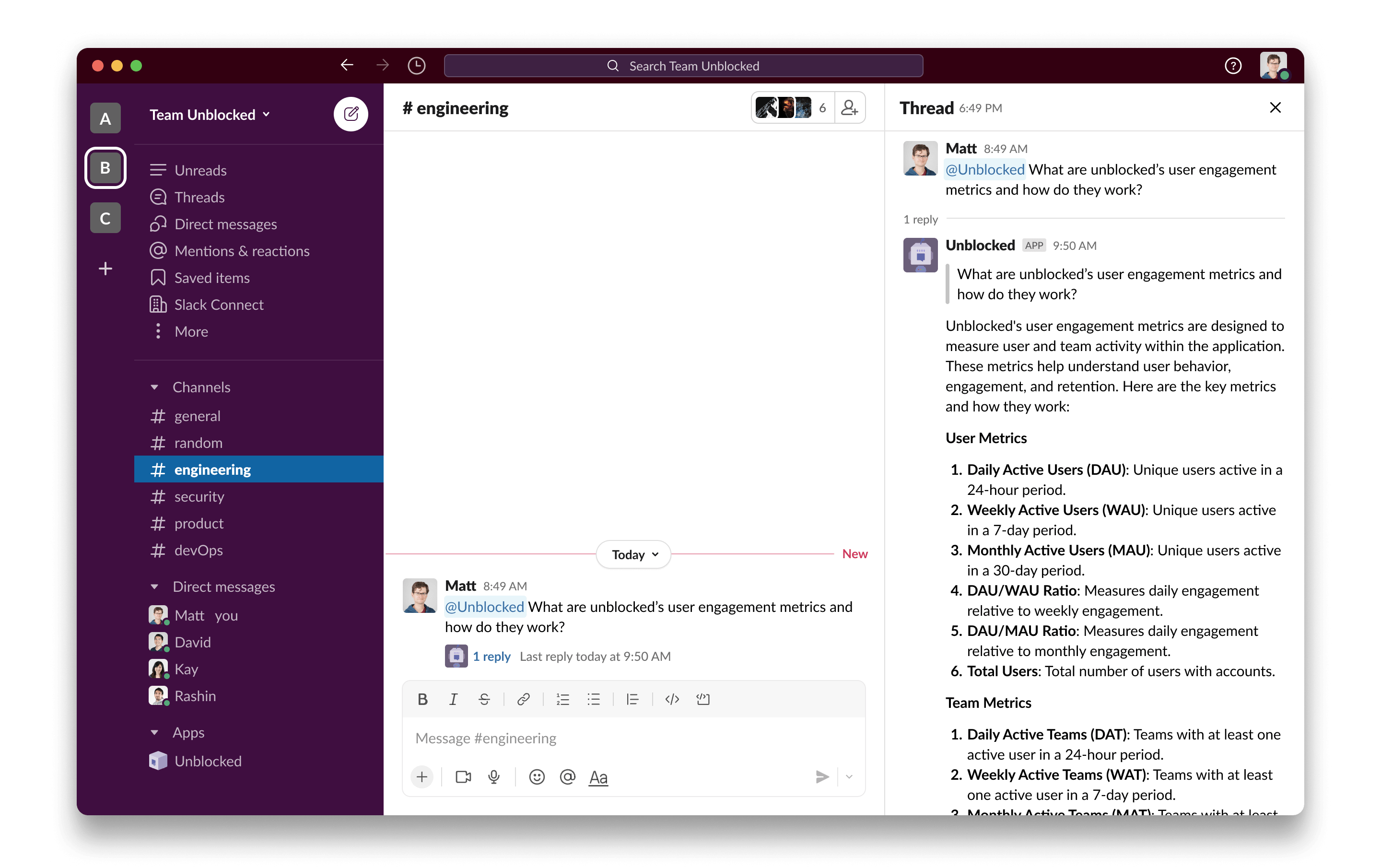
Since Unblocked is designed around conversations, it functions as a helpful tool that provides answers in the active channels where you and your team are discussing your application. The Unblocked bot will answer questions asked by your team, reducing interruptions and wait times for help.
 ## Setting up Unblocked
To set up the Unblocked app for Slack, simply follow the directions in the
[Slack integration article](/data-sources/slack).
{" "}
To set up the Unblocked app for Microsoft Teams, follow the directions in the
[Microsoft Teams integration article](/data-sources/microsoft-teams).
You need to be a Workspace Admin to connect Unblocked to your team's messaging platform.
Unblocked only has access to the channels you select when connecting your messaging platform. In the selected channels, you can mention Unblocked (`@Unblocked`) whenever you need to ask a question about your code.
You can update channel settings, such as adding or removing channels, at any point. First, navigate to the Data Sources page on the [Unblocked web dashboard](/using-unblocked/on-the-web). Find the tile for the connected messaging platform, and click to view and change the configured channels and preferences.
You can add Unblocked to both public and private channels. When a
question is asked, Unblocked will respect the access permissions for private
channels, and not include that context in answers provided outside the private
channel.
## Connecting user accounts
After Unblocked has been connected to your messaging platform workspace, each team member will also need to associate their individual user account with their Unblocked account. Unblocked personalizes answers based on identity, so connecting your user account will improve the quality of answers you receive from Unblocked. It will also enable the discussions you have with Unblocked to appear under [My Questions](/unblocked-chat/my-discussions).
To connect your user account, click on **Settings** in the sidebar of the [Unblocked web app](/using-unblocked/on-the-web). Under **Personal Settings**, click on **User Accounts**. In the **Unlinked Accounts** section, find the row for the connected messaging platform, and click **Link my account**.
You will be redirected to the external platform site to connect your account. Click **Allow** to grant Unblocked the necessary permissions to associate and connect your identity. After redirecting back to the **User Accounts** page, you should now see your connected platform account under the **Linked Accounts** section.
When you view discussions with Unblocked on the web dashboard, your GitHub
username will be displayed instead of the display name on your platform (e.g. Slack username).
For more details on how to use the Unblocked app in your messaging platform, see [the article](/unblocked-for-messaging-platforms) on this topic.
## Setting up Unblocked
To set up the Unblocked app for Slack, simply follow the directions in the
[Slack integration article](/data-sources/slack).
{" "}
To set up the Unblocked app for Microsoft Teams, follow the directions in the
[Microsoft Teams integration article](/data-sources/microsoft-teams).
You need to be a Workspace Admin to connect Unblocked to your team's messaging platform.
Unblocked only has access to the channels you select when connecting your messaging platform. In the selected channels, you can mention Unblocked (`@Unblocked`) whenever you need to ask a question about your code.
You can update channel settings, such as adding or removing channels, at any point. First, navigate to the Data Sources page on the [Unblocked web dashboard](/using-unblocked/on-the-web). Find the tile for the connected messaging platform, and click to view and change the configured channels and preferences.
You can add Unblocked to both public and private channels. When a
question is asked, Unblocked will respect the access permissions for private
channels, and not include that context in answers provided outside the private
channel.
## Connecting user accounts
After Unblocked has been connected to your messaging platform workspace, each team member will also need to associate their individual user account with their Unblocked account. Unblocked personalizes answers based on identity, so connecting your user account will improve the quality of answers you receive from Unblocked. It will also enable the discussions you have with Unblocked to appear under [My Questions](/unblocked-chat/my-discussions).
To connect your user account, click on **Settings** in the sidebar of the [Unblocked web app](/using-unblocked/on-the-web). Under **Personal Settings**, click on **User Accounts**. In the **Unlinked Accounts** section, find the row for the connected messaging platform, and click **Link my account**.
You will be redirected to the external platform site to connect your account. Click **Allow** to grant Unblocked the necessary permissions to associate and connect your identity. After redirecting back to the **User Accounts** page, you should now see your connected platform account under the **Linked Accounts** section.
When you view discussions with Unblocked on the web dashboard, your GitHub
username will be displayed instead of the display name on your platform (e.g. Slack username).
For more details on how to use the Unblocked app in your messaging platform, see [the article](/unblocked-for-messaging-platforms) on this topic.