> ## Documentation Index
> Fetch the complete documentation index at: https://docs.getunblocked.com/llms.txt
> Use this file to discover all available pages before exploring further.
# Install: Claude Desktop
## Quick install (macOS)
Run the following command to install Unblocked MCP:
```bash theme={null}
curl -fsSL https://getunblocked.com/install-mcp.sh | bash
```
This will download the Unblocked CLI and configure your supported tools and agents automatically.
The install script is currently supported on macOS only. Windows and Linux users should use the manual install instructions below.
## Manual install (macOS, Windows, Linux)
You can install Unblocked MCP in the Claude Desktop app.
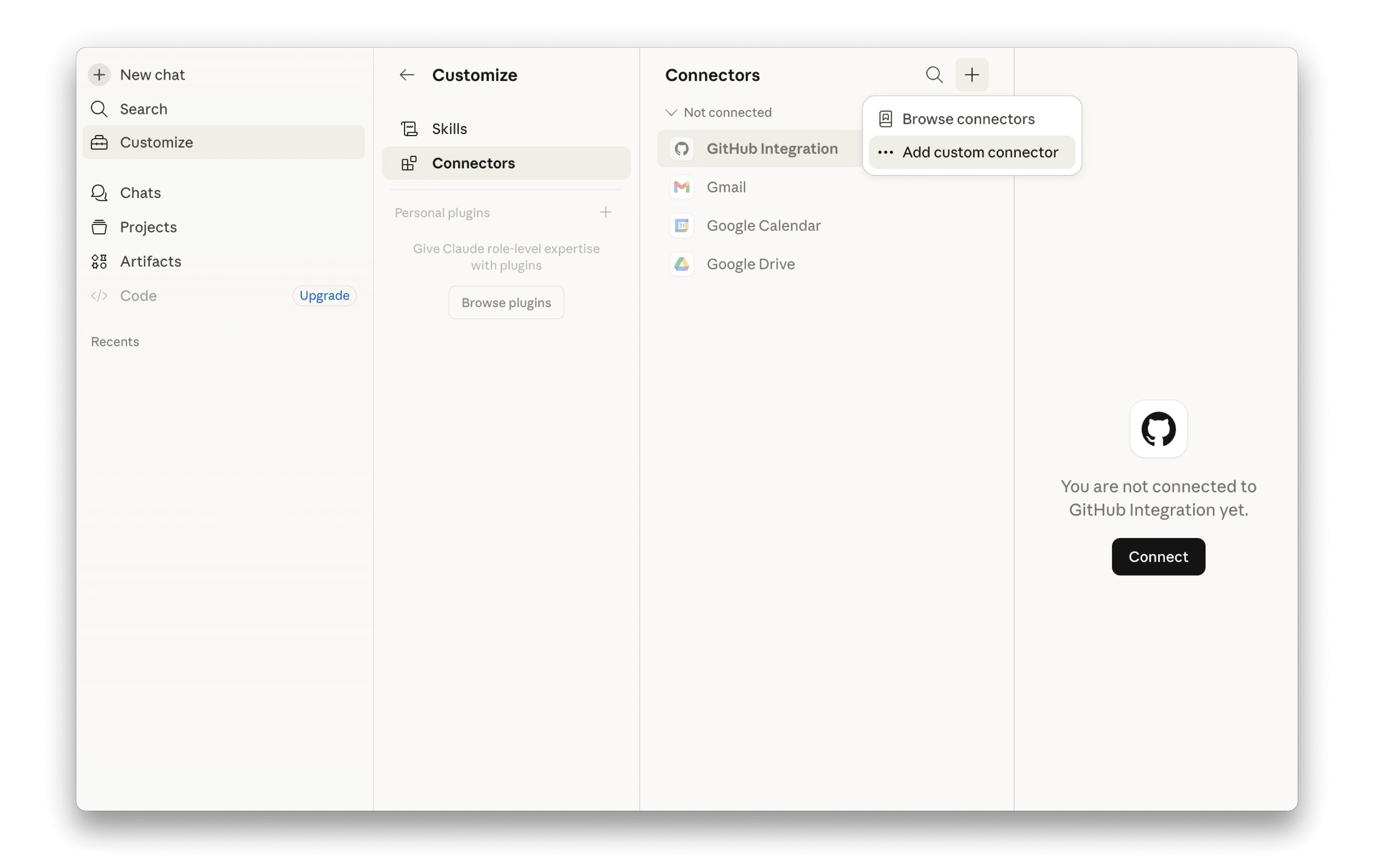
1. Open **Customize** > **Connectors**
2. Click the **+** icon and select **Add custom connector**
 3. Enter `Unblocked` for the name and `https://getunblocked.com/api/mcpsse` for the URL.
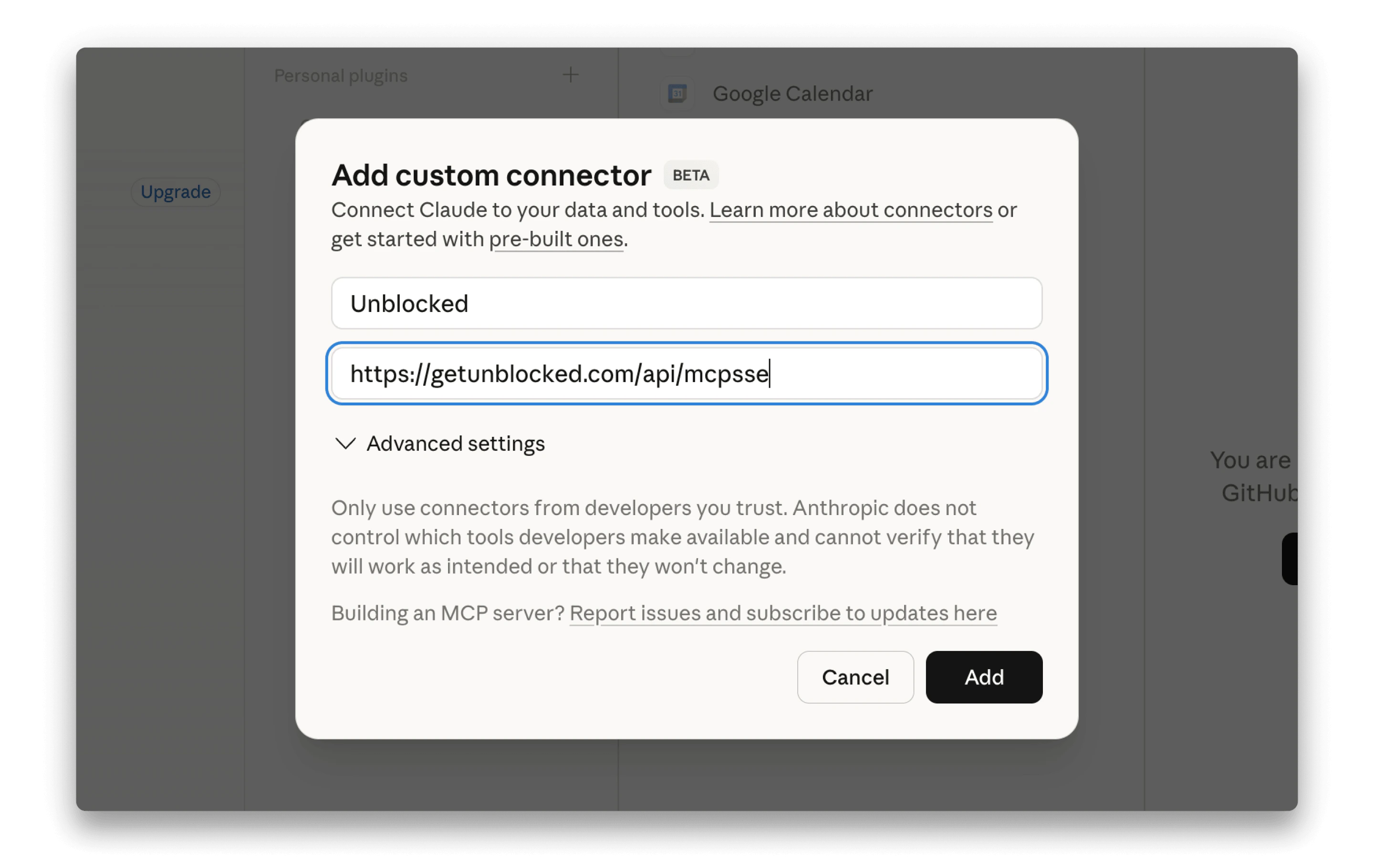 4. Click **Add**. This will authenticate Claude Desktop with Unblocked.