> ## Documentation Index
> Fetch the complete documentation index at: https://docs.getunblocked.com/llms.txt
> Use this file to discover all available pages before exploring further.
# Claude + Okta
> Configure the Unblocked connector in Claude with Okta so members can connect using their organization’s identity
Enterprise Managed Authorization lets your organization connect members to Unblocked in Claude through Okta, without requiring each member to complete a separate Unblocked browser sign-in.
For more background, see the [official MCP documentation on Enterprise-Managed Authorization](https://modelcontextprotocol.io/extensions/auth/enterprise-managed-authorization).
## Prerequisites
Before you start, confirm that:
1. You are configuring **Claude (Anthropic)**. This setup is only for the Unblocked connector in Claude.
2. Your organization uses **Okta** as its SSO provider for both Claude and Unblocked. Other identity providers are not supported for this setup.
3. [Okta SSO for Unblocked](/team-settings/sso/okta#configure-single-sign-on) is configured.
4. [User and group provisioning (SCIM)](/team-settings/sso/okta#user-and-group-provisioning) is enabled, and the members who need access are provisioned in Unblocked.
5. You have **organization-admin access in Claude** and the **Super Admin role in Okta**.
To check your Unblocked configuration, open [Single Sign-On settings](https://getunblocked.com/dashboard/team/current/settings/org/security). Under **SAML Configuration**, look for **Configured for Okta**. Under **SCIM User Provisioning**, check the **Last Synced** timestamp to confirm provisioning has synced.
 ## Configure managed authorization
Sign in to your organization's Claude account through Okta SSO. Open your account menu and select **Organization settings**.
## Configure managed authorization
Sign in to your organization's Claude account through Okta SSO. Open your account menu and select **Organization settings**.
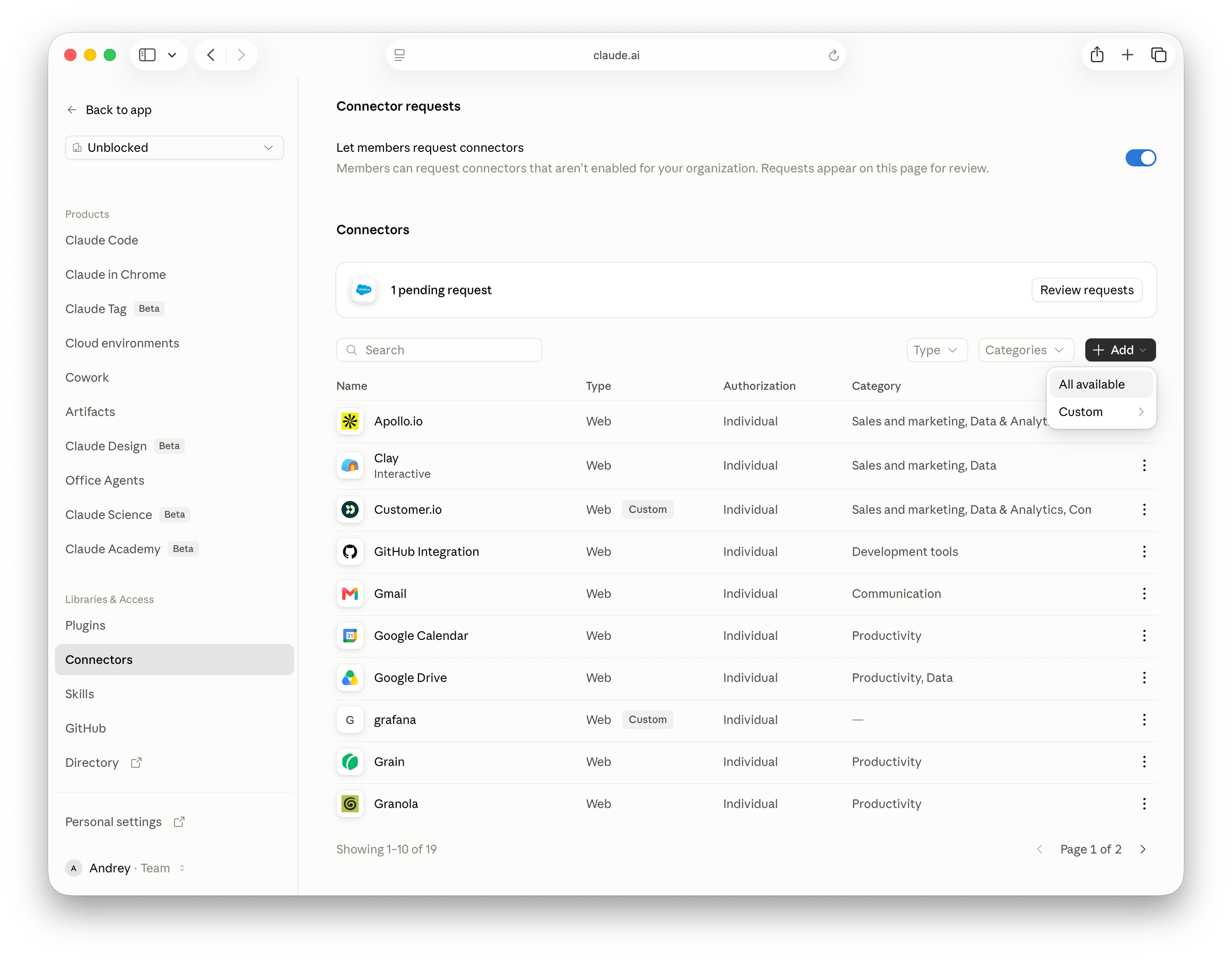
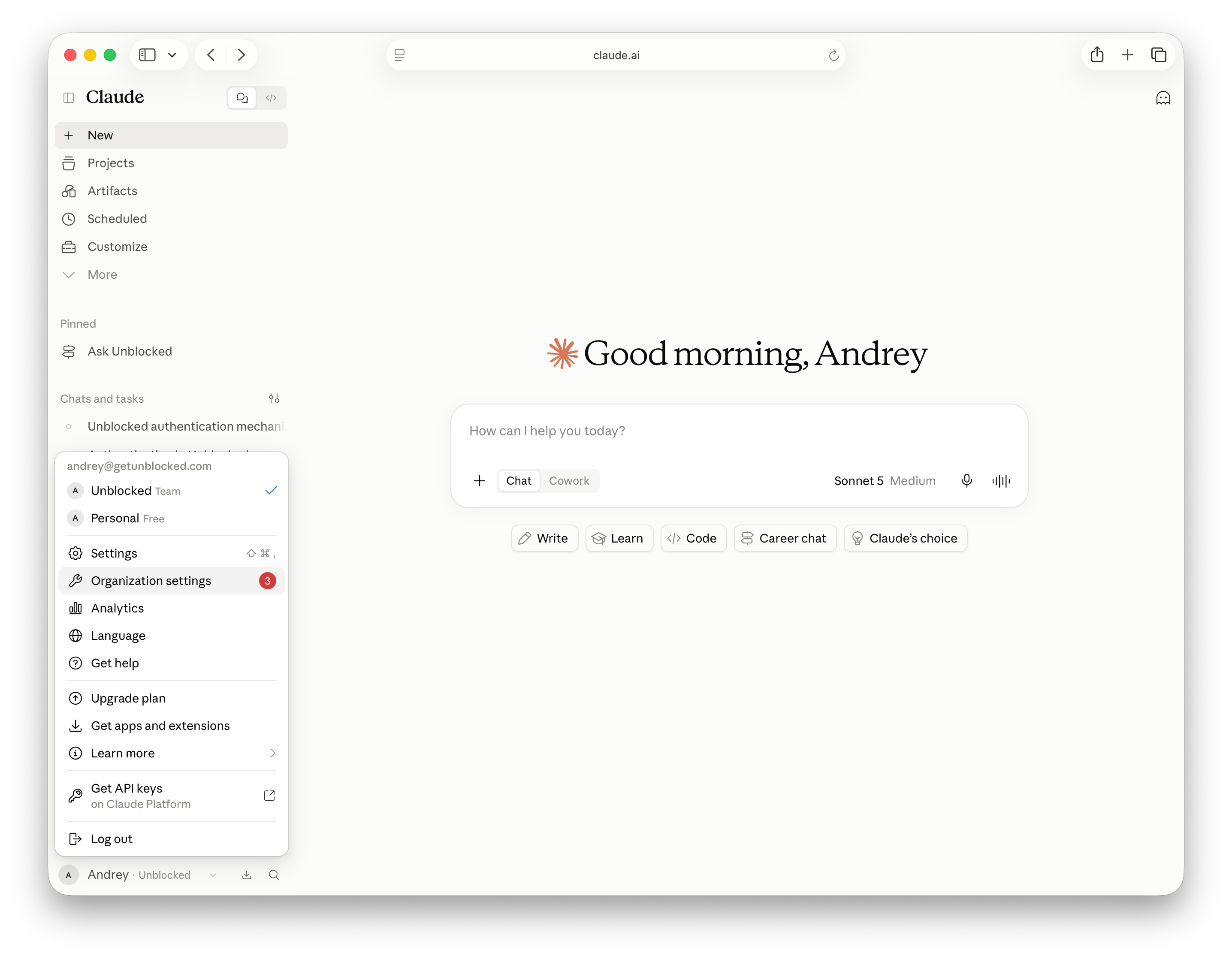 Select **Connectors** under **Libraries & Access**. If Unblocked is already listed, open it. Otherwise, select **Add**, then **All available** to open the connector directory.
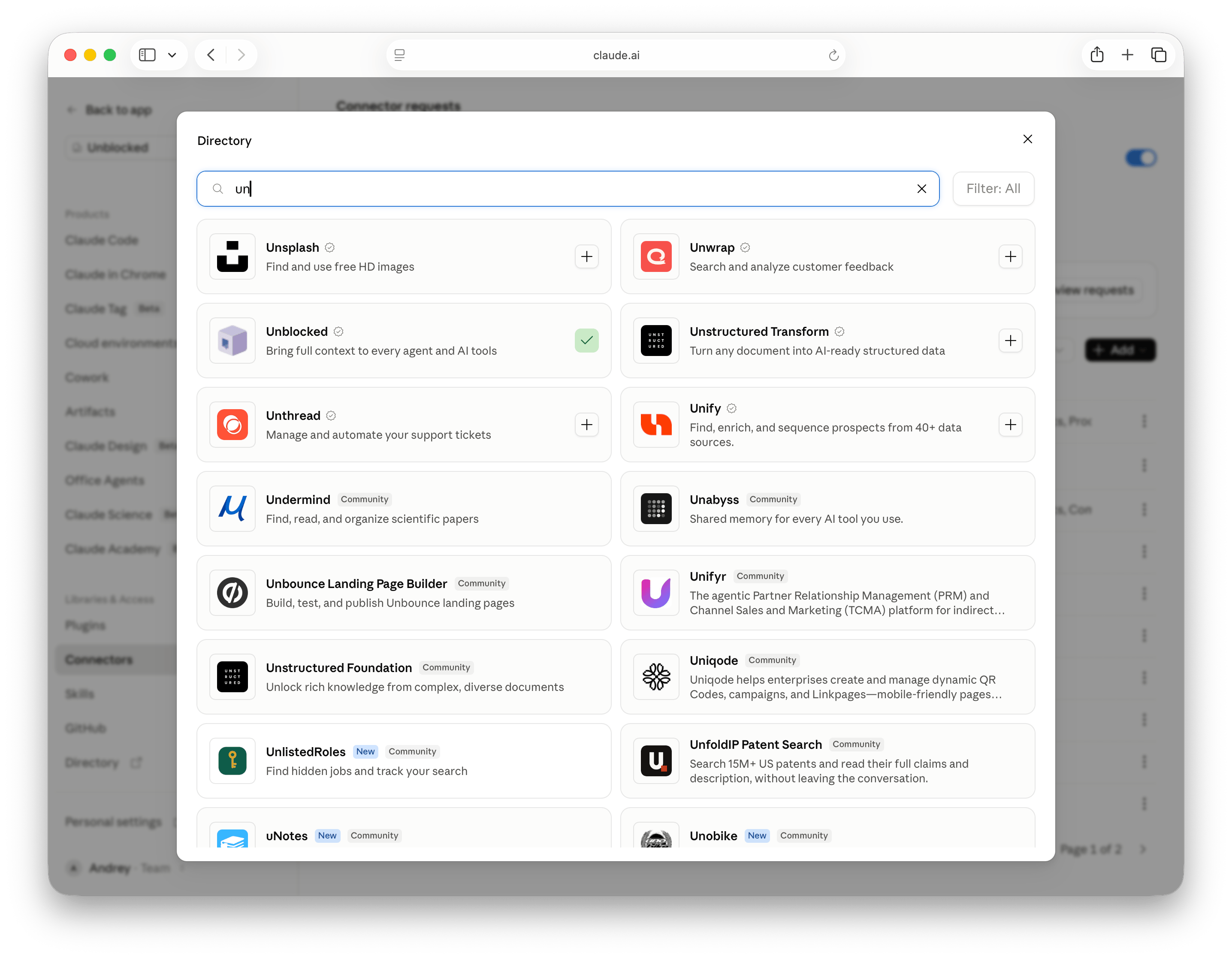
 Search for **Unblocked**. Add the connector if needed, then open its details.
 Open the **Configuration** tab. Under **Managed authorization**, select **Set up**.
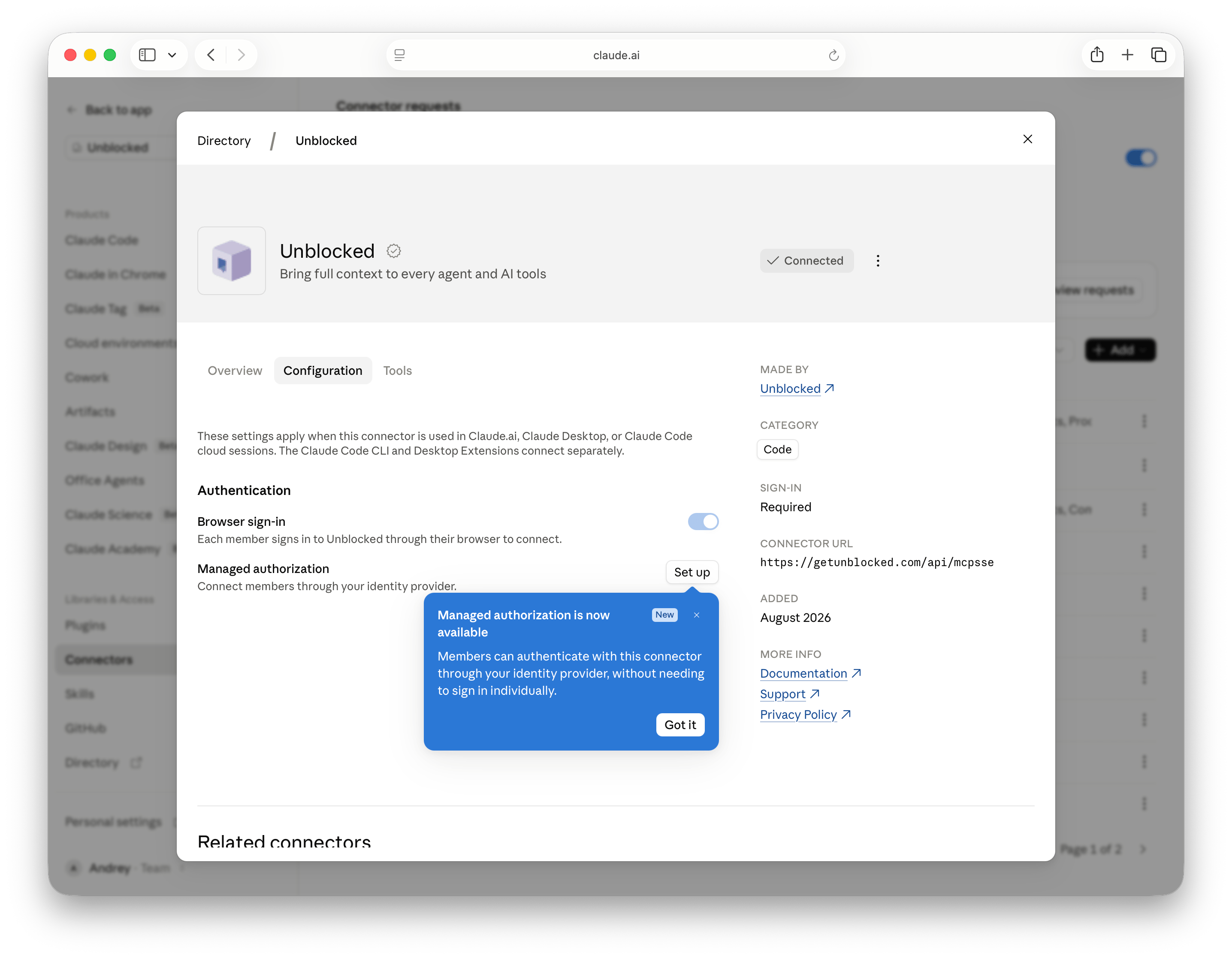 In the **Connect** step, confirm that Okta is the connected identity provider, then select **Open WorkOS setup**.
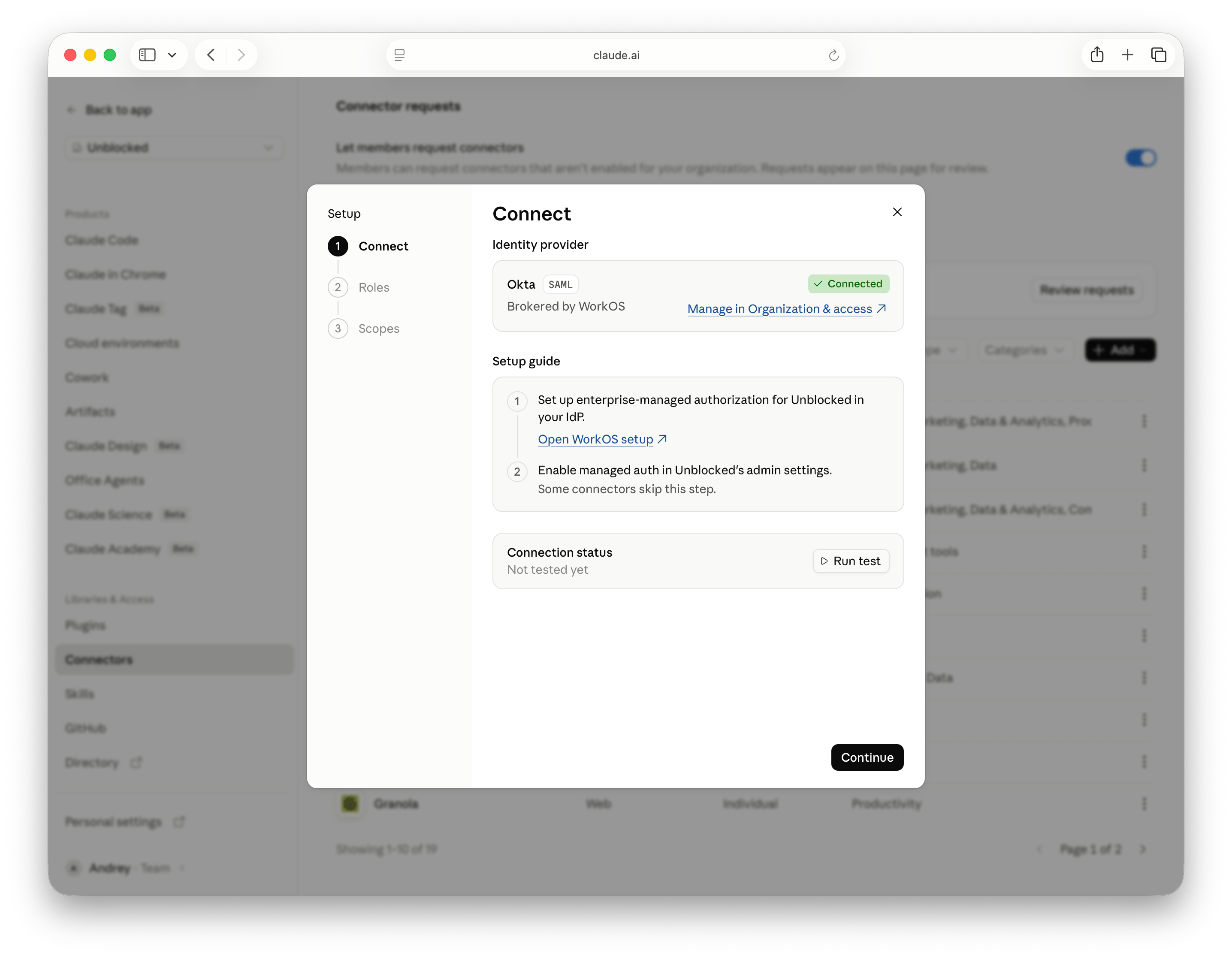 Follow all steps in the Anthropic setup guide that opens. It provides the instructions and values for configuring Cross-App Access (XAA), the AI agent, and its resource connection in Okta.
Use the **existing Okta application that provides SSO to your Unblocked organization** when configuring the connector application. The application name may differ from the example shown below. For the agent's user access, use your organization's Claude SSO application as directed by the guide.
Follow all steps in the Anthropic setup guide that opens. It provides the instructions and values for configuring Cross-App Access (XAA), the AI agent, and its resource connection in Okta.
Use the **existing Okta application that provides SSO to your Unblocked organization** when configuring the connector application. The application name may differ from the example shown below. For the agent's user access, use your organization's Claude SSO application as directed by the guide.
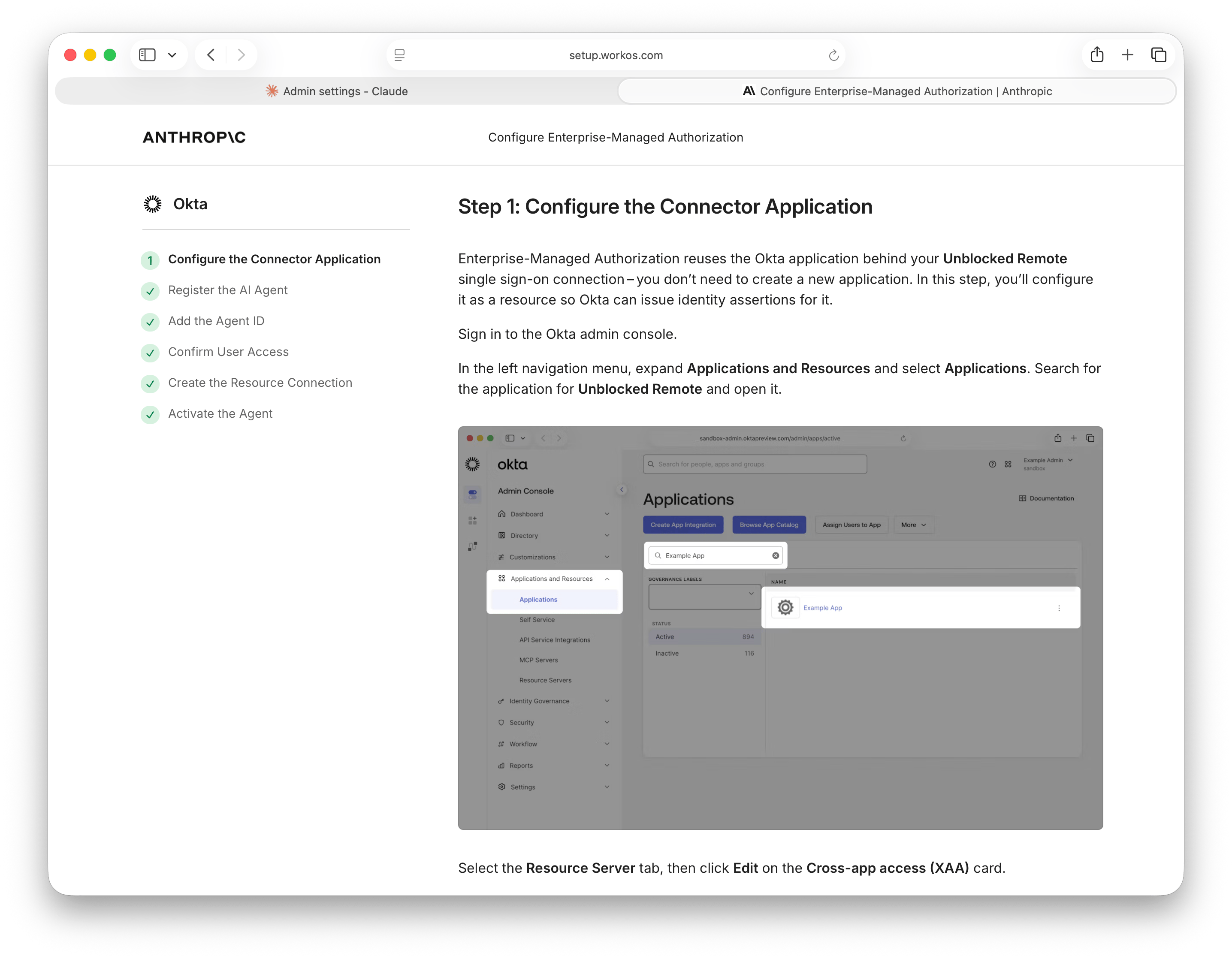 Claude may also display a step to enable managed authorization in Unblocked's admin settings. No separate Unblocked managed authorization toggle is required. Complete the SSO and provisioning prerequisites above, then continue with the setup guide.
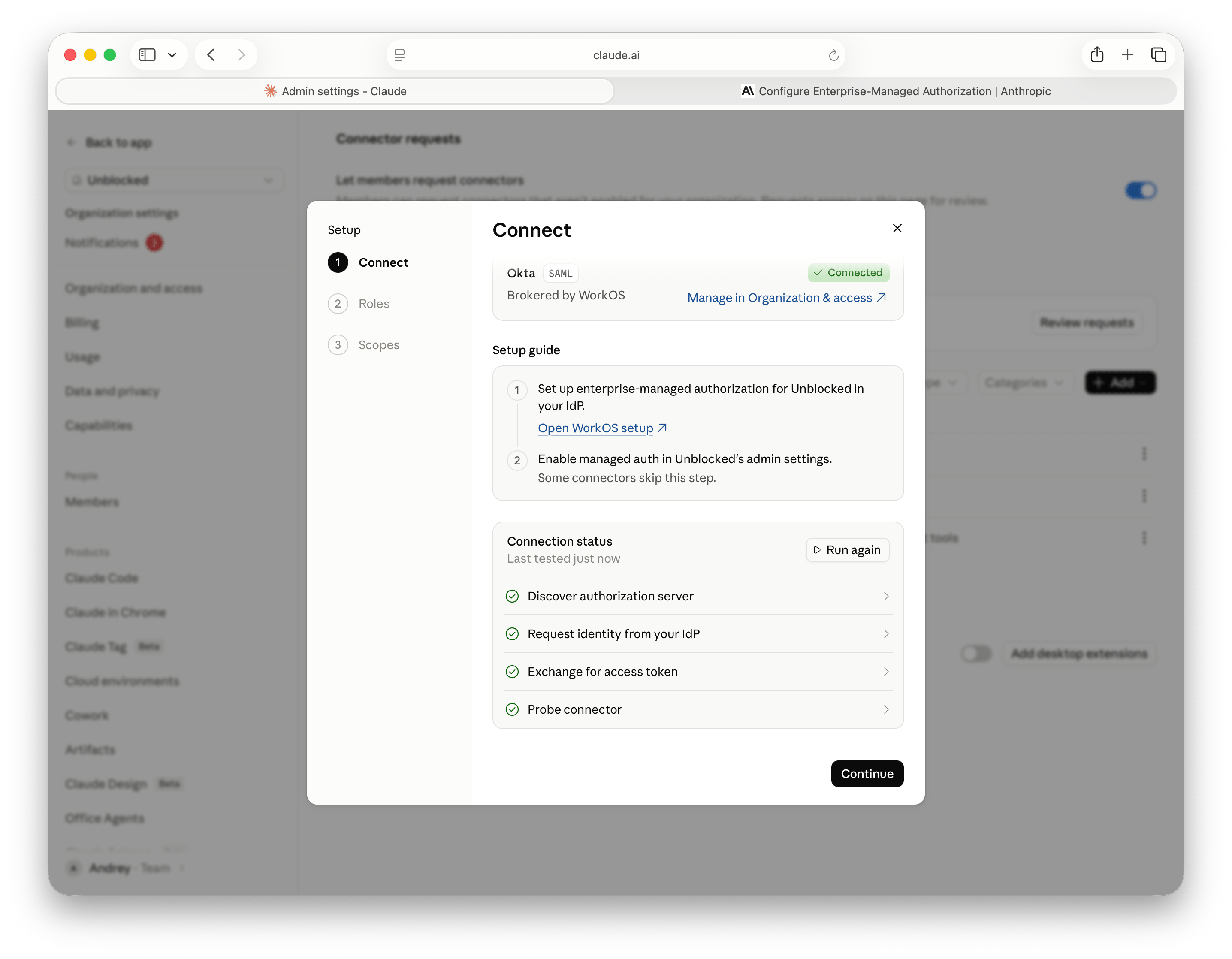
After completing the Anthropic guide, return to Claude and select **Run test**. Confirm that all checks pass, then select **Continue**.
Claude may also display a step to enable managed authorization in Unblocked's admin settings. No separate Unblocked managed authorization toggle is required. Complete the SSO and provisioning prerequisites above, then continue with the setup guide.
After completing the Anthropic guide, return to Claude and select **Run test**. Confirm that all checks pass, then select **Continue**.
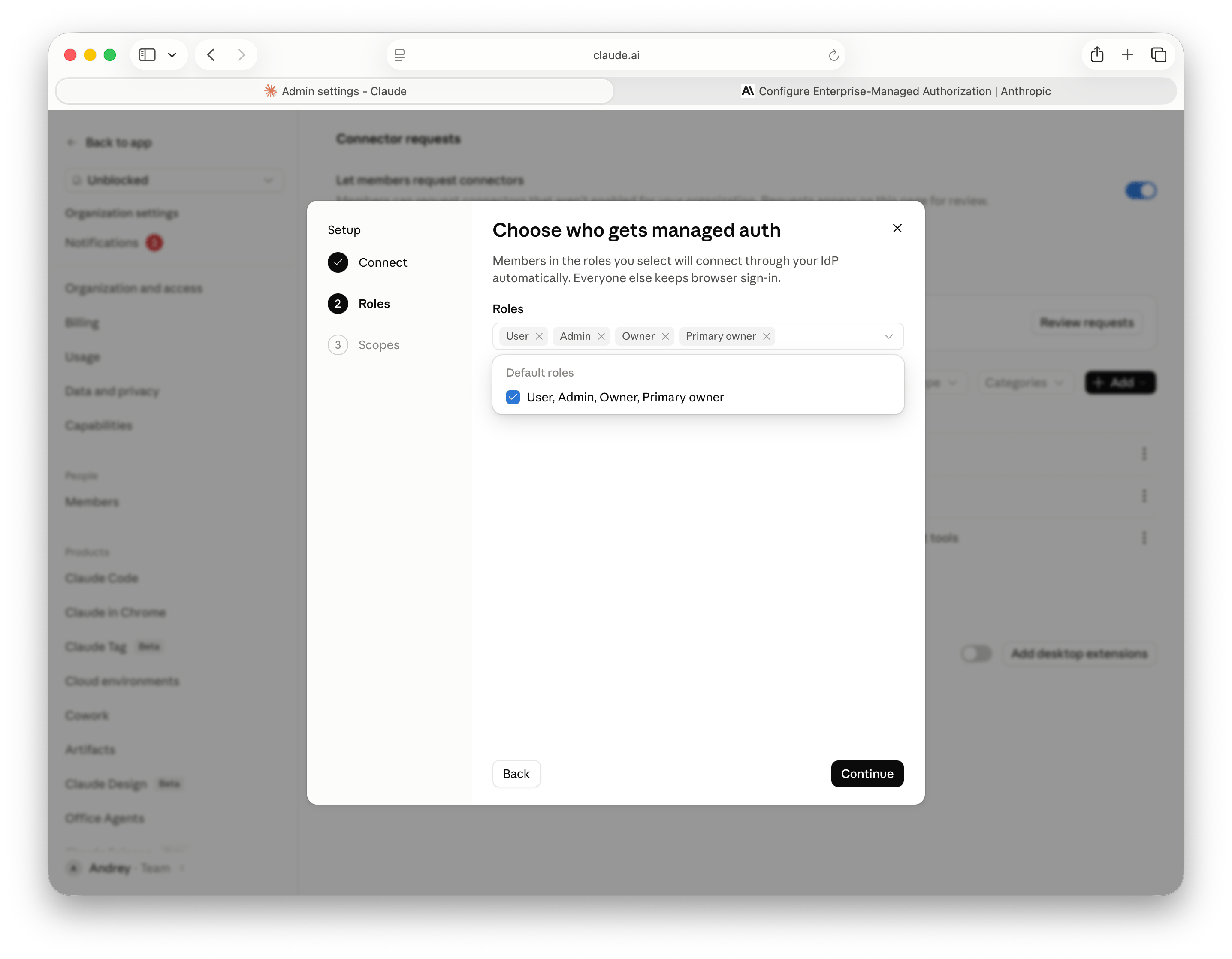
 Select the Claude roles whose members should connect through Okta automatically. Members outside the selected roles keep browser sign-in. Select **Continue**.
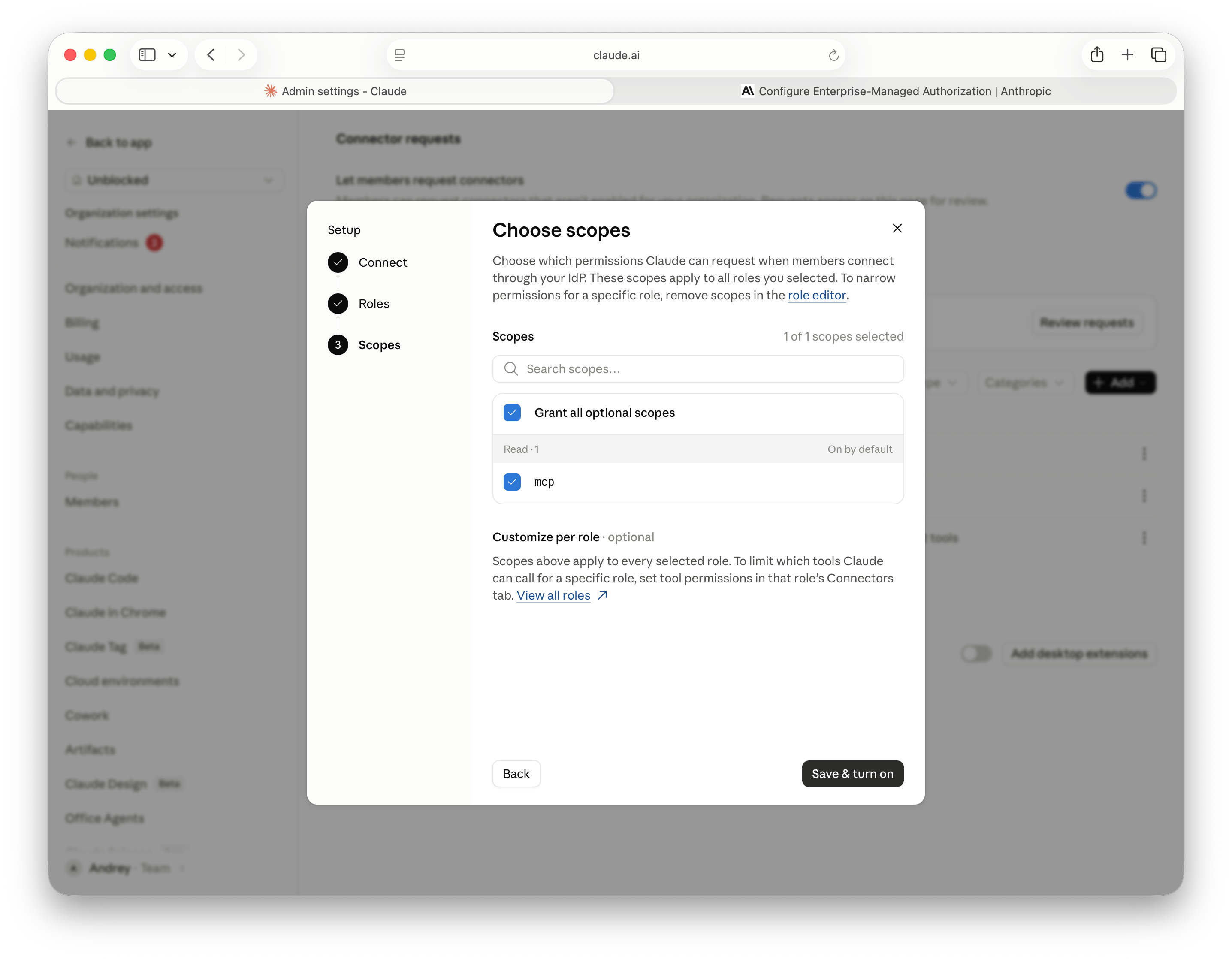
 Keep the **mcp** scope selected, then select **Save & turn on**.
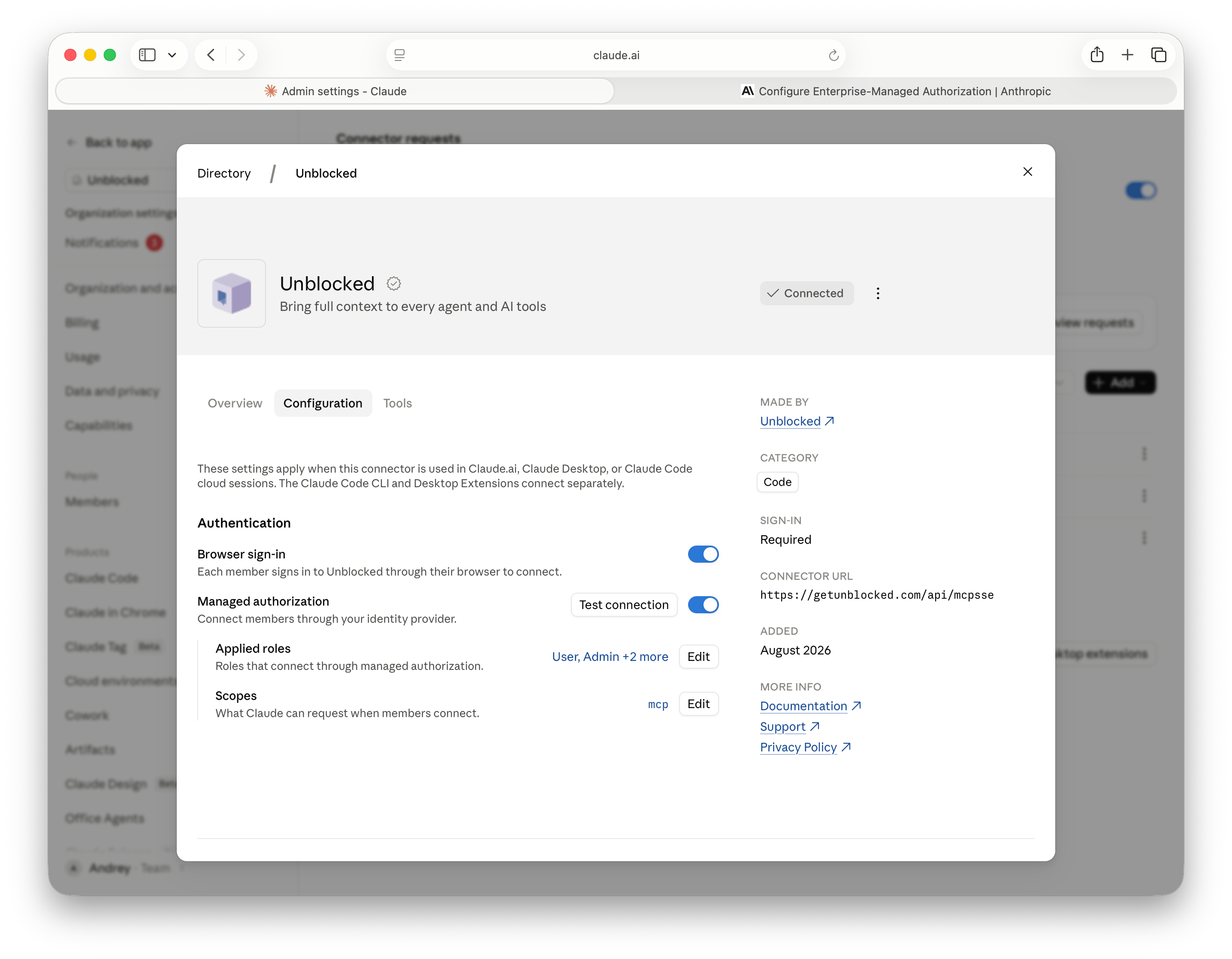
 On the connector's **Configuration** tab, confirm that **Managed authorization** is on and that **Applied roles** and **Scopes** match your selections.