> ## Documentation Index
> Fetch the complete documentation index at: https://docs.getunblocked.com/llms.txt
> Use this file to discover all available pages before exploring further.
# Unblocked for Messaging Platforms
> Getting answers from Unblocked in your messaging platform
This article explains how you can use the Unblocked app in your messaging platform to get
answers in the channels your team uses. For instructions on how to set up Unblocked in your messaging platform, see [the article on this topic](/using-unblocked/in-messaging-platforms).
## Supported Platforms
Unblocked currently supports the following messaging platforms:
{" "}
## Asking Questions
You can ask Unblocked questions in both public and private channels
in which the Unblocked bot has been added. When a question is asked, Unblocked will
respect the access permissions for private channels, and not include that
context in answers provided outside the private channel.
You can ask Unblocked a question in a channel by mentioning `@Unblocked` in your message. Not only can you [ask about your codebase and projects](/writing-questions), you can also ask Unblocked to summarize a channel and it will provide a recap of the past 100 messages posted.
Once you've asked your question, Unblocked will answer in a discussion thread. From there, you and your teammates can ask any follow-up questions you may have.
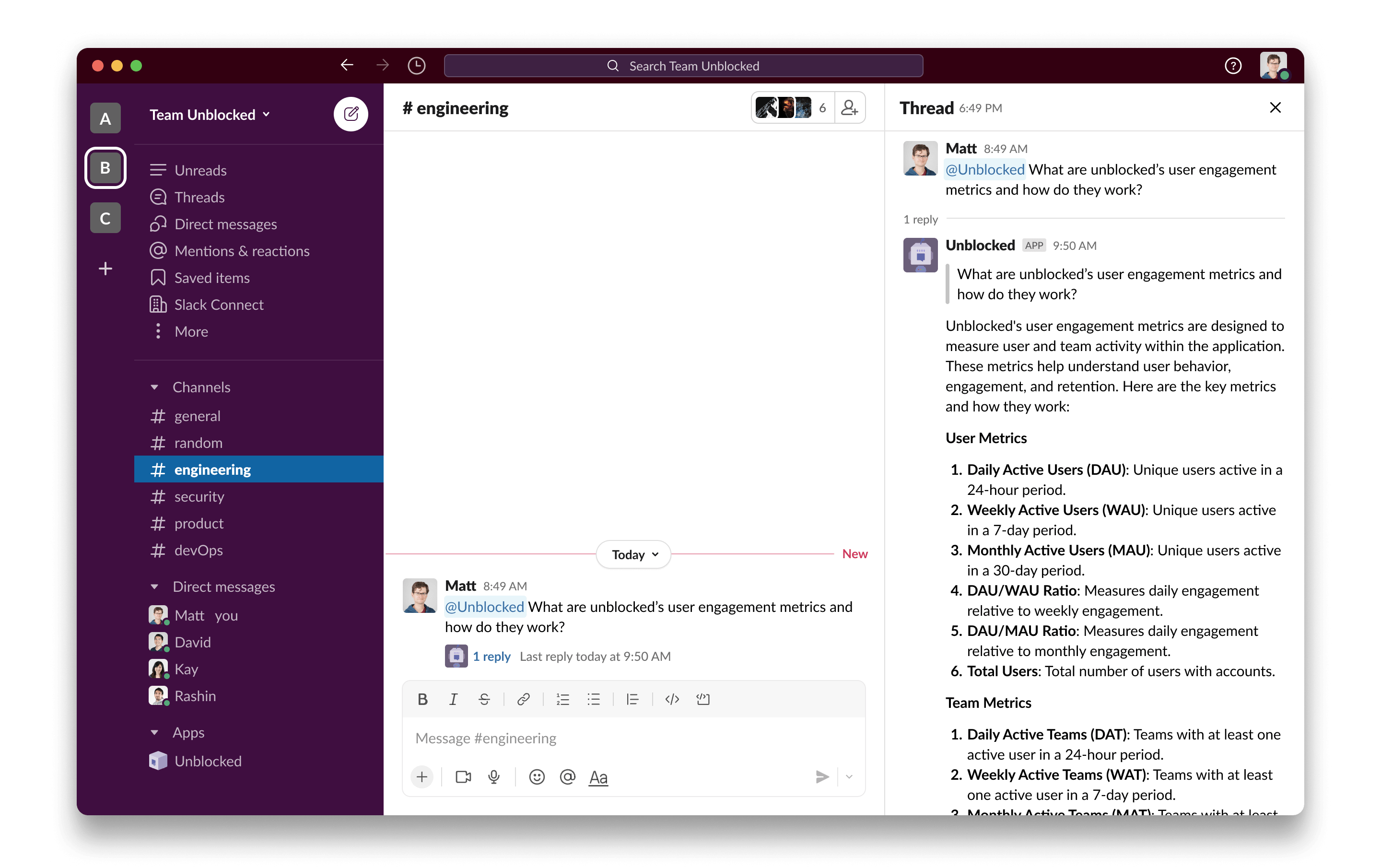 When you open the thread, you can provide feedback on Unblocked's answers, just like [in the web](/using-unblocked/on-the-web) and [Mac app](/using-unblocked/on-your-mac) interfaces.
## Custom Answer Preferences
You can also tailor Unblocked's responses to suit the needs of each channel by configuring [channel preferences](/data-sources/slack#channel-preferences) for each channel you select.
## Unblocked Auto-Responses
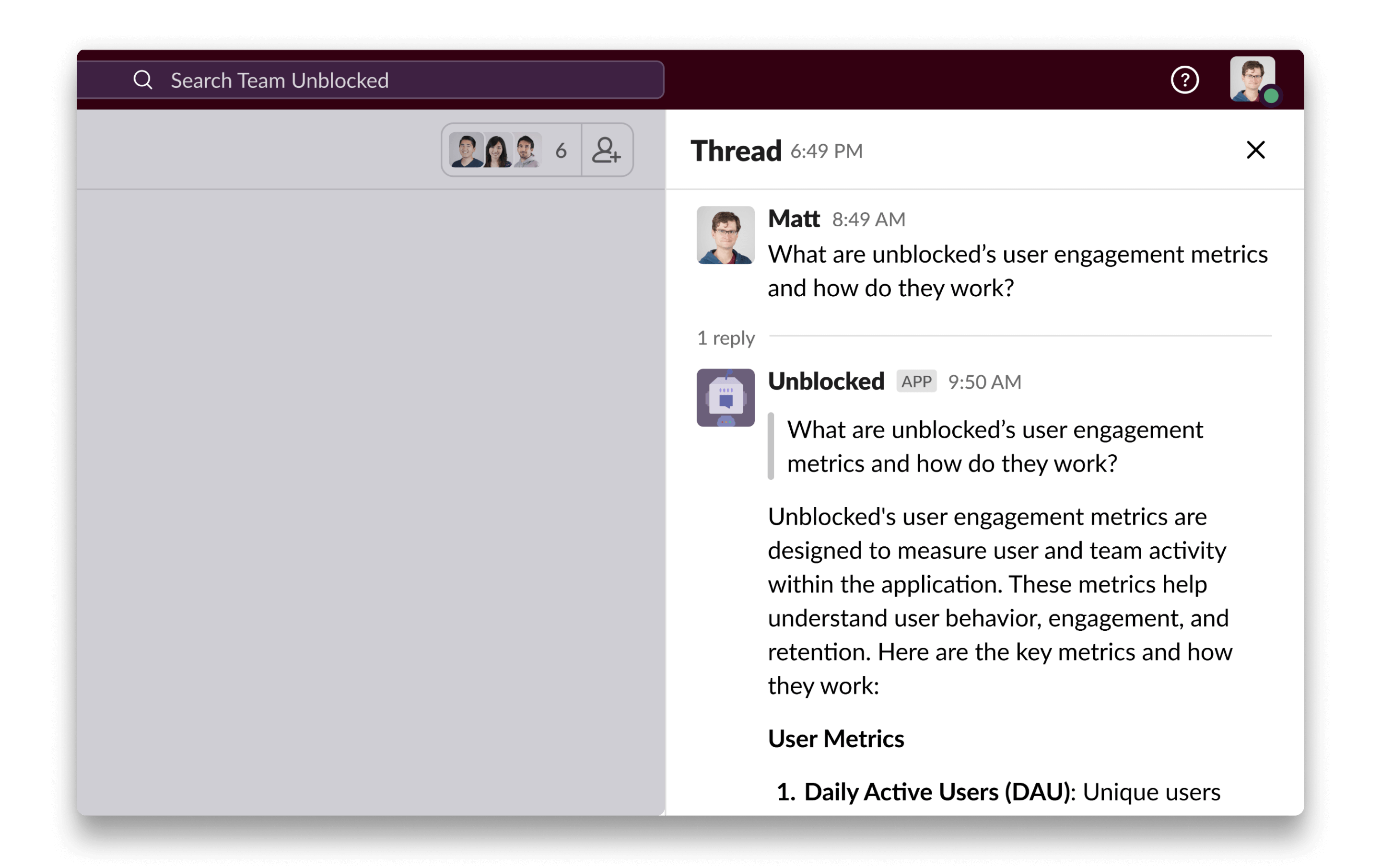
Unblocked can also auto-respond in channels. When Unblocked has an answer for a question asked in a given channel, it will answer in a discussion thread just like another member of your team.
When you open the thread, you can provide feedback on Unblocked's answers, just like [in the web](/using-unblocked/on-the-web) and [Mac app](/using-unblocked/on-your-mac) interfaces.
## Custom Answer Preferences
You can also tailor Unblocked's responses to suit the needs of each channel by configuring [channel preferences](/data-sources/slack#channel-preferences) for each channel you select.
## Unblocked Auto-Responses
Unblocked can also auto-respond in channels. When Unblocked has an answer for a question asked in a given channel, it will answer in a discussion thread just like another member of your team.
 ## Direct Messages with Unblocked
Unblocked's [Incognito Mode](/unblocked-chat/incognito-mode) gives you a private space to ask questions in Unblocked's clients ([on the web](/using-unblocked/on-the-web) and [on your Mac](/using-unblocked/on-your-mac)).
You can ask questions in private by sending a direct message to the Unblocked bot. These questions and Unblocked's answers will only be visible to you in the direct message and will not appear in your team's feed.
## Direct Messages with Unblocked
Unblocked's [Incognito Mode](/unblocked-chat/incognito-mode) gives you a private space to ask questions in Unblocked's clients ([on the web](/using-unblocked/on-the-web) and [on your Mac](/using-unblocked/on-your-mac)).
You can ask questions in private by sending a direct message to the Unblocked bot. These questions and Unblocked's answers will only be visible to you in the direct message and will not appear in your team's feed.
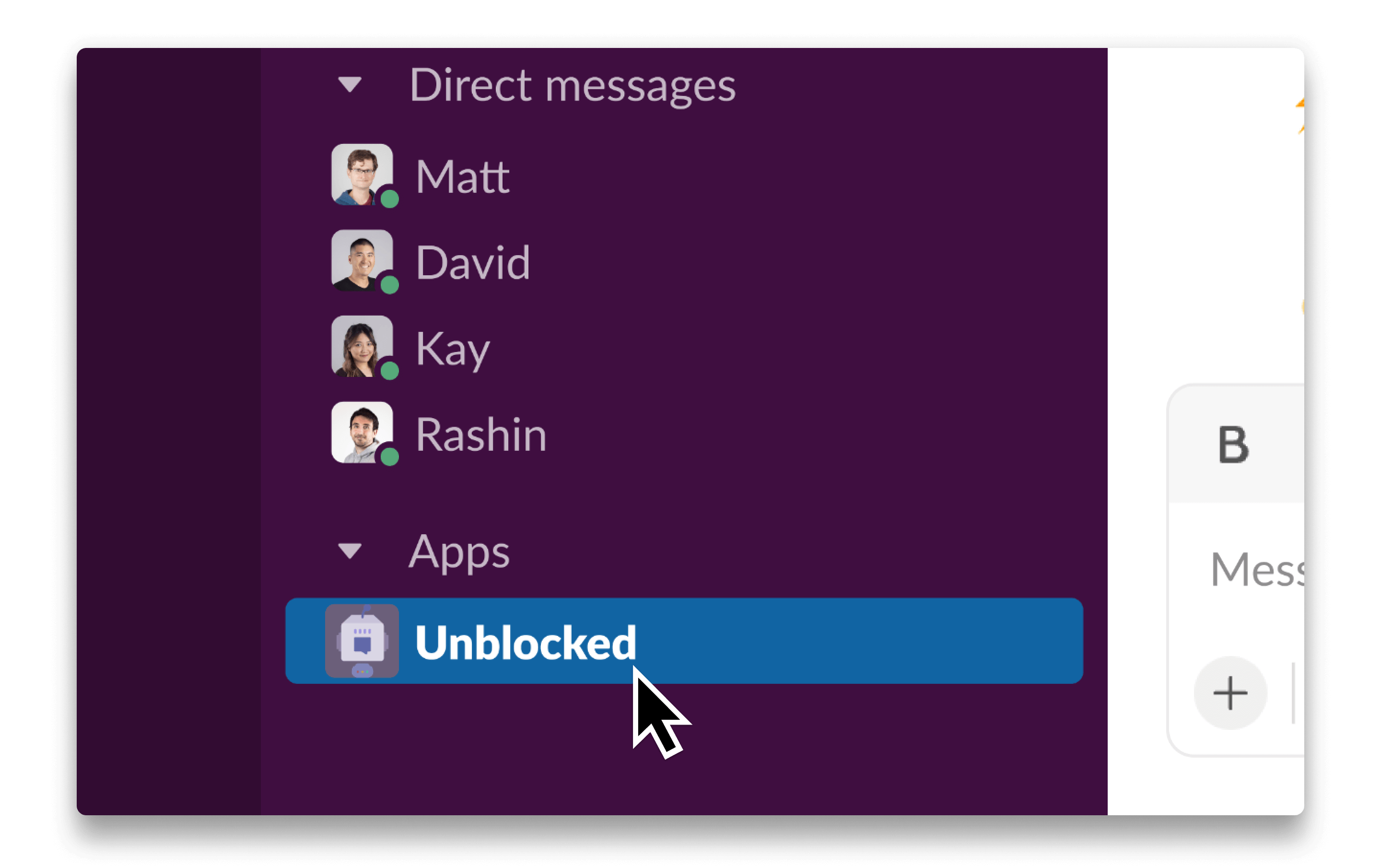 In Slack, you can find the Unblocked bot under the **Apps** section of the main sidebar. Simply click on **Unblocked** to open a direct message and type your question.
In Teams, you can find the Unblocked bot under the list of channels in the left navigation bar. You can also click the three dots in the left nav to search for **Unblocked**. Click on **Unblocked** to open a direct message and start asking questions.
In Slack, you can find the Unblocked bot under the **Apps** section of the main sidebar. Simply click on **Unblocked** to open a direct message and type your question.
In Teams, you can find the Unblocked bot under the list of channels in the left navigation bar. You can also click the three dots in the left nav to search for **Unblocked**. Click on **Unblocked** to open a direct message and start asking questions.