> ## Documentation Index
> Fetch the complete documentation index at: https://docs.getunblocked.com/llms.txt
> Use this file to discover all available pages before exploring further.
# Google Workspace
> How to set up Google Workspace with Unblocked
Centralize your team's access to Unblocked by connecting it to Google Workspace.
## Configure Single Sign-On
Follow the steps below to configure single sign-on for Google Workspace.
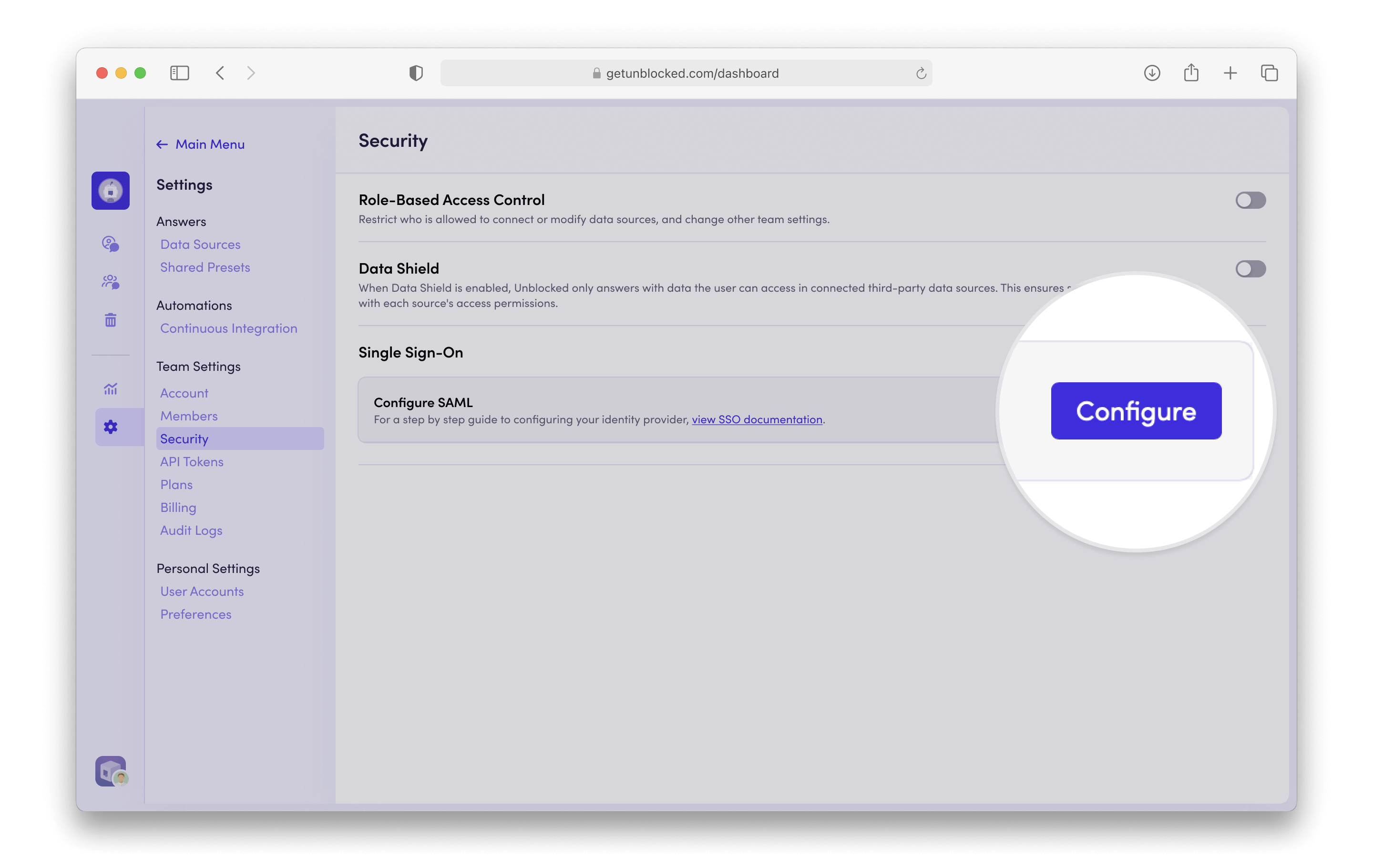
Navigate to the **Settings** section of the Unblocked web app.
Under Team Settings, select **Security**.
Locate the Single Sign-On section and click **Configure**.
 From your Google Workspace Admin dashboard, go to **Web and mobile apps**.
Then, from the **Add app** dropdown, select **Add custom SAML app**.
Enter "Unblocked" as the app name and click **Continue**.
Copy the following three values from the SAML application into the Configure SSO form in Unblocked:
* `SSO URL`
* `Entity ID`
* `Certificate`
On the Service provider details page, enter the following:
* ACS URL: provided from Unblocked
* Entity ID: provided from Unblocked
* Name ID format: `EMAIL`
* Name ID: `Basic Information > Primary email`
Enter the following three attribute statements:
| Google Directory Attribute | Value |
| :------------------------- | :---------- |
| `Primary email` | `email` |
| `First name` | `firstName` |
| `Last name` | `lastName` |
Click **Finish** to save your changes.
On the next page, assign users and groups to the Google SAML application to grant them access to Unblocked.
## Enforce SSO
Once SSO is configured, you can enforce its use for your team.
This means all team members will be required to sign in using your SSO provider.
There are two enforcement options:
* **SSO Only**:
Users will be required to sign in to Unblocked using SSO.
You may need to sign in with SSO before enabling this option.
* **SSO, a Source Code System, or Slack**:
Users can sign in using either SSO, their source code system (e.g., GitHub, Bitbucket, or GitLab), or Slack.
From your Google Workspace Admin dashboard, go to **Web and mobile apps**.
Then, from the **Add app** dropdown, select **Add custom SAML app**.
Enter "Unblocked" as the app name and click **Continue**.
Copy the following three values from the SAML application into the Configure SSO form in Unblocked:
* `SSO URL`
* `Entity ID`
* `Certificate`
On the Service provider details page, enter the following:
* ACS URL: provided from Unblocked
* Entity ID: provided from Unblocked
* Name ID format: `EMAIL`
* Name ID: `Basic Information > Primary email`
Enter the following three attribute statements:
| Google Directory Attribute | Value |
| :------------------------- | :---------- |
| `Primary email` | `email` |
| `First name` | `firstName` |
| `Last name` | `lastName` |
Click **Finish** to save your changes.
On the next page, assign users and groups to the Google SAML application to grant them access to Unblocked.
## Enforce SSO
Once SSO is configured, you can enforce its use for your team.
This means all team members will be required to sign in using your SSO provider.
There are two enforcement options:
* **SSO Only**:
Users will be required to sign in to Unblocked using SSO.
You may need to sign in with SSO before enabling this option.
* **SSO, a Source Code System, or Slack**:
Users can sign in using either SSO, their source code system (e.g., GitHub, Bitbucket, or GitLab), or Slack.
 ## Allowed Email Domains
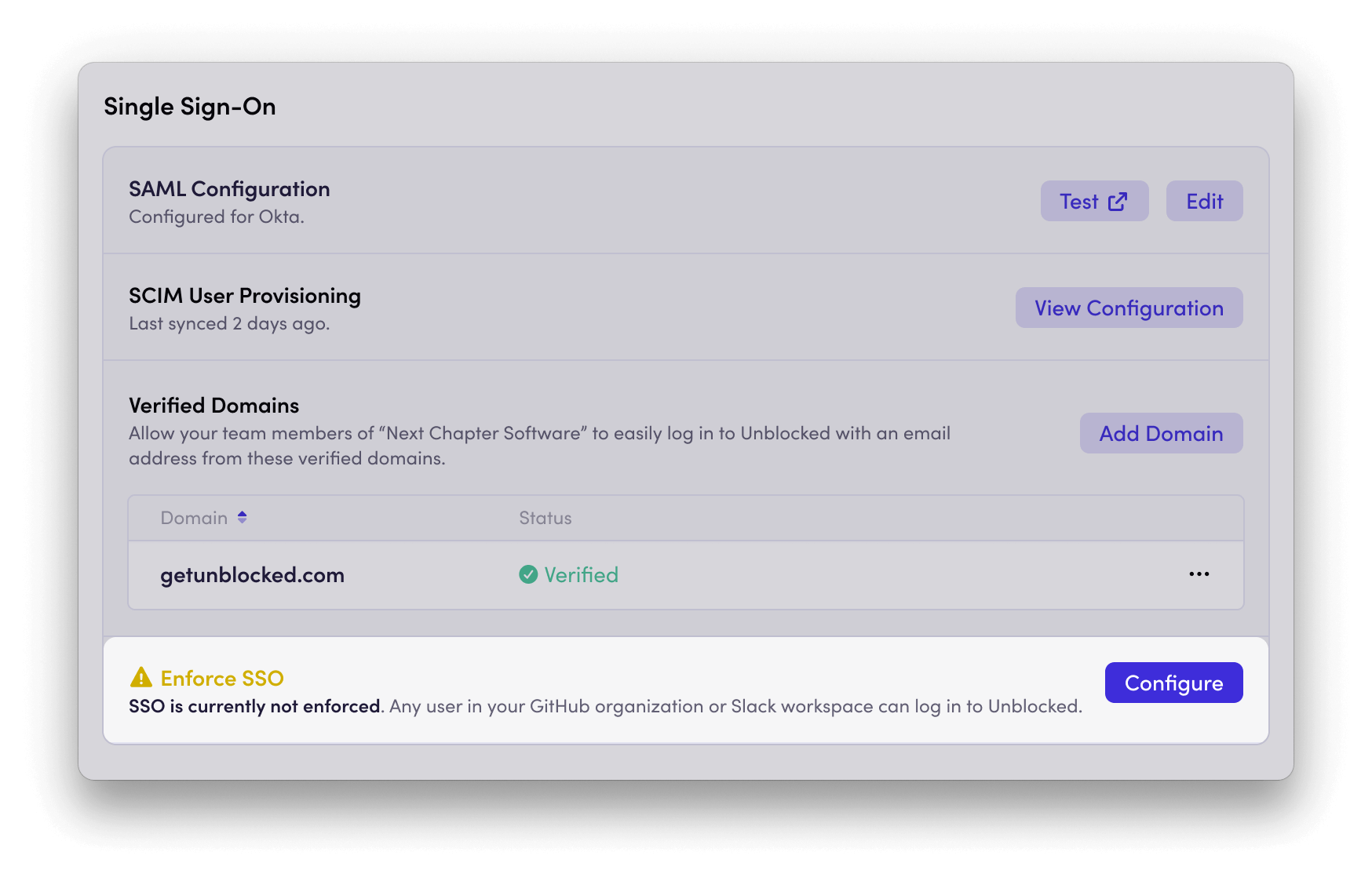
Verifying a domain ensures that users who enter an email address from that domain on the Unblocked sign-in page are automatically directed to your SSO login.
This creates a seamless login experience and routes users through the correct authentication flow.
You can add multiple domains to enable SSO login detection for users with different email addresses.
To verify a domain:
Click **Add Domain** and enter the domain name you want to verify.
Unblocked will prompt you to add a TXT record to your DNS settings to complete the verification.
Once the domain is verified, any user who enters an email address matching that domain on the Unblocked sign-in page will see the SSO login option for your SAML provider.
Verifying a domain only controls the visibility of the SSO login option and does not automatically grant access to
your Unblocked team. Access to Unblocked is still managed through user and group assignments in your identity provider (IdP).
## Download Unblocked Logo
To help your users easily recognize Unblocked in their identity provider dashboard,
download the Unblocked logo for use in your SSO application.
## Allowed Email Domains
Verifying a domain ensures that users who enter an email address from that domain on the Unblocked sign-in page are automatically directed to your SSO login.
This creates a seamless login experience and routes users through the correct authentication flow.
You can add multiple domains to enable SSO login detection for users with different email addresses.
To verify a domain:
Click **Add Domain** and enter the domain name you want to verify.
Unblocked will prompt you to add a TXT record to your DNS settings to complete the verification.
Once the domain is verified, any user who enters an email address matching that domain on the Unblocked sign-in page will see the SSO login option for your SAML provider.
Verifying a domain only controls the visibility of the SSO login option and does not automatically grant access to
your Unblocked team. Access to Unblocked is still managed through user and group assignments in your identity provider (IdP).
## Download Unblocked Logo
To help your users easily recognize Unblocked in their identity provider dashboard,
download the Unblocked logo for use in your SSO application.