> ## Documentation Index
> Fetch the complete documentation index at: https://docs.getunblocked.com/llms.txt
> Use this file to discover all available pages before exploring further.
# Microsoft Entra ID
> How to set up Microsoft Entra ID with Unblocked
Centralize your team's access to Unblocked by connecting it to Microsoft Entra ID.
## Configure Single Sign-On
Follow the steps below to configure single sign-on for Microsoft Entra ID.
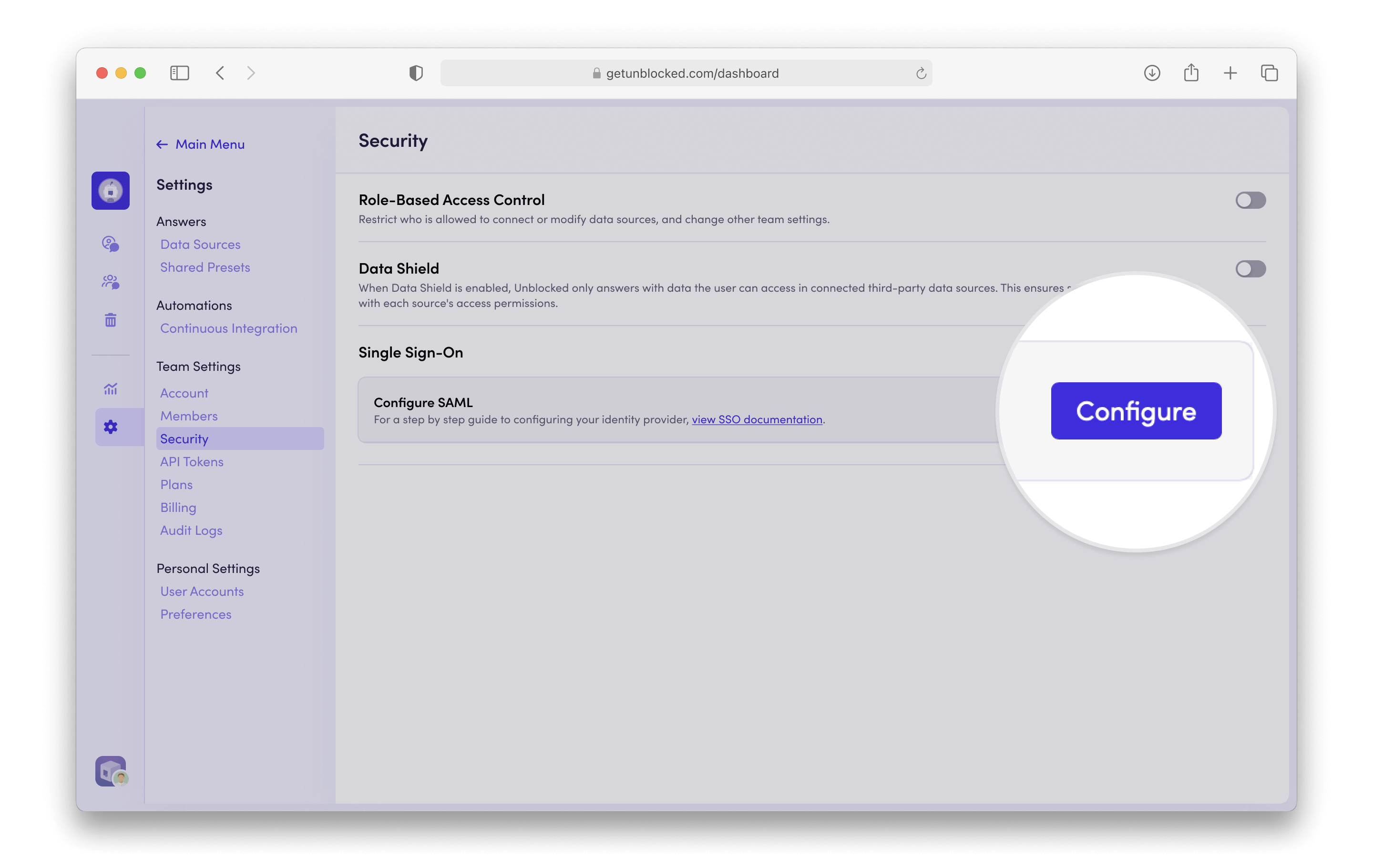
Navigate to the **Settings** section of the Unblocked web app.
Under Team Settings, select **Security**.
Locate the Single Sign-On section and click **Configure**.
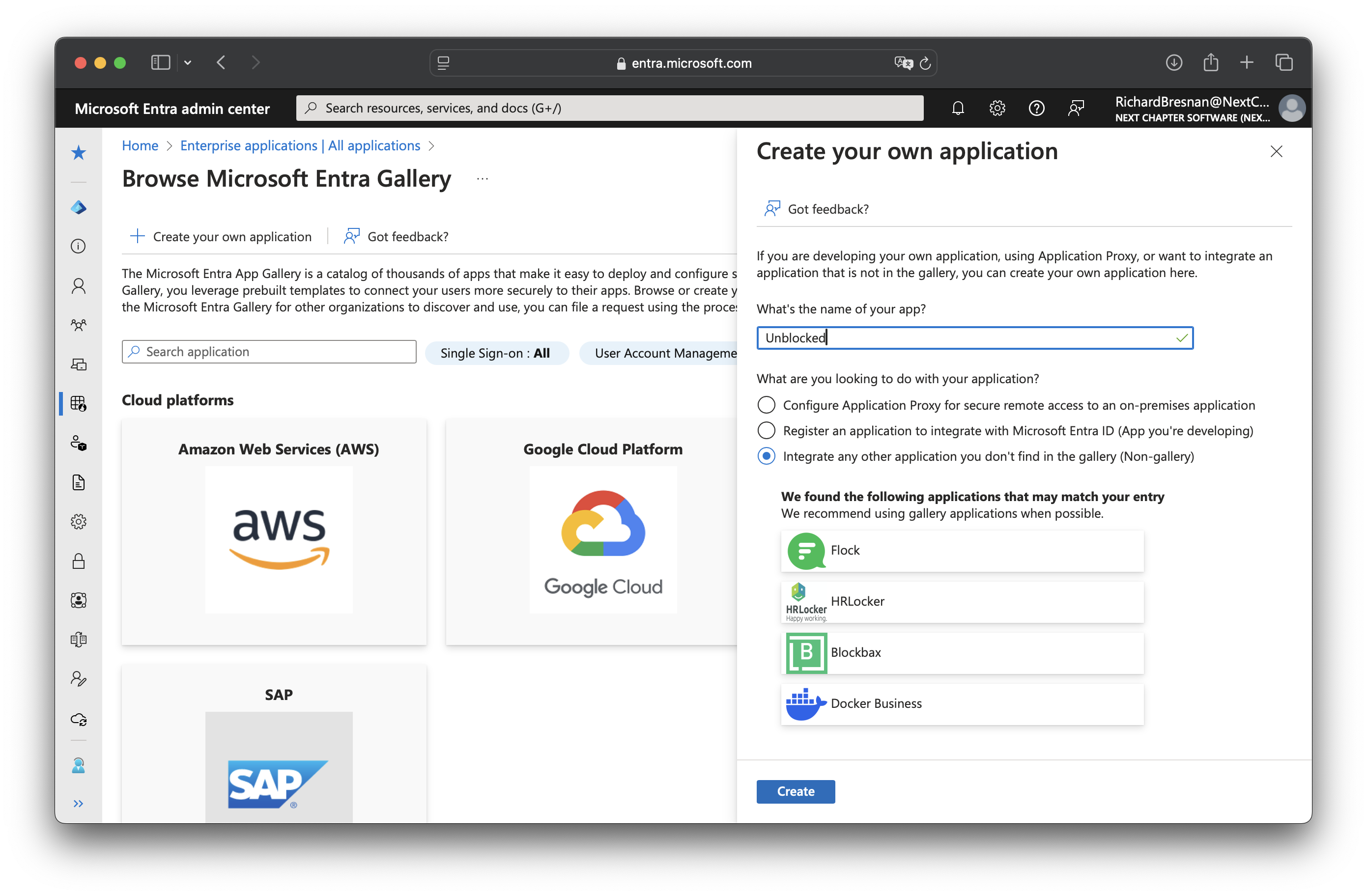
 From your Microsoft Entra ID admin dashboard, navigate to the **Enterprise applications** tab.
Click **New application**, then click **Create your own application** to create a new application using `SAML`.
Enter "Unblocked" as the app name and click Create.
From your Microsoft Entra ID admin dashboard, navigate to the **Enterprise applications** tab.
Click **New application**, then click **Create your own application** to create a new application using `SAML`.
Enter "Unblocked" as the app name and click Create.
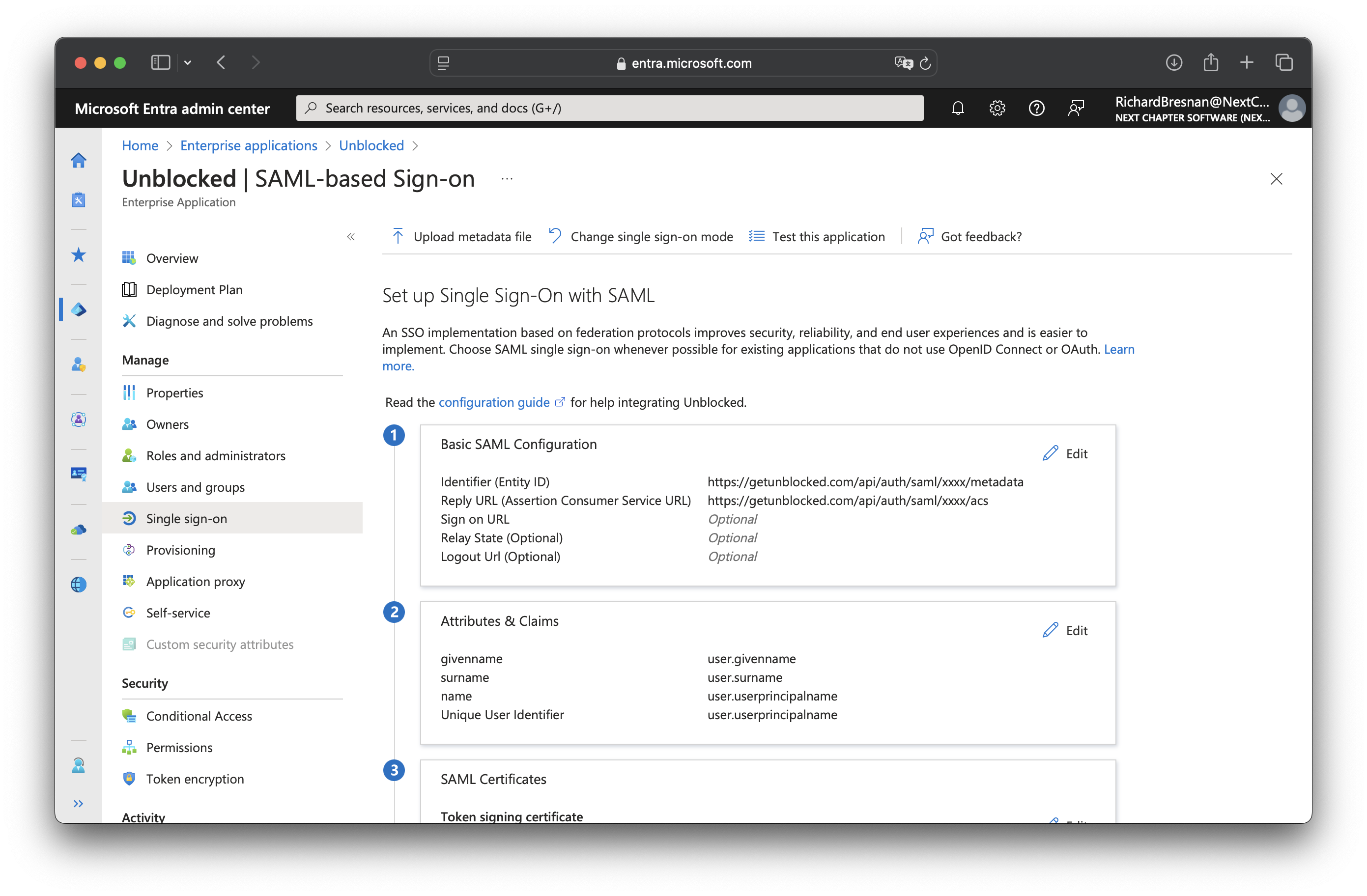
 Click **Set up single sign on** and select **SAML**.
Enter the following values for the **Basic SAML Configuration**:
* Identifier (Entity ID): copy value from Unblocked Single Sign-On settings
* Reply URL (Assertion Consumer Service URL): copy value from Unblocked Single Sign-On settings
Leave other fields blank.
Click **Set up single sign on** and select **SAML**.
Enter the following values for the **Basic SAML Configuration**:
* Identifier (Entity ID): copy value from Unblocked Single Sign-On settings
* Reply URL (Assertion Consumer Service URL): copy value from Unblocked Single Sign-On settings
Leave other fields blank.
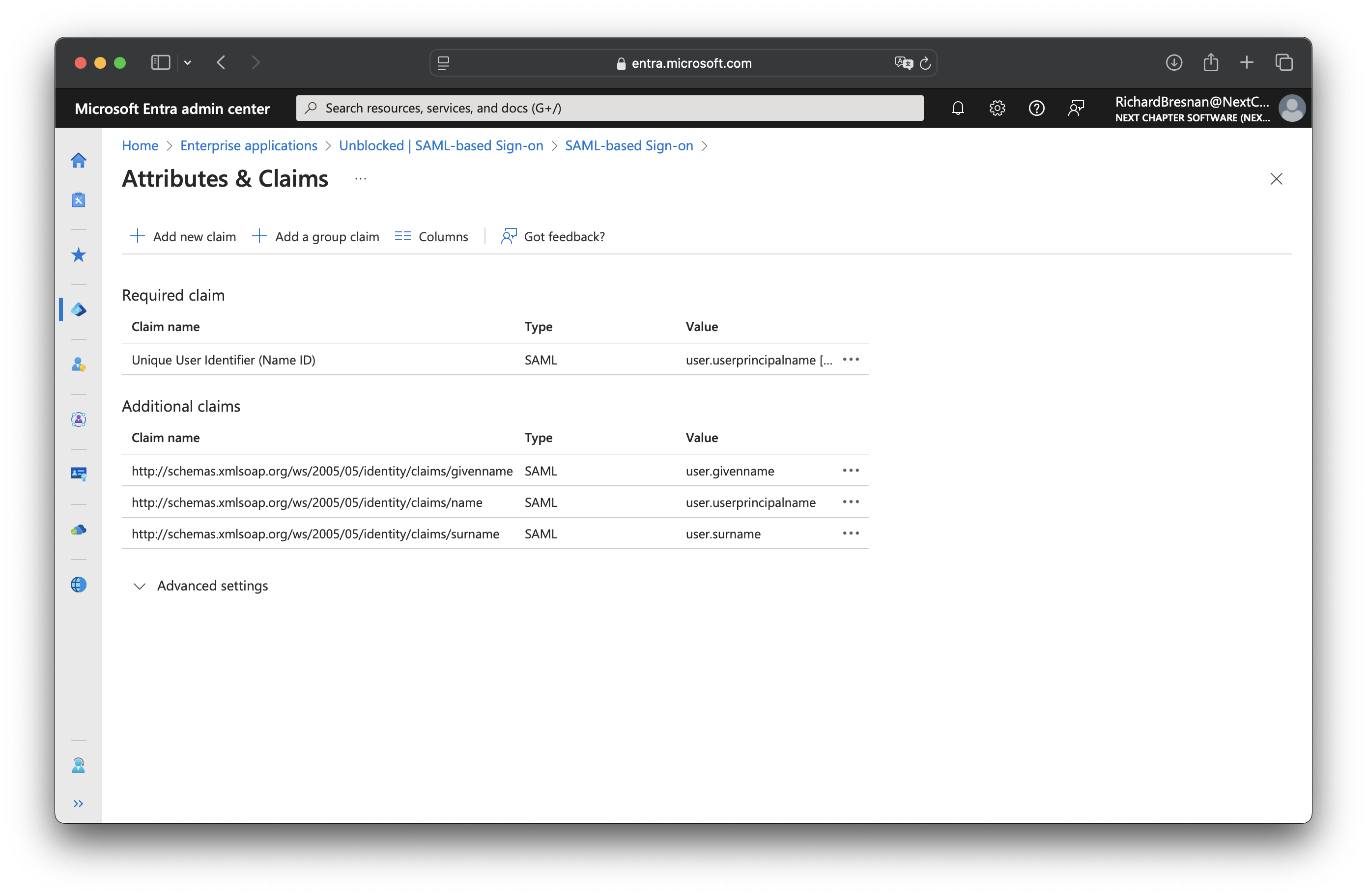
 The default attribute and claim mappings are sufficient for Unblocked. It should look like this:
 From the **SAML Certificate** section of your Microsoft Entra ID application,
download the Base64 certificate and copy the contents of the downloaded file into the Certificate field in
Unblocked.
Then, copy the following two values from your new application into Unblocked:
* `Login URL`
* `Microsoft Entra Identifier`
Assign users and groups to your Microsoft Entra ID application to grant them access to Unblocked.
## User and Group Provisioning
Once you've configured SSO, you can enable user and group provisioning to automatically manage user access to Unblocked.
This feature allows you to automatically create, update, and deactivate users in Unblocked based on changes in Microsoft Entra ID.
To configure SCIM provisioning from Microsoft Entra ID to Unblocked, you'll need to set up provisioning in Microsoft Entra ID.
In the Unblocked web app, navigate to the **Settings** section.
Under Team Settings, select **Security**.
Locate the SCIM User and Group Provisioning section and click **Configure**.
From the **SAML Certificate** section of your Microsoft Entra ID application,
download the Base64 certificate and copy the contents of the downloaded file into the Certificate field in
Unblocked.
Then, copy the following two values from your new application into Unblocked:
* `Login URL`
* `Microsoft Entra Identifier`
Assign users and groups to your Microsoft Entra ID application to grant them access to Unblocked.
## User and Group Provisioning
Once you've configured SSO, you can enable user and group provisioning to automatically manage user access to Unblocked.
This feature allows you to automatically create, update, and deactivate users in Unblocked based on changes in Microsoft Entra ID.
To configure SCIM provisioning from Microsoft Entra ID to Unblocked, you'll need to set up provisioning in Microsoft Entra ID.
In the Unblocked web app, navigate to the **Settings** section.
Under Team Settings, select **Security**.
Locate the SCIM User and Group Provisioning section and click **Configure**.
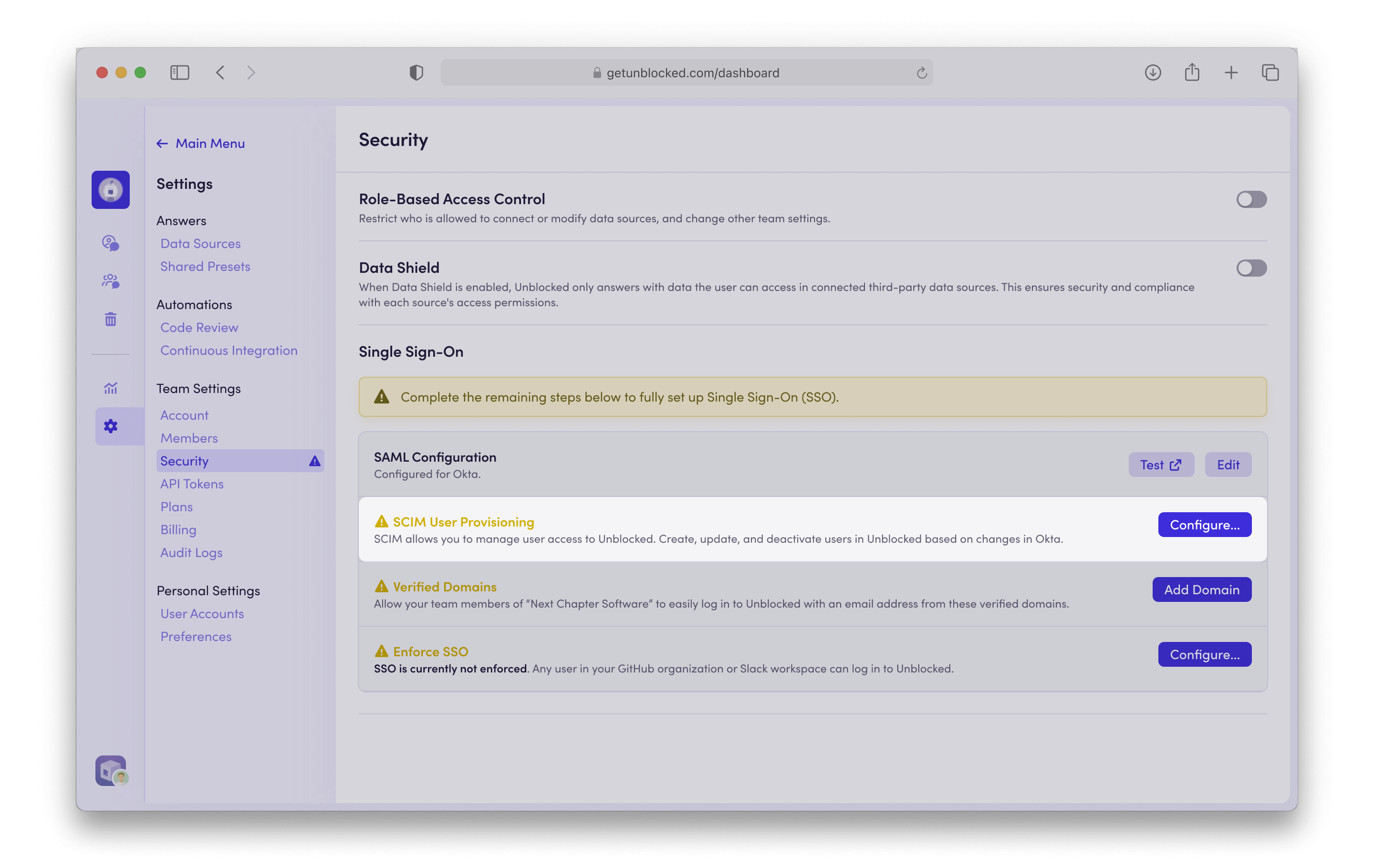 Click **Add Token** to generate a new API token for SCIM provisioning. Copy both the new API token and the **Base URL**.
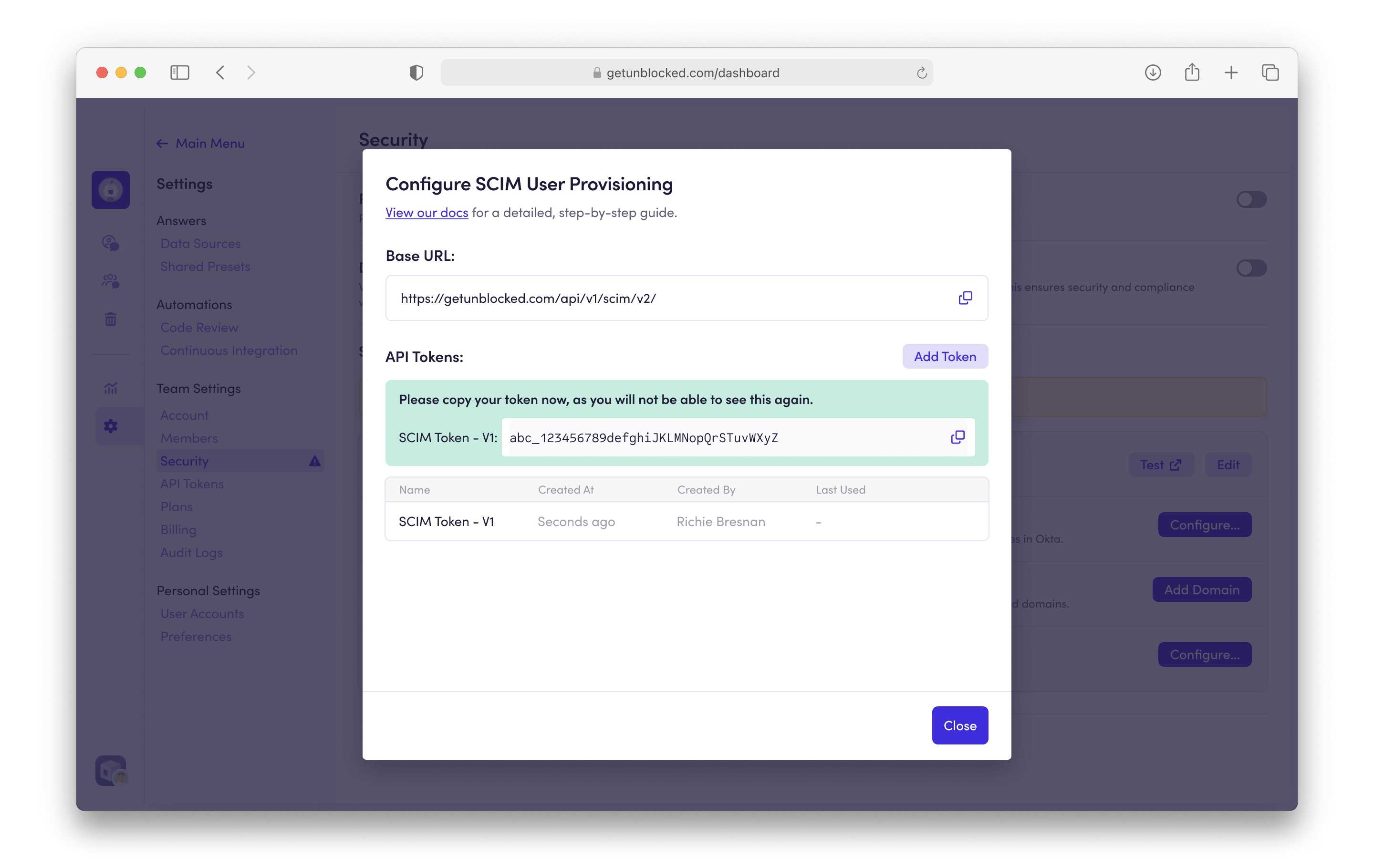 From your Microsoft Entra ID admin dashboard, navigate to your previously created Unblocked Application.
Select the **Provisioning** options from the **Manage** menu, or you can select the **Provision User Accounts** tile.
From your Microsoft Entra ID admin dashboard, navigate to your previously created Unblocked Application.
Select the **Provisioning** options from the **Manage** menu, or you can select the **Provision User Accounts** tile.
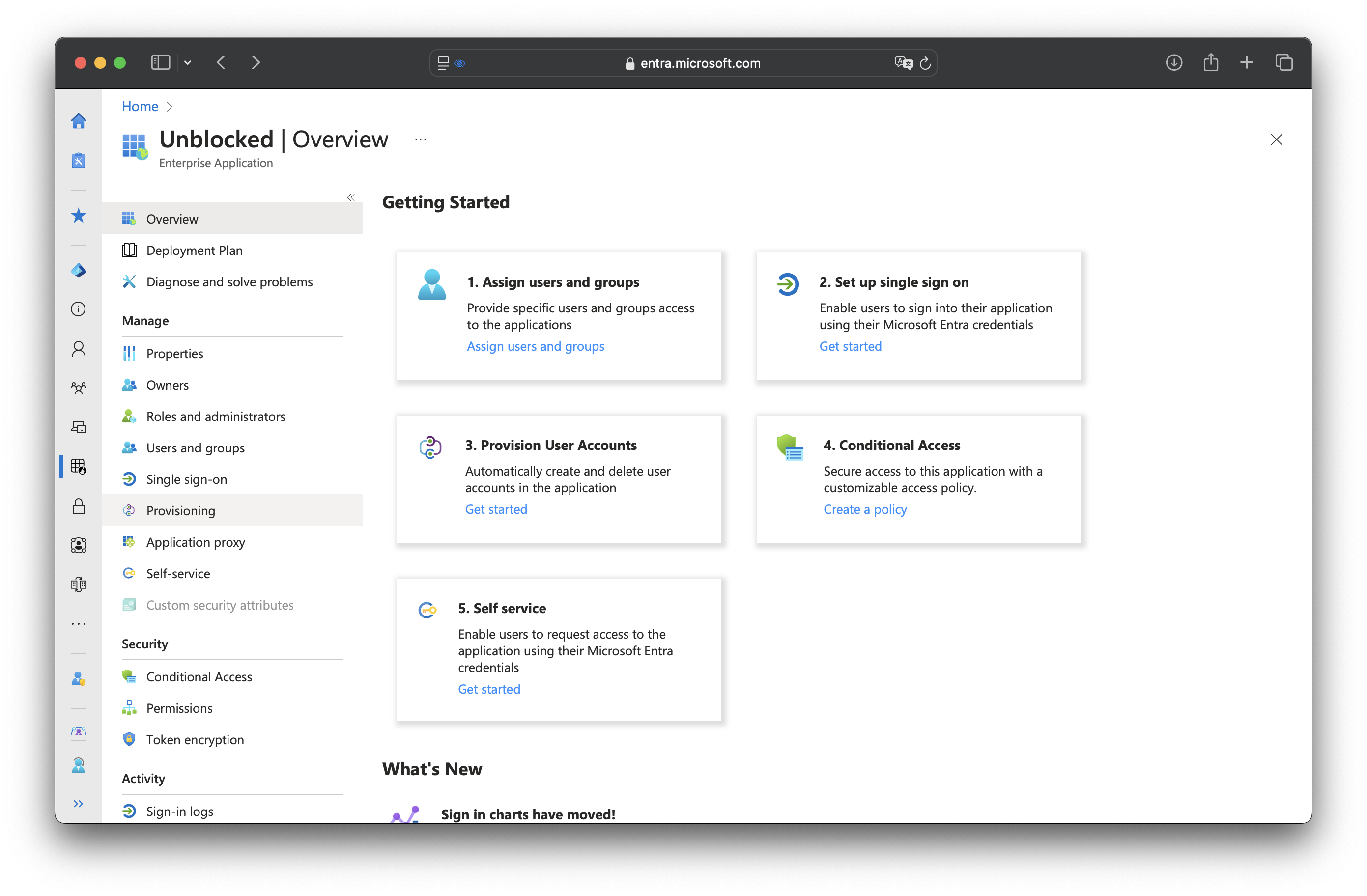 On the following page enter the following details:
* Set the **Provisioning Mode** to **Automatic**.
* Set the **Tenant URL** to the **Base URL** that you copied earlier from Unblocked.
* Set the **Secret Token** to the API Token that you copied earlier from Unblocked.
Click **Test Connection** to verify the connection, and then click **Save**.
On the following page enter the following details:
* Set the **Provisioning Mode** to **Automatic**.
* Set the **Tenant URL** to the **Base URL** that you copied earlier from Unblocked.
* Set the **Secret Token** to the API Token that you copied earlier from Unblocked.
Click **Test Connection** to verify the connection, and then click **Save**.
 On the Provisioning **Overview** page, click **Start Provisioning** to begin syncing users and groups from Microsoft Entra ID to Unblocked.
This completes the setup for SCIM provisioning from Microsoft Entra ID to Unblocked.
## Enforce SSO
Once SSO is configured, you can enforce its use for your team.
This means all team members will be required to sign in using your SSO provider.
There are two enforcement options:
* **SSO Only**:
Users will be required to sign in to Unblocked using SSO.
You may need to sign in with SSO before enabling this option.
* **SSO, a Source Code System, or Slack**:
Users can sign in using either SSO, their source code system (e.g., GitHub, Bitbucket, or GitLab), or Slack.
On the Provisioning **Overview** page, click **Start Provisioning** to begin syncing users and groups from Microsoft Entra ID to Unblocked.
This completes the setup for SCIM provisioning from Microsoft Entra ID to Unblocked.
## Enforce SSO
Once SSO is configured, you can enforce its use for your team.
This means all team members will be required to sign in using your SSO provider.
There are two enforcement options:
* **SSO Only**:
Users will be required to sign in to Unblocked using SSO.
You may need to sign in with SSO before enabling this option.
* **SSO, a Source Code System, or Slack**:
Users can sign in using either SSO, their source code system (e.g., GitHub, Bitbucket, or GitLab), or Slack.
 ## Allowed Email Domains
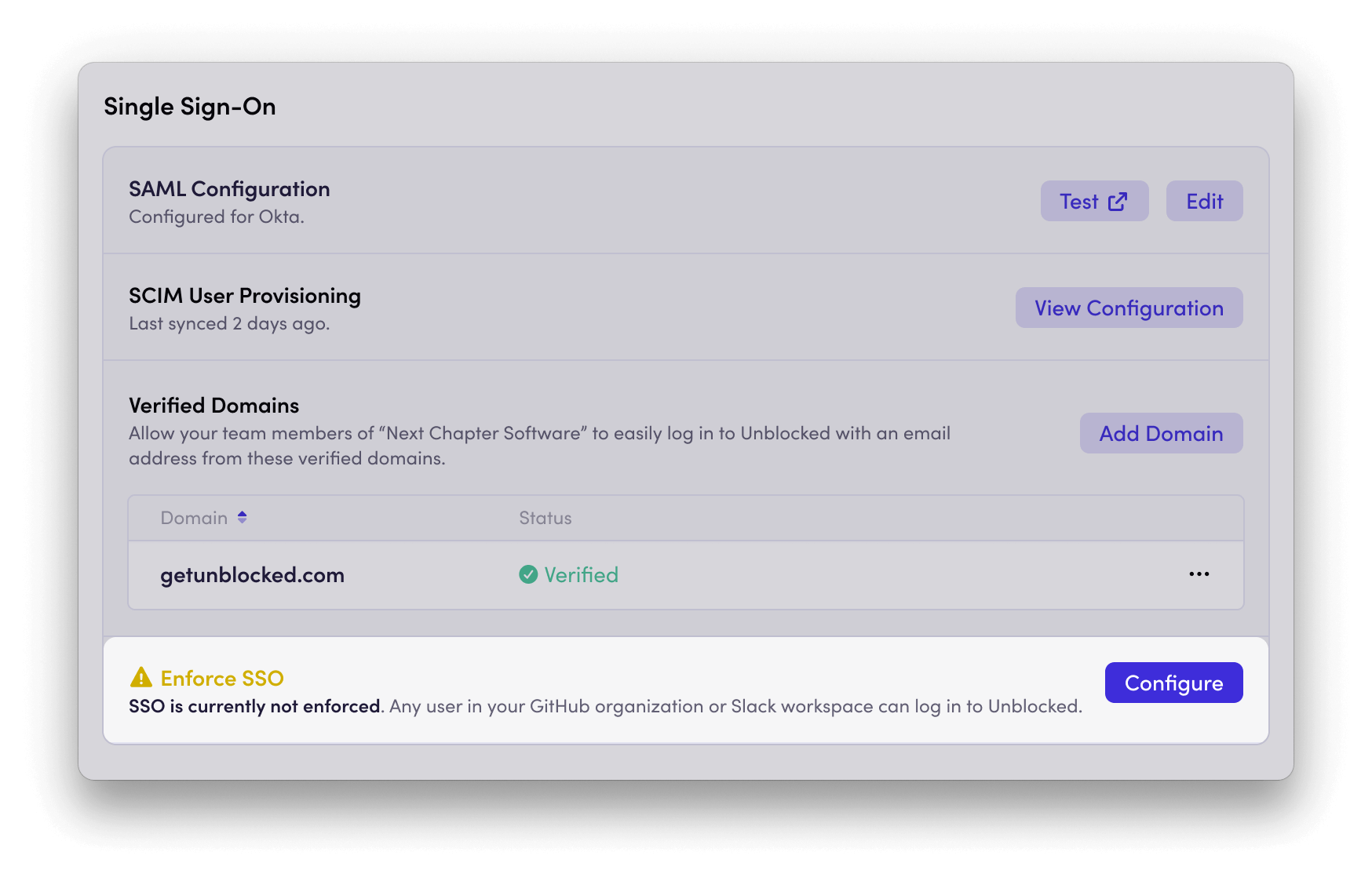
Verifying a domain ensures that users who enter an email address from that domain on the Unblocked sign-in page are automatically directed to your SSO login.
This creates a seamless login experience and routes users through the correct authentication flow.
You can add multiple domains to enable SSO login detection for users with different email addresses.
To verify a domain:
Click **Add Domain** and enter the domain name you want to verify.
Unblocked will prompt you to add a TXT record to your DNS settings to complete the verification.
Once the domain is verified, any user who enters an email address matching that domain on the Unblocked sign-in page will see the SSO login option for your SAML provider.
Verifying a domain only controls the visibility of the SSO login option and does not automatically grant access to
your Unblocked team. Access to Unblocked is still managed through user and group assignments in your identity provider (IdP).
## Download Unblocked Logo
To help your users easily recognize Unblocked in their identity provider dashboard,
download the Unblocked logo for use in your SSO application.
## Allowed Email Domains
Verifying a domain ensures that users who enter an email address from that domain on the Unblocked sign-in page are automatically directed to your SSO login.
This creates a seamless login experience and routes users through the correct authentication flow.
You can add multiple domains to enable SSO login detection for users with different email addresses.
To verify a domain:
Click **Add Domain** and enter the domain name you want to verify.
Unblocked will prompt you to add a TXT record to your DNS settings to complete the verification.
Once the domain is verified, any user who enters an email address matching that domain on the Unblocked sign-in page will see the SSO login option for your SAML provider.
Verifying a domain only controls the visibility of the SSO login option and does not automatically grant access to
your Unblocked team. Access to Unblocked is still managed through user and group assignments in your identity provider (IdP).
## Download Unblocked Logo
To help your users easily recognize Unblocked in their identity provider dashboard,
download the Unblocked logo for use in your SSO application.