> ## Documentation Index
> Fetch the complete documentation index at: https://docs.getunblocked.com/llms.txt
> Use this file to discover all available pages before exploring further.
# Role-Based Access Control
> How to set up user and admin roles in Unblocked
Unblocked offers Role-Based Access Control to help you better manage who can modify the [data sources your team has connected with Unblocked](/data-sources/data-sources-overview).
When Role-Based Access Control is enabled, only admins will be able to configure data sources and change team settings for your team.
Non-admins will see a screen that lists administrators they can contact with their change requests.
### Setting up Roles
To enable Role-Based Access Control, first navigate to the **Settings** section of the Unblocked web app.
Under **Team Settings** select **Security**.
On this page you'll see an option to turn on Role-Based Access Control.
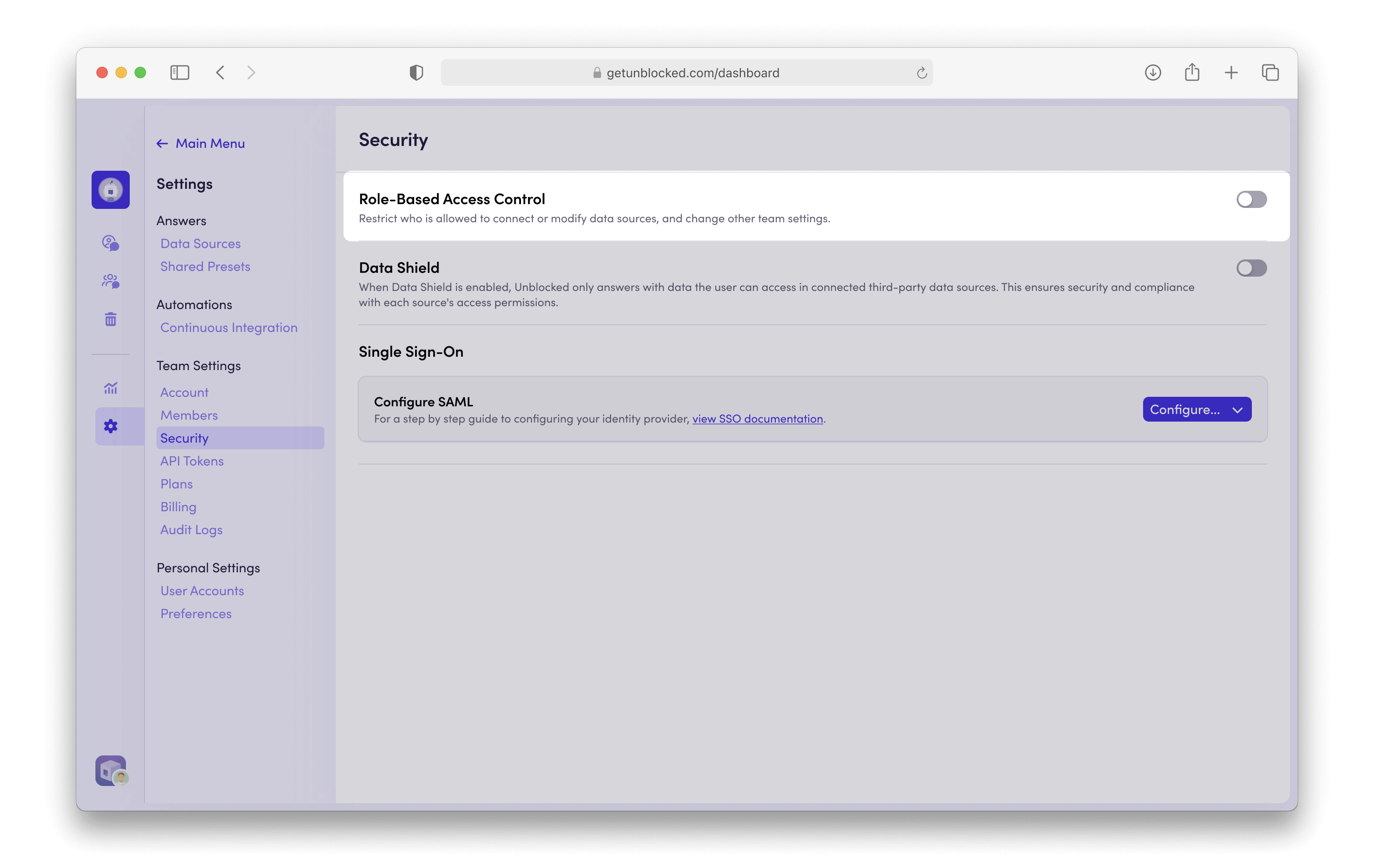 Toggle the switch to turn on Role-Based Access Control. A confirmation dialog will appear to ensure you want to enable this setting. If you wish to disable Role-Based Access Control in the future, you can do so by returning to this page and toggling the switch off.
### Changing Roles
By default, the current user who enables Role-Based Access Control will be the first admin for your team. This user will be able to add other admins to your team.
To add a new admin, navigate to the **Settings** section of the Unblocked web app.
Under **Team Settings** select **Members**.
Here you'll see a list of all the users who have access to your Unblocked team.
Choose between `Admin` and `Member` roles for each team member.
If your team does not have Role-Based Access Control enabled, any user can
modify the data source configured with Unblocked, including adding and
removing repos, changing connections to [Confluence](/data-sources/confluence)
and [Google Drive](/data-sources/google-drive), and updating [Slack
channels](/data-sources/slack).
Toggle the switch to turn on Role-Based Access Control. A confirmation dialog will appear to ensure you want to enable this setting. If you wish to disable Role-Based Access Control in the future, you can do so by returning to this page and toggling the switch off.
### Changing Roles
By default, the current user who enables Role-Based Access Control will be the first admin for your team. This user will be able to add other admins to your team.
To add a new admin, navigate to the **Settings** section of the Unblocked web app.
Under **Team Settings** select **Members**.
Here you'll see a list of all the users who have access to your Unblocked team.
Choose between `Admin` and `Member` roles for each team member.
If your team does not have Role-Based Access Control enabled, any user can
modify the data source configured with Unblocked, including adding and
removing repos, changing connections to [Confluence](/data-sources/confluence)
and [Google Drive](/data-sources/google-drive), and updating [Slack
channels](/data-sources/slack).