> ## Documentation Index
> Fetch the complete documentation index at: https://docs.getunblocked.com/llms.txt
> Use this file to discover all available pages before exploring further.
# Slack
> Connect your Slack workspace to Unblocked
Looking to learn how to use Unblocked in Slack? See the article on [Unblocked
for messaging
platforms](https://docs.getunblocked.com/unblocked-for-messaging-platforms#asking-questions).
Need to add Unblocked to your Slack workspace? This page is for you.
When you connect Unblocked with your Slack Workspace, Unblocked uses your team's Slack conversations to improve answers. Connecting also enables:
1. Unblocked refreshes your team's data index as your team has conversations about your codebase. This means that answers to questions will reflect all conversations in the Slack channels that you authorize Unblocked to access.
2. Your team will be able to ask questions with the Unblocked bot. It will respond to questions in channels it has been added to, both when your team [@mentions it](https://docs.getunblocked.com/unblocked-for-messaging-platforms#asking-questions) or when it has a relevant answer to an open question. You can also [DM with Unblocked](https://docs.getunblocked.com/unblocked-for-messaging-platforms#direct-messages-with-unblocked) to ask questions privately. To learn more about how to interact with Unblocked in Slack, take a look at the article on [Using Unblocked in your messaging platform](/using-unblocked/in-messaging-platforms).
## Connect your Slack Workspace
You need to be a Slack Workspace Admin to connect Unblocked to your Slack
workspace.
### Sign into Unblocked
Whether you sign in with a source code manager or your SSO provider, you first need to authenticate to Unblocked.
Once you've signed in, click **Settings** in the sidebar, then **Data Sources**, then **Connect another data source**. Scroll to the messaging platforms section and select Slack.
### Sign into Slack
You'll be redirected to Slack to identify the workspace you intend to use with Unblocked. If you aren't already signed in to Slack, you’ll need to do so. Make sure you sign into a Slack account that has Workspace Admin privileges.
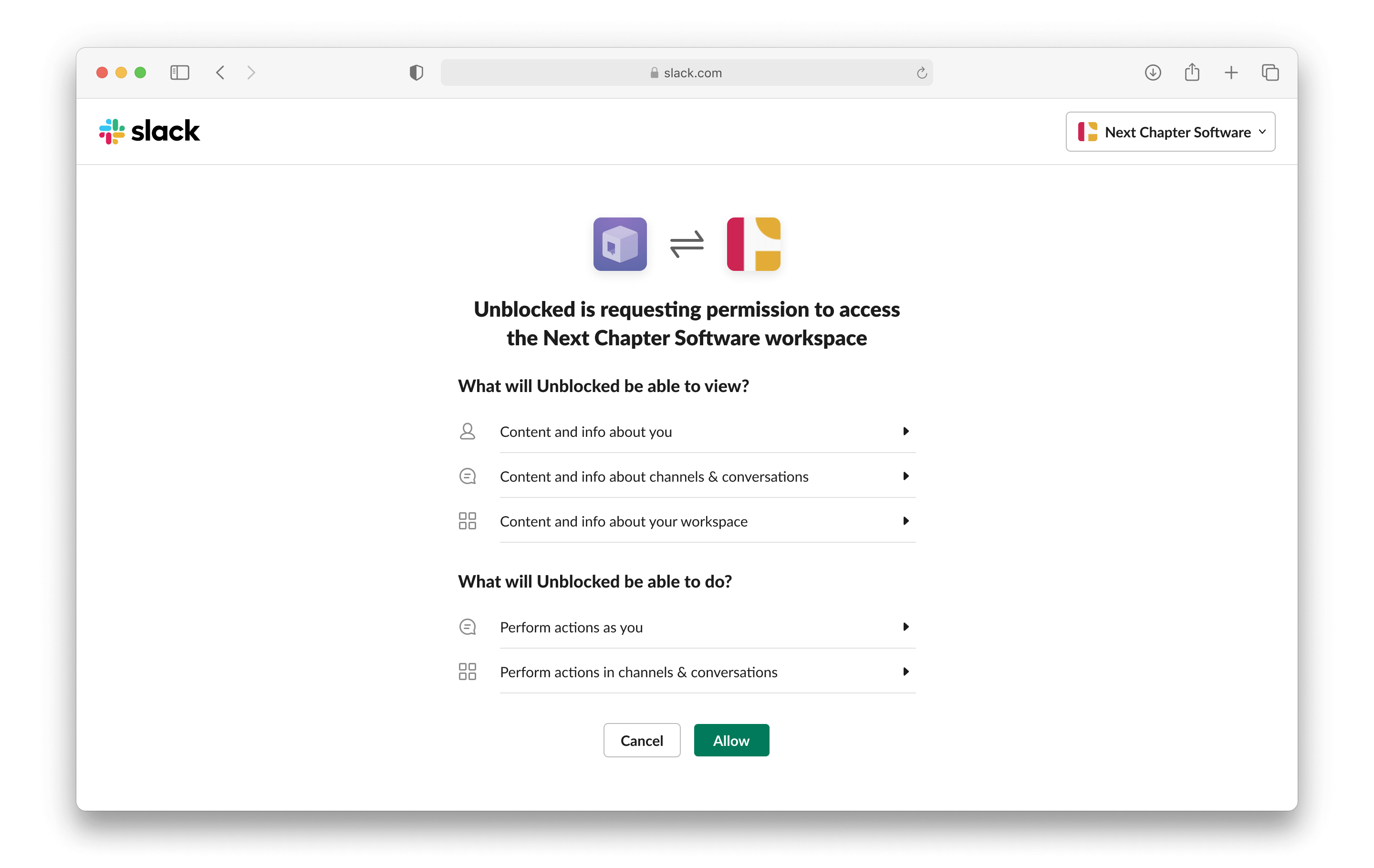
After signing in to Slack, Slack will ask if you want to grant permission to Unblocked to see your channels and interact in them. Click **Allow** to continue.
 ### Select Slack Channels to connect
You can add the bot to both public and private Slack channels. When an answer
is found using context from a private channel you're a member of, you'll
receive an ephemeral message (visible only to you) asking you to review and
approve the answer before it's posted to a public channel. This ensures
private channel content is never shared without explicit approval.
You will be redirected back to Unblocked where you can select the Slack channels to use with Unblocked. Although you can add Unblocked to any channels you like, Unblocked can provide the most helpful context when you use it in channels where code-specific conversations happen.
### Select Slack Channels to connect
You can add the bot to both public and private Slack channels. When an answer
is found using context from a private channel you're a member of, you'll
receive an ephemeral message (visible only to you) asking you to review and
approve the answer before it's posted to a public channel. This ensures
private channel content is never shared without explicit approval.
You will be redirected back to Unblocked where you can select the Slack channels to use with Unblocked. Although you can add Unblocked to any channels you like, Unblocked can provide the most helpful context when you use it in channels where code-specific conversations happen.
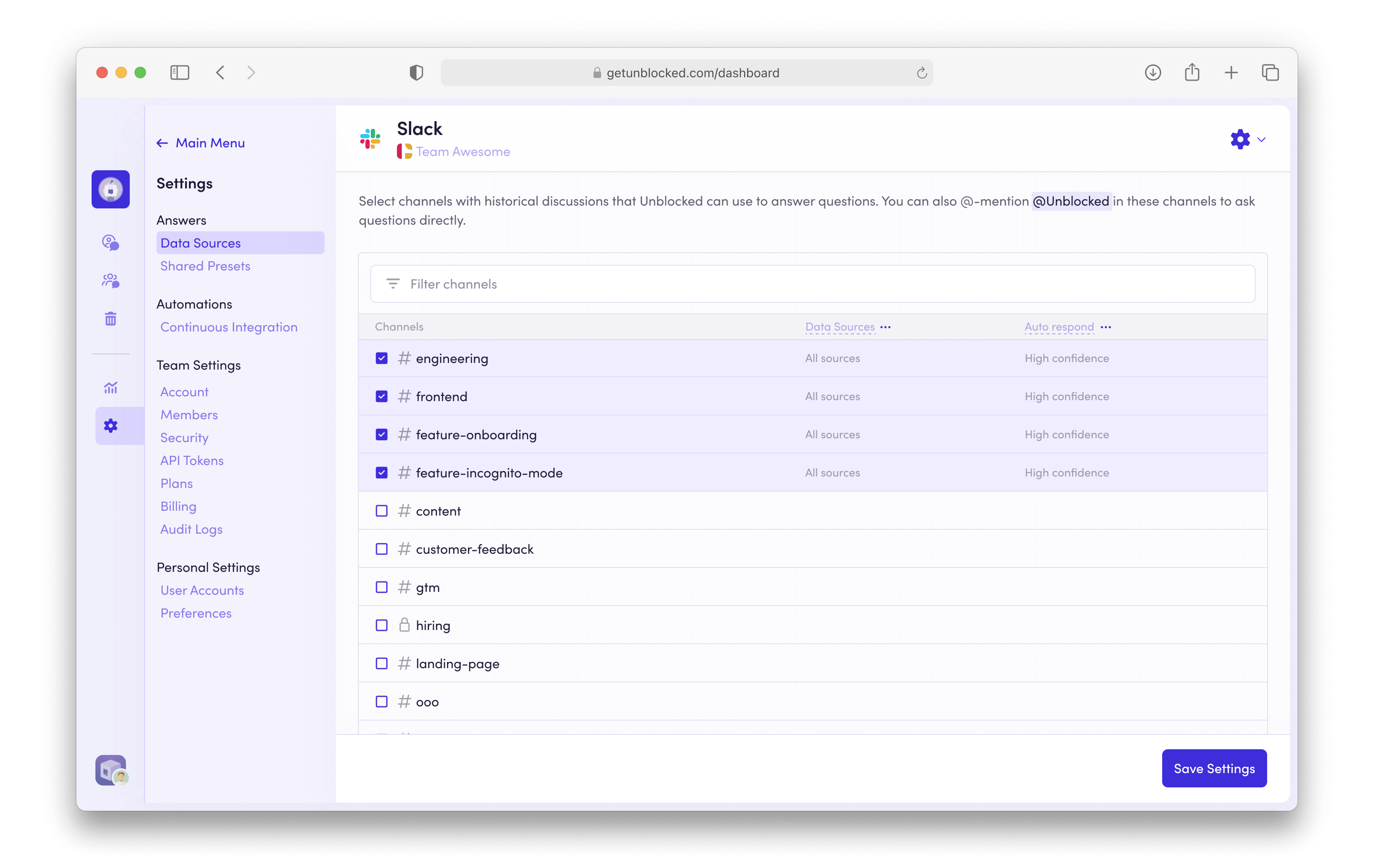 Once you've selected all of the channels you want Unblocked to access, click **Save Settings**.
### Invite Unblocked to Slack
In order to answer your team's questions and reference previous conversations from Slack as context, Unblocked needs to be added to the channels you've selected. Upon selecting a new channel in the Slack settings of the web dashboard, you will be prompted to invite Unblocked before saving. Click **Add and Continue** to ensure that Unblocked is added to the selected channels.
You can verify that Unblocked has been added to any configured channel by
posting the question, 'Is Unblocked listening?' in the channel. If
Unblocked is, in fact, listening, you will receive a response after a few
seconds.
### Connecting private channels
Private channel support requires a paid plan. Visit our [pricing
page](https://www.getunblocked.com/pricing) to learn more.
Both public and private channels are supported. When the first user connects Slack as a data source, the bot can only be added to private channels where that user is a member. For additional users to add their own private channels, navigate to your Slack settings in the web dashboard. Under the "Add private channels" banner, click "Grant access".
App installations can be gated by Slack Workspace Admins. If this is the case
for your Slack Workspace, you'll need to request to install the app to add
your private channels.
#### Data Shield behavior
[Data Shield](/team-settings/data-shield) protects all of your team's data, including private channels. When Data Shield is enabled, users are asked to link their accounts so Unblocked can use your team's data to provide personalized answers based on the data you have access to.
If you haven't linked all of your accounts, any question you ask will request that you complete this step.
In Slack, you'll receive:
1. An ephemeral message (visible only to you) asking you to link your accounts
2. After linking, an ephemeral message containing the answer to your question
3. A request to review the answer and verify it's safe to share publicly
4. An **Approve** button to authorize posting
After approval, the answer posts to the channel.
When Slack bots or workflows ask questions, Unblocked responds with publicly
available content only, such as content from public Slack channels.
## Channel Preferences
You can configure how Unblocked responds to questions for every connected channel, ensuring optimal behavior for the specific needs of each channel. This includes:
* [Customizing answer preferences](/data-sources/slack#customizing-answer-preferences)
* [Configuring auto-response frequency](/data-sources/slack#configuring-auto-responses)
You can configure channel preferences from the [web dashboard](/using-unblocked/on-the-web) or from Slack.
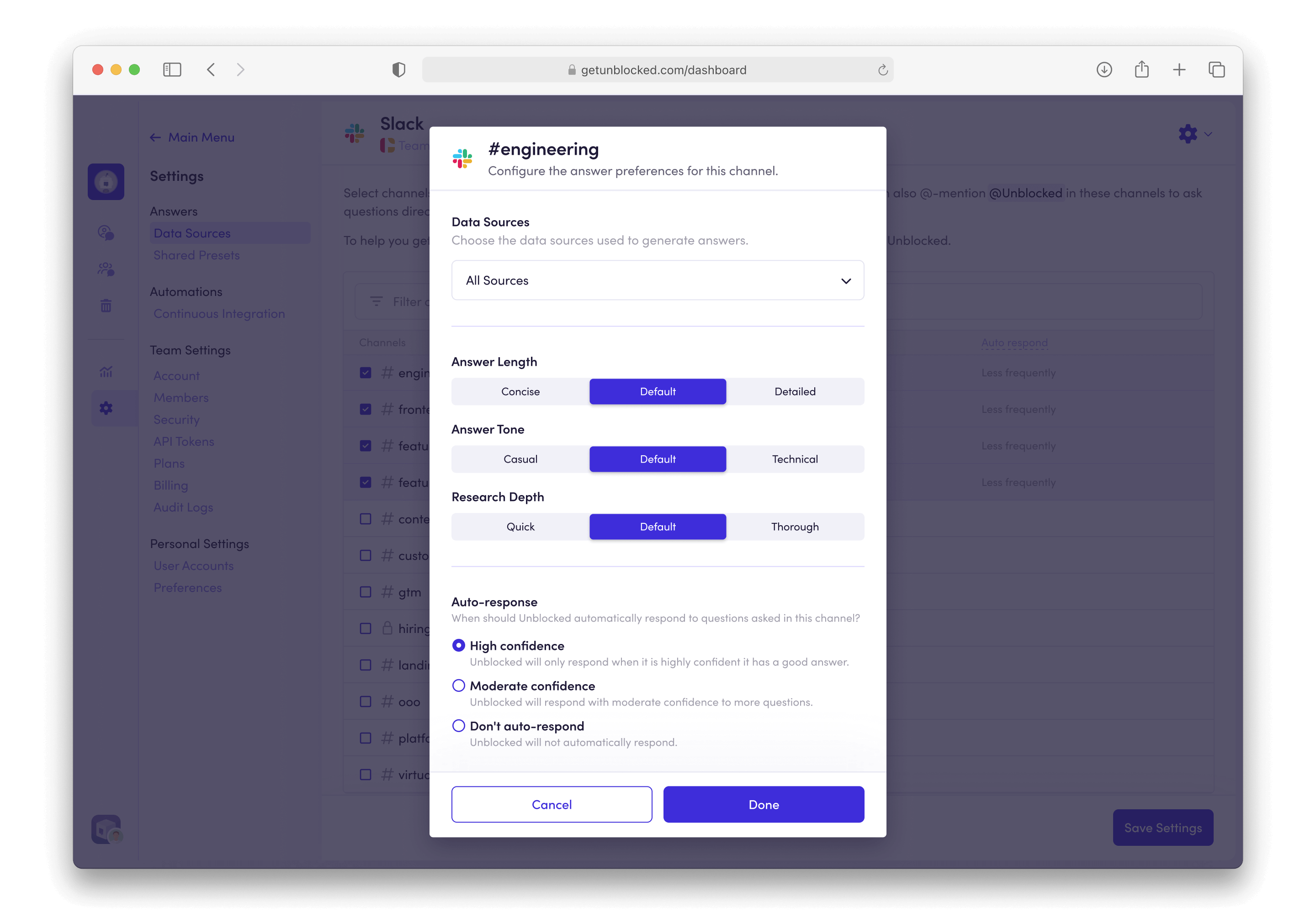
In the web dashboard, hover over a selected channel and click the **pencil icon** to bring up channel settings.
Once you've selected all of the channels you want Unblocked to access, click **Save Settings**.
### Invite Unblocked to Slack
In order to answer your team's questions and reference previous conversations from Slack as context, Unblocked needs to be added to the channels you've selected. Upon selecting a new channel in the Slack settings of the web dashboard, you will be prompted to invite Unblocked before saving. Click **Add and Continue** to ensure that Unblocked is added to the selected channels.
You can verify that Unblocked has been added to any configured channel by
posting the question, 'Is Unblocked listening?' in the channel. If
Unblocked is, in fact, listening, you will receive a response after a few
seconds.
### Connecting private channels
Private channel support requires a paid plan. Visit our [pricing
page](https://www.getunblocked.com/pricing) to learn more.
Both public and private channels are supported. When the first user connects Slack as a data source, the bot can only be added to private channels where that user is a member. For additional users to add their own private channels, navigate to your Slack settings in the web dashboard. Under the "Add private channels" banner, click "Grant access".
App installations can be gated by Slack Workspace Admins. If this is the case
for your Slack Workspace, you'll need to request to install the app to add
your private channels.
#### Data Shield behavior
[Data Shield](/team-settings/data-shield) protects all of your team's data, including private channels. When Data Shield is enabled, users are asked to link their accounts so Unblocked can use your team's data to provide personalized answers based on the data you have access to.
If you haven't linked all of your accounts, any question you ask will request that you complete this step.
In Slack, you'll receive:
1. An ephemeral message (visible only to you) asking you to link your accounts
2. After linking, an ephemeral message containing the answer to your question
3. A request to review the answer and verify it's safe to share publicly
4. An **Approve** button to authorize posting
After approval, the answer posts to the channel.
When Slack bots or workflows ask questions, Unblocked responds with publicly
available content only, such as content from public Slack channels.
## Channel Preferences
You can configure how Unblocked responds to questions for every connected channel, ensuring optimal behavior for the specific needs of each channel. This includes:
* [Customizing answer preferences](/data-sources/slack#customizing-answer-preferences)
* [Configuring auto-response frequency](/data-sources/slack#configuring-auto-responses)
You can configure channel preferences from the [web dashboard](/using-unblocked/on-the-web) or from Slack.
In the web dashboard, hover over a selected channel and click the **pencil icon** to bring up channel settings.
 In Slack, type in `/unblocked-settings` to bring up channel settings.
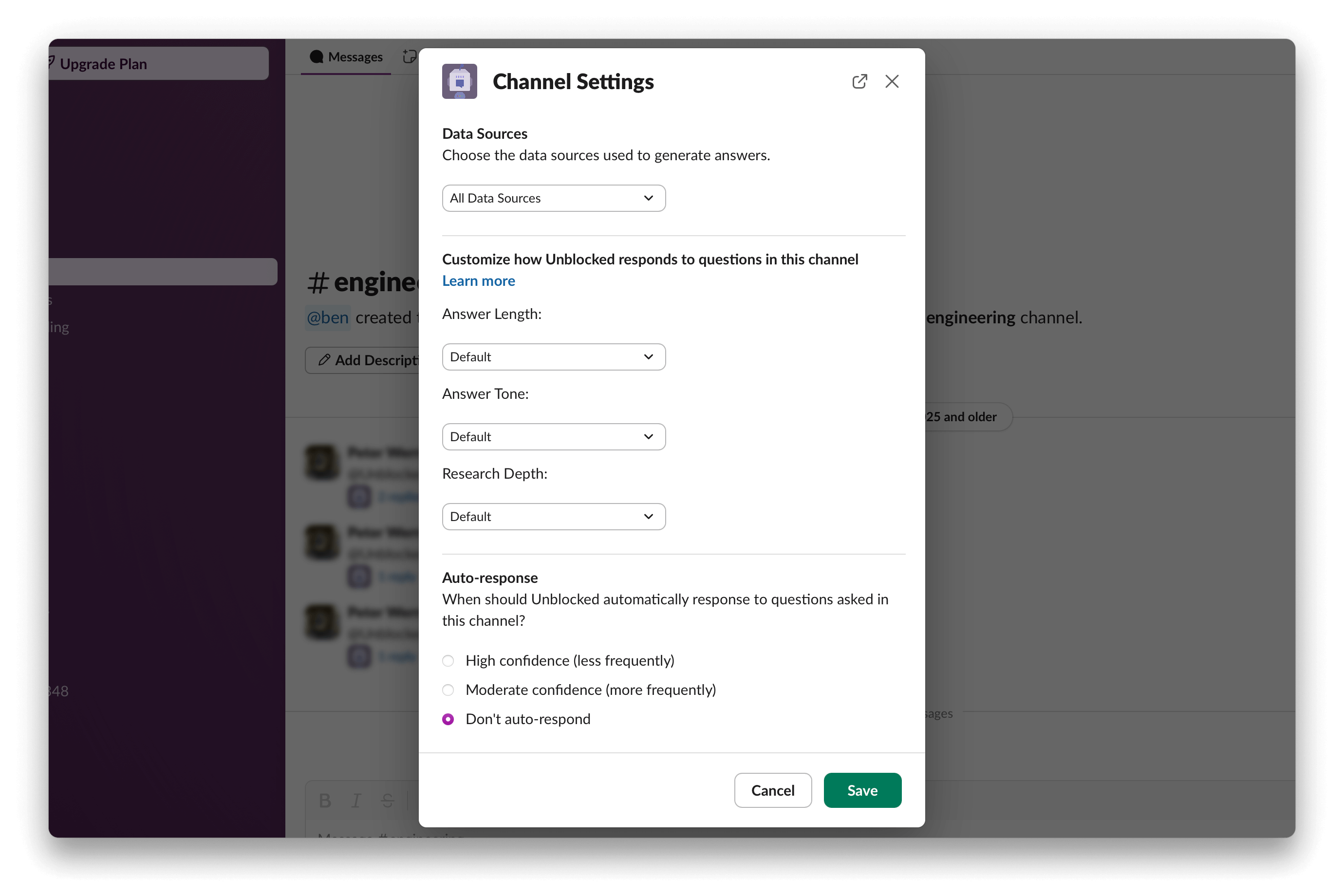 The `/unblocked-settings` command is available to all users in private
channels, even when [role-based access
control](/team-settings/role-based-access) is enabled. This allows any team
member to configure channel preferences for private channels they belong to.
### Customizing Answer Preferences
The custom Answer Preferences feature lets you tailor responses for each selected channel. You can control four main aspects of the answers:
1. **Data Sources**: Choose a [Data Sources Preset](/data-sources/data-source-presets) to determine which data sources you want to include in your answer.
2. **Answer Length**: Choose concise or detailed responses, determining how much information is included.
3. **Answer Tone**: Select a tone that suits the needs of the channel, from casual to technical, affecting the level of technical detail and inclusion of code examples.
4. **Research Depth**: Opt for quick or thorough research. A thorough setting enables Unblocked to handle complex questions with multiple retrieval and reasoning steps, though it may increase response time.
### Configuring Auto-Responses
The [Auto-response feature](https://docs.getunblocked.com/unblocked-for-messaging-platforms#unblocked-auto-responses) is automatically enabled for every channel you select. This feature allows Unblocked to respond to questions asked in Slack channels, even when Unblocked is not @mentioned. Unblocked will only respond to questions when it has an answer.
You can configure when Unblocked should auto-respond by selecting one of the following options:
* **High confidence**: Unblocked will only respond when it is highly confident it has a good answer. This may result in a lower volume of questions answered.
* **Moderate confidence**: Unblocked will respond with moderate confidence to more questions. Choose this setting if you want Unblocked to respond to a higher volume of questions.
* **Don't auto-respond**: Unblocked will not automatically respond. (Unblocked will still respond if a user @mentions it.)
To start, we recommend enabling the Auto-response feature for support-related
or cross-platform channels, such as **#customer-questions** or
**#ask-devops**.
### Managing Default Preferences
When a channel is selected and connected to Unblocked, it inherits the following set of default preferences:
* **All sources**: Unblocked will respond to questions using all connected data sources as references.
* **Default Answer Length**: Unblocked will respond to questions with balanced conciseness.
* **Default Answer Tone**: Unblocked will respond to questions with balanced technical detail.
* **Default Research Depth**: Unblocked will respond to questions with balanced research depth.
* **High confidence**: Unblocked will only respond to questions when it is highly confident it has a good answer.
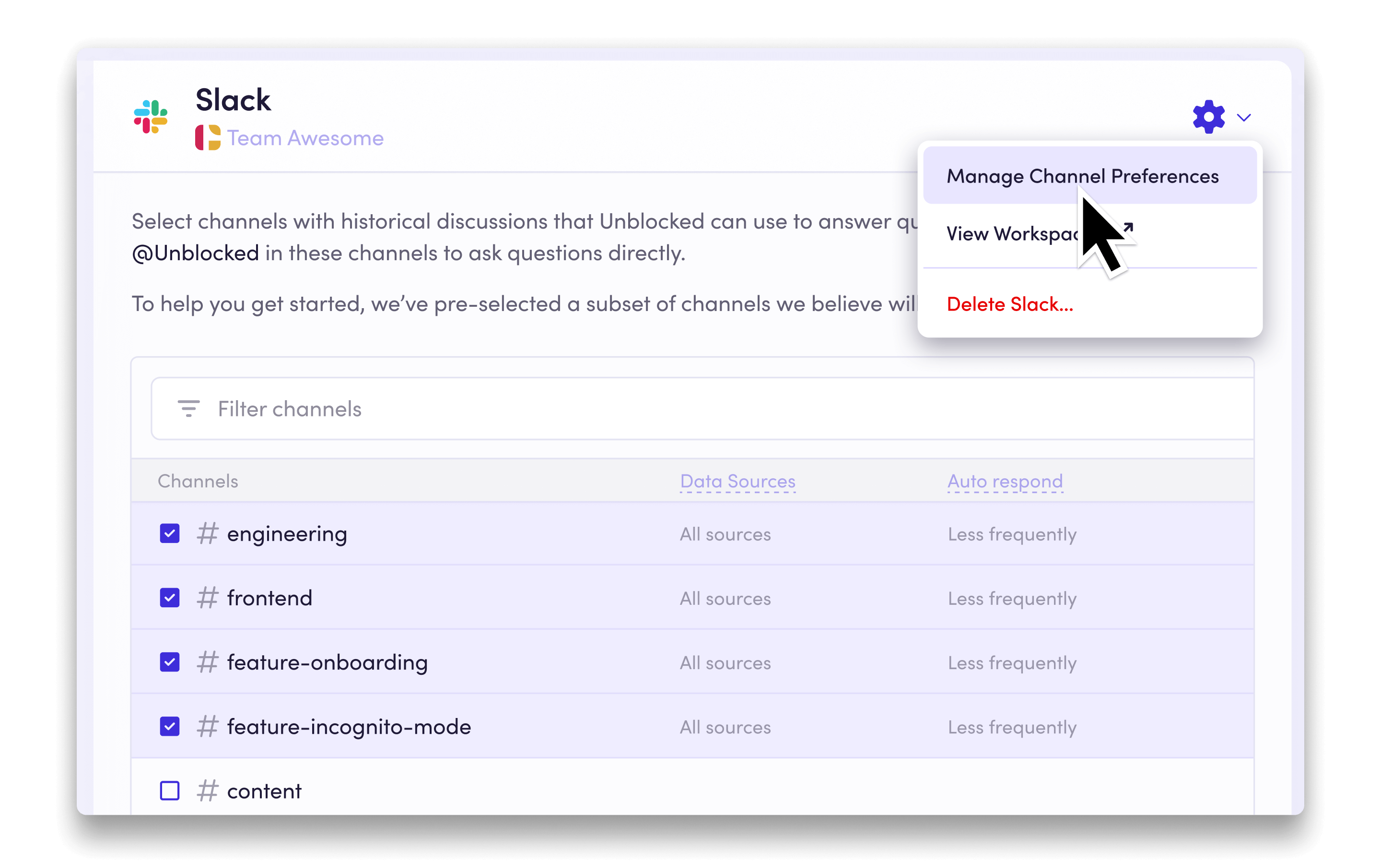
To modify the default preferences, click the context menu at the top of the page, and select **Manage Channel Preferences** to bring up the default channel settings.
The `/unblocked-settings` command is available to all users in private
channels, even when [role-based access
control](/team-settings/role-based-access) is enabled. This allows any team
member to configure channel preferences for private channels they belong to.
### Customizing Answer Preferences
The custom Answer Preferences feature lets you tailor responses for each selected channel. You can control four main aspects of the answers:
1. **Data Sources**: Choose a [Data Sources Preset](/data-sources/data-source-presets) to determine which data sources you want to include in your answer.
2. **Answer Length**: Choose concise or detailed responses, determining how much information is included.
3. **Answer Tone**: Select a tone that suits the needs of the channel, from casual to technical, affecting the level of technical detail and inclusion of code examples.
4. **Research Depth**: Opt for quick or thorough research. A thorough setting enables Unblocked to handle complex questions with multiple retrieval and reasoning steps, though it may increase response time.
### Configuring Auto-Responses
The [Auto-response feature](https://docs.getunblocked.com/unblocked-for-messaging-platforms#unblocked-auto-responses) is automatically enabled for every channel you select. This feature allows Unblocked to respond to questions asked in Slack channels, even when Unblocked is not @mentioned. Unblocked will only respond to questions when it has an answer.
You can configure when Unblocked should auto-respond by selecting one of the following options:
* **High confidence**: Unblocked will only respond when it is highly confident it has a good answer. This may result in a lower volume of questions answered.
* **Moderate confidence**: Unblocked will respond with moderate confidence to more questions. Choose this setting if you want Unblocked to respond to a higher volume of questions.
* **Don't auto-respond**: Unblocked will not automatically respond. (Unblocked will still respond if a user @mentions it.)
To start, we recommend enabling the Auto-response feature for support-related
or cross-platform channels, such as **#customer-questions** or
**#ask-devops**.
### Managing Default Preferences
When a channel is selected and connected to Unblocked, it inherits the following set of default preferences:
* **All sources**: Unblocked will respond to questions using all connected data sources as references.
* **Default Answer Length**: Unblocked will respond to questions with balanced conciseness.
* **Default Answer Tone**: Unblocked will respond to questions with balanced technical detail.
* **Default Research Depth**: Unblocked will respond to questions with balanced research depth.
* **High confidence**: Unblocked will only respond to questions when it is highly confident it has a good answer.
To modify the default preferences, click the context menu at the top of the page, and select **Manage Channel Preferences** to bring up the default channel settings.
 Update the settings to your preferred configuration and click **Done**. Your changes will then be inherited by all newly selected channels.
Additionally, you can apply the default preferences to all currently selected channels. In the default channel settings, check **Apply to all currently selected channels**, and click **Done**.
Update the settings to your preferred configuration and click **Done**. Your changes will then be inherited by all newly selected channels.
Additionally, you can apply the default preferences to all currently selected channels. In the default channel settings, check **Apply to all currently selected channels**, and click **Done**.
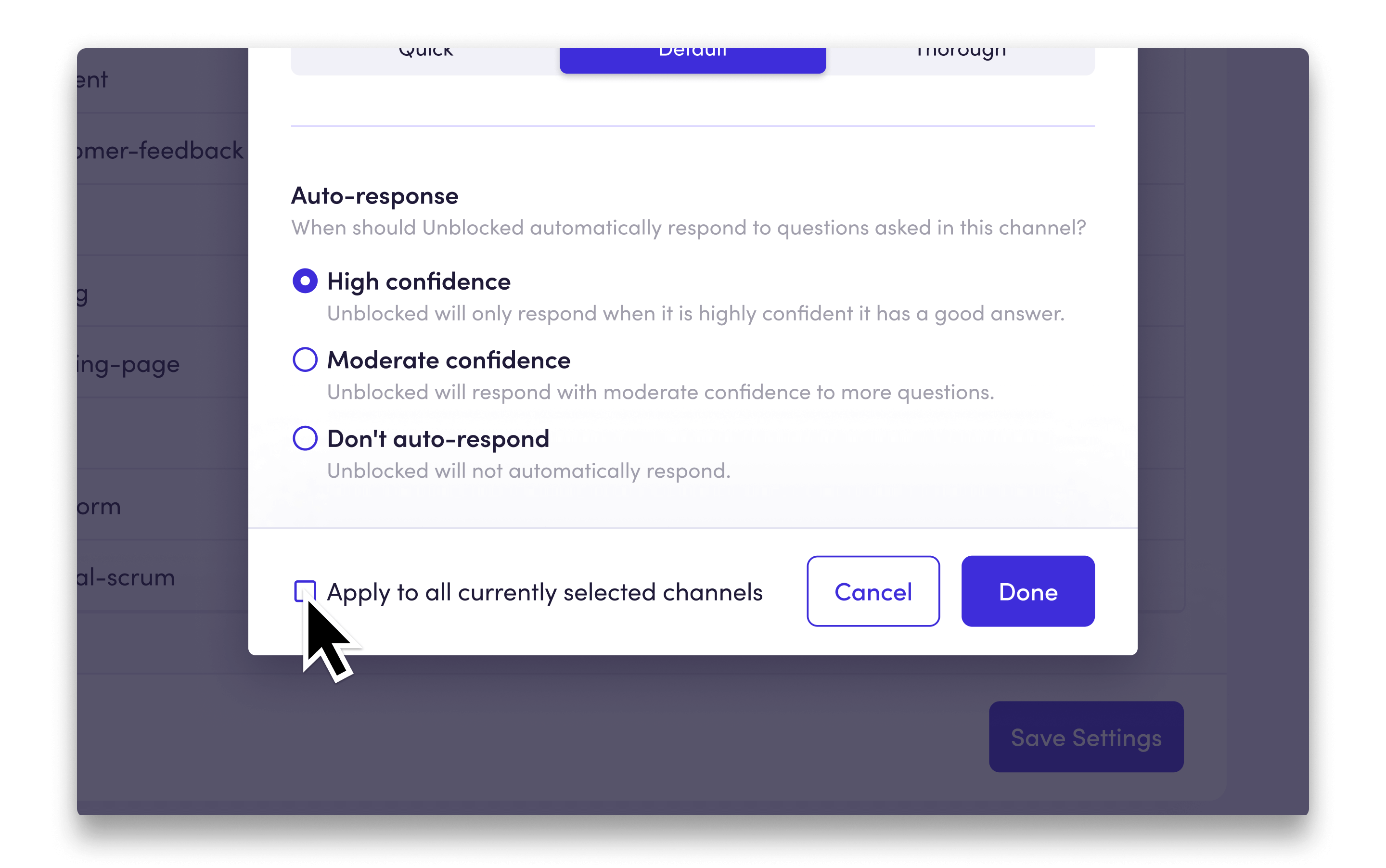 Save all changes made to the default channel settings by clicking **Save Settings**.
## Connecting user accounts
After Slack has been connected to your Unblocked workspace, each team member will also need to associate their Slack user account with their Unblocked account. Unblocked personalizes answers based on identity, so connecting your user account will improve the quality of answers you receive from Unblocked. It will also enable the discussions you have with Unblocked on Slack to appear under [My Questions](/unblocked-chat/my-discussions).
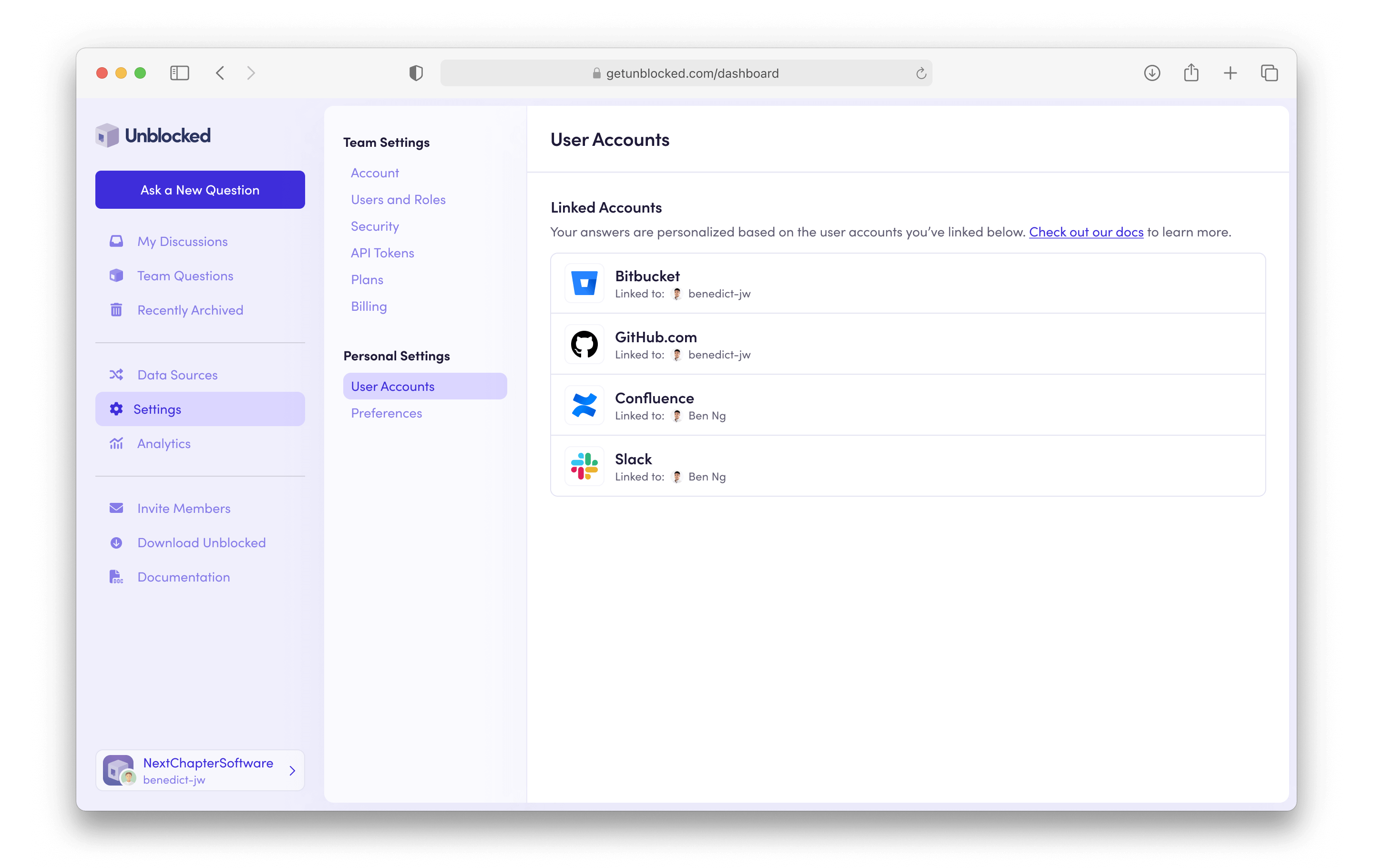
To connect your Slack user account, click on **Settings** in the sidebar of the Unblocked web dashboard. Under **Personal Settings**, click on **User Accounts**. In the **Unlinked Accounts** section, find the row for Slack, and click **Link my account**.
You will be redirected to Slack to connect your account. Click **Allow** to grant Unblocked the necessary permissions to associate and connect your Slack identity. After redirecting back to the **User Accounts** page, you should now see your Slack account under the **Linked Accounts** section.
Save all changes made to the default channel settings by clicking **Save Settings**.
## Connecting user accounts
After Slack has been connected to your Unblocked workspace, each team member will also need to associate their Slack user account with their Unblocked account. Unblocked personalizes answers based on identity, so connecting your user account will improve the quality of answers you receive from Unblocked. It will also enable the discussions you have with Unblocked on Slack to appear under [My Questions](/unblocked-chat/my-discussions).
To connect your Slack user account, click on **Settings** in the sidebar of the Unblocked web dashboard. Under **Personal Settings**, click on **User Accounts**. In the **Unlinked Accounts** section, find the row for Slack, and click **Link my account**.
You will be redirected to Slack to connect your account. Click **Allow** to grant Unblocked the necessary permissions to associate and connect your Slack identity. After redirecting back to the **User Accounts** page, you should now see your Slack account under the **Linked Accounts** section.
 {" "}
When you view discussions with Unblocked in Slack on the web dashboard, your
GitHub username will be displayed rather than your Slack name.
### Troubleshooting
#### "Not authorized" error when adding Unblocked
If you see a message that you are not authorized to add Unblocked, your Slack workspace administrator may have restricted which apps can be installed. Ask your Slack workspace administrator to approve the Unblocked app, or request installation through Slack's app approval flow.
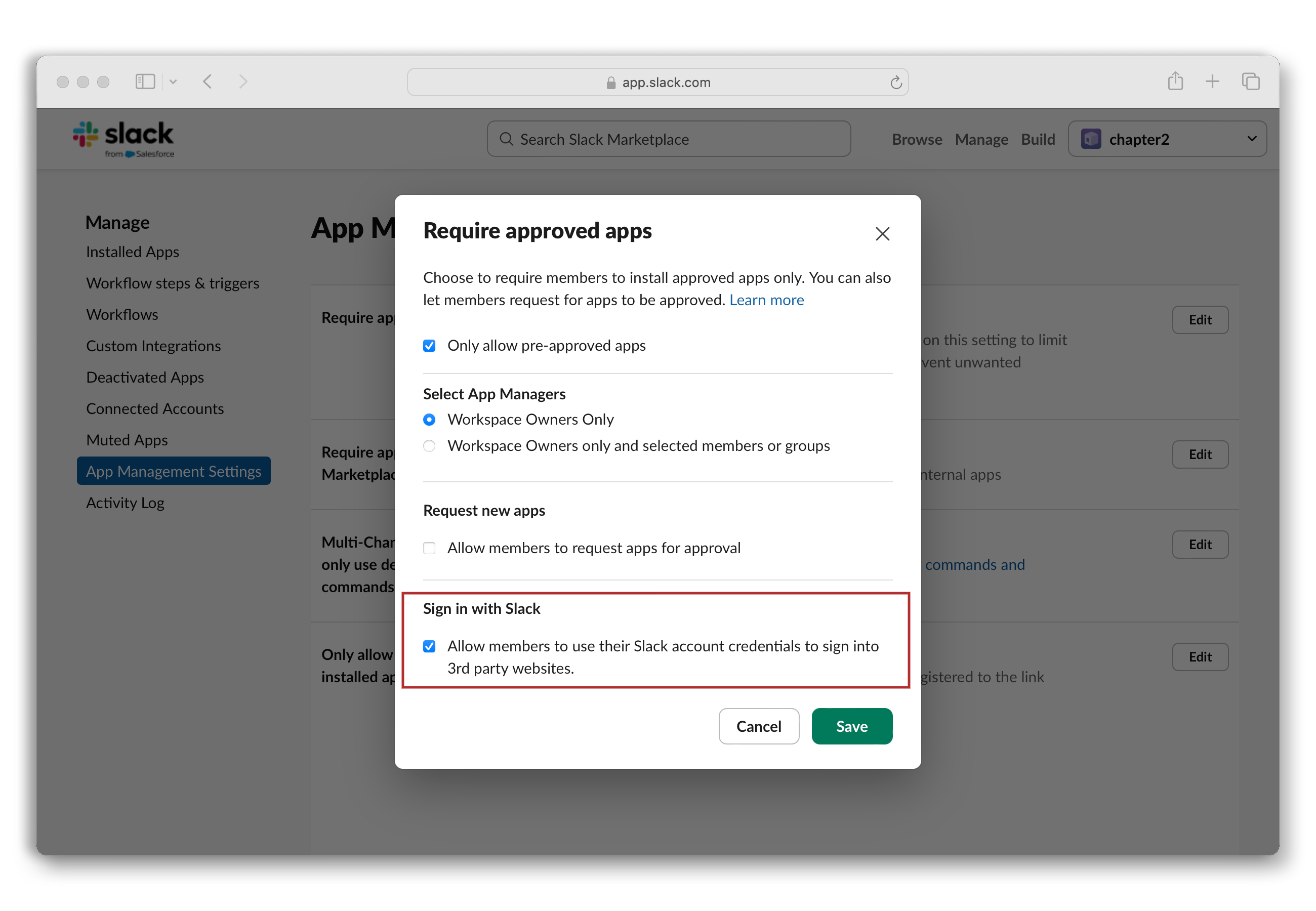
#### Sign in with Slack not working
If you have trouble signing in, ensure that your Slack workspace administrator has enabled **Sign in with Slack** for your Slack workspace.
If this setting is not enabled, you will not be able to connect your Slack user account.
{" "}
When you view discussions with Unblocked in Slack on the web dashboard, your
GitHub username will be displayed rather than your Slack name.
### Troubleshooting
#### "Not authorized" error when adding Unblocked
If you see a message that you are not authorized to add Unblocked, your Slack workspace administrator may have restricted which apps can be installed. Ask your Slack workspace administrator to approve the Unblocked app, or request installation through Slack's app approval flow.
#### Sign in with Slack not working
If you have trouble signing in, ensure that your Slack workspace administrator has enabled **Sign in with Slack** for your Slack workspace.
If this setting is not enabled, you will not be able to connect your Slack user account.
 #### Not receiving the 6-digit verification code
When connecting your Slack account, Slack sends a 6-digit verification code to the email address associated with your Slack profile. If you're not receiving this email:
1. **Check your spam or junk folder** — the verification email may have been filtered automatically.
2. **Check inbox filters and rules** — custom email rules may be redirecting or deleting the email.
3. **Ask your IT team to allow emails from Slack** — your organization's email system may be blocking emails from Slack. Ask your IT team to ensure that emails from `@slack.com` and `@slack-mail.com` are not being blocked or quarantined.
4. **Verify your email address** — confirm that the email shown on the verification screen matches the email you have access to. If it doesn't, update your email address in your Slack profile.
5. **Wait and retry** — the code expires after 15 minutes. If you still don't receive it, try clicking the connect button again to request a new code.
6. **Contact Slack support** — if none of the above steps resolve the issue, reach out to [Slack support](https://slack.com/help) for further assistance with email delivery.
For additional tips on email deliverability, see Slack's guide on [Trouble
receiving emails from
Slack](https://slack.com/help/articles/218876627-Trouble-receiving-emails-from-Slack).
## Automating with Slack Workflows and Bots
You can use Slack's built-in [Workflow Builder](https://slack.com/help/articles/360035692513-Guide-to-Slack-Workflow-Builder) to automatically send questions to Unblocked on behalf of your team. This is useful for routing form submissions, support requests, or other automated messages to Unblocked for answers.
When Slack workflows or bots ask questions, Unblocked responds with publicly
available content only, such as content from public Slack channels.
### Setting Up a Workflow
To create a workflow that sends questions to Unblocked, follow these steps:
Open Slack and navigate to **Tools** > **Workflow Builder**. Click **Create Workflow** and choose your trigger — for example, a form submission or a new message in a channel.
If you want users to submit questions through a form, add a **Collect info in a form** step. Add a text field for the question, such as "What is your question for Unblocked?".
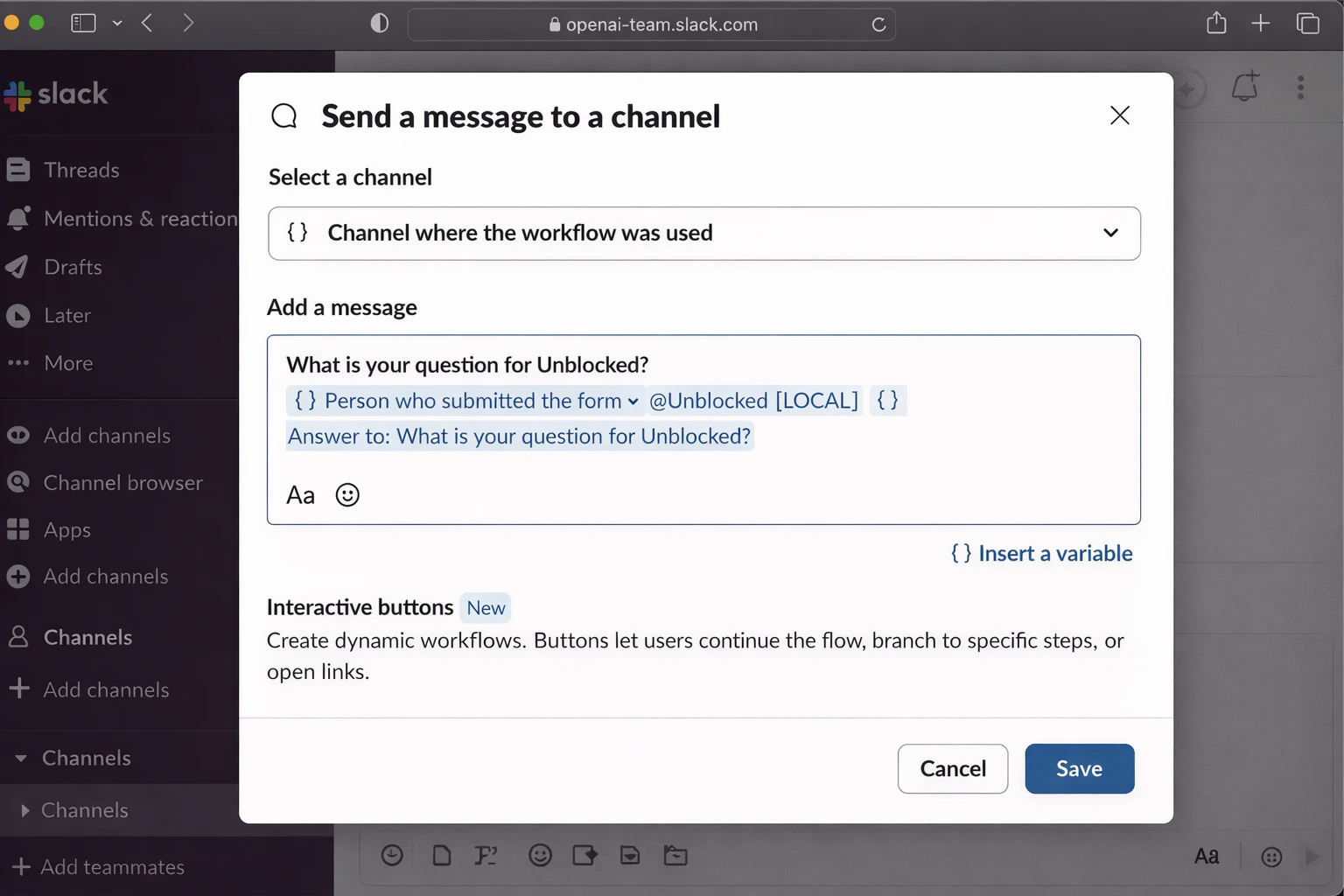
Add a **Send a message to a channel** step to your workflow. Configure it as follows:
* **Select a channel**: Choose the variable **Channel where the workflow was used**, or select a specific channel where Unblocked has been added.
* **Add a message**: Compose your message to include:
1. An `@mention` of the person who submitted the form (use **Insert a variable** > **Person who submitted the form**). This `@mention` is **required** — Unblocked uses it to identify the user who asked the question.
2. An `@Unblocked` mention to trigger Unblocked
3. The question variable (use **Insert a variable** > **Answer to: What is your question for Unblocked?**)
Your message should look something like:
`{Person who submitted the form} @Unblocked {Answer to: What is your question for Unblocked?}`
#### Not receiving the 6-digit verification code
When connecting your Slack account, Slack sends a 6-digit verification code to the email address associated with your Slack profile. If you're not receiving this email:
1. **Check your spam or junk folder** — the verification email may have been filtered automatically.
2. **Check inbox filters and rules** — custom email rules may be redirecting or deleting the email.
3. **Ask your IT team to allow emails from Slack** — your organization's email system may be blocking emails from Slack. Ask your IT team to ensure that emails from `@slack.com` and `@slack-mail.com` are not being blocked or quarantined.
4. **Verify your email address** — confirm that the email shown on the verification screen matches the email you have access to. If it doesn't, update your email address in your Slack profile.
5. **Wait and retry** — the code expires after 15 minutes. If you still don't receive it, try clicking the connect button again to request a new code.
6. **Contact Slack support** — if none of the above steps resolve the issue, reach out to [Slack support](https://slack.com/help) for further assistance with email delivery.
For additional tips on email deliverability, see Slack's guide on [Trouble
receiving emails from
Slack](https://slack.com/help/articles/218876627-Trouble-receiving-emails-from-Slack).
## Automating with Slack Workflows and Bots
You can use Slack's built-in [Workflow Builder](https://slack.com/help/articles/360035692513-Guide-to-Slack-Workflow-Builder) to automatically send questions to Unblocked on behalf of your team. This is useful for routing form submissions, support requests, or other automated messages to Unblocked for answers.
When Slack workflows or bots ask questions, Unblocked responds with publicly
available content only, such as content from public Slack channels.
### Setting Up a Workflow
To create a workflow that sends questions to Unblocked, follow these steps:
Open Slack and navigate to **Tools** > **Workflow Builder**. Click **Create Workflow** and choose your trigger — for example, a form submission or a new message in a channel.
If you want users to submit questions through a form, add a **Collect info in a form** step. Add a text field for the question, such as "What is your question for Unblocked?".
Add a **Send a message to a channel** step to your workflow. Configure it as follows:
* **Select a channel**: Choose the variable **Channel where the workflow was used**, or select a specific channel where Unblocked has been added.
* **Add a message**: Compose your message to include:
1. An `@mention` of the person who submitted the form (use **Insert a variable** > **Person who submitted the form**). This `@mention` is **required** — Unblocked uses it to identify the user who asked the question.
2. An `@Unblocked` mention to trigger Unblocked
3. The question variable (use **Insert a variable** > **Answer to: What is your question for Unblocked?**)
Your message should look something like:
`{Person who submitted the form} @Unblocked {Answer to: What is your question for Unblocked?}`
 Click **Save** to save the step, then **Publish** the workflow. Your team can now use it to submit questions to Unblocked automatically.
Make sure Unblocked has been added to any channel where the workflow will post messages. You can verify this by posting 'Is Unblocked listening?' in the channel.
### Setting Up a Slack Bot
If you have a custom Slack bot that needs to ask Unblocked questions on behalf of users, the bot can post messages to any channel where Unblocked has been added. To trigger a response, the bot's message must `@mention` Unblocked.
When composing the message, include:
1. **An `@mention` of the user who asked the question** — this is **required**. Unblocked uses this to identify the user on whose behalf the question is being asked.
2. **An `@Unblocked` mention** — this triggers Unblocked to respond in a thread.
3. **The question** — the actual question text.
For example, using the Slack API's [`chat.postMessage`](https://api.slack.com/methods/chat.postMessage) method:
```
<@USER_ID> <@UNBLOCKED_BOT_ID> How do I set up CI for this repo?
```
To mention Unblocked in a bot message, you'll need Unblocked's bot user ID. You can find this
by looking up the Unblocked app in your Slack workspace's app directory, or by right-clicking
the Unblocked bot in any channel and selecting **Copy member ID**.
Make sure Unblocked has been added to any channel where your bot will post messages. You can verify this by posting 'Is Unblocked listening?' in the channel.
## Using Unblocked in Slack
At this point, you can now interact with Unblocked in Slack. Unblocked will incorporate past and future conversations about your codebase to answer any questions that you and your team ask.
You'll be able to add more channels for Unblocked to access or manage the current set of channels configured with Unblocked by returning to the Unblocked data source page for Slack.
Click **Save** to save the step, then **Publish** the workflow. Your team can now use it to submit questions to Unblocked automatically.
Make sure Unblocked has been added to any channel where the workflow will post messages. You can verify this by posting 'Is Unblocked listening?' in the channel.
### Setting Up a Slack Bot
If you have a custom Slack bot that needs to ask Unblocked questions on behalf of users, the bot can post messages to any channel where Unblocked has been added. To trigger a response, the bot's message must `@mention` Unblocked.
When composing the message, include:
1. **An `@mention` of the user who asked the question** — this is **required**. Unblocked uses this to identify the user on whose behalf the question is being asked.
2. **An `@Unblocked` mention** — this triggers Unblocked to respond in a thread.
3. **The question** — the actual question text.
For example, using the Slack API's [`chat.postMessage`](https://api.slack.com/methods/chat.postMessage) method:
```
<@USER_ID> <@UNBLOCKED_BOT_ID> How do I set up CI for this repo?
```
To mention Unblocked in a bot message, you'll need Unblocked's bot user ID. You can find this
by looking up the Unblocked app in your Slack workspace's app directory, or by right-clicking
the Unblocked bot in any channel and selecting **Copy member ID**.
Make sure Unblocked has been added to any channel where your bot will post messages. You can verify this by posting 'Is Unblocked listening?' in the channel.
## Using Unblocked in Slack
At this point, you can now interact with Unblocked in Slack. Unblocked will incorporate past and future conversations about your codebase to answer any questions that you and your team ask.
You'll be able to add more channels for Unblocked to access or manage the current set of channels configured with Unblocked by returning to the Unblocked data source page for Slack.