> ## Documentation Index
> Fetch the complete documentation index at: https://docs.getunblocked.com/llms.txt
> Use this file to discover all available pages before exploring further.
# Notion
> Connect your Notion workspace to Unblocked
When you connect Unblocked with your Notion workspace, you'll provide Unblocked with important context on how and why your codebase works. Unblocked will be able to use the details in your Notion workspace to answer questions you ask, and it will provide links back to the pages it used to find those answers for easy reference.
## Connect your Notion workspace
### Sign in to Unblocked
Whether you sign in with a source code manager or your SSO provider, you first need to authenticate to Unblocked.
Once you've signed in, click **Settings** in the sidebar, then **Data Sources**, then **Connect another data source**. Scroll to the documentation section and select Notion.
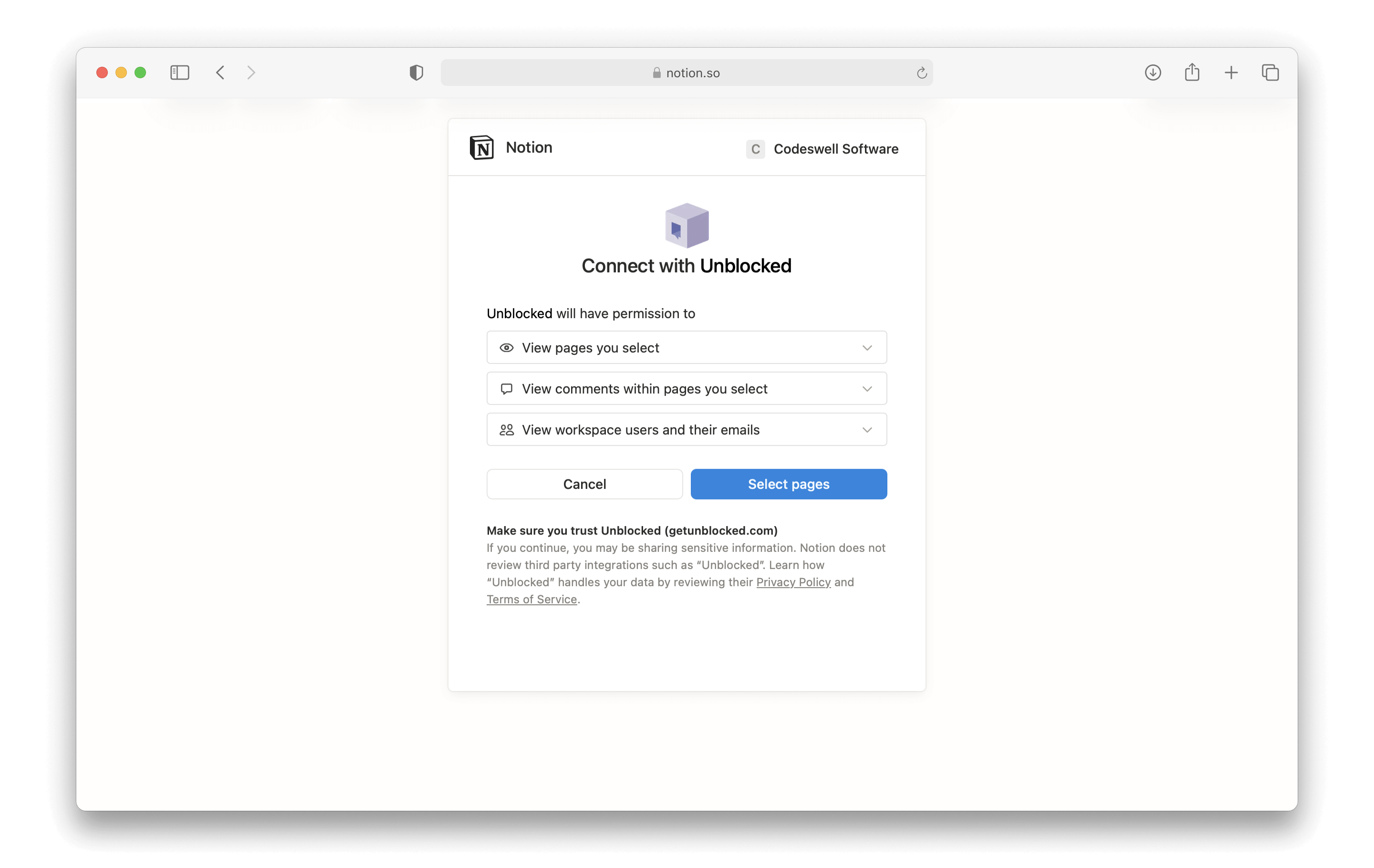
You'll be redirected to Notion to sign in and confirm the workspace you intend to use with Unblocked. In the top right menu, select the workspace you want Unblocked to access. Then, click **Select pages**.
 ### Selecting Notion pages
Notion will ask you to select the pages you want to include in your team's data index. If you select a parent node on this page, any pages added to that space in the future will be automatically indexed by Unblocked. If you select individual pages, then you will need to return to Notion any time you want to grant access again.
### Selecting Notion pages
Notion will ask you to select the pages you want to include in your team's data index. If you select a parent node on this page, any pages added to that space in the future will be automatically indexed by Unblocked. If you select individual pages, then you will need to return to Notion any time you want to grant access again.
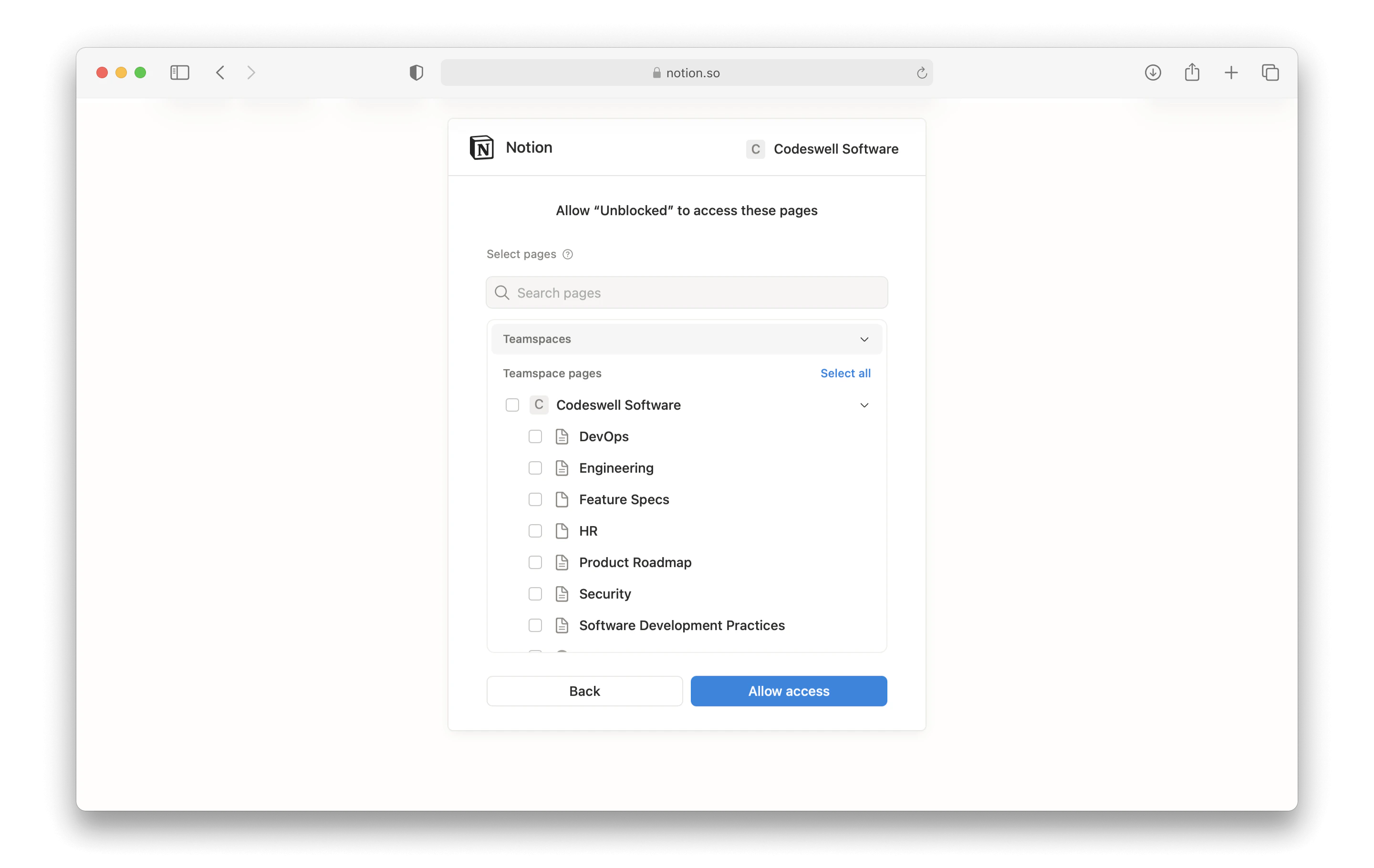 Click **Allow access**. You'll be brought back to Unblocked. From there, Unblocked will use any of the pages you've selected in Notion to answer your questions.
## Configuring or updating access to Notion
Unblocked displays who connected Notion for your team on the data sources
page, as this user is the only one who can add additional files from Notion.
To update the pages Unblocked can access in your Notion workspace, you'll need to sign in to Notion and make the necessary changes.
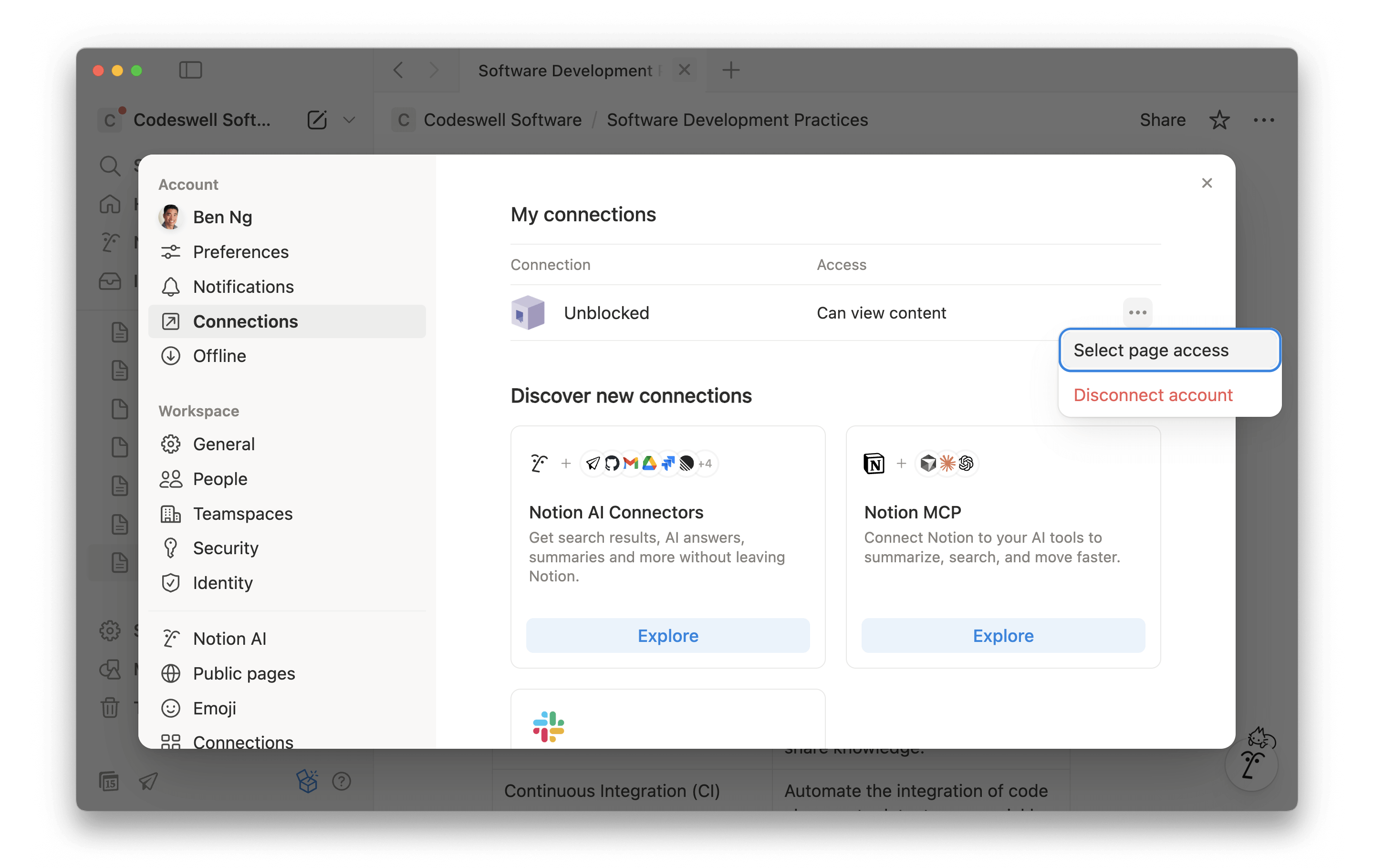
After logging into Notion, select **Settings** from the Notion sidebar. This will open a modal menu, where you can click **Connections** to open integrations you've configured with your Notion workspace.
On the right side of the Unblocked connection, click the three dot menu, then **Select page access**. This will open another modal menu where you can modify the documents to which you have given Unblocked access. Make the necessary changes, and then click **Save**.
Click **Allow access**. You'll be brought back to Unblocked. From there, Unblocked will use any of the pages you've selected in Notion to answer your questions.
## Configuring or updating access to Notion
Unblocked displays who connected Notion for your team on the data sources
page, as this user is the only one who can add additional files from Notion.
To update the pages Unblocked can access in your Notion workspace, you'll need to sign in to Notion and make the necessary changes.
After logging into Notion, select **Settings** from the Notion sidebar. This will open a modal menu, where you can click **Connections** to open integrations you've configured with your Notion workspace.
On the right side of the Unblocked connection, click the three dot menu, then **Select page access**. This will open another modal menu where you can modify the documents to which you have given Unblocked access. Make the necessary changes, and then click **Save**.
 You can now return to Unblocked, and it will use the updated pages you've selected as a source for answers.