> ## Documentation Index
> Fetch the complete documentation index at: https://docs.getunblocked.com/llms.txt
> Use this file to discover all available pages before exploring further.
# Jira
> Connect your Jira projects to Unblocked
When you connect Unblocked with your Jira site, you'll provide Unblocked with important context on how and why your codebase works. Most importantly, Unblocked will be able to use the Projects, Issues, and discussions your team has in your Jira site to answer questions you ask it, and it will provide links back to the information that it used for easy reference.
## Connect your Jira Site
If your organization has [Data Shield](/team-settings/data-shield) enabled,
we strongly recommend having a Jira admin connect your site. Doing so will
ensure that Unblocked has the ability to sync Jira identities, removing the
need for users to manually connect their account to receive answers
containing Jira references.
### Sign in to Unblocked
Whether you sign in with a source code manager or your SSO provider, you first need to authenticate to Unblocked.
Once you've signed in, click **Settings** in the sidebar, then **Data Sources**. Click **Connect Another**, scroll to the issues section, and select **Jira**. You'll then be redirected to Jira and asked to authorize your account with Unblocked.
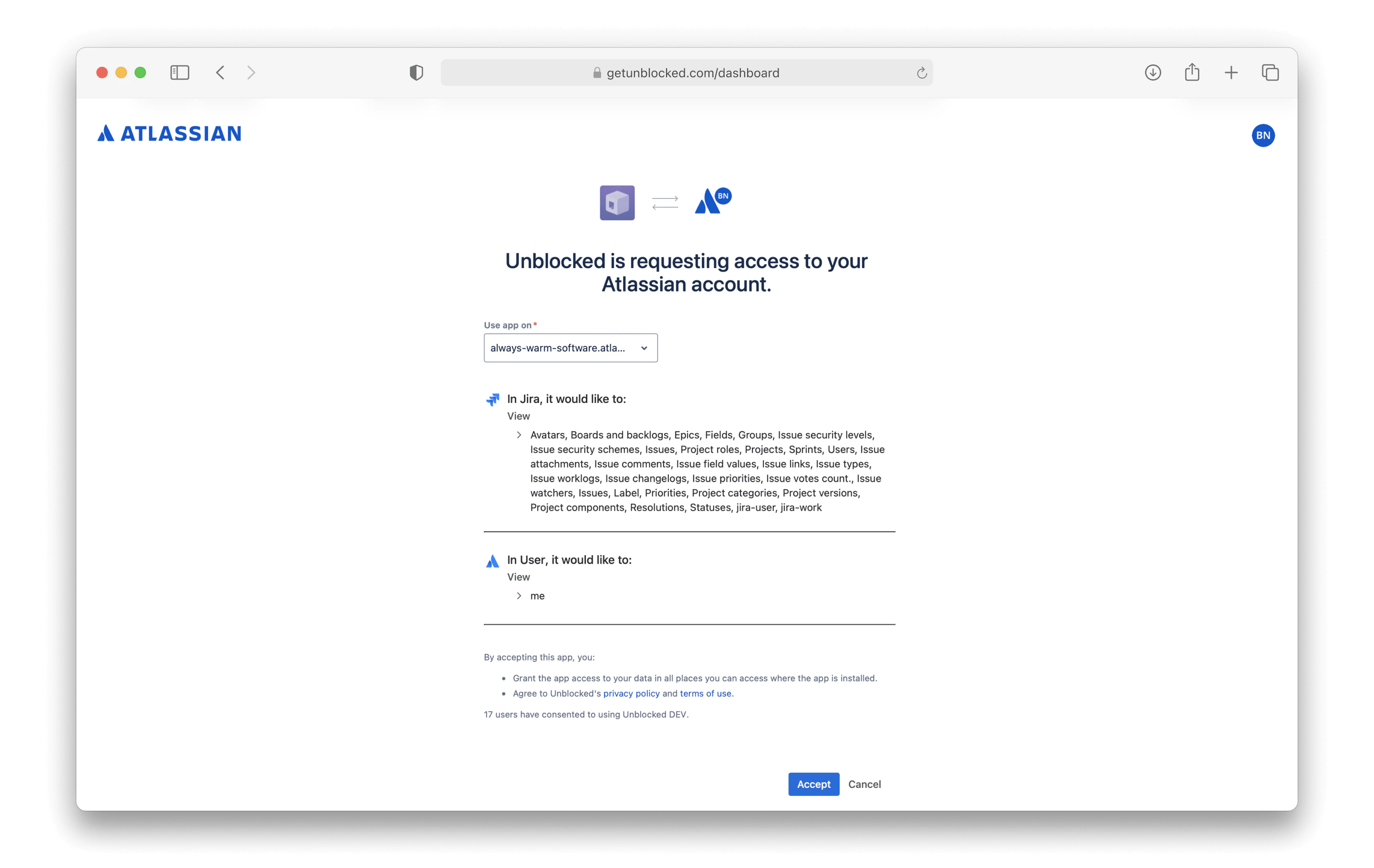 ### Connecting Jira
Once you grant Unblocked access to your Jira site, you'll be redirected back to Unblocked and prompted to install the Unblocked for Jira app if you are a Jira admin.
### Connecting Jira
Once you grant Unblocked access to your Jira site, you'll be redirected back to Unblocked and prompted to install the Unblocked for Jira app if you are a Jira admin.
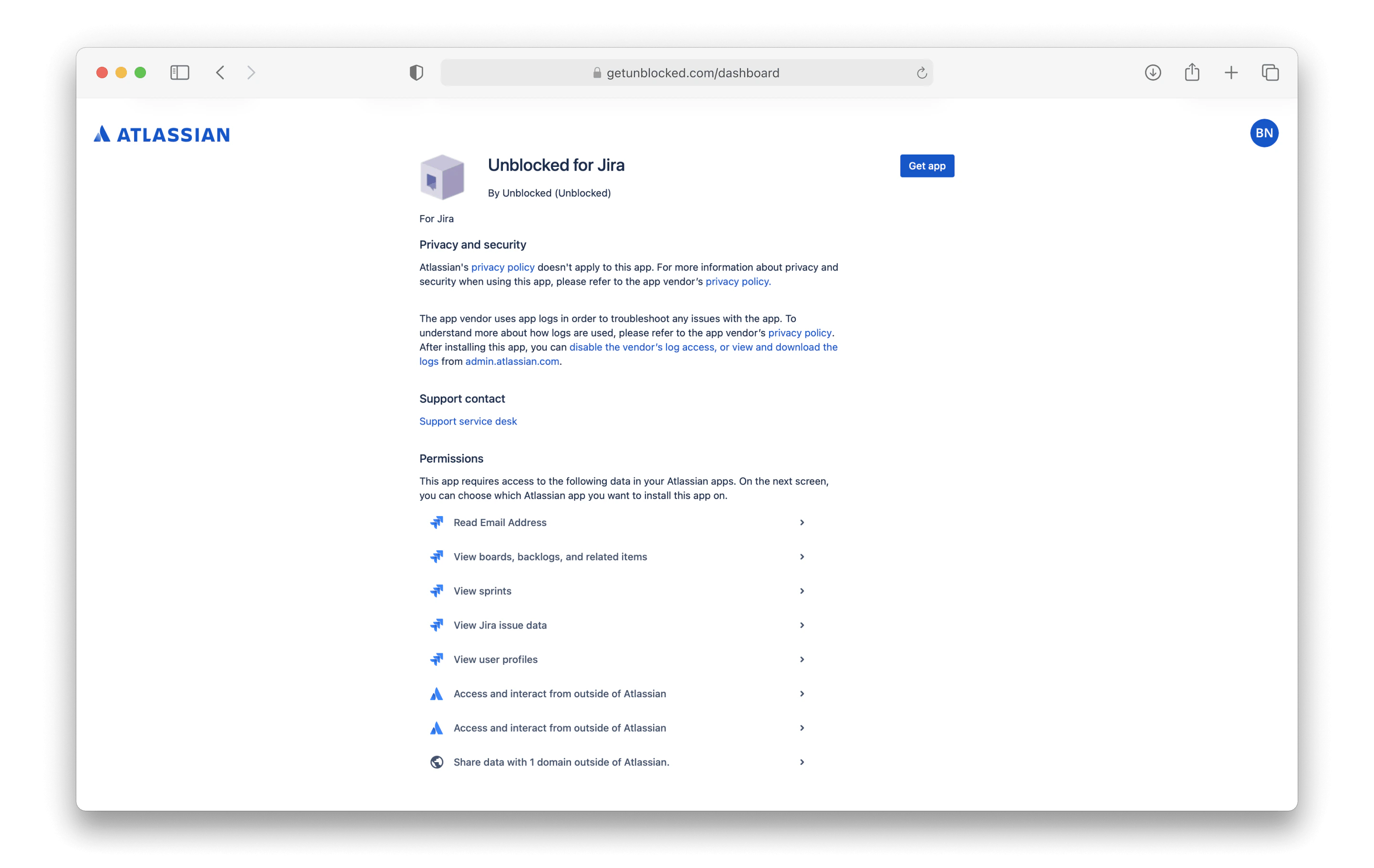 After installing, return to the Unblocked tab and click **Verify Installation** to proceed to the Jira configuration page to select projects to share with Unblocked.
## Selecting your Projects
You have the option to grant access to specific projects for Unblocked to index and search. You will be best served by granting access to all projects, but you can always restrict the scope depending on your team's needs. Using [Data Shield](/team-settings/data-shield), you can also set access permissions that determine which content in your Jira projects will be used in Unblocked's answers.
After installing, return to the Unblocked tab and click **Verify Installation** to proceed to the Jira configuration page to select projects to share with Unblocked.
## Selecting your Projects
You have the option to grant access to specific projects for Unblocked to index and search. You will be best served by granting access to all projects, but you can always restrict the scope depending on your team's needs. Using [Data Shield](/team-settings/data-shield), you can also set access permissions that determine which content in your Jira projects will be used in Unblocked's answers.
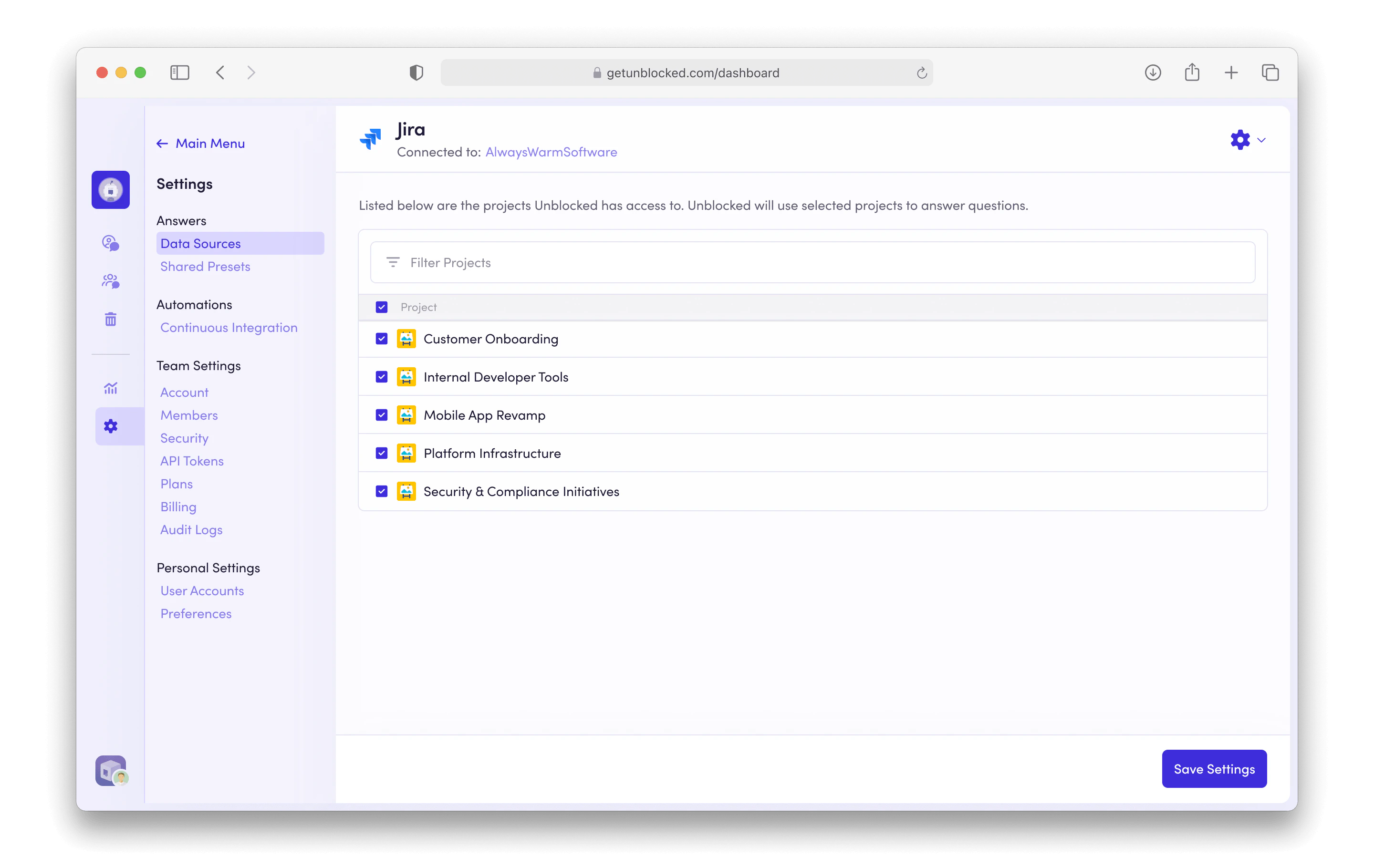 Once you click **Save Settings**, Unblocked will begin referencing the issues in your Jira projects in its answers.
## Troubleshooting
### Unable to Connect Unblocked
If you see the following error message, it means user installed apps have been blocked for your site. To work around this, ask your Jira Admin to [log in to Unblocked](https://getunblocked.com/dashboard/login) and connect your Jira Site.
Once you click **Save Settings**, Unblocked will begin referencing the issues in your Jira projects in its answers.
## Troubleshooting
### Unable to Connect Unblocked
If you see the following error message, it means user installed apps have been blocked for your site. To work around this, ask your Jira Admin to [log in to Unblocked](https://getunblocked.com/dashboard/login) and connect your Jira Site.
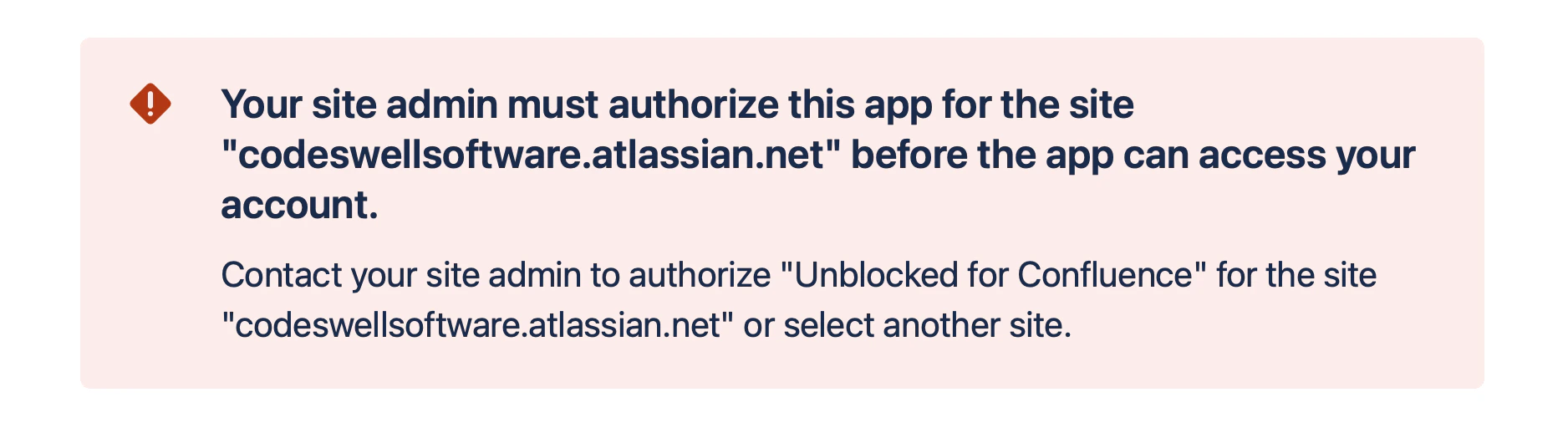 Alternatively, your Jira admin can temporarily allow user installed apps while you connect Unblocked to Jira. Ask your admin to visit your Jira site and click **Apps > Manage apps**.
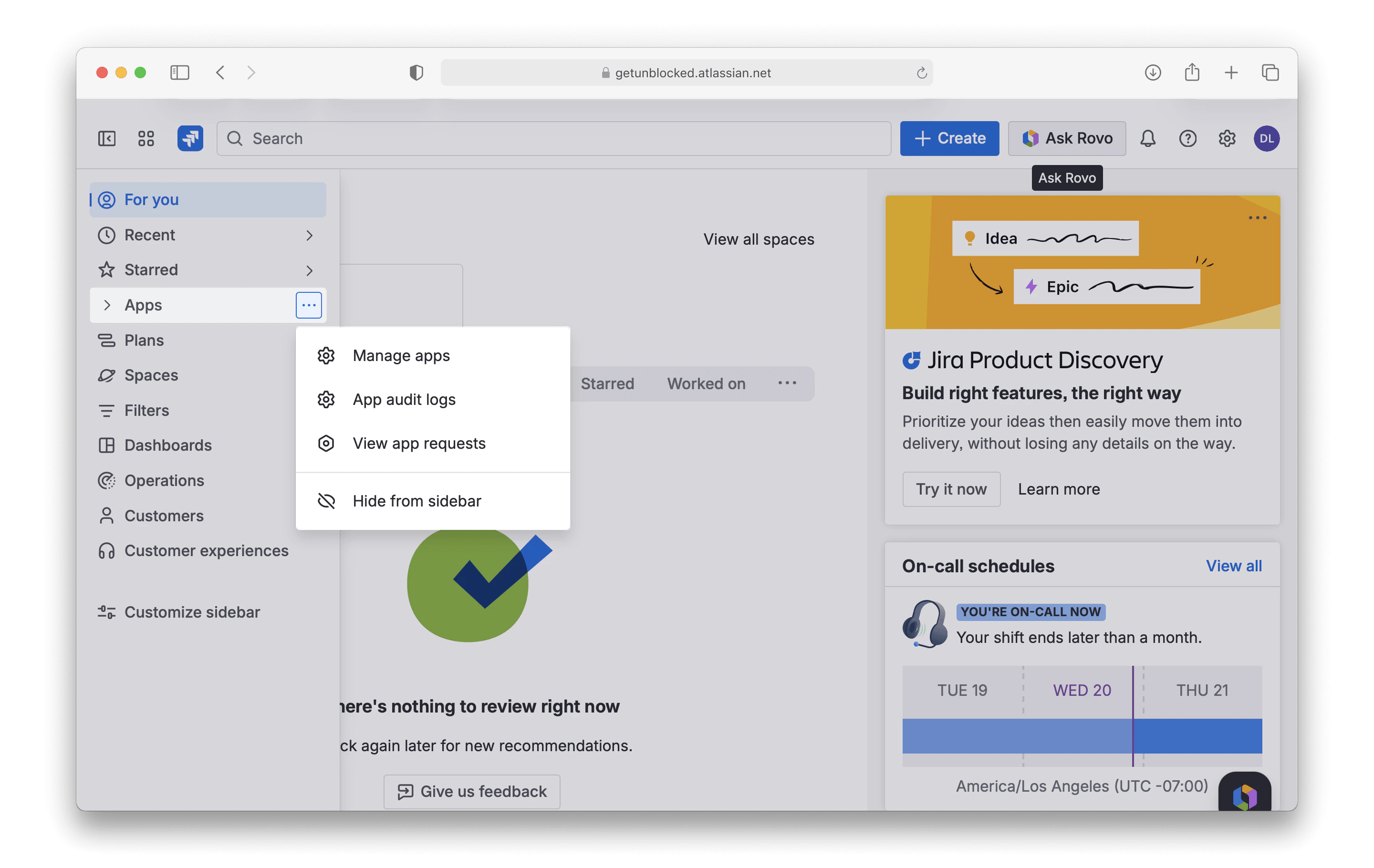 Then on the **Settings** tab of the **Connected Apps** page, click **Allow user apps** under the **User Installed Apps** section. You can now connect Unblocked to Jira.
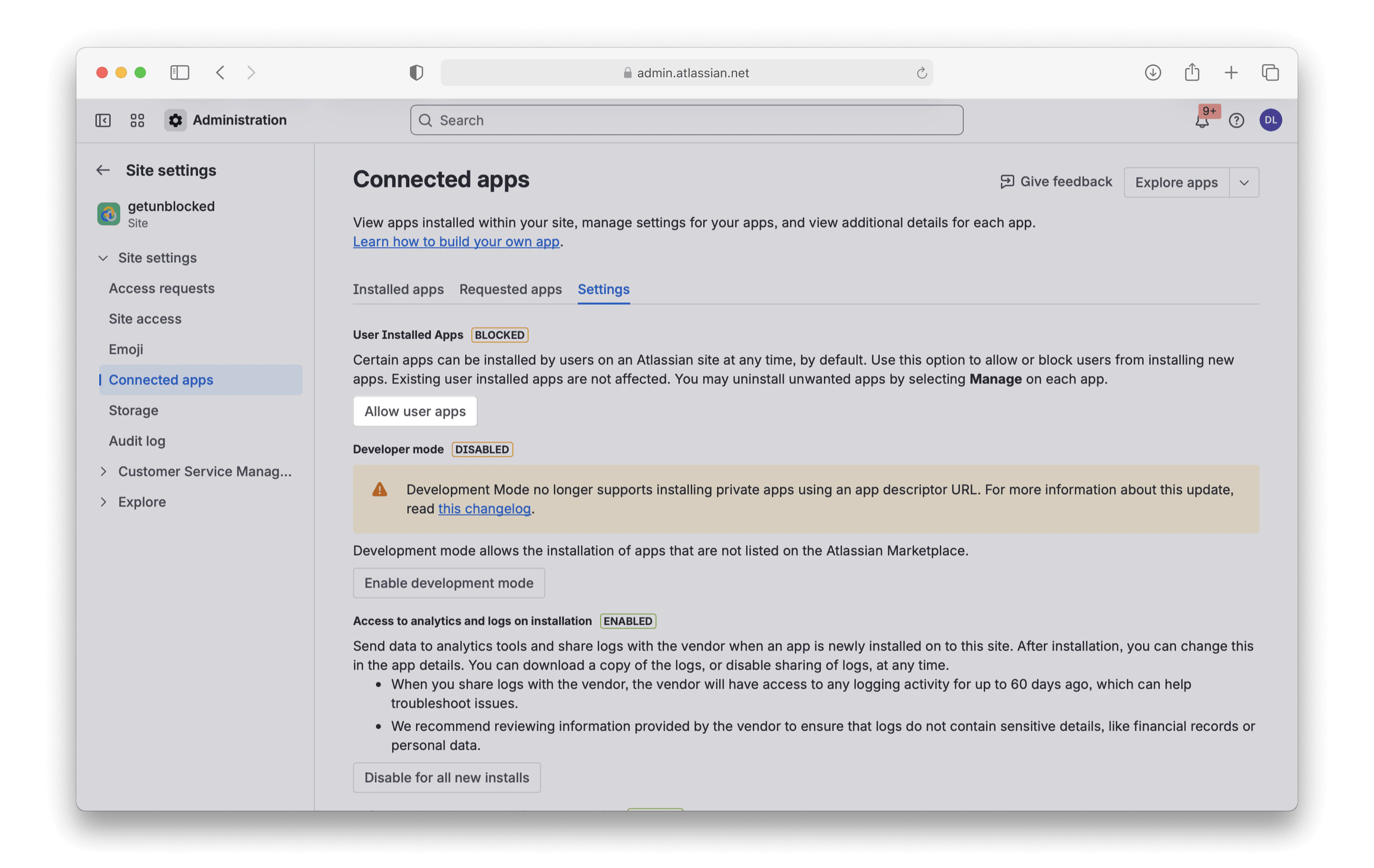 After connecting, your admin can re-enable blocking user installed apps.