> ## Documentation Index
> Fetch the complete documentation index at: https://docs.getunblocked.com/llms.txt
> Use this file to discover all available pages before exploring further.
# Google Drive for Workspaces
> Connecting your Google Workspace's Drive to Unblocked
Connecting your Google Workspace's Drive to Unblocked unlocks the following capabilities:
* **Content Configurability:** Select all current and future content in your workspace, or specific files, folders, or drives to connect to Unblocked.
* **Identity Awareness:** Understand the permission structure of each document without requiring every individual user to link their account.
* **Personal Drive Content:** Allow users to ask Unblocked about their personal drive content, provided that [Data Shield](/team-settings/data-shield) is enabled.
## Connecting to Unblocked
Connecting your Google Workspace must be done by a **Google Super Admin** in
the organization.
Navigate to the [Unblocked web app](/using-unblocked/on-the-web) and authenticate with Unblocked.
Once you've signed in, click **Settings** in the sidebar, then **Data Sources**, then **Connect another data source**. Scroll to the documentation section and select **Google Drive for Workspaces**.
To connect your Google Workspace's Drive with Unblocked, you will need to follow a series of steps in the Google Cloud Admin Console.
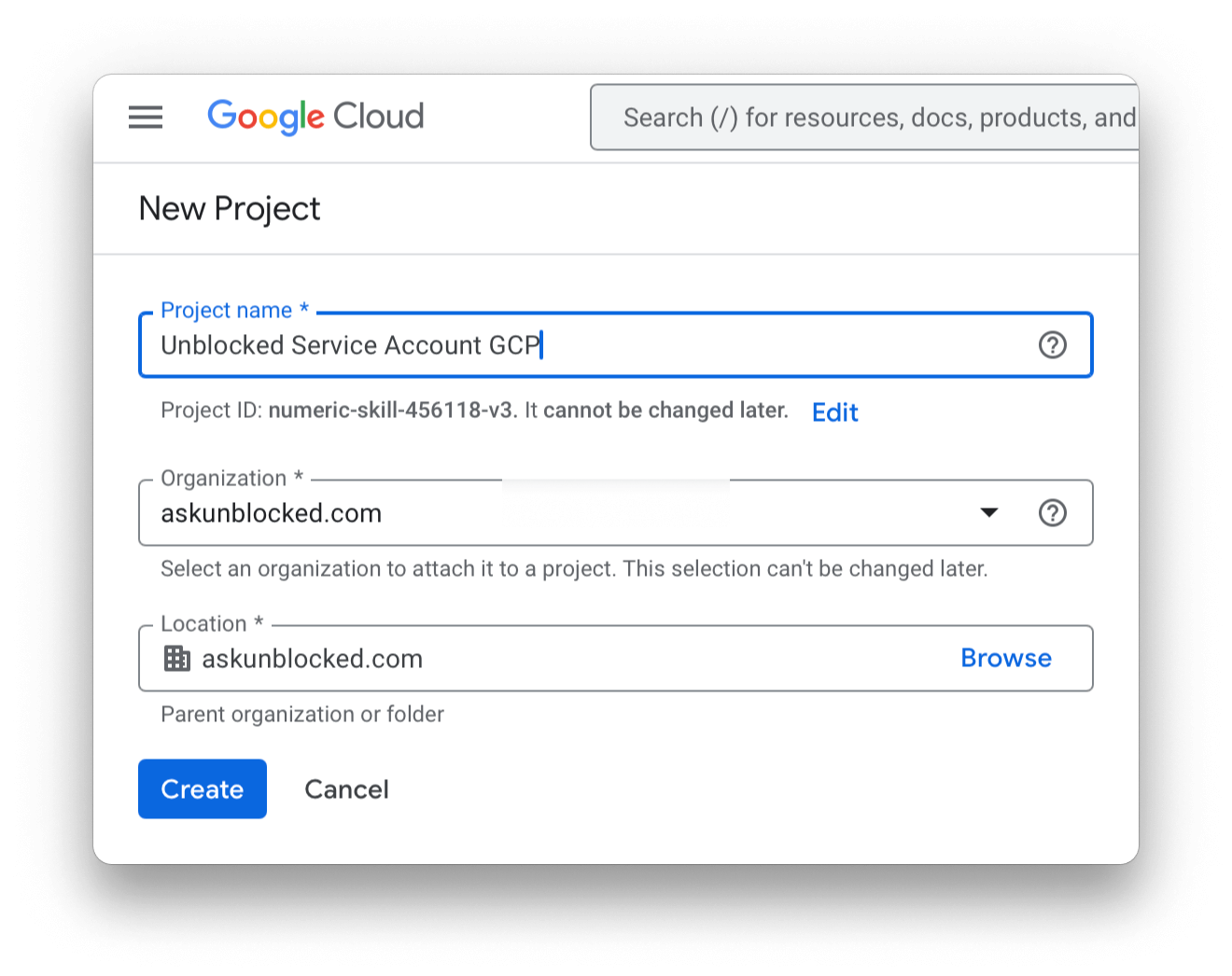
Follow the link to the **Google Cloud Console** and click **Create project**. Fill out the form, ensuring that the domain matches the email address of your organization, and click **Create**.
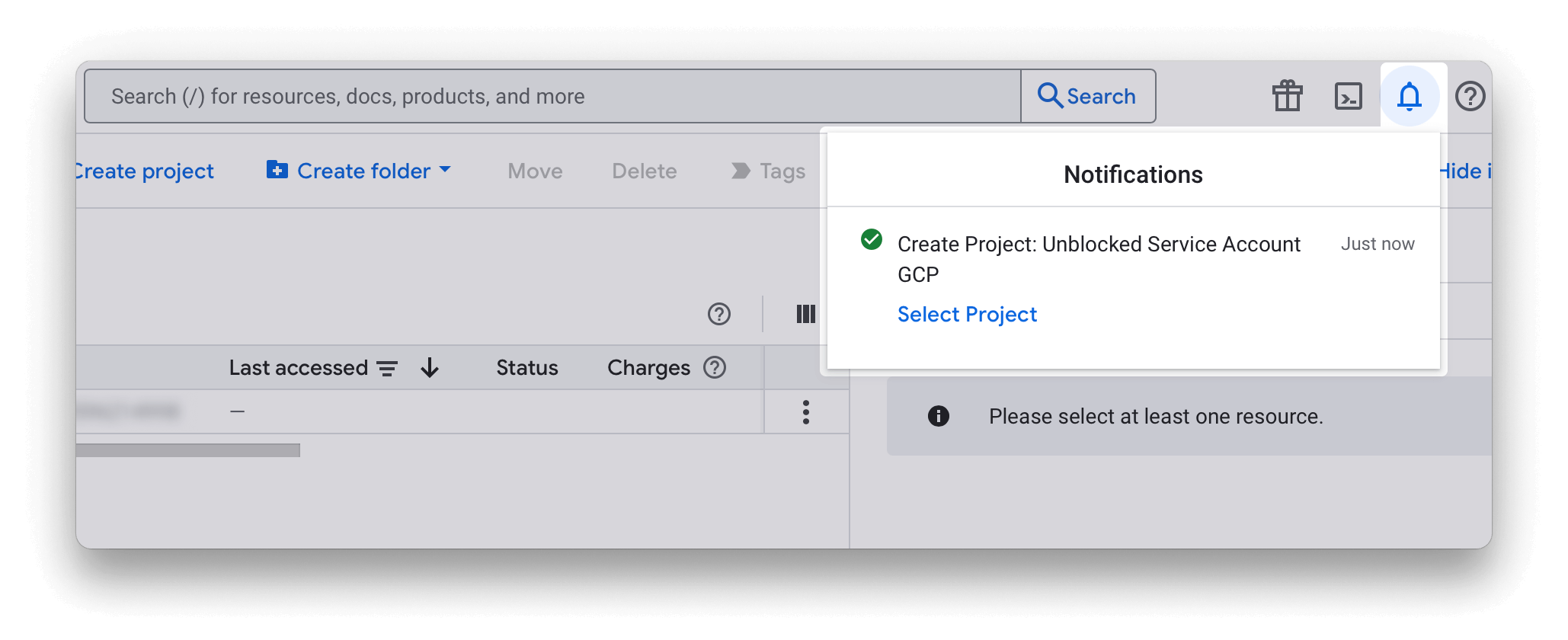
 Click **Select Project** to navigate to the project you just created.
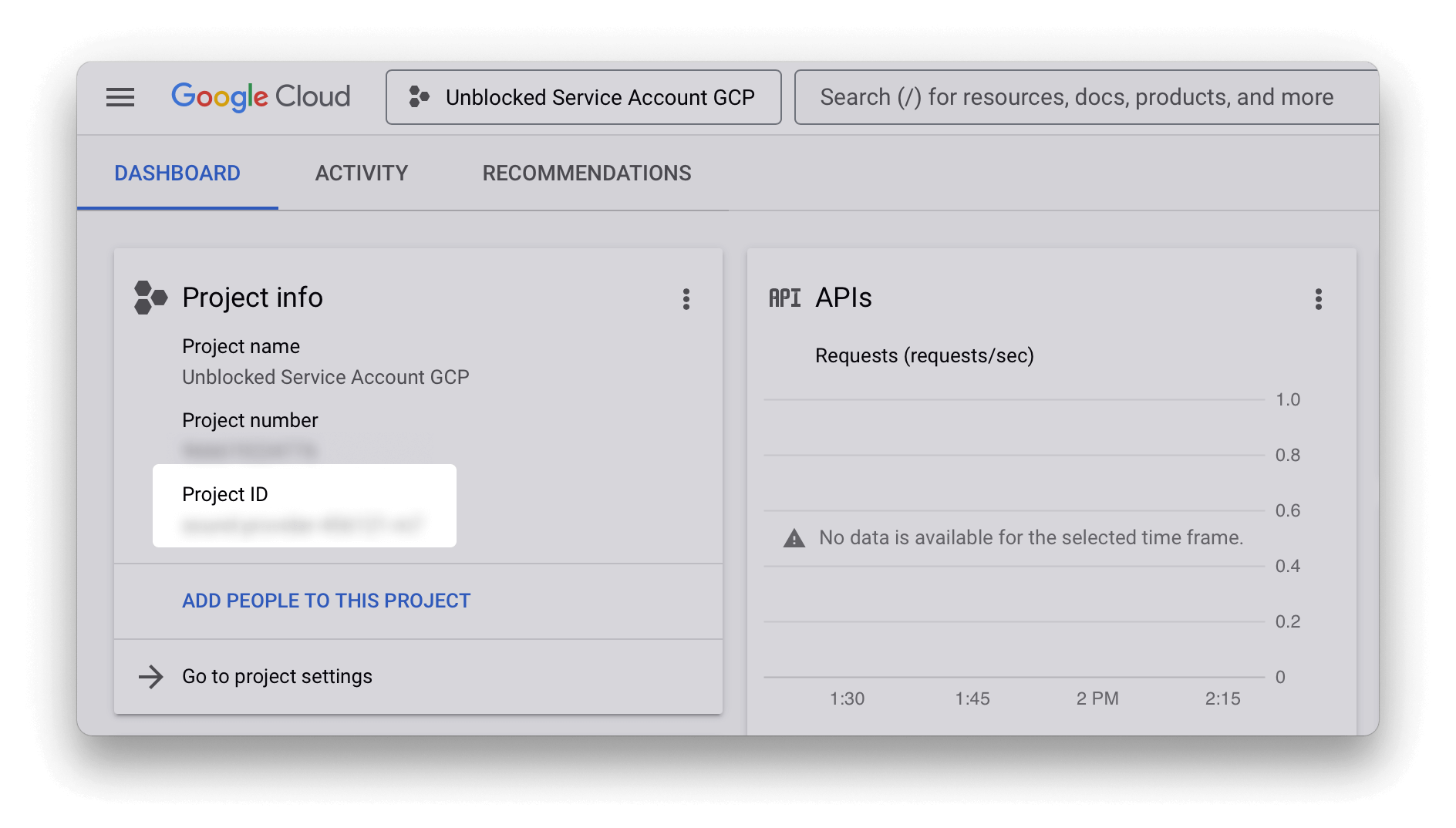
 Copy your newly created Project ID.
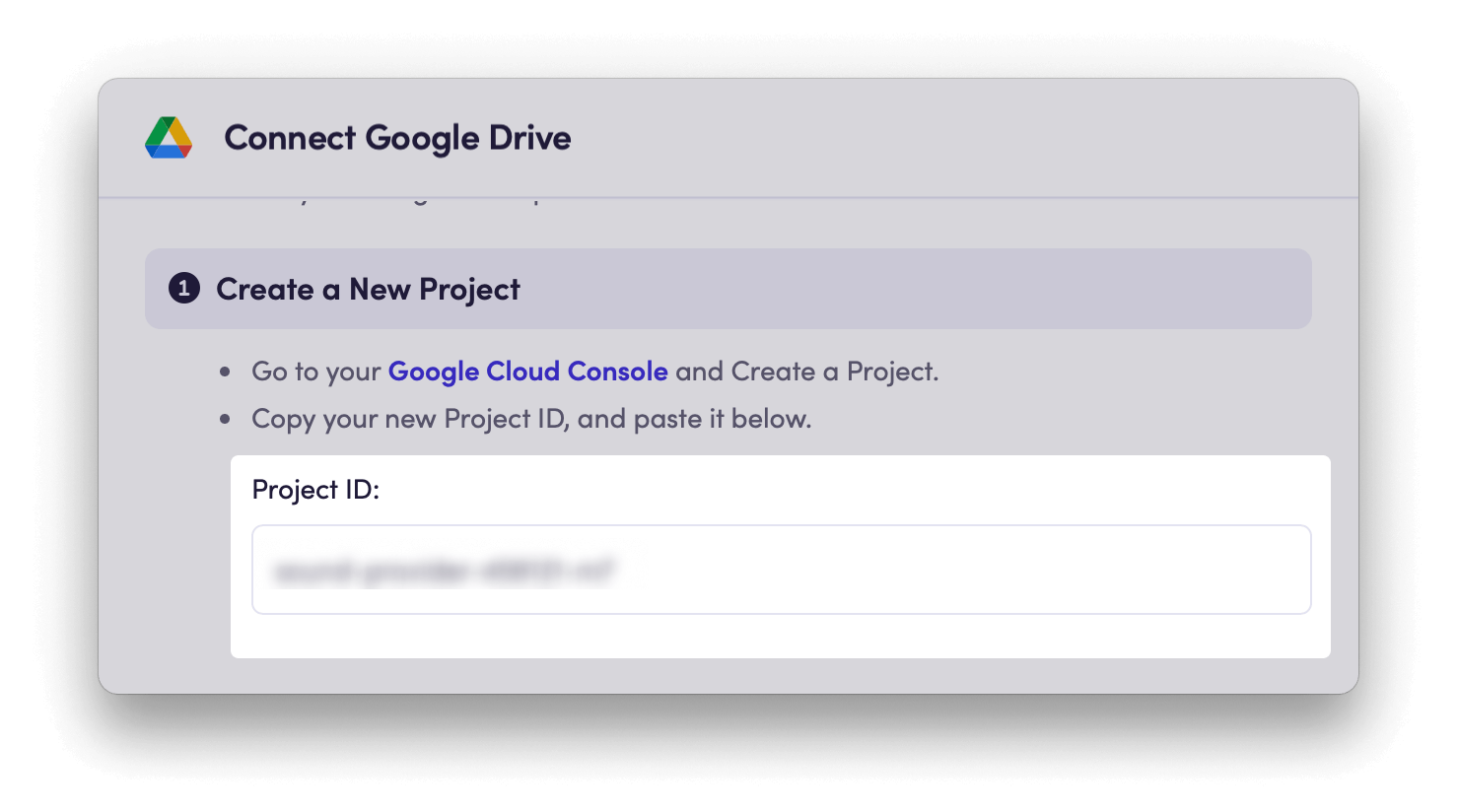
 Head back to Unblocked and paste it into the Project ID field in the Unblocked form. This will reveal the additional steps necessary to connect Google Drive.
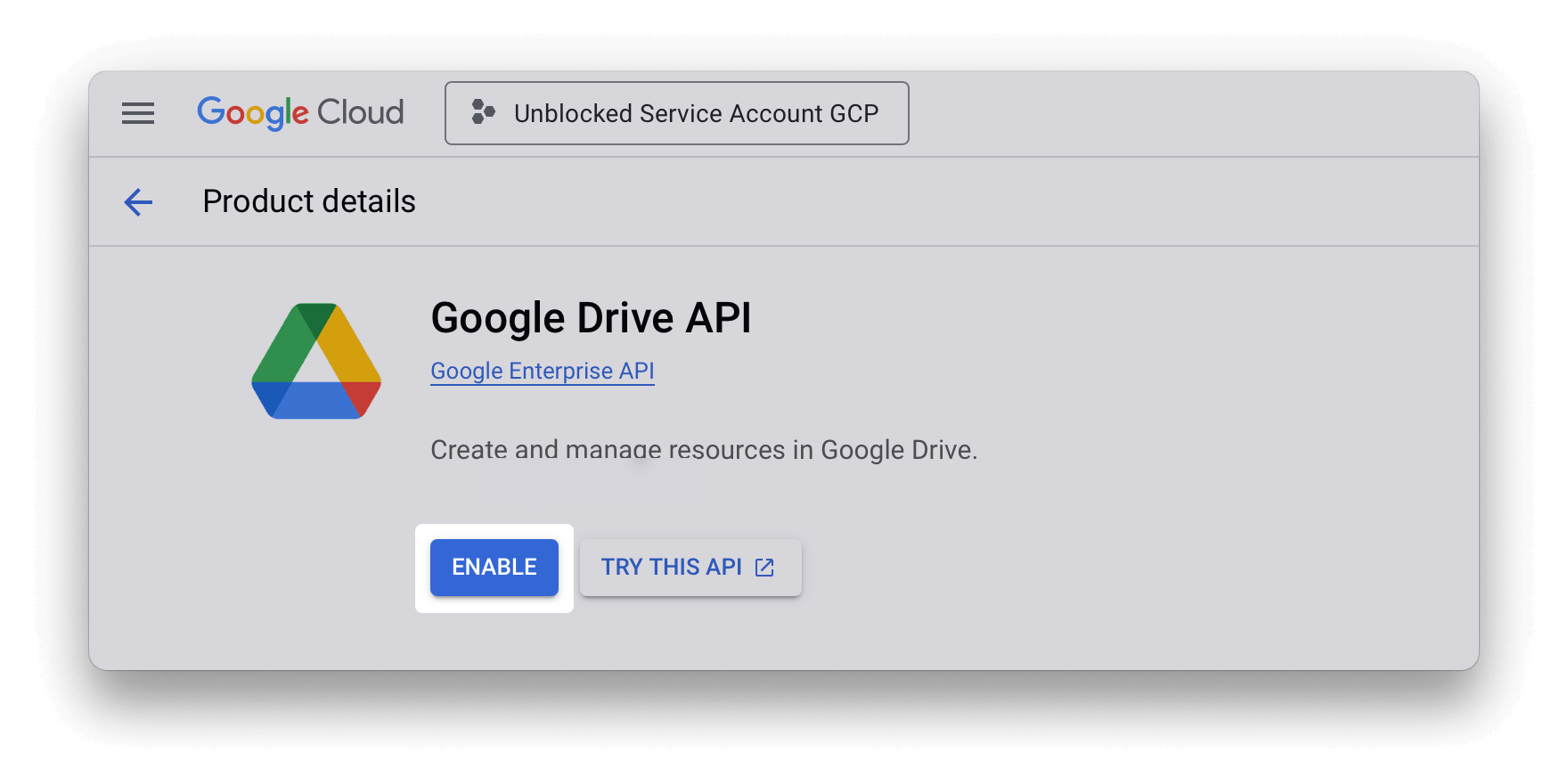
 Follow every link provided in the list and enable each API for your new project. This grants Unblocked the ability to process the contents of your Drive and sync user permissions.
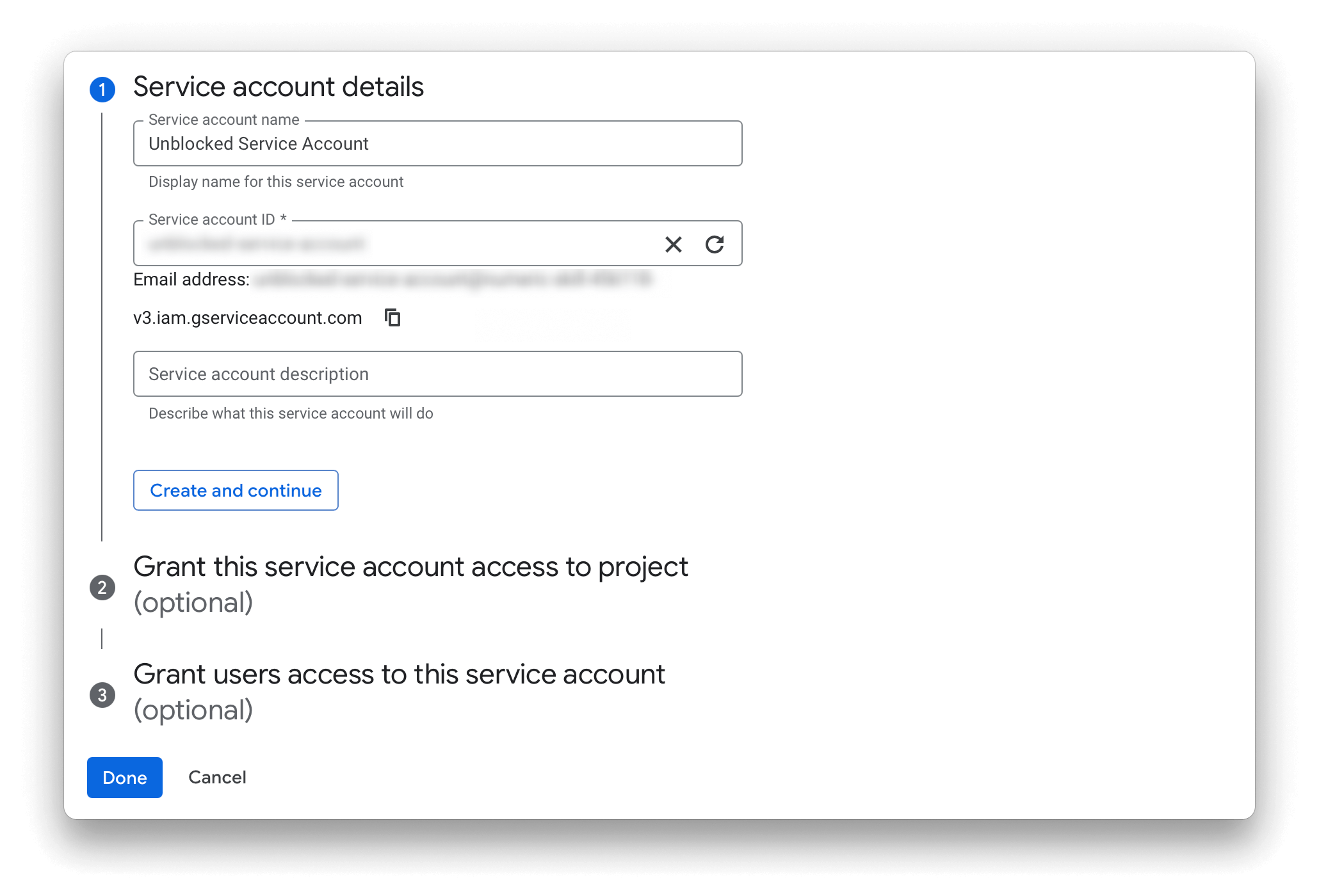
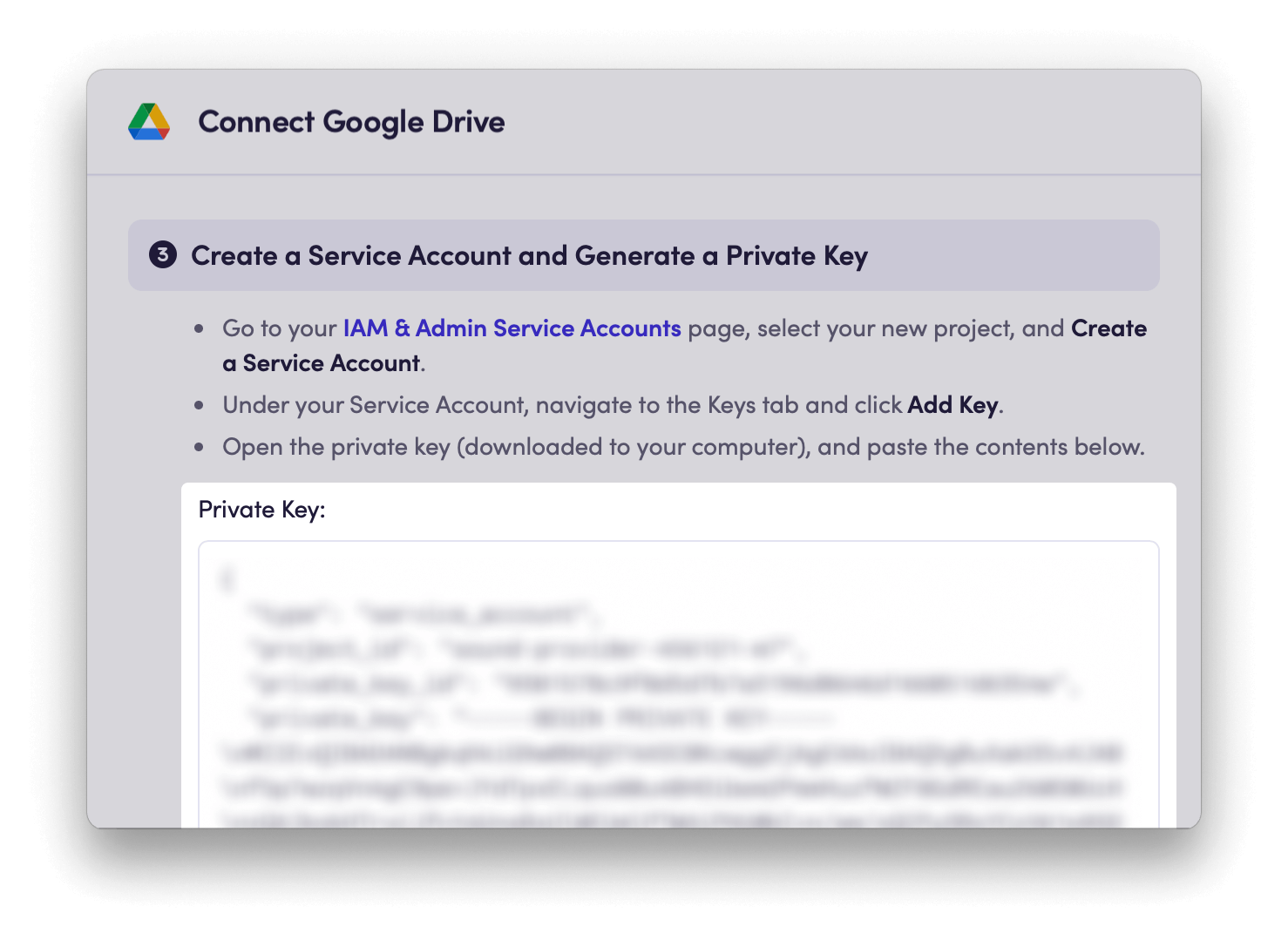
 Follow the link to the **IAM & Admin Service Accounts** page, and click on your new project. On the Service Accounts page, click **Create service account**. Fill out the form and select **Done**.
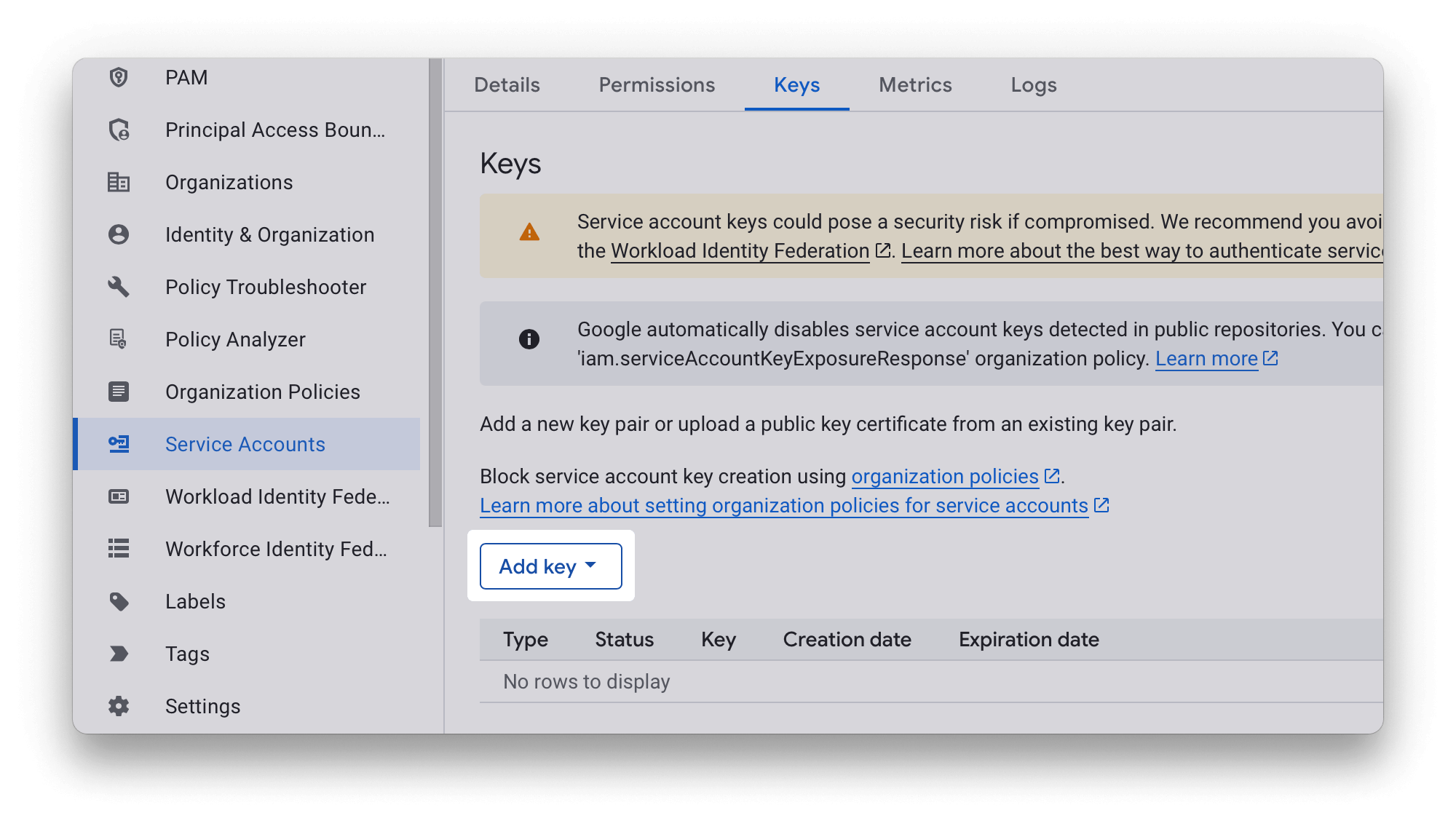
 Click on your newly created Service Account, and navigate to the **Keys** tab. Click the **Add key** dropdown, and select **Create new key**.
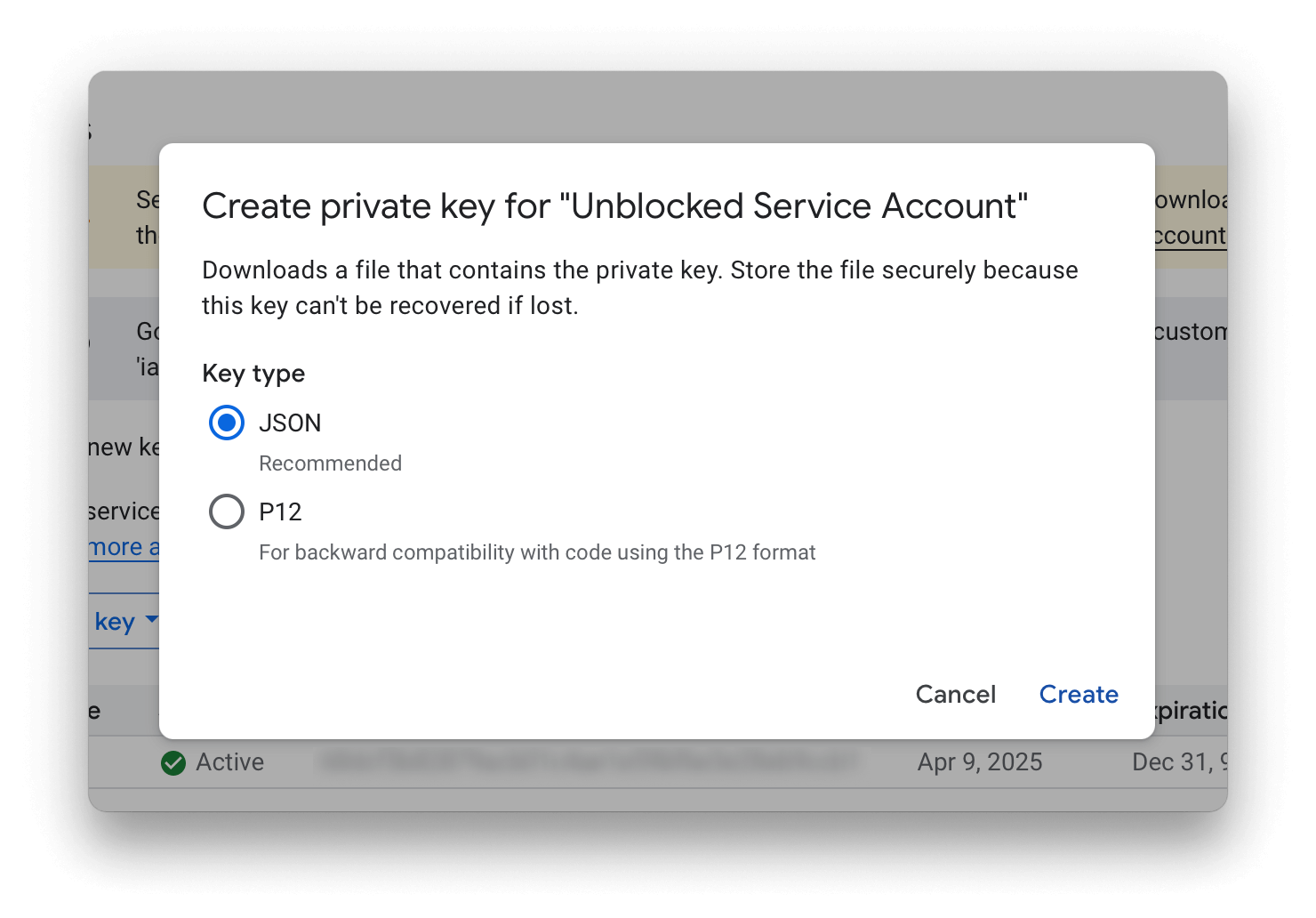
 When prompted, choose the JSON option and click **Create**.
 A JSON key will be generated and downloaded to your machine. Open this key and **copy and paste the contents into Private Key field** in Unblocked.
 #### Troubleshooting Key Creation
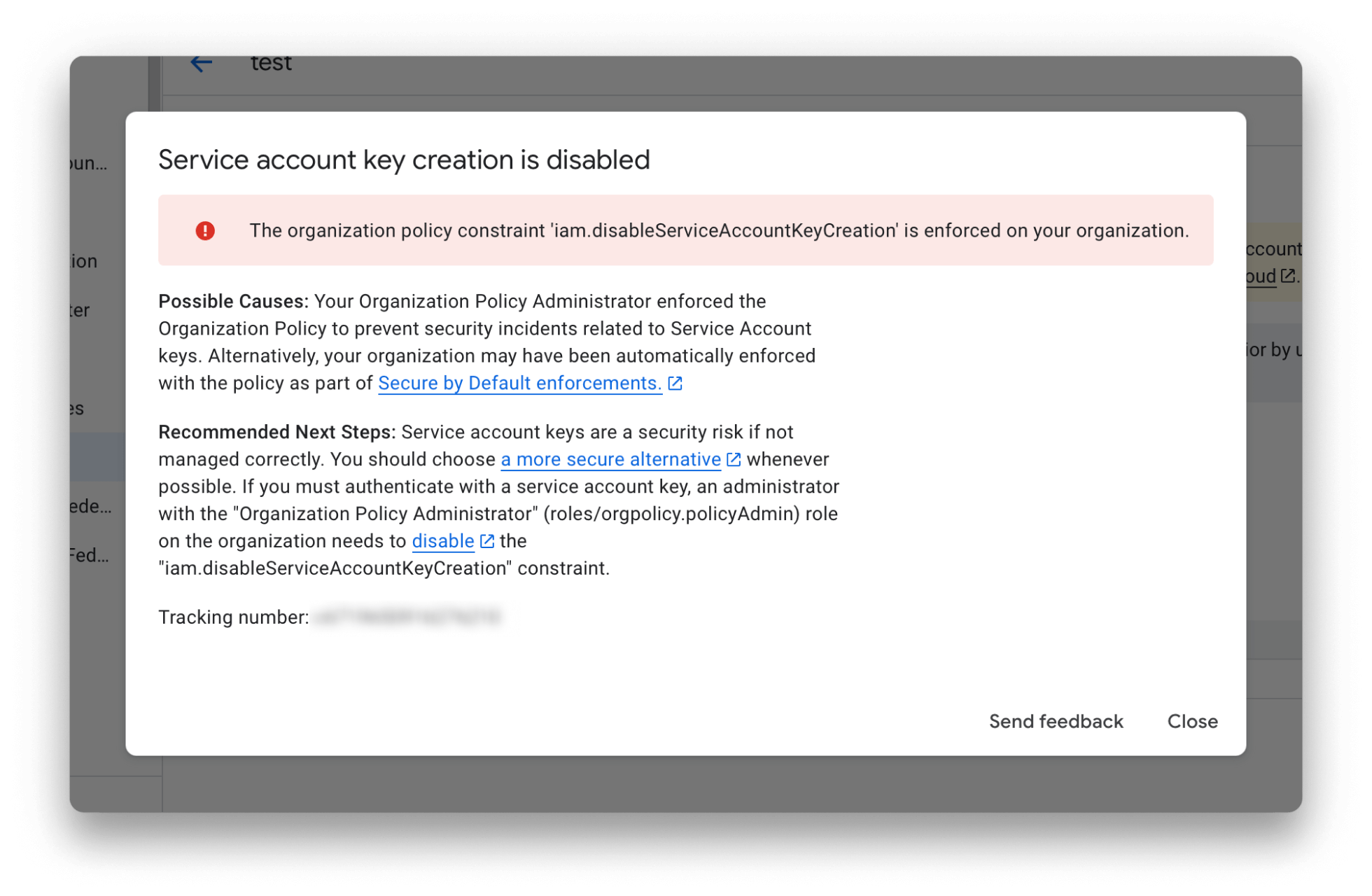
Depending on the settings of your Google Workspace, you may see the following error when trying to create a new Service Account key.
#### Troubleshooting Key Creation
Depending on the settings of your Google Workspace, you may see the following error when trying to create a new Service Account key.
 Ensure that you have [enabled service account key creation](/data-sources/google-drive-for-workspaces#enabling-key-creation) for your workspace before proceeding.
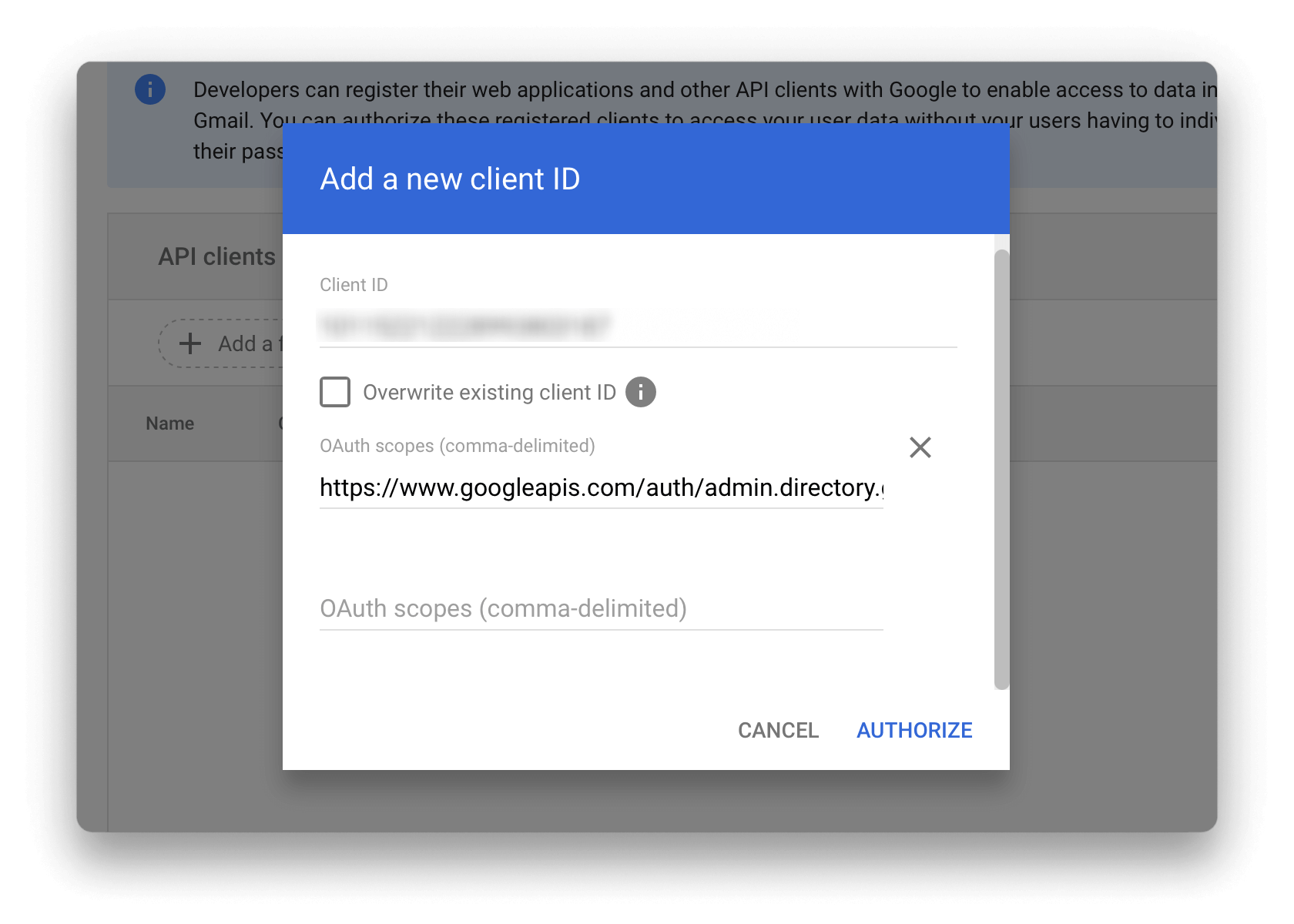
Follow the link to the **Domain-wide Delegation** section of your Google Cloud Console. Create a new API client by clicking **Add new**.
Copy the `client_id` property of the generated Service Account key created in Step 3, and paste the id into the Client ID field. Paste the contents of the of OAuth scopes provided by Unblocked into the second input field.
Ensure that you have [enabled service account key creation](/data-sources/google-drive-for-workspaces#enabling-key-creation) for your workspace before proceeding.
Follow the link to the **Domain-wide Delegation** section of your Google Cloud Console. Create a new API client by clicking **Add new**.
Copy the `client_id` property of the generated Service Account key created in Step 3, and paste the id into the Client ID field. Paste the contents of the of OAuth scopes provided by Unblocked into the second input field.
 Unblocked recommends using a Super Admin email to sync all users, groups, group memberships, and content permissions from your Workspace.
However, if you prefer to use a non-Super Admin email, you can instead [create a custom admin role](/data-sources/google-drive-for-workspaces#creating-a-custom-admin-role).
Lastly, enter a valid email address into the Email field of the Unblocked form.
Click **Validate Connection** to complete setup and connect your Google Workspace with Unblocked.
## Configuring Google Drive
By default, Unblocked will reference **all the contents** of the connected Google Workspace to answer questions.
Choose **Specific Files, folders, and drives** to search for and select specific content for Unblocked to reference.
Unblocked recommends using a Super Admin email to sync all users, groups, group memberships, and content permissions from your Workspace.
However, if you prefer to use a non-Super Admin email, you can instead [create a custom admin role](/data-sources/google-drive-for-workspaces#creating-a-custom-admin-role).
Lastly, enter a valid email address into the Email field of the Unblocked form.
Click **Validate Connection** to complete setup and connect your Google Workspace with Unblocked.
## Configuring Google Drive
By default, Unblocked will reference **all the contents** of the connected Google Workspace to answer questions.
Choose **Specific Files, folders, and drives** to search for and select specific content for Unblocked to reference.
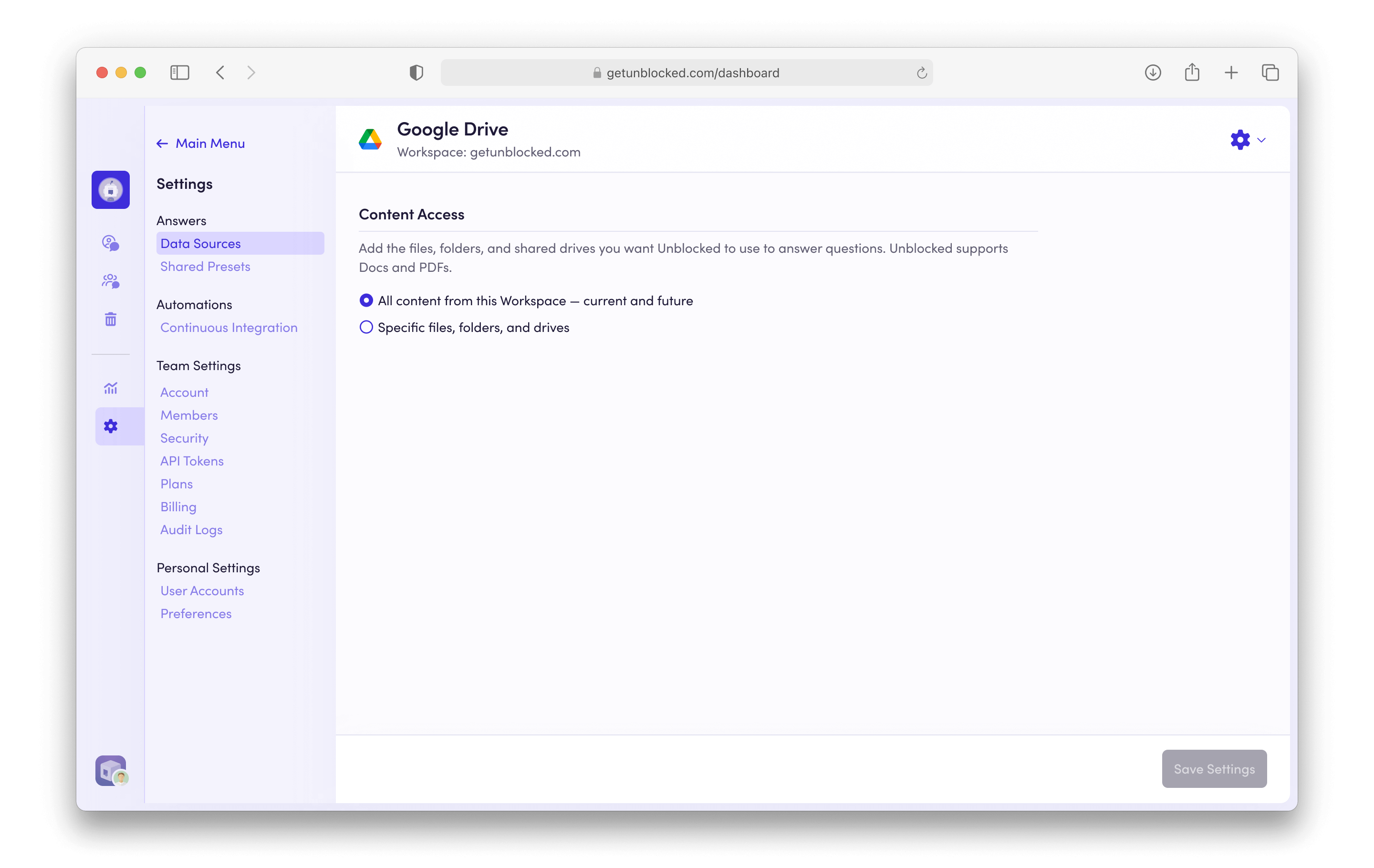 Click **Save Settings** to save your changes. Unblocked will begin using these resources to answer your team’s questions.
## Additional Guides
### Enabling Key Creation
If you see following error when trying to create a new Service Account key, you will need to enable Service Account key creation for your workspace.
To enable Service Account key creation, navigate to the **Organizational Policies** of your Google Cloud Console (this can be found in the left menu).
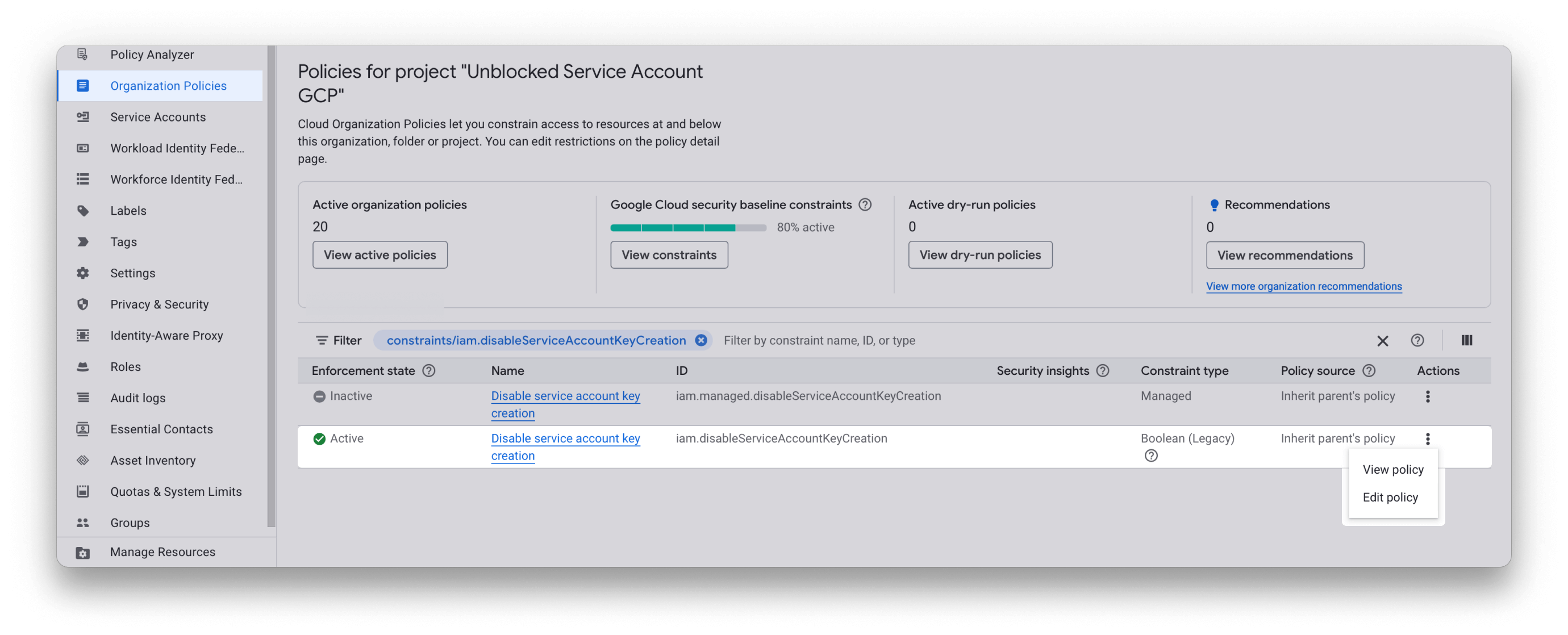
In the search filter, enter `iam.disableServiceAccountKeyCreation` to search for the "Disable service account key creation" policy. Click the context menu of the policy row and select **Edit Policy**.
Click **Save Settings** to save your changes. Unblocked will begin using these resources to answer your team’s questions.
## Additional Guides
### Enabling Key Creation
If you see following error when trying to create a new Service Account key, you will need to enable Service Account key creation for your workspace.
To enable Service Account key creation, navigate to the **Organizational Policies** of your Google Cloud Console (this can be found in the left menu).
In the search filter, enter `iam.disableServiceAccountKeyCreation` to search for the "Disable service account key creation" policy. Click the context menu of the policy row and select **Edit Policy**.
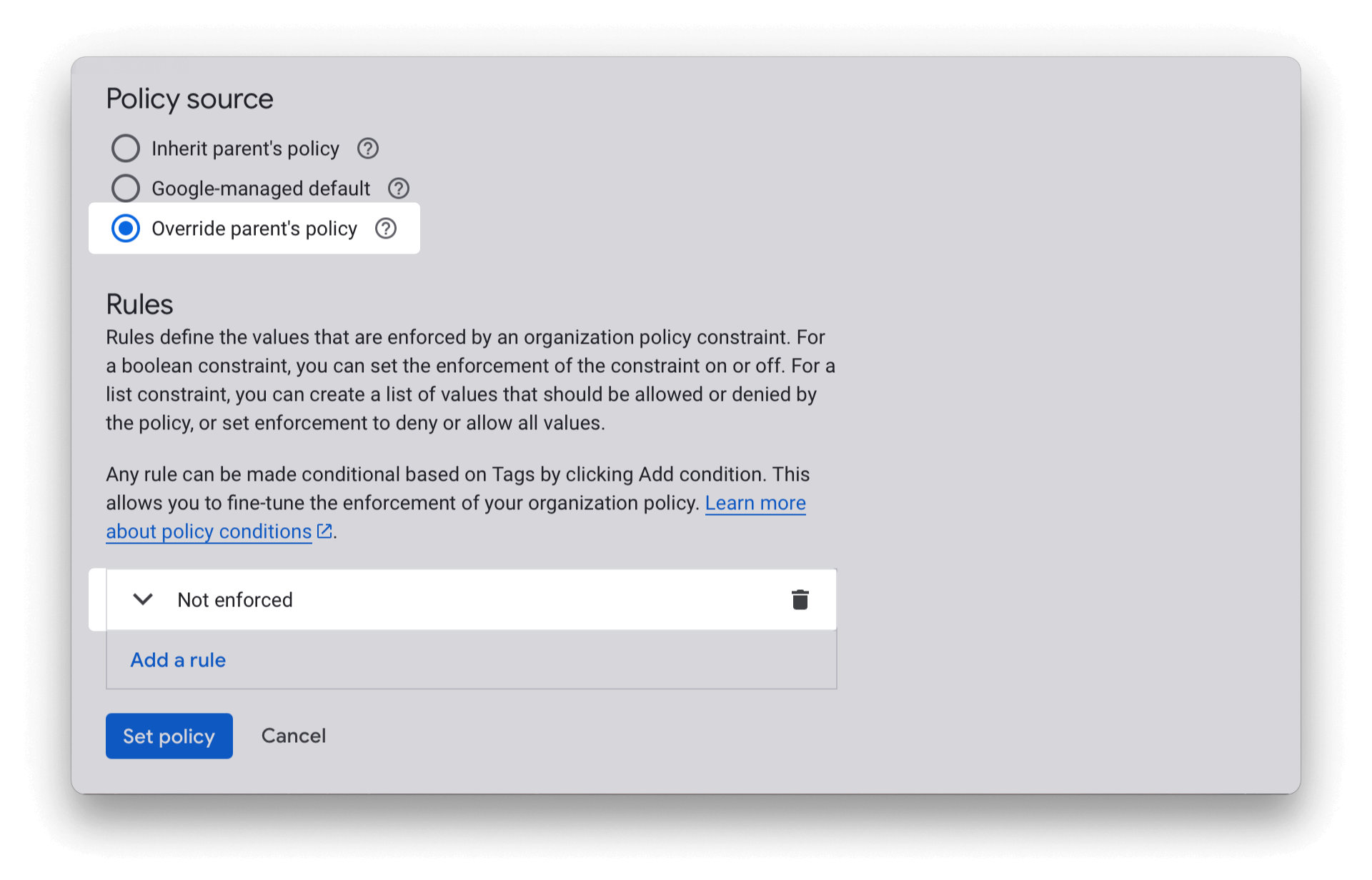
 On the Edit policy page, choose **Override parent's policy**, ensuring **Not enforce** is selected before clicking **Set policy**.
 After overriding this policy, you can return to the Service Accounts page to generate the key.
The policy override may take a few minutes to take effect before key
generation is allowed.
### Creating a Custom Admin Role
If you prefer to provide a non-Super Admin account to connect with Unblocked, you can create a custom admin role and assign the role to the account you wish to use instead.
Navigate to [https://admin.google.com/ac/roles](https://admin.google.com/ac/roles) and create a new role with the following privileges enabled:
* Admin Console Privileges > Organizational Units > Read
* Admin Console Privileges > Users > Read
* Admin API Privileges > Groups > Read
* Admin API Privileges > Organizational Units > Read
* Admin API Privileges > Users > Read
Assign this new role to the preferred account and enter the email into the Super Admin Email field in Unblocked.
The assignment of the new role may take a few minutes to take effect.
After overriding this policy, you can return to the Service Accounts page to generate the key.
The policy override may take a few minutes to take effect before key
generation is allowed.
### Creating a Custom Admin Role
If you prefer to provide a non-Super Admin account to connect with Unblocked, you can create a custom admin role and assign the role to the account you wish to use instead.
Navigate to [https://admin.google.com/ac/roles](https://admin.google.com/ac/roles) and create a new role with the following privileges enabled:
* Admin Console Privileges > Organizational Units > Read
* Admin Console Privileges > Users > Read
* Admin API Privileges > Groups > Read
* Admin API Privileges > Organizational Units > Read
* Admin API Privileges > Users > Read
Assign this new role to the preferred account and enter the email into the Super Admin Email field in Unblocked.
The assignment of the new role may take a few minutes to take effect.