> ## Documentation Index
> Fetch the complete documentation index at: https://docs.getunblocked.com/llms.txt
> Use this file to discover all available pages before exploring further.
# Custom MCP
> Connect an HTTP MCP server to Unblocked
Connect a custom Model Context Protocol (MCP) server to let Unblocked use its tools when answering questions. This is useful when your team needs live context from a system that doesn't have a built-in Unblocked data source.
Unblocked only makes read-only MCP tools available. You choose which of those tools Unblocked can use.
## Before you connect
Make sure you have:
* A publicly reachable HTTPS endpoint for your MCP server. Local, private-network, and HTTP endpoints aren't supported.
* An MCP server that supports tool discovery and provides clear, accurate descriptions for its tools.
* Any authentication values the server expects as HTTP headers, such as an API key or bearer token.
* Optionally, a public image URL to use as the data source icon.
Unblocked uses `annotations.readOnlyHint` when the MCP server provides it. If the hint is missing, Unblocked evaluates the tool's description and excludes tools that might modify data. Only tools determined to be safely read-only are available for selection.
To explicitly identify a tool as read-only, include the hint in its definition:
```json theme={null}
{
"name": "search_logs",
"description": "Search application logs",
"annotations": {
"readOnlyHint": true
}
}
```
## Connect a custom MCP server
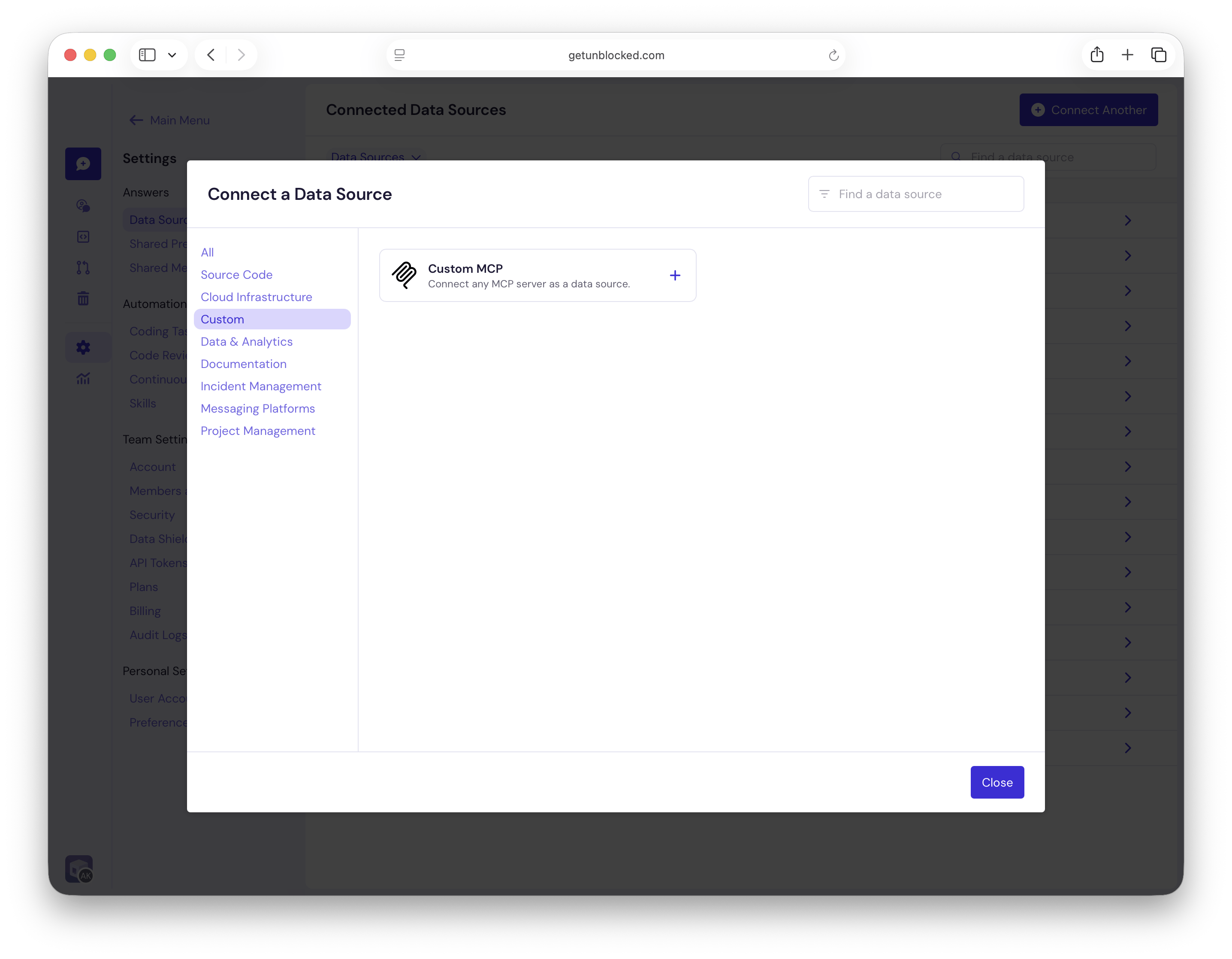
In the Unblocked sidebar, click **Settings**, then **Data Sources**, then **Connect another data source**. Select **Custom**, then select **Custom MCP**.
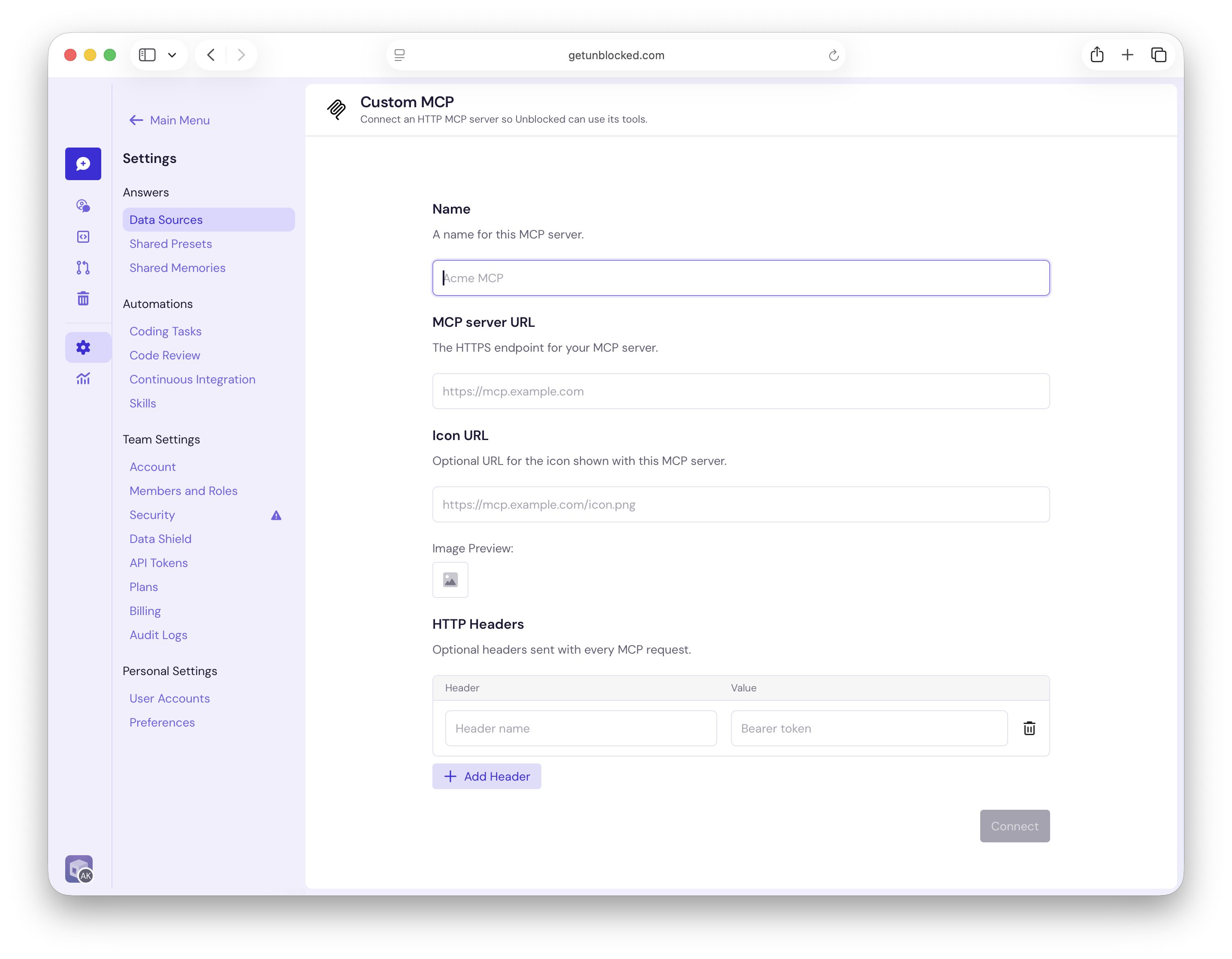
 Complete the connection form:
* **Name:** A recognizable name for the MCP server.
* **MCP server URL:** The public HTTPS endpoint for the MCP server, including its MCP path when required. For example, `https://mcp.example.com/mcp`.
* **Icon URL:** An optional URL for the icon shown with this data source. Unblocked suggests the server domain's favicon; you can replace it with another public image URL.
* **HTTP Headers:** Optional headers sent with every MCP request. Enter both a name and value for each header, and click **Add Header** if the server requires more than one.
For bearer-token authentication, use `Authorization` as the header and `Bearer YOUR_TOKEN` as its value. Use the header names required by your MCP server for other authentication methods.
Complete the connection form:
* **Name:** A recognizable name for the MCP server.
* **MCP server URL:** The public HTTPS endpoint for the MCP server, including its MCP path when required. For example, `https://mcp.example.com/mcp`.
* **Icon URL:** An optional URL for the icon shown with this data source. Unblocked suggests the server domain's favicon; you can replace it with another public image URL.
* **HTTP Headers:** Optional headers sent with every MCP request. Enter both a name and value for each header, and click **Add Header** if the server requires more than one.
For bearer-token authentication, use `Authorization` as the header and `Bearer YOUR_TOKEN` as its value. Use the header names required by your MCP server for other authentication methods.
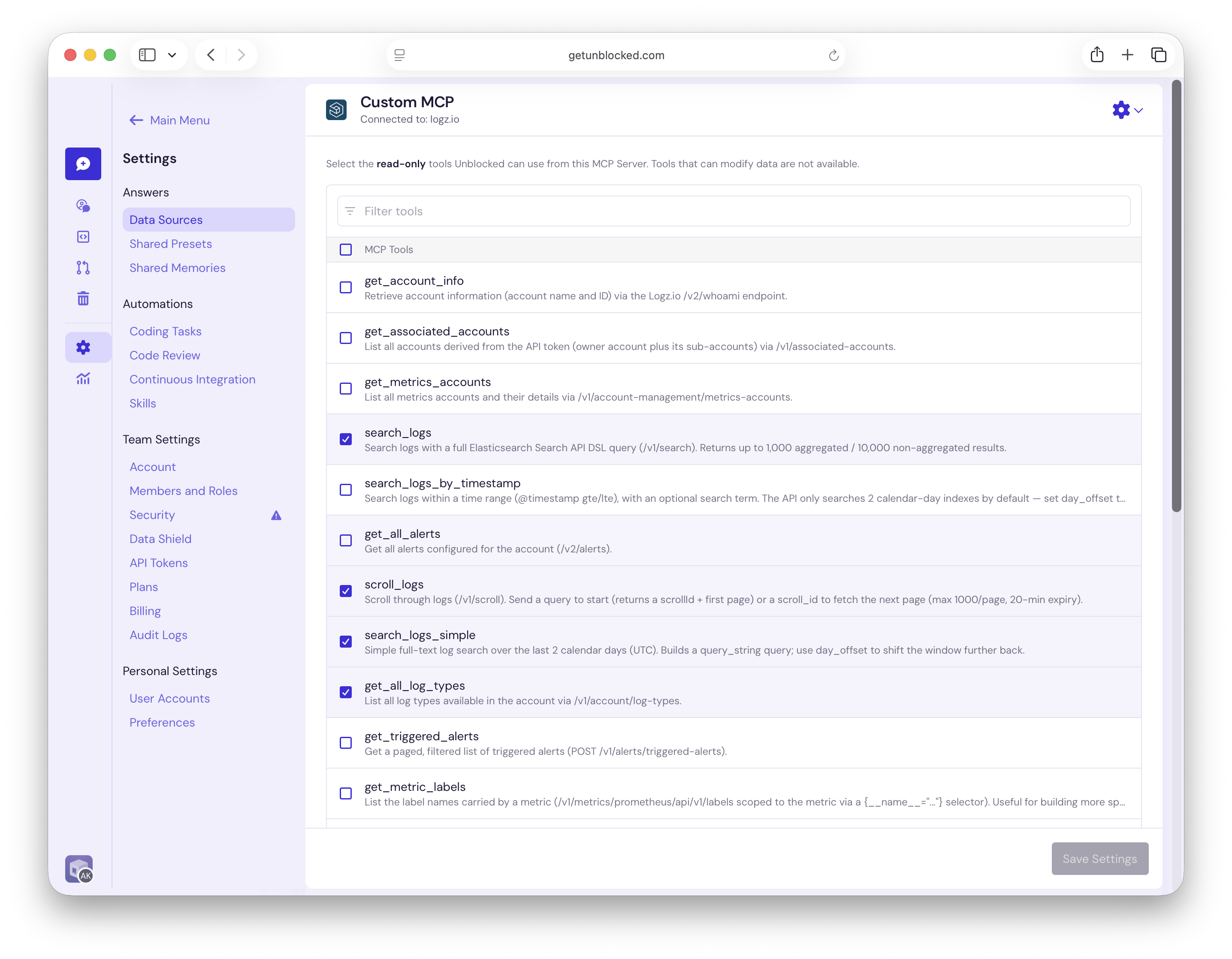
 Click **Connect**. Unblocked validates the endpoint, connects to the server, and discovers its tools. Discovery can take up to a minute.
Select the read-only tools that Unblocked can use. Use the filter to find a tool by its name or description, or use the **MCP Tools** checkbox to select or clear all tools.
Tools that can modify data don't appear in this list.
Click **Connect**. Unblocked validates the endpoint, connects to the server, and discovers its tools. Discovery can take up to a minute.
Select the read-only tools that Unblocked can use. Use the filter to find a tool by its name or description, or use the **MCP Tools** checkbox to select or clear all tools.
Tools that can modify data don't appear in this list.
 Click **Save Settings**. Unblocked can now use the selected tools when they are relevant to a question.
## Authentication and access
Unblocked encrypts the HTTP headers you provide and sends them with every request to the MCP server. Use a dedicated, least-privilege credential that grants access only to the data the selected tools need.
The tool names and descriptions returned by your MCP server help Unblocked decide when to use each tool. Use clear descriptions that explain what each tool returns and when it is useful.
## Manage the connection
To change the available tools, go to **Settings** › **Data Sources**, open the custom MCP data source, update the selection, and click **Save Settings**. Use the settings menu on the data source to manage or disconnect it.
## Troubleshooting
### The Connect button is unavailable
Check that:
* **Name** and **MCP server URL** aren't empty.
* Every HTTP header row has both a name and a value, or is completely empty.
* Header names are unique. Header-name matching isn't case-sensitive.
### Unblocked can't connect to the server
Confirm that the URL:
* Starts with `https://`.
* Points to the MCP endpoint, not only the server's website or API root.
* Resolves to a host that is reachable from the public internet.
* Accepts the configured HTTP headers and responds within one minute.
### The custom icon isn't displayed
Make sure the icon URL is publicly accessible and points directly to an image. If the image can't be loaded, Unblocked displays its default MCP icon instead.
Click **Save Settings**. Unblocked can now use the selected tools when they are relevant to a question.
## Authentication and access
Unblocked encrypts the HTTP headers you provide and sends them with every request to the MCP server. Use a dedicated, least-privilege credential that grants access only to the data the selected tools need.
The tool names and descriptions returned by your MCP server help Unblocked decide when to use each tool. Use clear descriptions that explain what each tool returns and when it is useful.
## Manage the connection
To change the available tools, go to **Settings** › **Data Sources**, open the custom MCP data source, update the selection, and click **Save Settings**. Use the settings menu on the data source to manage or disconnect it.
## Troubleshooting
### The Connect button is unavailable
Check that:
* **Name** and **MCP server URL** aren't empty.
* Every HTTP header row has both a name and a value, or is completely empty.
* Header names are unique. Header-name matching isn't case-sensitive.
### Unblocked can't connect to the server
Confirm that the URL:
* Starts with `https://`.
* Points to the MCP endpoint, not only the server's website or API root.
* Resolves to a host that is reachable from the public internet.
* Accepts the configured HTTP headers and responds within one minute.
### The custom icon isn't displayed
Make sure the icon URL is publicly accessible and points directly to an image. If the image can't be loaded, Unblocked displays its default MCP icon instead.