> ## Documentation Index
> Fetch the complete documentation index at: https://docs.getunblocked.com/llms.txt
> Use this file to discover all available pages before exploring further.
# Confluence Data Center
> Connect your Confluence Data Center instance to Unblocked
To connect Confluence Data Center with Unblocked, you need to be on the
Enterprise Plan. You can view all the features of Unblocked's plans on our
[pricing page](https://www.getunblocked.com/pricing).
When you connect Unblocked with your Confluence Data Center spaces, you'll provide Unblocked with important context on how and why your codebase works. Most importantly, Unblocked will be able to use the details in your Confluence Data Center spaces to answer questions you ask it, and it will provide links back to the pages and blog posts that it used for easy reference.
## Connect Confluence Data Center
We recommend having a site admin connect your Confluence Data Center site with
Unblocked. [Data Shield](/team-settings/data-shield) for Confluence Data
Center is only supported when the token used to connect with Unblocked belongs
to a site admin.
### Sign in to Unblocked
Whether you sign in with a source code manager or your SSO provider, you first need to authenticate to Unblocked to begin this integration.
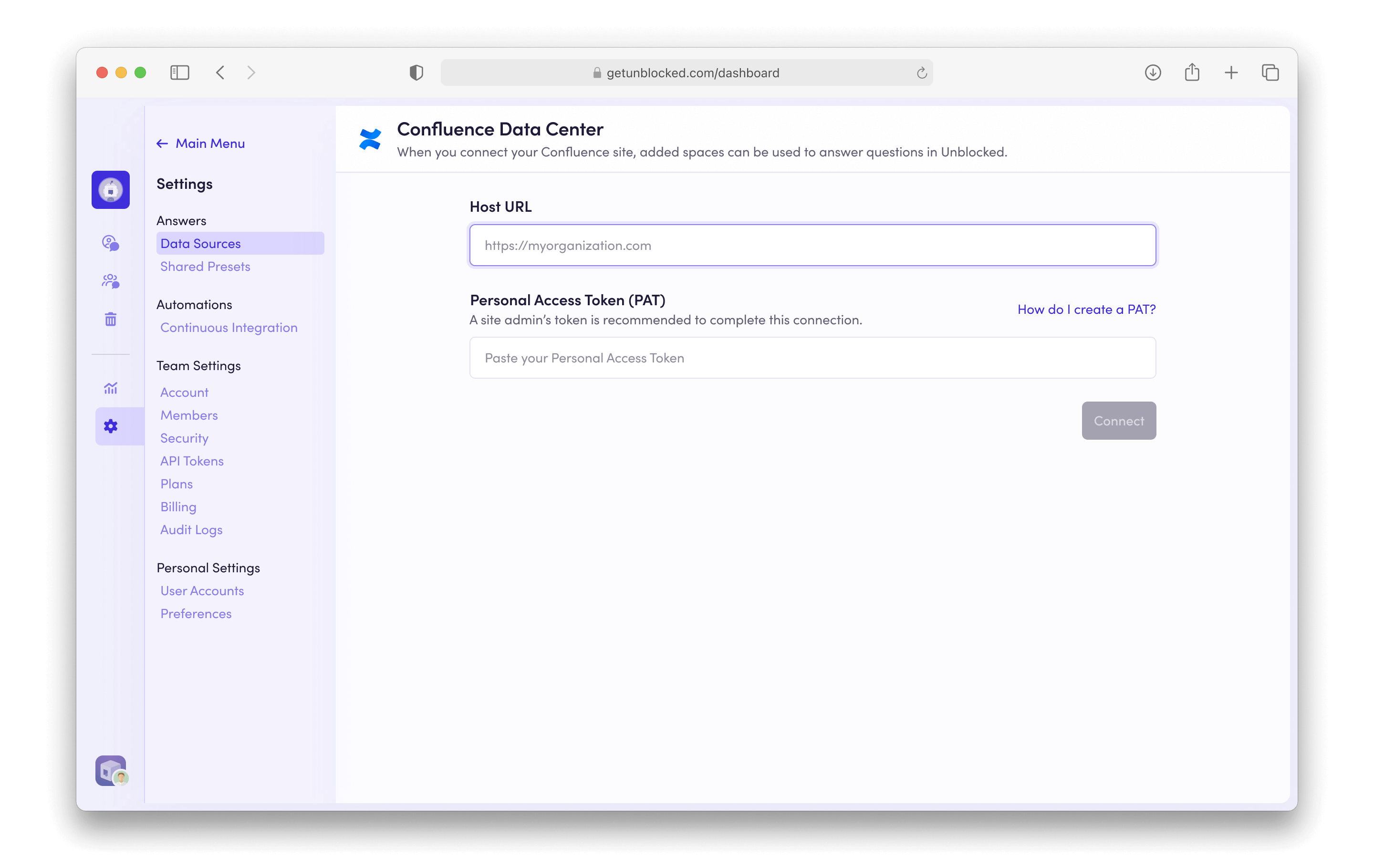
Once you've signed in, click **Settings** in the sidebar, then **Data Sources**. Select **Connect another Data Source**. Scroll to the documentation section and select **Confluence Data Center**.
This will present you with a form for connecting Confluence Data Center with Unblocked. Enter your team's Confluence Data Center site URL and your personal access token on this page.
 ### Creating a Personal Access Token
In order to connect with Unblocked, you will need a Confluence Data Center personal access token. If you prefer to create a new personal access token, you can do so within Confluence Data Center.
To create a personal access token, navigate to your Profile page, accessible by clicking on your avatar in the top right corner of your Confluence Data Center site. From your Profile page, select the Settings section, then Personal Access Tokens, and finally Create token.
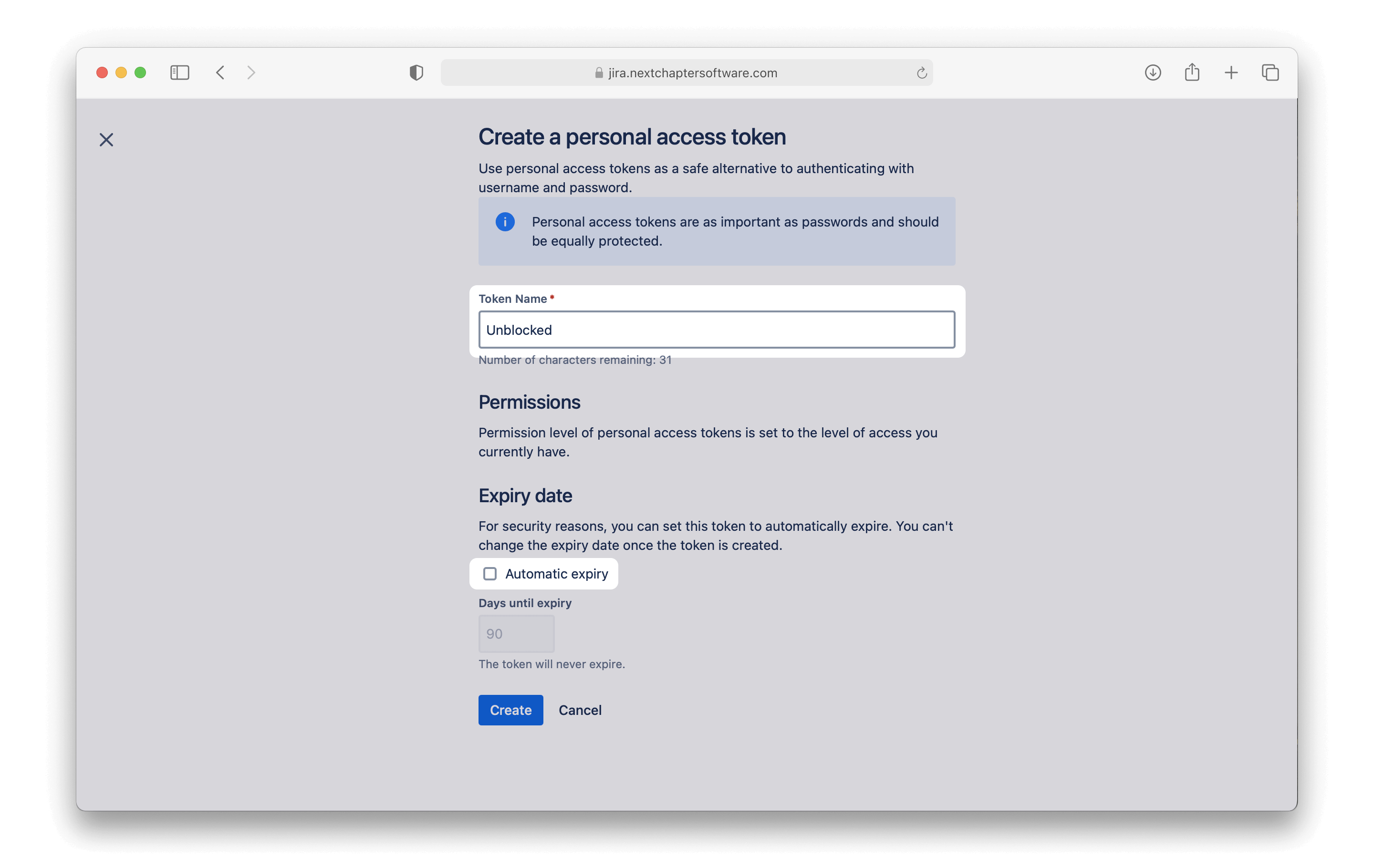
On the following page, provide a token name, ensure "Automatic expiry" is unchecked, and click Create. Copy the token then return to Unblocked to paste the code into the Personal Access Token (PAT) field.
### Creating a Personal Access Token
In order to connect with Unblocked, you will need a Confluence Data Center personal access token. If you prefer to create a new personal access token, you can do so within Confluence Data Center.
To create a personal access token, navigate to your Profile page, accessible by clicking on your avatar in the top right corner of your Confluence Data Center site. From your Profile page, select the Settings section, then Personal Access Tokens, and finally Create token.
On the following page, provide a token name, ensure "Automatic expiry" is unchecked, and click Create. Copy the token then return to Unblocked to paste the code into the Personal Access Token (PAT) field.
 ### Connecting Confluence Data Center
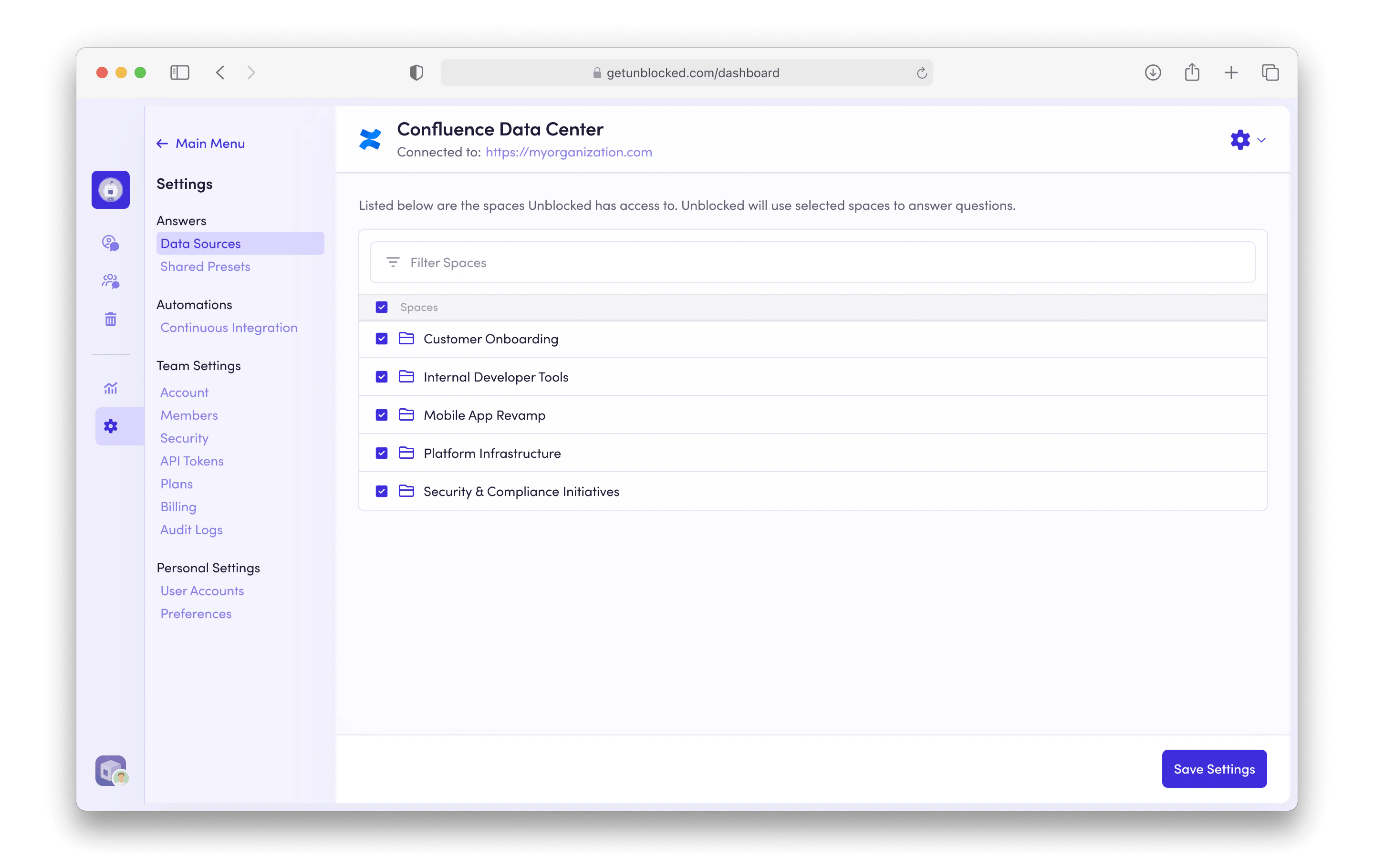 Once you connect Confluence Data Center, you have the option to grant access to specific spaces for Unblocked to index and search. You will be best served by granting access to all spaces, but you can always restrict the scope depending on your team's needs. Using [Data Shield](/team-settings/data-shield), you can also set access permissions that determine which content in your Confluence spaces will be used in Unblocked's answers.
Once you click **Save Settings**, Unblocked will begin referencing the pages and blog posts in your Confluence Data Center spaces in its answers.
Once you connect Confluence Data Center, you have the option to grant access to specific spaces for Unblocked to index and search. You will be best served by granting access to all spaces, but you can always restrict the scope depending on your team's needs. Using [Data Shield](/team-settings/data-shield), you can also set access permissions that determine which content in your Confluence spaces will be used in Unblocked's answers.
Once you click **Save Settings**, Unblocked will begin referencing the pages and blog posts in your Confluence Data Center spaces in its answers.