> ## Documentation Index
> Fetch the complete documentation index at: https://docs.getunblocked.com/llms.txt
> Use this file to discover all available pages before exploring further.
# Set up and configuration
> Configure Code Review settings for your team
## Setting up Code Review
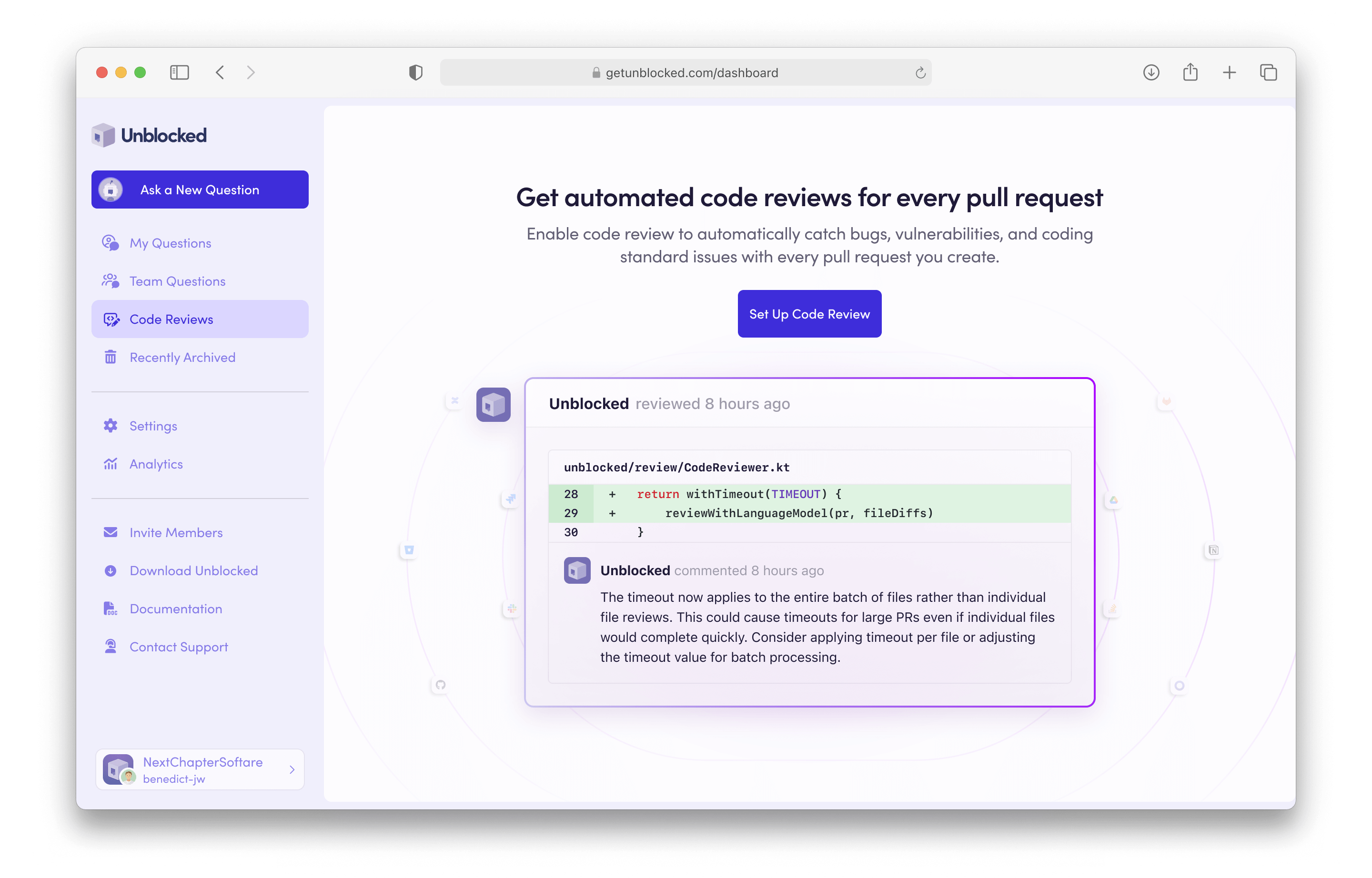
To set up Code Review for your Unblocked team, select Code Review from the left sidebar. Next, click **Set Up Code Review**. If you haven't connected your issue tracker, you'll be prompted to do so.
 ## Configure Code Review
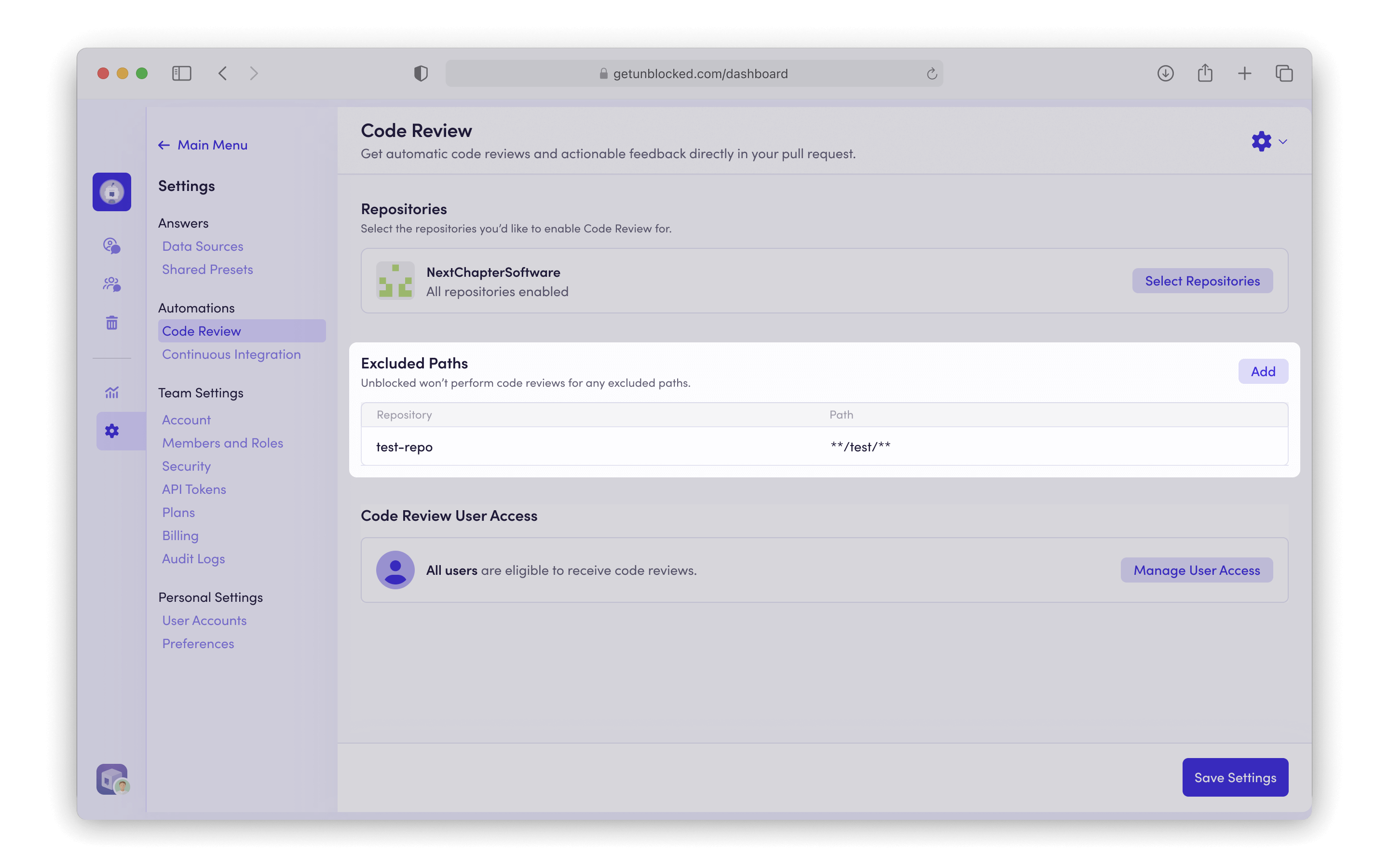
Once Code Review is enabled, you can adjust the settings to control how reviews are conducted. Click **Settings** in the sidebar, then select **Code Review**.
### Select repositories
Unblocked will automatically review pull requests only for repositories you select.
## Configure Code Review
Once Code Review is enabled, you can adjust the settings to control how reviews are conducted. Click **Settings** in the sidebar, then select **Code Review**.
### Select repositories
Unblocked will automatically review pull requests only for repositories you select.
 ### Code Review user access
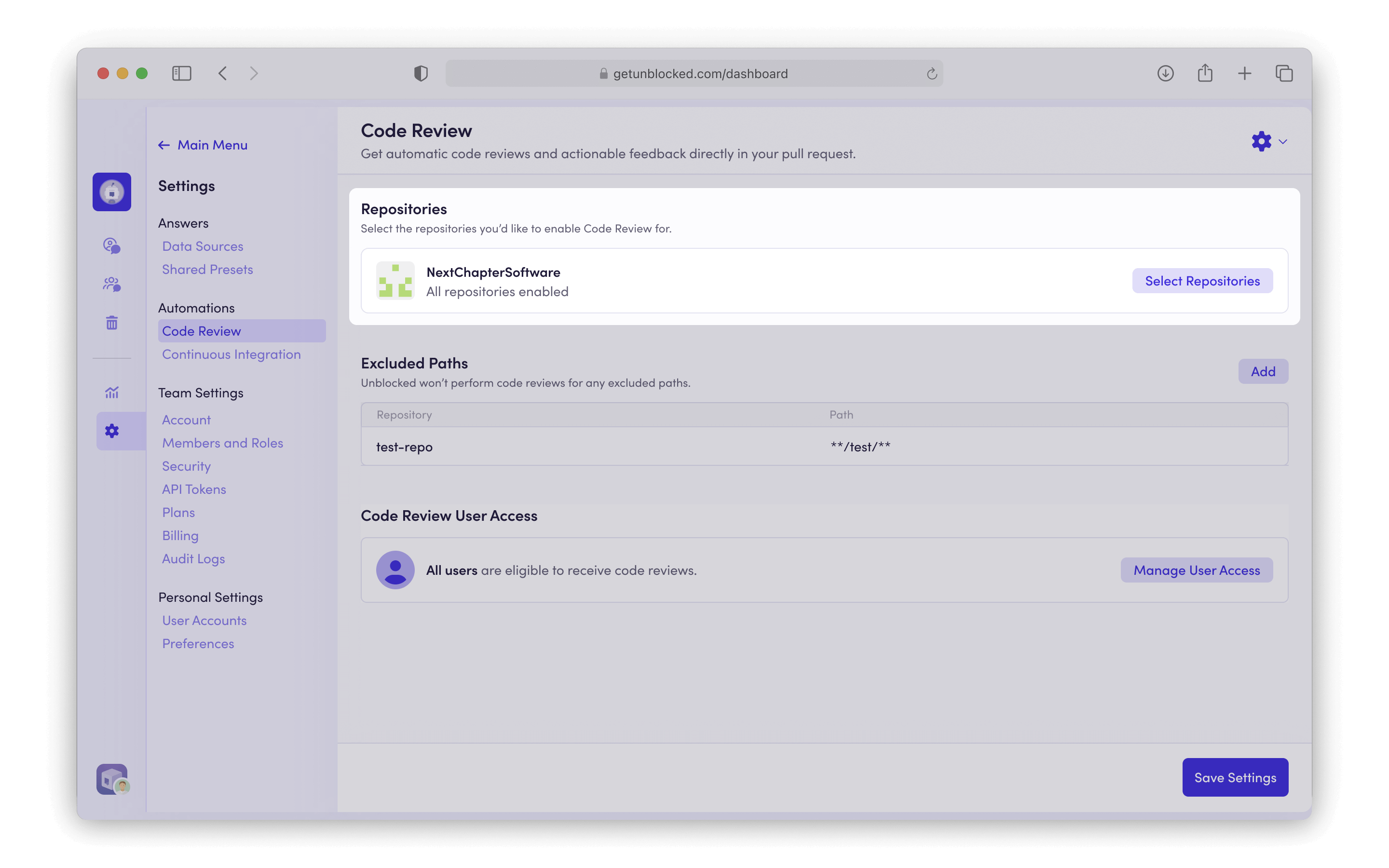
Use the **Code Review User Access** setting to control which users are eligible to receive automated code reviews.
By default, **All Users** is selected, so Unblocked will review pull requests for everyone in your workspace.
To limit reviews to specific people, choose **Specific Users** and select the users you want from the list.
Only pull requests authored by those users will receive automated code reviews.
Users who are not selected can still request a review manually by mentioning `@unblocked` in a PR comment. See [Requesting a review](/code-review/how-it-works#requesting-a-review-or-summary-with-%40unblocked) for details.
### Code Review user access
Use the **Code Review User Access** setting to control which users are eligible to receive automated code reviews.
By default, **All Users** is selected, so Unblocked will review pull requests for everyone in your workspace.
To limit reviews to specific people, choose **Specific Users** and select the users you want from the list.
Only pull requests authored by those users will receive automated code reviews.
Users who are not selected can still request a review manually by mentioning `@unblocked` in a PR comment. See [Requesting a review](/code-review/how-it-works#requesting-a-review-or-summary-with-%40unblocked) for details.
 ### Automated approval
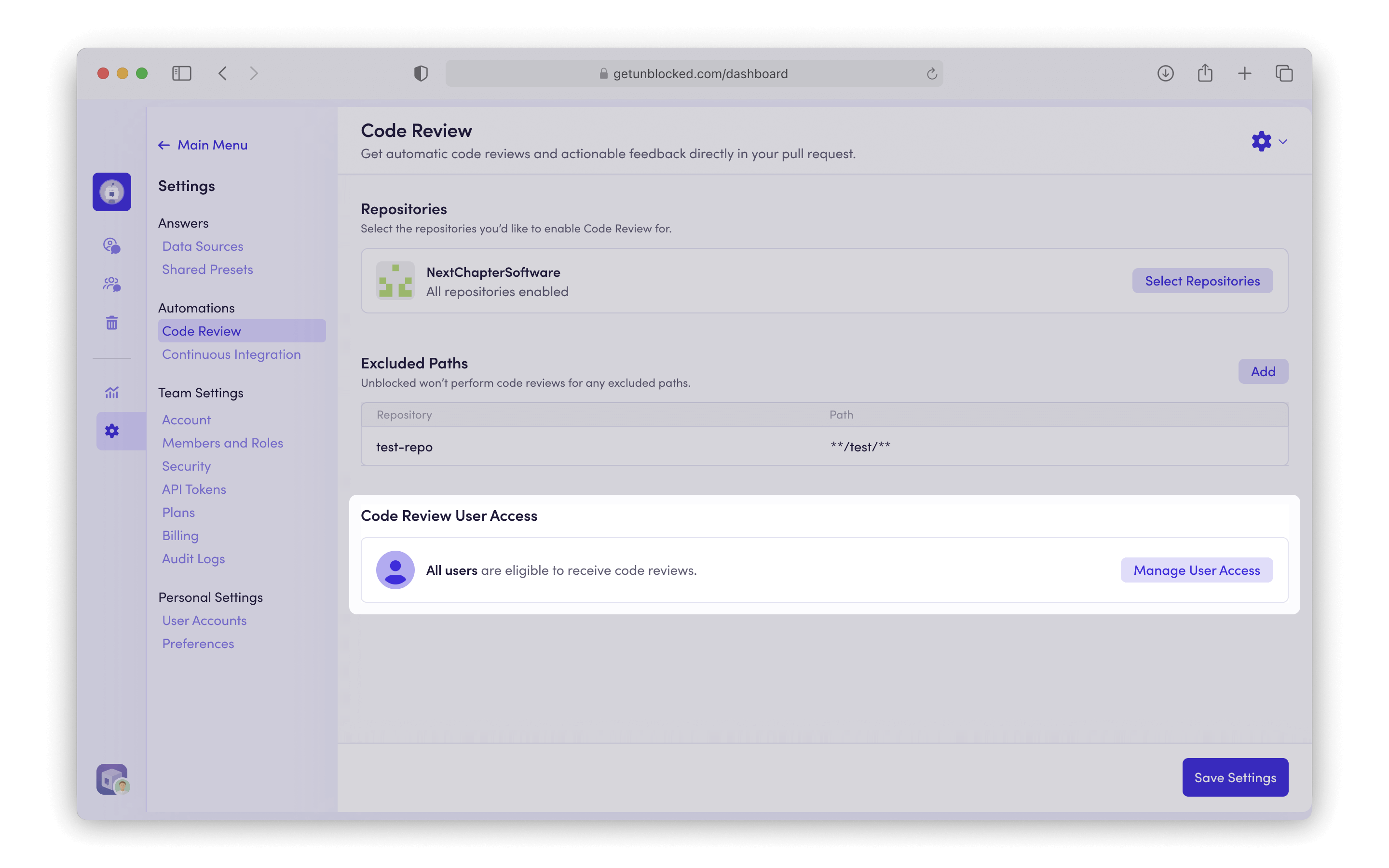
Use this setting to control what happens when Unblocked reviews a pull request and finds no issues. The options are:
* **Auto-approve** (default) — automatically approve the pull request
* **Comment** — leave a comment saying "No issues found"
* **Silent** — take no action
On GitHub, auto-approvals do NOT count toward required approvals under your branch protection rules, because Unblocked isn't a member of your organization.
Treat the AI approval as a pass signal, and keep human reviewers for final sign-off.
### Automated approval
Use this setting to control what happens when Unblocked reviews a pull request and finds no issues. The options are:
* **Auto-approve** (default) — automatically approve the pull request
* **Comment** — leave a comment saying "No issues found"
* **Silent** — take no action
On GitHub, auto-approvals do NOT count toward required approvals under your branch protection rules, because Unblocked isn't a member of your organization.
Treat the AI approval as a pass signal, and keep human reviewers for final sign-off.
 ### Custom rules
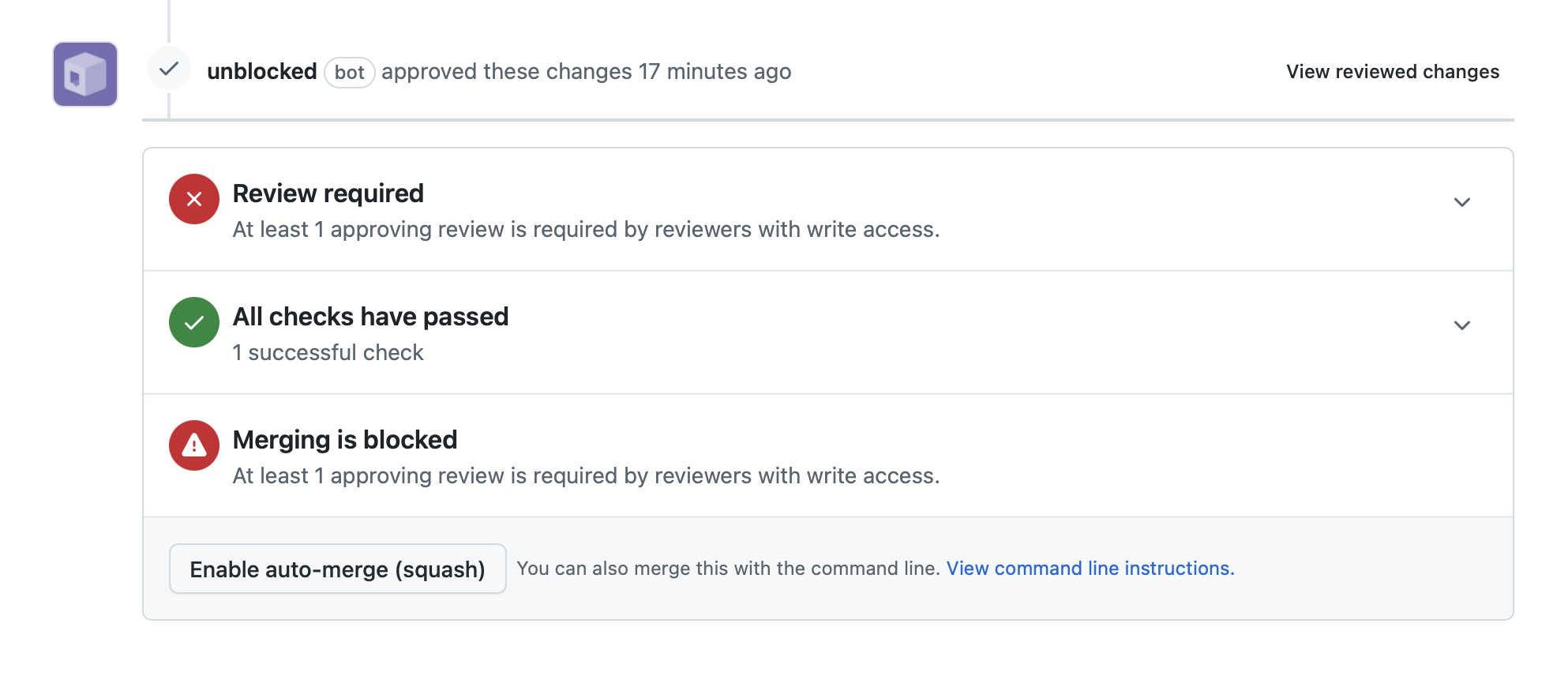
You can customize how Unblocked reviews code by providing instructions at two levels:
* **Repository instructions** — When enabled, Unblocked follows repository-specific instructions from a broad range of common repo rule files, including `AGENTS.md`, `CLAUDE.md`, `GEMINI.md`, `CONTRIBUTING.md`, and rules in common directories such as `.cursor/rules`, `.github/instructions`, and `.claude/rules`.
* **Global instructions** — Add instructions that apply to every repository in your workspace by entering up to 10 KB of plain text in the **Global instructions** field. Use this for organization-wide standards.
Both levels work together: global instructions set the baseline, and repository instructions add more targeted guidance.
For best results, keep instructions clear, concise, and actionable.
The [agents.md](https://agents.md) specification is a good reference for writing effective instructions.
### Excluded paths
You can configure custom path exclusion patterns to exclude specific files or directories from review.
These patterns use glob syntax and are applied when processing pull requests.
Common exclusion patterns include `*.md` to exclude all Markdown files at any depth, `src/test/**` to exclude all files under a specific directory from the repository root, and `package-lock.json` to exclude specific files. You can also exclude entire directories like `node_modules/**` or file types like `*.generated.js`.
### Custom rules
You can customize how Unblocked reviews code by providing instructions at two levels:
* **Repository instructions** — When enabled, Unblocked follows repository-specific instructions from a broad range of common repo rule files, including `AGENTS.md`, `CLAUDE.md`, `GEMINI.md`, `CONTRIBUTING.md`, and rules in common directories such as `.cursor/rules`, `.github/instructions`, and `.claude/rules`.
* **Global instructions** — Add instructions that apply to every repository in your workspace by entering up to 10 KB of plain text in the **Global instructions** field. Use this for organization-wide standards.
Both levels work together: global instructions set the baseline, and repository instructions add more targeted guidance.
For best results, keep instructions clear, concise, and actionable.
The [agents.md](https://agents.md) specification is a good reference for writing effective instructions.
### Excluded paths
You can configure custom path exclusion patterns to exclude specific files or directories from review.
These patterns use glob syntax and are applied when processing pull requests.
Common exclusion patterns include `*.md` to exclude all Markdown files at any depth, `src/test/**` to exclude all files under a specific directory from the repository root, and `package-lock.json` to exclude specific files. You can also exclude entire directories like `node_modules/**` or file types like `*.generated.js`.
 ### Select a bot account
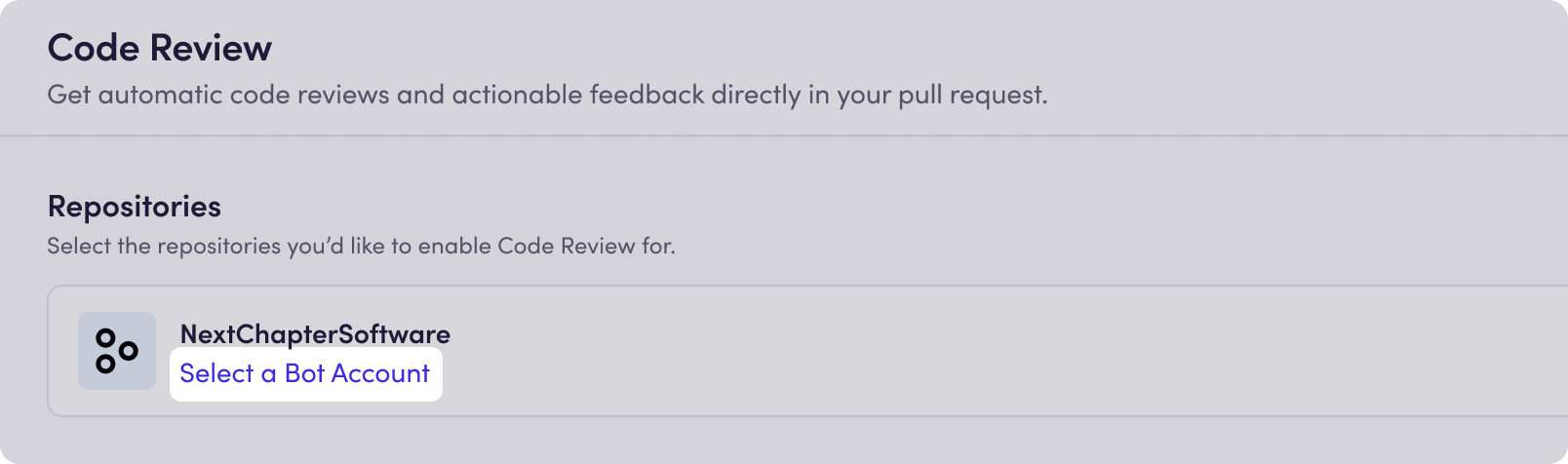
For Azure DevOps repositories, code review comments need to be posted on behalf of an Azure DevOps user account. We recommend creating an Unblocked bot account for this specific purpose.
* In the Microsoft Entra admin center, go to **Entra ID** > **Users**.
* Click **New user**, then select **Create new user**.
* Create a new user with the following information:
* **Name:** Unblocked
* **Avatar:** download and use the Unblocked logo below
### Select a bot account
For Azure DevOps repositories, code review comments need to be posted on behalf of an Azure DevOps user account. We recommend creating an Unblocked bot account for this specific purpose.
* In the Microsoft Entra admin center, go to **Entra ID** > **Users**.
* Click **New user**, then select **Create new user**.
* Create a new user with the following information:
* **Name:** Unblocked
* **Avatar:** download and use the Unblocked logo below
 Download PNG
* In Azure DevOps, sign in to your organization as a *Project Collection Administrator*.
* Click **Organization settings** > **Users**, then click **Add users**.
* Enter the bot user's email address.
* Set **Access level** to **Basic**.
* Under **Add to projects**, select each project where Unblocked should review pull requests.
* Set **Azure DevOps Groups** to **Project Contributors**.
* Click **Add**.
In Unblocked, search for the bot account you just created and select it. You may be required to authorize this account with Unblocked.
In order to successfully authorize your bot account, you need to be logged in with that account in Azure DevOps.
Download PNG
* In Azure DevOps, sign in to your organization as a *Project Collection Administrator*.
* Click **Organization settings** > **Users**, then click **Add users**.
* Enter the bot user's email address.
* Set **Access level** to **Basic**.
* Under **Add to projects**, select each project where Unblocked should review pull requests.
* Set **Azure DevOps Groups** to **Project Contributors**.
* Click **Add**.
In Unblocked, search for the bot account you just created and select it. You may be required to authorize this account with Unblocked.
In order to successfully authorize your bot account, you need to be logged in with that account in Azure DevOps.
 For Bitbucket Cloud repositories, code review comments need to be posted on behalf of a Bitbucket user account. We recommend creating an Unblocked bot account for this specific purpose.
* [Create a new account](https://id.atlassian.com/signup?application=bitbucket\&continue=https%3A%2F%2Fbitbucket.org\&prompt=select_account) in Bitbucket with the following information:
* **Name:** Unblocked
* **Avatar:** download and use the Unblocked logo below
Download PNG
* [Switch accounts](https://id.atlassian.com/login/select-account?application=bitbucket\&continue=https%3A%2F%2Fbitbucket.org) and sign in to your Bitbucket Workspace as a Workspace admin.
* Click the gear icon in the top right of the navigation bar, and select **User Management**.
* Invite your new bot user to your workspace.
* Accept the email invitation that was sent to your bot account.
In Unblocked, search for the bot account you just created and select it. You may be required to authorize this account with Unblocked.
In order to successfully authorize your bot account, you need to be logged in with that account in Bitbucket Cloud.
For Bitbucket Data Center repositories, code review comments need to be posted on behalf of a Bitbucket Data Center user account. We recommend creating an Unblocked bot account for this specific purpose.
* **Sign in** as an administrator in your Bitbucket Data Center instance.
* In the top navigation bar, click the admin icon.
* Under **Accounts**, select **Users**, then **Create user**.
* Create a new user account in Bitbucket Data Center with the following information:
* **Name:** Unblocked
* **Avatar:** download and use the Unblocked logo below
Download PNG
* Before the bot can access a project, it must be able to sign in to Bitbucket Data Center.
* Go to **Administration** > **Users**.
* Find your bot user and ensure it is assigned to a group.
* Go to **Administration** > **Global Permissions**.
* Ensure that group has the **Bitbucket User** permission.
* For each project Unblocked should review, navigate to **Project settings** > **Permissions**.
* Add the bot user and set the permission as "**Developer**" or above.
In Unblocked, search for the bot account you just created and select it. You may be required to authorize this account with Unblocked.
In order to successfully authorize your bot account, you need to be logged in with that account in Bitbucket Data Center.
For GitLab Cloud repositories, code review comments need to be posted on behalf of a GitLab account. We recommend creating an Unblocked bot account for this specific purpose.
You can use either a GitLab service account or a regular GitLab user account.
Regular users connect with OAuth, while service accounts connect with a token.
Decide which GitLab account type Unblocked should use for code review, then follow the matching instructions.
**GitLab service account**
* Create a [GitLab service account](https://docs.gitlab.com/user/profile/service_accounts/) for the top-level group.
* Create a token for the service account:
* From the service account page, select **Manage access tokens**.
* Click **Add new token**.
* Select the **api** and **read\_user** scopes.
* Click **Generate token** and copy the token.
**Regular GitLab user account**
* Create a new account in GitLab.
* In GitLab, set the regular user's profile information:
* **Name:** Unblocked
* **Avatar:** download and use the Unblocked logo below
Download PNG
* In GitLab, **sign in** as an Owner for the top-level group that contains the repositories Unblocked should review.
* In the top-level group, click **Manage** in the left navigation and select **Members**.
* Click **Invite members**.
* Invite the GitLab account you created for code review.
* Set the role as "**Developer**" or above and click "**Invite**".
In Unblocked, search for the GitLab account you created for code review and select it. If you select a regular user account, Unblocked will prompt you to authorize that account with GitLab. If you select a service account, Unblocked will prompt you to enter the token you created in GitLab.
Service accounts connect with a token and do not use the GitLab OAuth flow. Regular user accounts still use OAuth, so you need to be logged in to GitLab with that account when authorizing it.
For GitLab Self-Managed repositories, code review comments need to be posted on behalf of a GitLab account. We recommend creating an Unblocked bot account for this specific purpose.
You can use either a GitLab service account or a regular GitLab user account.
Regular users connect with OAuth, while service accounts connect with a token.
Decide which GitLab account type Unblocked should use for code review, then follow the matching instructions.
**GitLab service account**
* Create a [GitLab service account](https://docs.gitlab.com/user/profile/service_accounts/) in your GitLab instance.
* Create a token for the service account:
* From the service account page, select **Manage access tokens**.
* Click **Add new token**.
* Select the **api** and **read\_user** scopes.
* Click **Generate token** and copy the token.
**Regular GitLab user account**
* Create a new account in your GitLab instance.
* In GitLab Self-Managed, set the regular user's profile information:
* **Name:** Unblocked
* **Avatar:** download and use the Unblocked logo below
Download PNG
* In GitLab Self-Managed, **sign in** as an Owner or instance administrator for the top-level group that contains the repositories Unblocked should review.
* In the top-level group, click **Manage** in the left navigation and select **Members**.
* Click **Invite members**.
* Invite the GitLab account you created for code review.
* Set the role as "**Developer**" or above and click "**Invite**".
In Unblocked, search for the GitLab account you created for code review and select it. If you select a regular user account, Unblocked will prompt you to authorize that account with GitLab Self-Managed. If you select a service account, Unblocked will prompt you to enter the token you created in GitLab.
Service accounts connect with a token and do not use the GitLab OAuth flow. Regular user accounts still use OAuth, so you need to be logged in to GitLab with that account when authorizing it.
For Bitbucket Cloud repositories, code review comments need to be posted on behalf of a Bitbucket user account. We recommend creating an Unblocked bot account for this specific purpose.
* [Create a new account](https://id.atlassian.com/signup?application=bitbucket\&continue=https%3A%2F%2Fbitbucket.org\&prompt=select_account) in Bitbucket with the following information:
* **Name:** Unblocked
* **Avatar:** download and use the Unblocked logo below
Download PNG
* [Switch accounts](https://id.atlassian.com/login/select-account?application=bitbucket\&continue=https%3A%2F%2Fbitbucket.org) and sign in to your Bitbucket Workspace as a Workspace admin.
* Click the gear icon in the top right of the navigation bar, and select **User Management**.
* Invite your new bot user to your workspace.
* Accept the email invitation that was sent to your bot account.
In Unblocked, search for the bot account you just created and select it. You may be required to authorize this account with Unblocked.
In order to successfully authorize your bot account, you need to be logged in with that account in Bitbucket Cloud.
For Bitbucket Data Center repositories, code review comments need to be posted on behalf of a Bitbucket Data Center user account. We recommend creating an Unblocked bot account for this specific purpose.
* **Sign in** as an administrator in your Bitbucket Data Center instance.
* In the top navigation bar, click the admin icon.
* Under **Accounts**, select **Users**, then **Create user**.
* Create a new user account in Bitbucket Data Center with the following information:
* **Name:** Unblocked
* **Avatar:** download and use the Unblocked logo below
Download PNG
* Before the bot can access a project, it must be able to sign in to Bitbucket Data Center.
* Go to **Administration** > **Users**.
* Find your bot user and ensure it is assigned to a group.
* Go to **Administration** > **Global Permissions**.
* Ensure that group has the **Bitbucket User** permission.
* For each project Unblocked should review, navigate to **Project settings** > **Permissions**.
* Add the bot user and set the permission as "**Developer**" or above.
In Unblocked, search for the bot account you just created and select it. You may be required to authorize this account with Unblocked.
In order to successfully authorize your bot account, you need to be logged in with that account in Bitbucket Data Center.
For GitLab Cloud repositories, code review comments need to be posted on behalf of a GitLab account. We recommend creating an Unblocked bot account for this specific purpose.
You can use either a GitLab service account or a regular GitLab user account.
Regular users connect with OAuth, while service accounts connect with a token.
Decide which GitLab account type Unblocked should use for code review, then follow the matching instructions.
**GitLab service account**
* Create a [GitLab service account](https://docs.gitlab.com/user/profile/service_accounts/) for the top-level group.
* Create a token for the service account:
* From the service account page, select **Manage access tokens**.
* Click **Add new token**.
* Select the **api** and **read\_user** scopes.
* Click **Generate token** and copy the token.
**Regular GitLab user account**
* Create a new account in GitLab.
* In GitLab, set the regular user's profile information:
* **Name:** Unblocked
* **Avatar:** download and use the Unblocked logo below
Download PNG
* In GitLab, **sign in** as an Owner for the top-level group that contains the repositories Unblocked should review.
* In the top-level group, click **Manage** in the left navigation and select **Members**.
* Click **Invite members**.
* Invite the GitLab account you created for code review.
* Set the role as "**Developer**" or above and click "**Invite**".
In Unblocked, search for the GitLab account you created for code review and select it. If you select a regular user account, Unblocked will prompt you to authorize that account with GitLab. If you select a service account, Unblocked will prompt you to enter the token you created in GitLab.
Service accounts connect with a token and do not use the GitLab OAuth flow. Regular user accounts still use OAuth, so you need to be logged in to GitLab with that account when authorizing it.
For GitLab Self-Managed repositories, code review comments need to be posted on behalf of a GitLab account. We recommend creating an Unblocked bot account for this specific purpose.
You can use either a GitLab service account or a regular GitLab user account.
Regular users connect with OAuth, while service accounts connect with a token.
Decide which GitLab account type Unblocked should use for code review, then follow the matching instructions.
**GitLab service account**
* Create a [GitLab service account](https://docs.gitlab.com/user/profile/service_accounts/) in your GitLab instance.
* Create a token for the service account:
* From the service account page, select **Manage access tokens**.
* Click **Add new token**.
* Select the **api** and **read\_user** scopes.
* Click **Generate token** and copy the token.
**Regular GitLab user account**
* Create a new account in your GitLab instance.
* In GitLab Self-Managed, set the regular user's profile information:
* **Name:** Unblocked
* **Avatar:** download and use the Unblocked logo below
Download PNG
* In GitLab Self-Managed, **sign in** as an Owner or instance administrator for the top-level group that contains the repositories Unblocked should review.
* In the top-level group, click **Manage** in the left navigation and select **Members**.
* Click **Invite members**.
* Invite the GitLab account you created for code review.
* Set the role as "**Developer**" or above and click "**Invite**".
In Unblocked, search for the GitLab account you created for code review and select it. If you select a regular user account, Unblocked will prompt you to authorize that account with GitLab Self-Managed. If you select a service account, Unblocked will prompt you to enter the token you created in GitLab.
Service accounts connect with a token and do not use the GitLab OAuth flow. Regular user accounts still use OAuth, so you need to be logged in to GitLab with that account when authorizing it.