> ## Documentation Index
> Fetch the complete documentation index at: https://docs.getunblocked.com/llms.txt
> Use this file to discover all available pages before exploring further.
# Managing your plan
> How to change plans and manage users
If you're using Unblocked on the [Code Review or Platform plan](/billing/unblocked-plans), you can change your plan details at any point.
To make changes to an Enterprise plan, please contact our sales team.
### Updating your plan
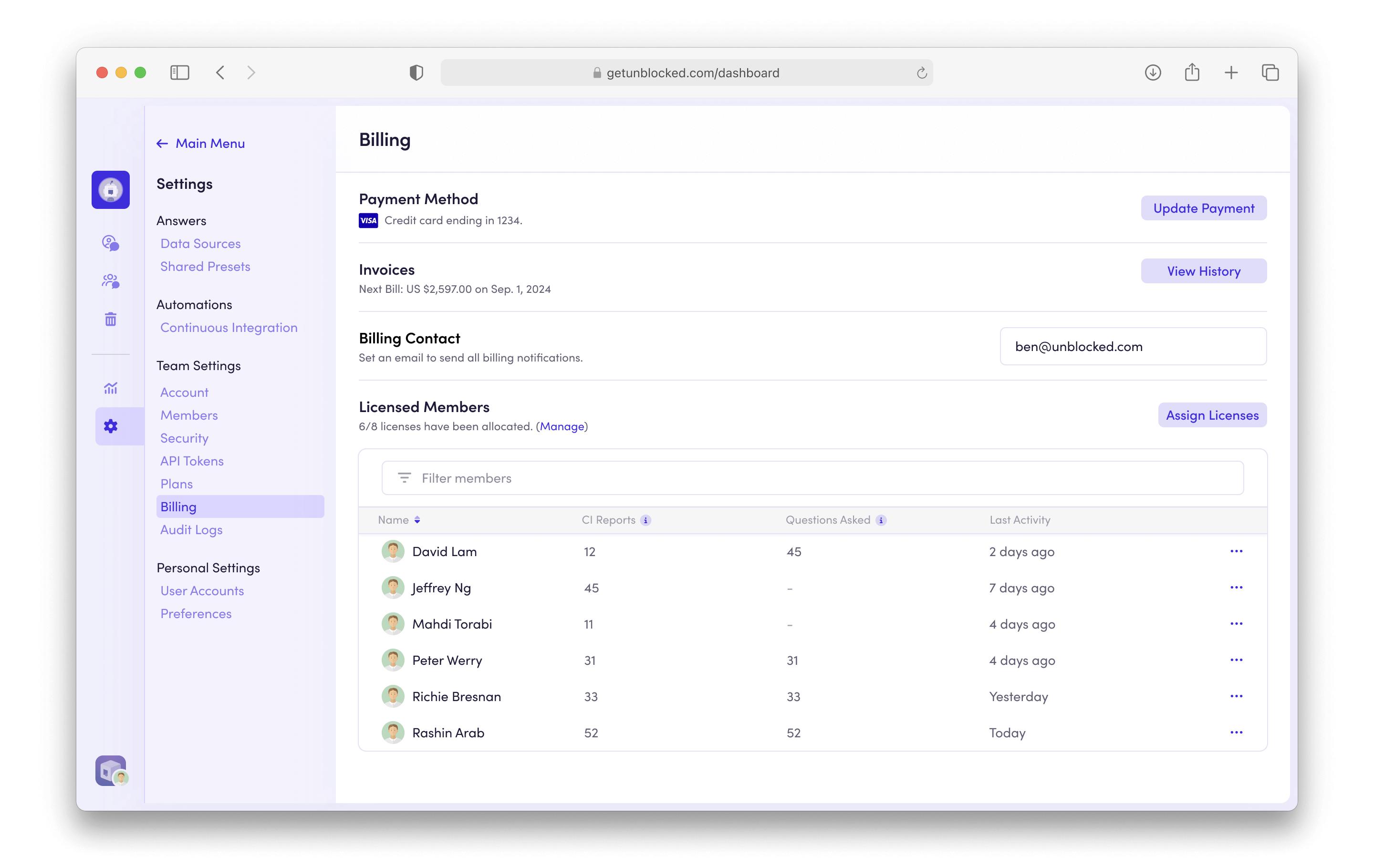
To update your payment details or manage and assign licenses, sign in to Unblocked on the web, and then click **Settings** in the sidebar of the Unblocked web app.
Under **Team Settings**, select **Billing**. Here you'll see your team's current plan details.
 ### Adding users to your team
If your team is using SSO with Unblocked, please refer to [that
article](/team-settings/sso) for instructions on adding users.
You can add users at any point in your billing cycle. To do so, follow the instructions in the [inviting users article](/inviting-users).
You'll be charged a prorated amount for any users who are added during a billing cycle. Users who are added to your plan claim their license when they ask Unblocked their first question. These members will appear in the **Licensed Members** table.
### Removing users from a paid license
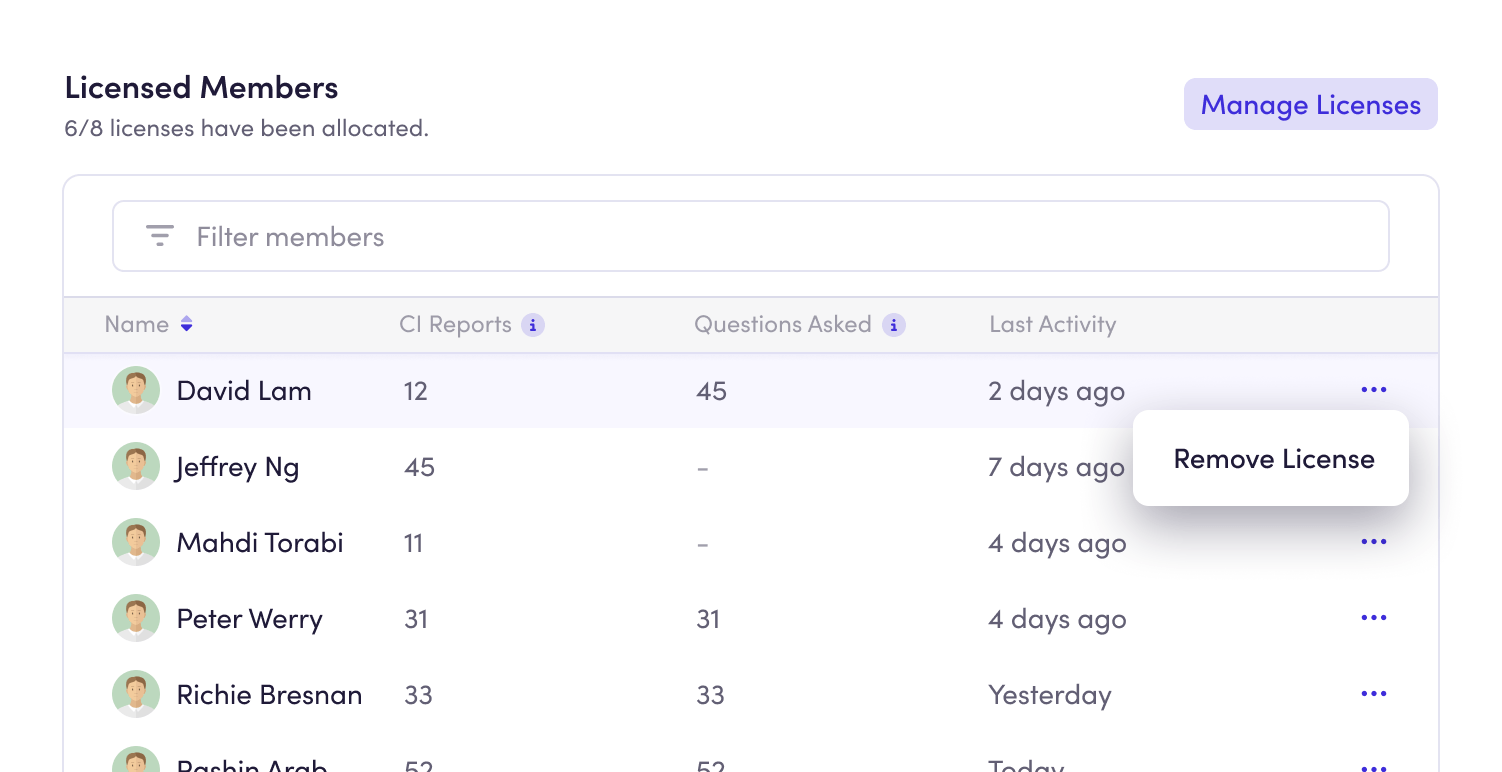
The **Licensed Members** table shows all users who have been assigned a license for your Unblocked workspace.
Select the three dot menu next to a user and then choose **Remove License** from the dropdown menu.
You'll then be asked to confirm that you want to remove a license for this user. This license can now be assumed by any new members on your team.
Users who have been removed from a paid license will still have access to your
Unblocked Team and their past questions.
### Managing Licenses
You can manage the number of licenses you want to pay for and set how you want to assign licenses to new team members.
Under the **Manage Licenses** section, click the **Manage Licenses** button.
### Adding users to your team
If your team is using SSO with Unblocked, please refer to [that
article](/team-settings/sso) for instructions on adding users.
You can add users at any point in your billing cycle. To do so, follow the instructions in the [inviting users article](/inviting-users).
You'll be charged a prorated amount for any users who are added during a billing cycle. Users who are added to your plan claim their license when they ask Unblocked their first question. These members will appear in the **Licensed Members** table.
### Removing users from a paid license
The **Licensed Members** table shows all users who have been assigned a license for your Unblocked workspace.
Select the three dot menu next to a user and then choose **Remove License** from the dropdown menu.
You'll then be asked to confirm that you want to remove a license for this user. This license can now be assumed by any new members on your team.
Users who have been removed from a paid license will still have access to your
Unblocked Team and their past questions.
### Managing Licenses
You can manage the number of licenses you want to pay for and set how you want to assign licenses to new team members.
Under the **Manage Licenses** section, click the **Manage Licenses** button.
 #### Paid Licenses
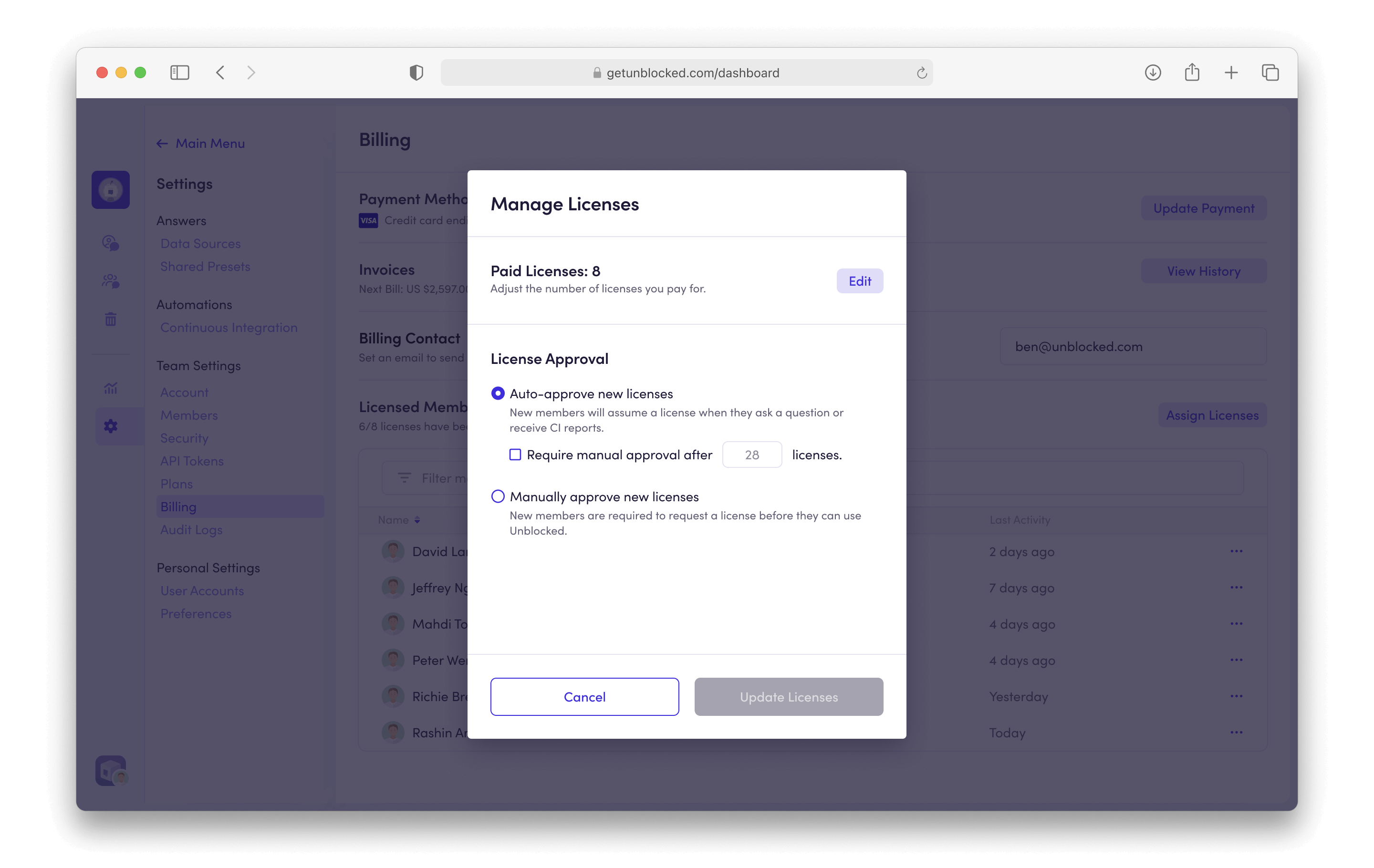
You can adjust the number of licenses you pay for by clicking **Edit**, then changing your licenses count. When you decrease your license count, the updated costs will be reflected on your next bill.
The number of licenses can only be decreased to the total number of users with
an assigned license. To go below this number, you'll need to remove a license
from a user.
#### License Approval
You can manage how you want licenses assigned to new members who join your team.
**Auto-approve new licenses:** When this is set, a license will automatically be assigned to new members who ask a question or receive more than 3 reports from the Code Review and/or CI Failure Agent.
To set a maximum limit for automatically assigned licenses, select **`Require manual approval after n licenses`**. When this number is reached, new members will have to [request a license](/request-license) to keep using Unblocked.
**Manually approve new licenses**: All members requesting a license will require manual approval from an Unblocked Admin.
#### Paid Licenses
You can adjust the number of licenses you pay for by clicking **Edit**, then changing your licenses count. When you decrease your license count, the updated costs will be reflected on your next bill.
The number of licenses can only be decreased to the total number of users with
an assigned license. To go below this number, you'll need to remove a license
from a user.
#### License Approval
You can manage how you want licenses assigned to new members who join your team.
**Auto-approve new licenses:** When this is set, a license will automatically be assigned to new members who ask a question or receive more than 3 reports from the Code Review and/or CI Failure Agent.
To set a maximum limit for automatically assigned licenses, select **`Require manual approval after n licenses`**. When this number is reached, new members will have to [request a license](/request-license) to keep using Unblocked.
**Manually approve new licenses**: All members requesting a license will require manual approval from an Unblocked Admin.