> ## Documentation Index
> Fetch the complete documentation index at: https://docs.getunblocked.com/llms.txt
> Use this file to discover all available pages before exploring further.
# Changing your payment method
> How to update your credit or debit card
For customers on the Code Review or Platform plan, you can update your credit or debit card at any time.
To do so, sign in to Unblocked on the web, and then click **Settings** in the sidebar of the Unblocked web app.
Under **Team Settings**, select **Billing**. Here you'll see your Unblocked plan and your current payment method.
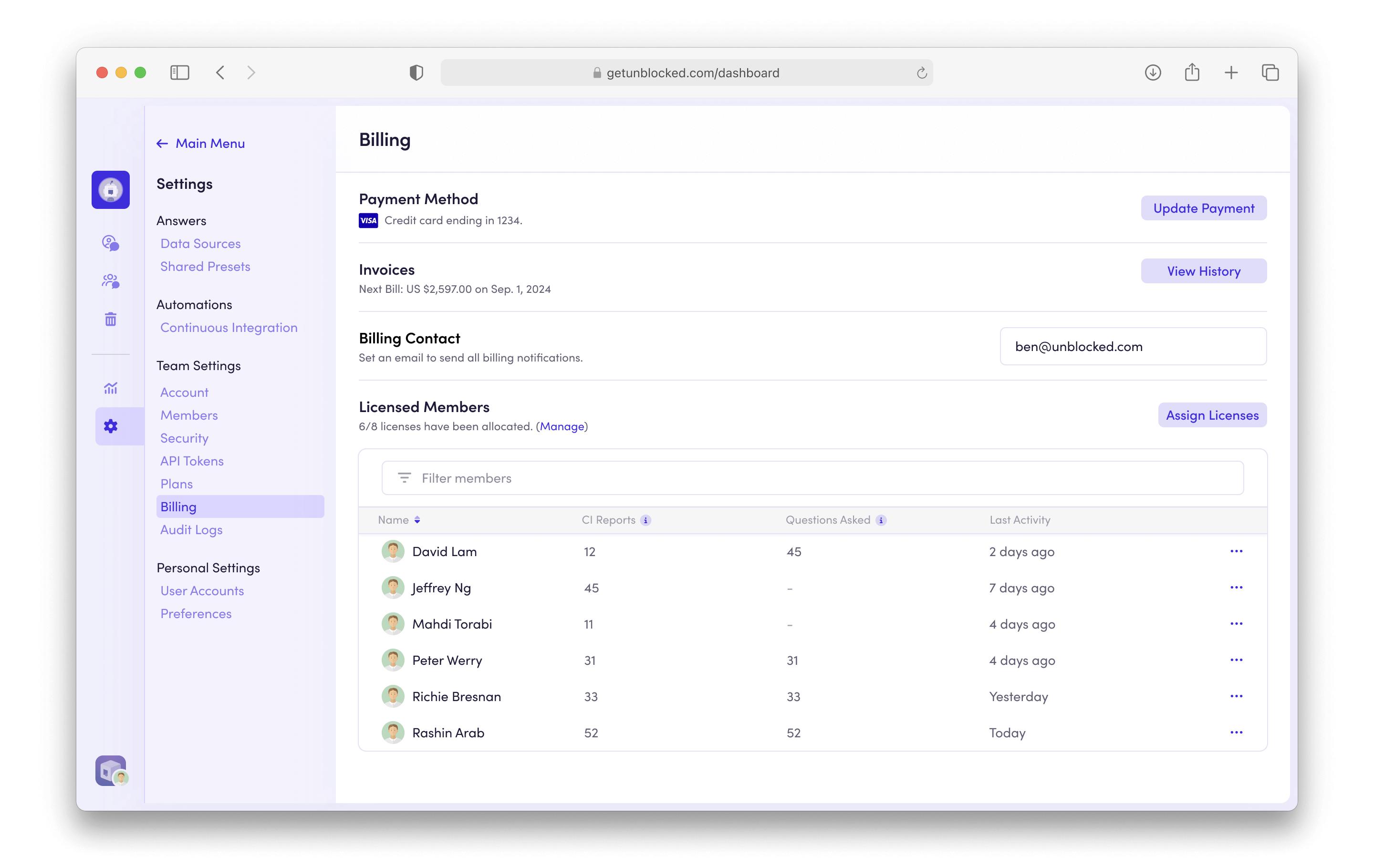 To add a new credit card, select **Update payment**. You'll then be prompted to enter the details for a new credit or debit card. Once you're done select **Update payment method** to save your card details.
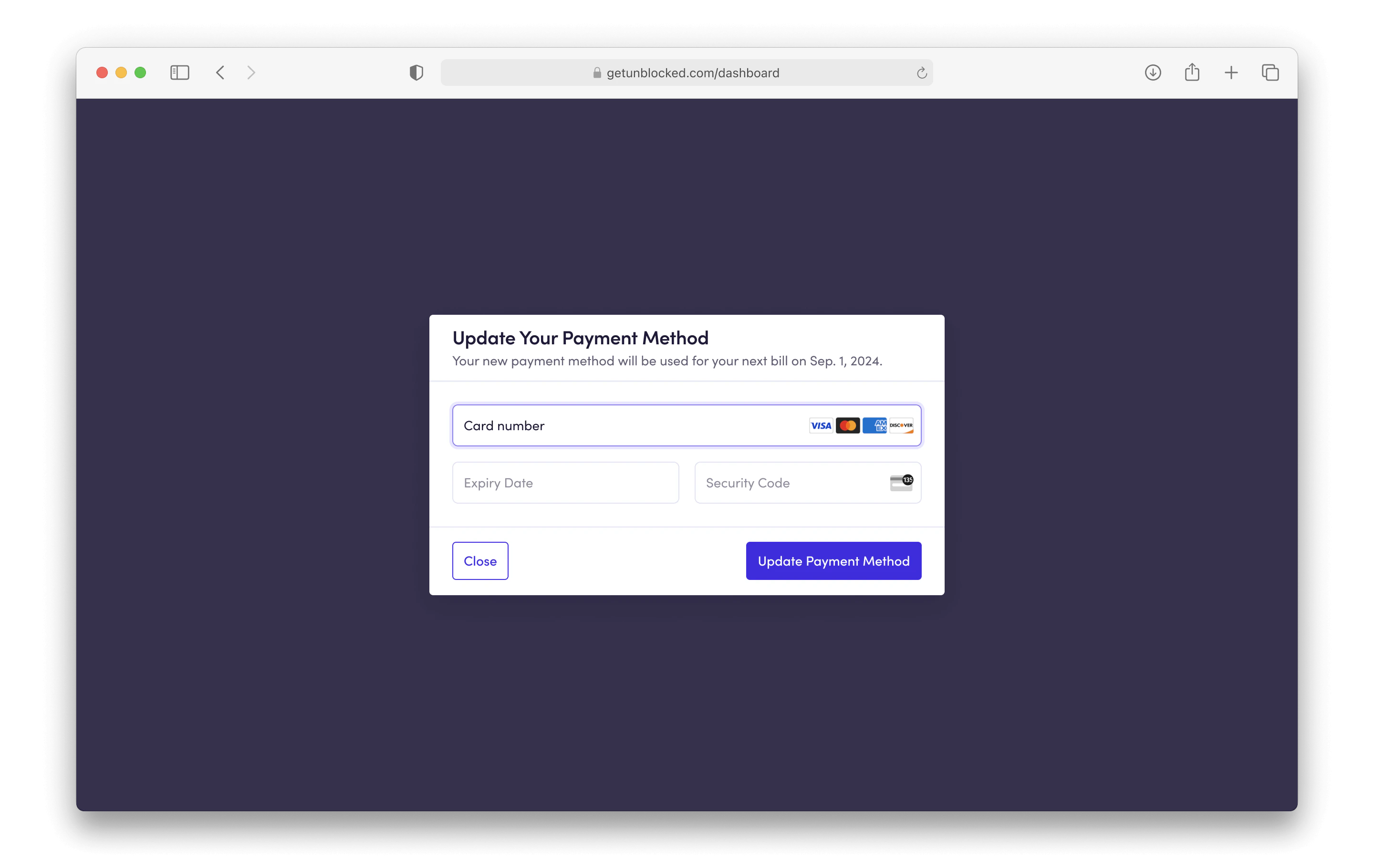 Your new card will charge at the start of your next billing cycle.